
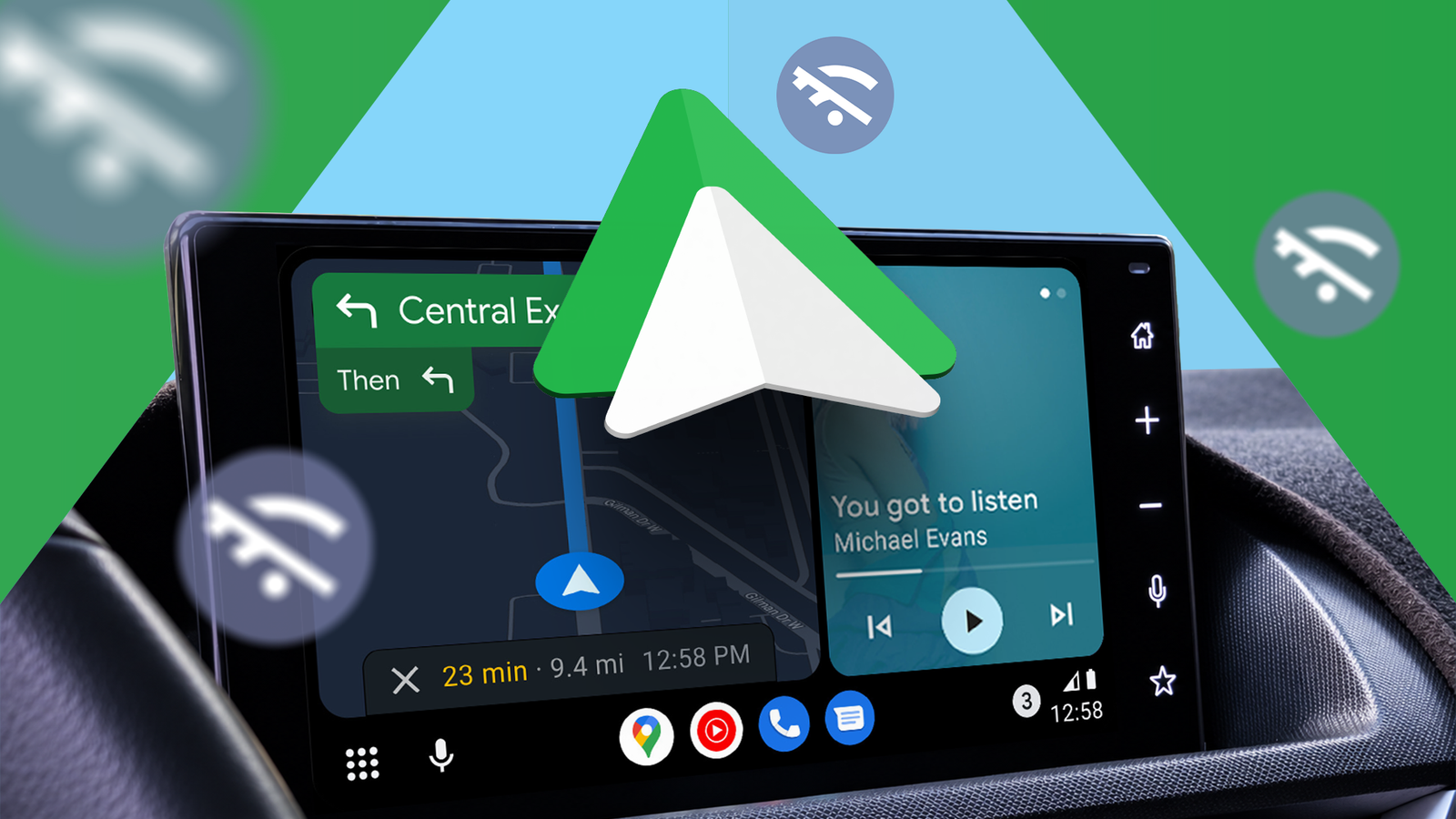
Published Nov 7, 2026, 6:30 AM EST I cover Android with a focus on productivity, automation, and Google’s ecosystem, including Gemini and everyday apps. With a background in engineering and software development, I tend to go beyond surface-level tips. Before joining AP, I wrote for tech publications such as Gizbot in 2023 and iJunkie (formerly known as iPhoneHacks) from 2021 to 2022. Road trips are always more enjoyable when I can focus on the journey instead of worrying about my phone's battery running out. That's easier said than done when Android Auto keeps navigation running and music playing for hours. I realized how much of a problem this could be when I forgot my charging cable on a road trip. Now, I have a quick Android Auto setup that comes in handy for long drives, especially when I can't count on a reliable internet connection or a way to charge my phone. I download Google Maps areas before leaving It's useful for offline navigation Google Maps is one of the first apps I prepare for a road trip. I don't want to lose mobile coverage as I approach an unfamiliar junction or search for a turnoff. Downloading the map area in advance gives me a useful backup when connectivity becomes unreliable. To download a map, open Maps on your phone, tap your profile picture, and select Offline maps. Tap Select your own map, adjust the highlighted area to cover your route, and tap Download. I make sure the selected area is large enough to include my starting point, destination, and surrounding roads. If I'm traveling through several towns or taking a long route, I may need to download multiple areas. After I connect my phone to Android Auto, I can use Google Maps on the car's display. If I lose connectivity, the downloaded map provides turn-by-turn navigation within its coverage area. However, there is one trade-off. Offline maps don't provide live traffic information, and some online features, such as alternative routes based on current road conditions, won't be available. Still, I prefer having a reliable map available to being left without directions altogether. Download playlists instead of streaming them I save my road-trip playlists for offline listening Music makes long drives more enjoyable, but streaming is unreliable when you're traveling through areas with patchy mobile coverage. A song buffering halfway through is annoying enough; having an entire playlist become unavailable is worse. I use Spotify to download playlists I know I'll want to listen to during the journey. Whether you use YouTube Music or Spotify, check that the tracks are downloaded to your phone. After the tracks are stored locally, I access them through the app's Android Auto interface without streaming each song over mobile data. I usually download a mix of familiar favorites and longer playlists so I don't have to keep searching for something to play. It also means I can avoid repeatedly switching between apps or waking up my phone screen while driving. I keep my phone from overheating on long journeys Cut down on battery drain Credit: Lucas Gouveia / Android Police | jittawit21 / Shutterstock One of the biggest advantages of preparing Android Auto for offline use is that my phone has less work to do while I am driving. Navigation apps, music streaming, GPS, and constant mobile data usage can contribute to battery drain and heat buildup, especially during long journeys. This becomes even more noticeable when I am traveling through areas with poor reception, where the phone may work harder to maintain a network connection. By downloading Google Maps areas and music playlists beforehand, I can avoid repeatedly fetching map data and streaming songs over mobile data. That does not eliminate the workload of running Android Auto or using GPS, but it reduces some background activity. This is particularly useful when I don't have a charging cable handy. Keeping the phone screen off, avoiding unnecessary mobile data usage, and relying on downloaded content can help stretch the battery further. It can also reduce the heat generated by prolonged data transfers. I also make sure my phone isn't sitting in direct sunlight or a poorly ventilated area, since the temperature inside a car can make overheating worse. A little preparation goes a long way on road trips I don't always remember to pack my charging cable before heading out, and I don't want a low battery or unreliable reception to get in the way of a road trip. This simple Android Auto setup has saved me more than once, especially when I need my phone to last during a long journey. It takes only a few minutes, but it means I can keep navigating and enjoying my music without relying much on mobile data. It's a small change to my routine, but I'm always glad I took the time to prepare before hitting the road.
This quick Android Auto setup has saved my road trips more than once
Full Article
Original Source
Read the full article at Androidpolice →KhanList aggregates and links to publicly available news content. We do not host full articles from third-party sources. Always verify important information with original sources.