
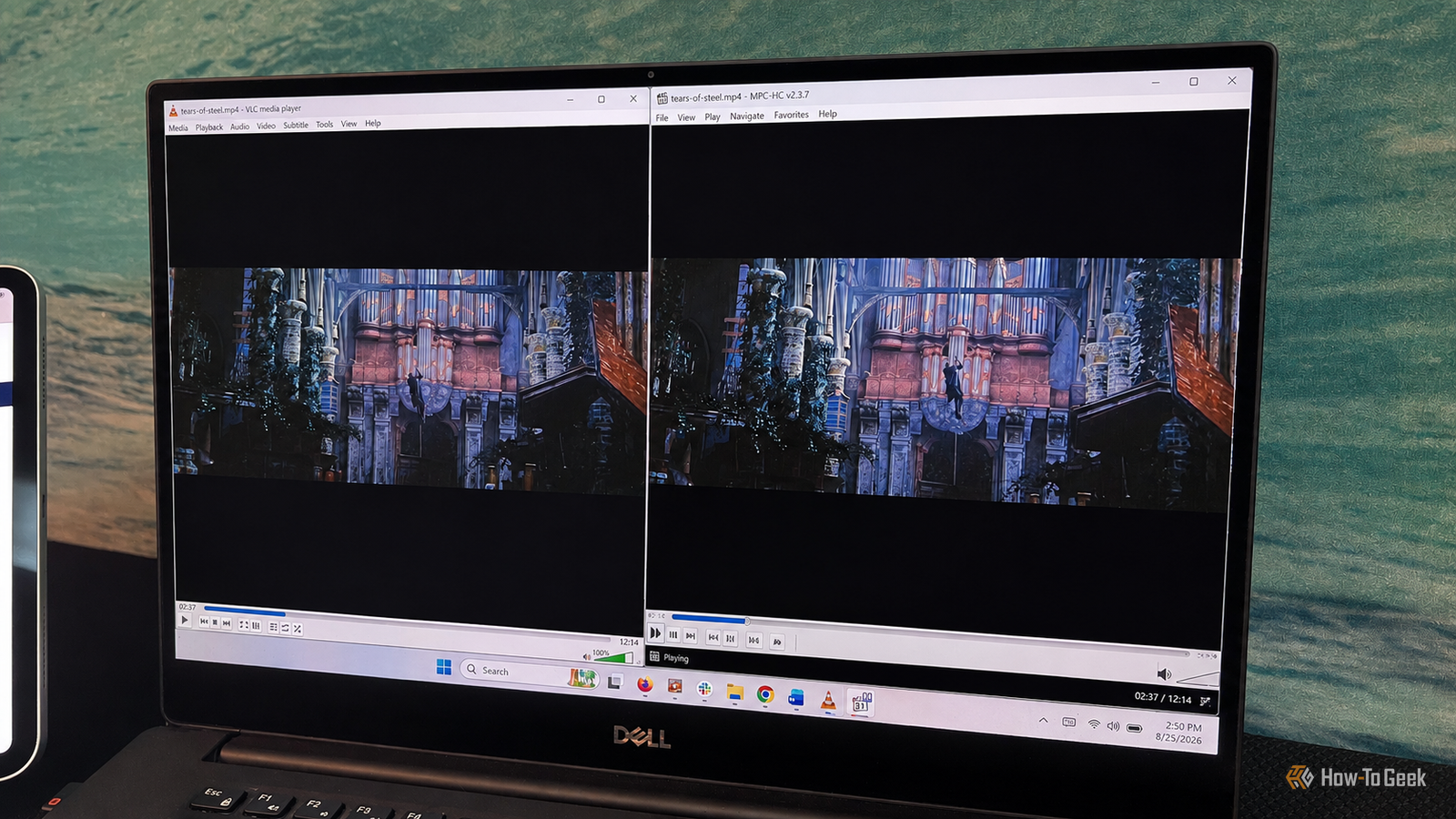
Published Aug 27, 2026, 12:00 PM EDT Rich Hein is a veteran technology journalist with more than two decades covering developer, consumer and enterprise topics. Rich's career has been dedicated to service journalism, connecting readers to content that informs and delights. Previously, Rich was vice president and editor-in-chief for Simpler Media Group, director of audience development for IDG and editor/writer for sites like CIO.com, ComputerWorld, CodeGuru and other tech-centric publications. He's received numerous accolades, including the IDG Summit and Azbee awards and has been covered by Medium for his work in audience development. When not at his desk, Rich lives in Daytona Beach with his wife and three dogs. He enjoys playing guitar, surfing and staying abreast of the latest in tech. I've been a VLC user for years, and I still like it. It plays just about anything, works across platforms, and includes far more features than I usually need. The thing is, most of the time I'm not streaming over a network or digging into advanced playback settings. I'm just double-clicking a video file and watching it. As a Windows user, that's where MPC-HC started to make more sense to me. It's free, open-source, built specifically for Windows, and less complicated for everyday playback. It feels more like a straightforward video player than a full media toolkit, which is exactly what I want most of the time. MPC-HC is built around straightforward playback A simple interface hides plenty of options The first thing I noticed about MPC-HC is how little there is between opening a file and watching it. The main window sticks to the basics, with a traditional menu bar, seek bar, playback controls, and volume control. There are no side panels or extra interface elements competing for space. You can pare it back even further by hiding most of the controls during playback or pressing 1 to leave essentially nothing on screen but the video. That simplicity doesn't mean the interface is stuck in the past. The actively maintained fork of MPC-HC (by clsid2) features light and dark themes, a customizable toolbar, and a customizable seek bar, but those options stay out of sight until you want them. For the way I usually watch videos on Windows, I prefer that approach. I open a file, hit play, and MPC-HC mostly disappears. It handles nearly every video file I throw at it I haven't had to think much about codecs One of the reasons I've stuck with VLC for so long is that I rarely have to worry about whether a file will play. MPC-HC has been the same way so far. It uses LAV Filters for decoding, and the current build supports common formats such as H.264, HEVC, VP9, AV1, MPEG-2, and a long list of older formats as well. In practice, that means I can open the mix of MP4, MKV, and older video files I already have without hunting down extra codec packs first. A VLC replacement doesn't need to win a format-counting contest. It just needs to open the files I use without turning playback into a troubleshooting project. MPC-HC handles demanding video without feeling heavy Hardware acceleration keeps more of the work off the CPU A lightweight player isn't much use if it starts struggling the moment you open a high-resolution video. MPC-HC handled the 1080p HEVC files I tested without any obvious stuttering, and Windows showed that it was using the GPU to help with playback instead of relying entirely on the CPU for video decoding. VLC also uses GPU acceleration, so this isn't something MPC-HC does that VLC can't. The difference for me is that MPC-HC still feels lighter while doing the same kind of work. I can open a demanding file and let the hardware handle playback in the background without thinking about it. MPC-HC's playback controls go further Frame-by-frame navigation is much easier to work with One place where MPC-HC has a clear advantage is when I need to land on a specific frame. It has dedicated frame-step controls, and you can move forward one frame at a time or right-click the frame-step button to move backward. That makes it much easier to stop on an exact moment when I'm checking a video, grabbing a screenshot, or trying to see something that flashes by too quickly. MPC-HC also supports A-B repeat if I want to loop a short section while I'm looking at it. VLC has frame-by-frame playback too, with E moving to the next frame, but going backward has traditionally been the weak spot. VideoLAN's own issue tracker has requests specifically asking for a previous-frame command because VLC doesn't provide the same straightforward backward stepping. That's not something I need every time I watch a video, but when I do need precise navigation, MPC-HC feels better suited to the job. The player worth choosing on Windows After using MPC-HC for a while, I've started reaching for it before VLC on Windows. It opens quickly and gives me the playback controls I care about when I need them. MPC-HC doesn't feel like a smaller version of VLC. It feels like a player built for people who mostly want to open a video and watch it without dealing with much else. I haven't run into problems with the files I use, and the extra control over playback is there when I need it. VLC still has the advantage for users who want the same media player across Windows, macOS, and Linux. For Windows users, though, MPC-HC is a simpler fit that handles everyday playback without making the experience more complicated than it needs to be.
This free VLC alternative for Windows keeps things simple without losing the essentials
Full Article
Original Source
Read the full article at Howtogeek →KhanList aggregates and links to publicly available news content. We do not host full articles from third-party sources. Always verify important information with original sources.