
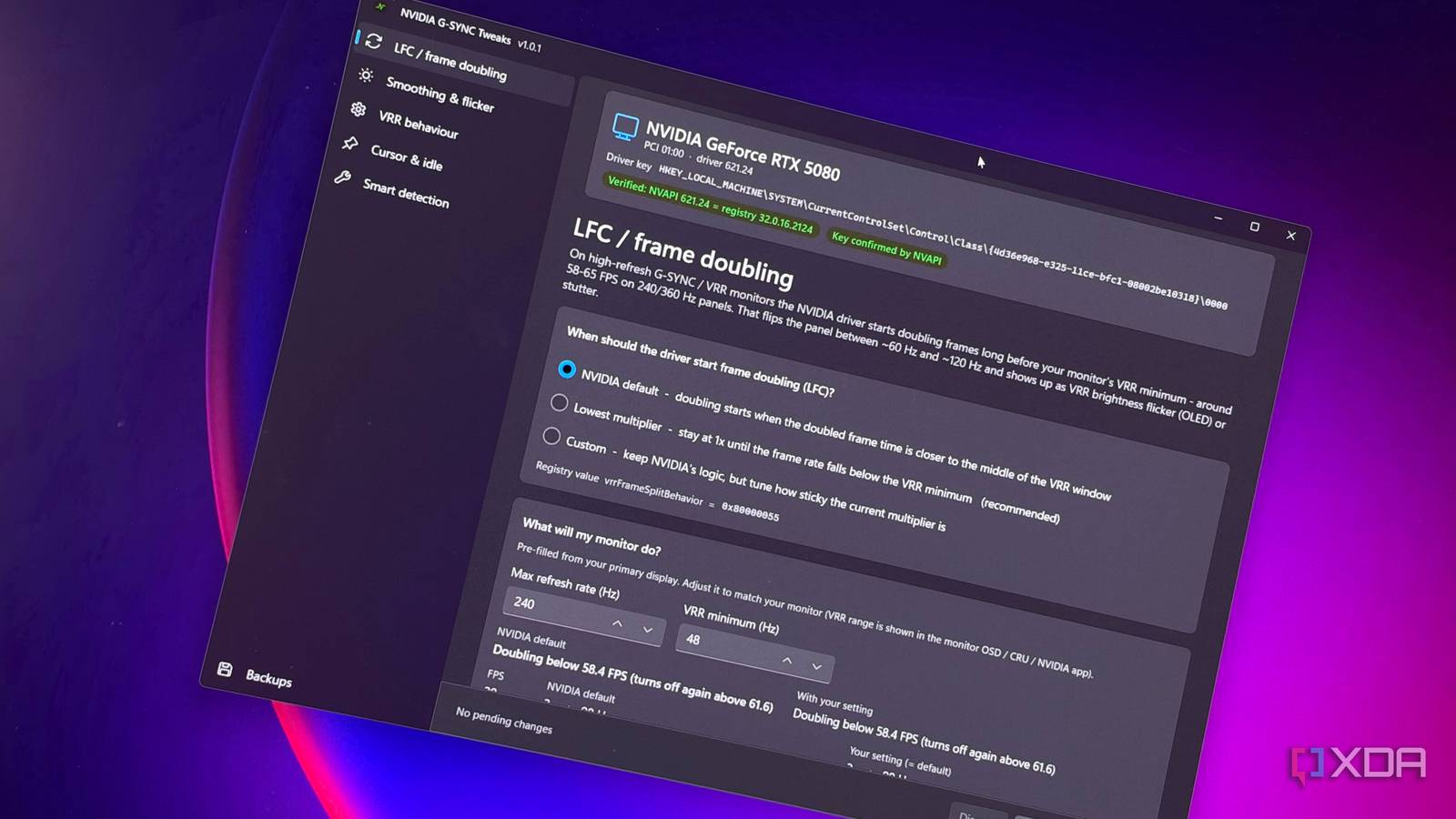
Published Nov 26, 2026, 12:00 PM EST His love of PCs and their components was born out of trying to squeeze every ounce of performance out of the family computer. Tinkering with his own build at age 10 turned into building PCs for friends and family, fostering a passion that would ultimately take shape as a career path. Besides being the first call for tech support for those close to him, Ty is a computer science student, with his focus being cloud computing and networking. He also competed in semi-pro Counter-Strike for 8 years, making him intimately familiar with everything to do with peripherals. If you own an OLED gaming monitor and an Nvidia graphics card, you may have experienced VRR flicker. It usually looks like the screen is subtly pulsing during a dark loading screen, or shadows in-game can seem to shimmer in a cutscene where nothing is moving, and on high refresh-rate displays, it tends to be at its absolute worst at around 60 FPS. A lot of users just learn to live with it, but others will just turn VRR off or drop their monitor to 120Hz, which isn't ideal either. A big part of why the flicker happens at 60 FPS comes from how the Nvidia driver handles doubling of frames, and a free app lets you tweak that in a couple of clicks. What VRR flicker is, and why it happens in the first place VRR is often responsible for weird display behavior Variable refresh rate, which Nvidia brands as G-Sync, lets your monitor change its refresh rate on the fly to match your game's frame rate. If a game runs at 87 FPS, the monitor refreshes at 87Hz, which avoids tearing without V-Sync's input-lag penalty. There is a catch with this approach: despite most displays these days claiming they can handle VRR, not all displays will have the same VRR behavior at every framerate. An OLED panel's gamma, which is the curve that translates a signal into on-screen brightness, is normally tuned for its native refresh rate, and this tends to drift as VRR pulls the refresh rate away from that point. Therein lies the problem: sudden changes in framerate cause sudden swings in refresh rate, and that can cause brightness shifts that read as flickering to your eyes. This affects darker content the most, since that's when your eyes will be most sensitive to swings in panel gamma. Loading screens are the classic offender, since they're often dark, static, and paired with wildly fluctuating frame rates. VRR flicker is mainly an OLED problem, though some VA LCD panels can be affected by it as well. Why 60 FPS specifically is bad On a high-refresh rate monitor, 60 FPS can be the worst place to be All monitors that support VRR can do so within a supported range, usually something like 48Hz up to its maximum refresh rate. Below that floor, the GPU driver uses LFC, or low framerate compensation to show each frame two or more times. This is for situations where a 40 FPS game needs to be displayed at a specific Hz to stay inside the supported VRR range. If the floor is 48Hz, you'd expect it to start frame doubling right at that floor, but on high-refresh rate displays, it often doesn't. Nvidia's driver usually starts doubling frames around 58 to 65 FPS, depending on the monitor's maximum refresh rate. Rather than waiting until it has to, the driver picks whichever multiplier lands closest to the middle of the VRR range, measured in frame times, with a small bias toward the multiplier it's already using. On a 240Hz monitor with a 48Hz floor, that middle works out to 80Hz, and 60 FPS lands almost exactly on the tipping point between running at 60Hz and running doubled at 120Hz. This matters in cutscenes, console ports, menus, or emulators, which are all situations where games can get locked to 60 FPS. When a game fluctuates around 60 FPS, small frame-time variations push the driver back and forth across that line, and the monitor bounces between 60Hz and 120Hz. That's exactly the kind of large, repeated swing that triggers flicker on OLED panels, and framerate caps don't always fix it, either. Nvidia G-Sync Tweaks helps solve this issue A hidden driver value that can solve VRR flicker Nvidia G-SYNC Tweaks comes from Orbmu2k, the same developer behind Nvidia Profile Inspector. This app targets a hidden driver value called vrrFrameSplitBehavior, which controls how the driver chooses its frame multiplier, and sets it for you with no registry editing required. On the main page, the option you want to change is labeled "Lowest multiplier (recommended)." With it enabled, the driver stops aiming for the middle of the range and uses the lowest multiplier that fits. That moves the point where the frame doubling kicks in down to the very bottom of your monitor's VRR range. Once it's selected, click "Apply & restart driver" and approve the UAC prompt. Your screens will go black for a few seconds while the driver restarts. On G-Sync Compatible monitors, essentially FreeSync and Adaptive-Sync displays connected to an Nvidia card, the driver handles frame doubling, which is what this app can change. Monitors with Nvidia's dedicated G-Sync module handle low frame rates in the module itself, so the tweak may or may not work there, your mileage may vary. Nvidia should make this a toggle OLED gaming monitors have come a long way, but VRR flicker remains one of their more frustrating quirks, partly because it's not clear as to why it's happening. This app won't make it disappear completely, but it can remove one of the most common triggers, which is usually a driver that keeps flipping your monitor between 60 and 120Hz. If you have a G-Sync Compatible OLED and play anything that runs around 60 FPS, it's a free, reversible change worth a few minutes of your time.
This free app unlocks a G-Sync setting Nvidia hides from you, and now I can't live without it
Full Article
Original Source
Read the full article at Xda-developers →KhanList aggregates and links to publicly available news content. We do not host full articles from third-party sources. Always verify important information with original sources.