
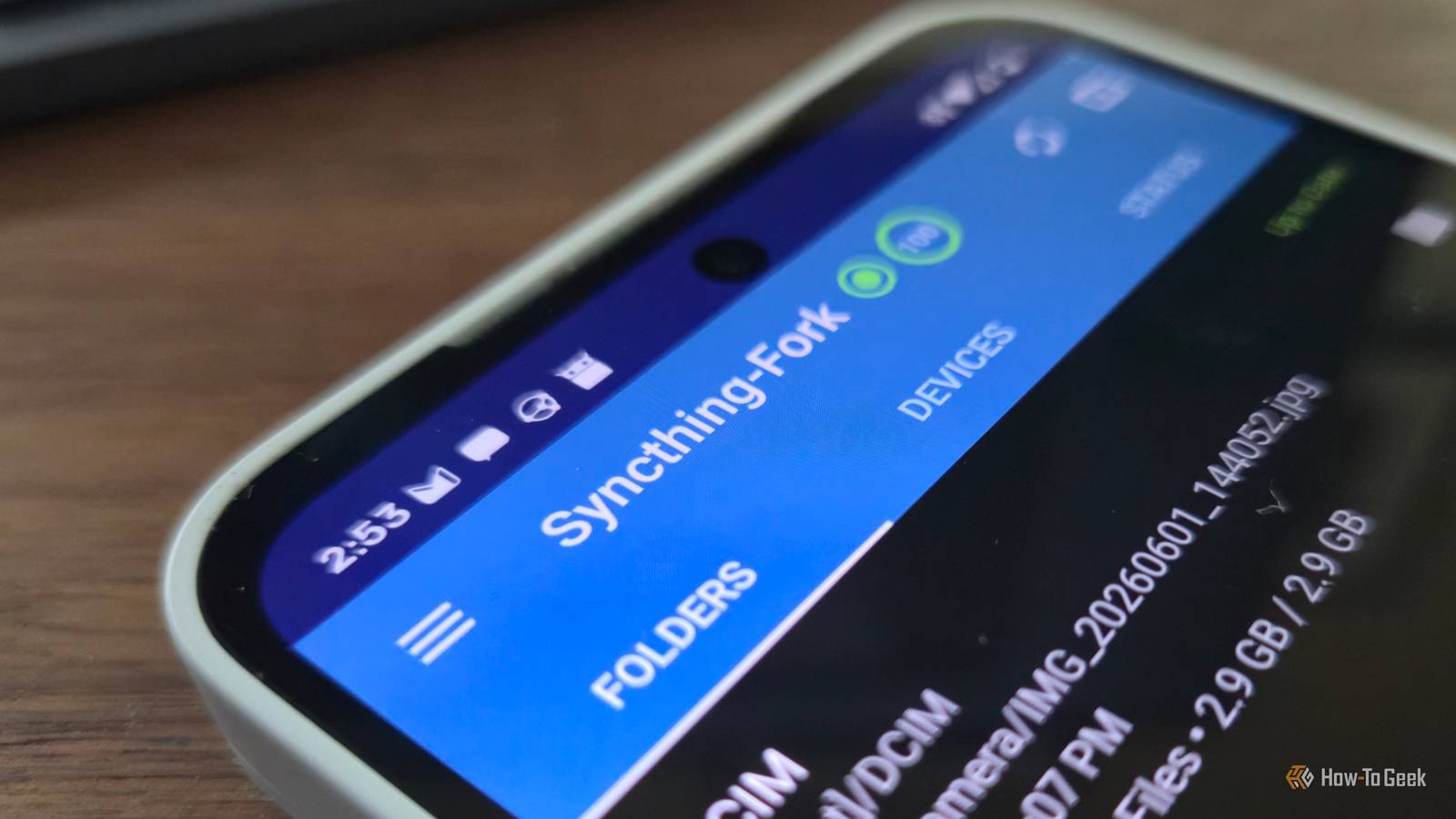
Published Oct 25, 2026, 12:30 PM EDT Nick Lewis is an editor at How-To Geek. He has been using computers for 20 years --- tinkering with everything from the UI to the Windows registry to device firmware. Before How-To Geek, he used Python and C++ as a freelance programmer. In college, Nick made extensive use of Fortran while pursuing a physics degree. Nick's love of tinkering with computers extends beyond work. He has been running video game servers from home for more than 10 years using Windows, Ubuntu, or Raspberry Pi OS. He also uses Proxmox to self-host a variety of services, including a Jellyfin Media Server, an Airsonic music server, a handful of game servers, NextCloud, and two Windows virtual machines. He enjoys DIY projects, especially if they involve technology. He regularly repairs and repurposes old computers and hardware for whatever new project is at hand. He has designed crossovers for homemade speakers all the way from the basic design to the PCB. Nick enjoys the outdoors. When he isn't working on a computer or DIY project, he is most likely to be found camping, backpacking, or canoeing. I regularly need to move files between my Linux PC and my Android phone, but there are surprisingly few good options. You can manually attach your phone to the PC, email the files to yourself, or use a cloud storage service, but those options are either clunky or involve more steps than I'd like. KDE Connect is great for transferring a few files now and then, but it isn't designed as a sync program. Instead, I've opted for a setup that automatically syncs a folder from my Linux PC to my phone. All I have to do is drop in a file or folder, and it appears on my Android phone almost instantly. The only delay is the transfer speed of my home Wi-Fi network. This is how I did it. Syncthing is a folder sync app Instant sync without manual intervention Syncthing is a peer-to-peer synchronization tool that ensures that any folder you select is duplicated across every device you specify. It is decentralized, which means there is no single point of failure. Your devices directly communicate with each other to exchange data. All you have to do is pair them, specify a folder, and any changes you make to files in that folder show up on all of the other devices. Syncthing also encrypts every connection it makes, which means that your data is secure, whether you're at home on your Wi-Fi or using some kind of relay. Syncthing on Android has multiple versions The official Syncthing app on Android has been deprecated since 2024, but the fork—aptly named Syncthing-Fork—is still around. It is available on both Google Play and F-Droid. The Play Store release runs a bit behind the latest build, whereas F-Droid gets updates more quickly. I've opted to use the Play Store variant because I'm not too concerned about the latest and greatest. If you care about receiving updates as they drop, use the F-Droid version. Syncthing beats the alternatives by a mile Cables are comically slow and finicky Using a USB cable means that I have to deal with MTP, which has some eccentricities. It also means that I have to actually plug the phone in; when I'm taking a dozen pictures and as many screenshots, I don't want to mess with that. Syncthing ensures everything is on my PC (or on my phone) as quickly as I can generate files. There is also the question of speed. Despite living in the age where USB-C can theoretically push tens of gigabits of data per second, most phone USB-C ports don't allow you to get anywhere close to that speed. A transfer test I ran on my Pixel 8 Pro a few years ago topped out at about 500MB/s but wasn't able to maintain that. It quickly dropped off. In the real world, I've found that my Wi-Fi usually beats the cable's sustained speed. Cloud storage and regular file shares have issues too Cloud storage is also a reasonable option, but all cloud storage providers come with data limits, require apps that I wouldn't otherwise use, and can be prone to synchronization issues, especially if my phone's battery is low. A conventional folder share, like Samba, also has a drawback: files are only available if the devices are on the same network. Syncthing duplicates files on all the devices, which means they're available until I manually remove them, whether I'm at home or out and about. Setting up Syncthing Getting Syncthing on Linux Installing Syncthing on Linux is simple. I'd recommend installing it from your distro's repo. In my case, that just meant running: sudo apt install syncthing After that, you just need to use systemd to ensure it always runs. Run the following, which fills in your username automatically: sudo systemctl enable -now syncthing@$USER.service Once it's running, open the web interface by connecting to http://127.0.0.1:8384 in your browser and set a GUI username and password. Syncthing no longer creates a Default Folder on first run, so you'll add your own. Setting up Syncthing-Fork on Android After you install Syncthing-Fork (either from the Play Store or from F-Droid), go through the initial prompts. The setup wizard covers most of the important points. Keep in mind that you must allow All Files Access and Notifications for it to work. You also need to turn off battery optimization for the app. Otherwise, Android likes to shut off Syncthing to save power. To pair the devices, use the app to scan the QR code displayed on your Linux web UI. Seamless sync without a fuss Despite how many "steps" there are, getting Syncthing running between my phone and my Linux PCs only took about 5 minutes in total. In that time, I completely replaced the need for cables, cloud uploads, or more manual transfer methods. As an added bonus, Syncthing can also be made to work with Windows, which allows the exact same setup to sync files between your Windows PC and a Linux PC or your Windows PC and your phone. If you want, you can also add an always-on device to the synced folder. In practice, this functions a bit like your own central server. It ensures that even devices that are offline when a file is synced can pick it up later from the central repository.
This 5-minute setup lets me permanently share a Linux folder with my Android phone
Full Article
Original Source
Read the full article at Howtogeek →KhanList aggregates and links to publicly available news content. We do not host full articles from third-party sources. Always verify important information with original sources.