
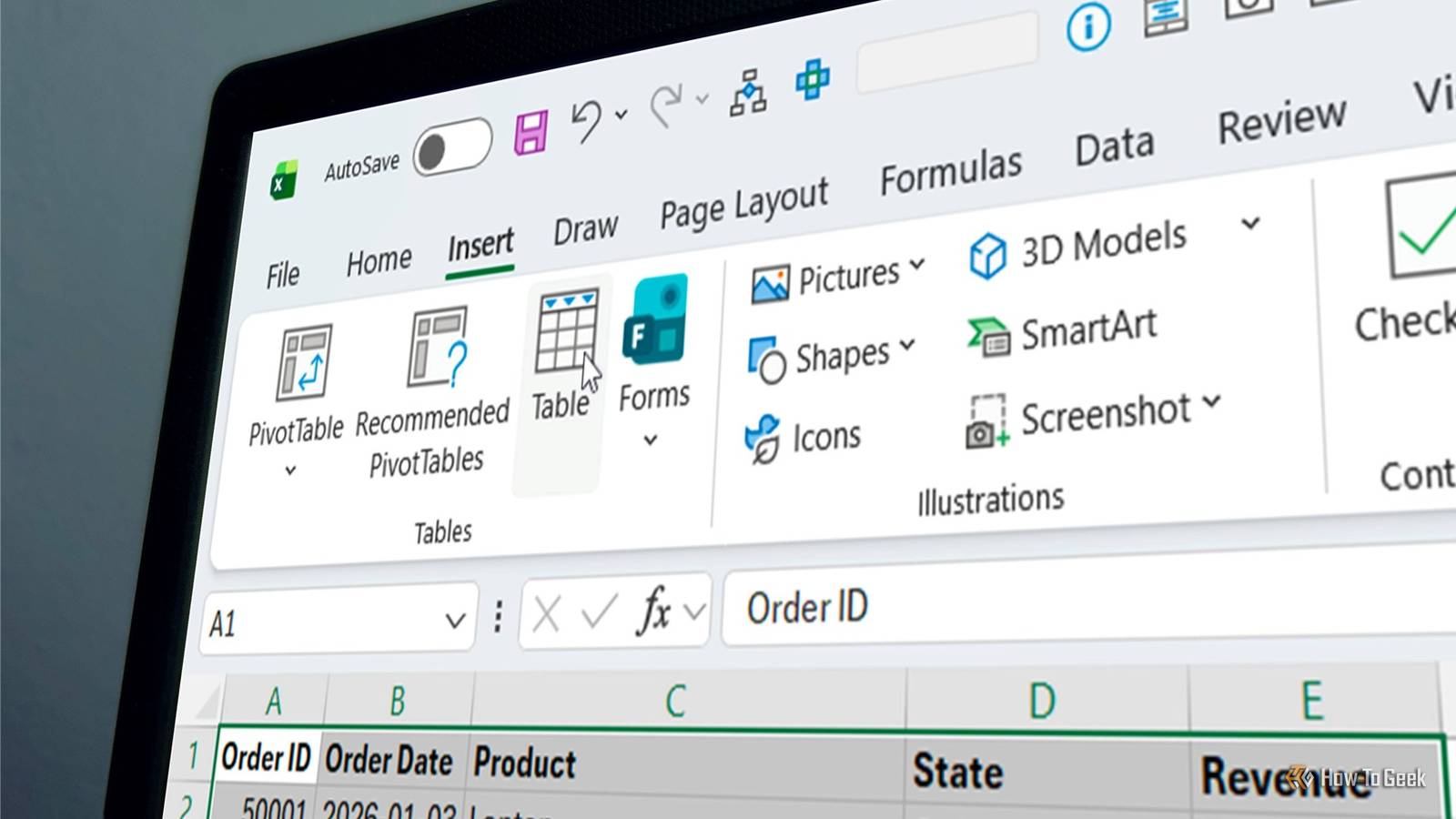
Published Oct 25, 2026, 1:31 PM EDT Tony Phillips is an experienced Microsoft Office user with a dual-honors degree in Linguistics and Hispanic Studies. Prior to starting with How-to Geek in January 2024, he worked as a document producer, data manager, and content creator for over ten years, and loves making spreadsheets and documents in his spare time. Tony is also an academic proofreader, experienced in reading, editing, and formatting over 3 million words of personal statements, resumes, reference letters, research proposals, and dissertations. Before joining How-To Geek, Tony formatted and wrote documents for legal firms, including contracts, Wills, and Powers of Attorney. Tony is obsessed with Microsoft Office! He will find any reason to create a spreadsheet, exploring ways to add complex formulas and discover new ways to make data tick. He also takes pride in producing Word documents that look the part. He has worked as a data manager in a secondary school in the UK and has years of experience in the classroom with Microsoft PowerPoint. He loves to encounter problems in Microsoft Office and use his expertise and legal-level training to find solutions. Outside of the Microsoft world, Tony is a keen dog owner and lover, football fan, astrophotographer, gardener, and golfer. Microsoft has spent what feels like years pushing Copilot updates into Excel, but for me, it's the little usability improvements that make the biggest difference when you use the app every day. A small change to a dialog box can save you a few clicks, remove an annoying extra step, or make a good habit easier to stick to. One recent change to the way Excel creates tables is a good example, and it's something I've wanted for years. Why naming tables is so important Give your tables names that actually mean something Giving an Excel table a proper name might seem like a bit of unnecessary housekeeping when you're busy building a spreadsheet. After all, Excel has already named it for you. But leaving tables with generic names like Table1, Table2, and Table3 quickly becomes less helpful as your workbooks grow. When you're working with multiple tables, meaningful names make your formulas much easier to understand. For example, =SUM(tblSales[Profit]) tells you exactly what you're adding together, whereas a formula referring to Table7 leaves you guessing about what that table contains. This becomes particularly useful when you're building formulas that reference several tables. Proper table names also make navigating large workbooks much easier. The Name Box drop-down menu lists your tables by name, so you can select the one you need and jump straight to it instead of scrolling through dozens of worksheets. There are also benefits beyond formulas and navigation. When you're working with Power Query, PivotTables, and other Excel features, descriptive names help you identify the correct data source. If you regularly reuse tables across different parts of a workbook, that clarity can save you time and reduce mistakes. I've recommended giving Excel tables meaningful names for years, but the old workflow made it surprisingly easy to skip that step. You had to create the table first, then open the Table Design tab to change its name. When you're focused on getting your data into a workbook, it's easy to put off that extra step until later—or forget it altogether. The new Insert Table naming workflow Name your tables as you create them Microsoft is changing that workflow by adding a table name field to the Create Table dialog: you can now give the table a meaningful name as you create it. To try it, select your data and go to Insert > Table. In the Create Table dialog, type a name in the new field, check that Excel has identified the correct range, and make sure the headers checkbox reflects whether your data has headers. Then create the table as usual. A few rules to keep in mind: Names must start with a letter, an underscore, or a backslash. Spaces aren't allowed, so use underscores or periods between words. Each name has to be unique within the workbook, and it can't match a cell reference, like BIN9 or R1C1. Names can be up to 255 characters long, but shorter names are easier to work with. You can also use the keyboard to move through the dialog. Press Ctrl+T, use Tab to reach the name field, and enter the name. If the headers checkbox needs changing, press Tab again and toggle it with Space. When you're done, press Enter. Microsoft is gradually rolling this new feature out, so availability may vary depending on your version of Excel. A few tips for naming Excel tables Make your table names work harder for you The new dialog makes it easier to name tables from the outset. These three habits will help you get more out of them: Keep names short and descriptive. A name like tblSales is easier to read and type than something unwieldy like tblSalesDataForQuarterThree2026. You want just enough information to identify the table without making your formulas a chore. Choose a consistent naming convention. I recommend using a prefix to distinguish tables from other workbook objects. For example, you could use tbl followed by UpperCamelCase, as in tblSalesData and tblCustomerOrders. Alternatively, you could use a T_ prefix, as in T_SalesData and T_CustomerOrders. Neither is inherently better. What matters is picking one and sticking with it. Make table names easier to access. You don't have to keep opening the Table Design tab to inspect or change a table's name. Click inside a table, open Table Design, and right-click the Table Name label on the left of the ribbon. Click Add to Quick Access Toolbar to keep the field within easy reach. From there, you can see the selected table's name and change it without opening the ribbon each time. A better time to name your tables It's a small change, but it could make a real difference in how you organize your workbooks. It's also part of a wider set of useful changes to Excel, including new functions for working with lists and arrays in cells and an easier way to steer clear of the destructive Merge & Center. Excel doesn't always need another headline feature. Sometimes, making an existing one easier to use is enough.
I've always recommended naming Excel tables, and Microsoft just removed the annoying part
Full Article
Original Source
Read the full article at Howtogeek →KhanList aggregates and links to publicly available news content. We do not host full articles from third-party sources. Always verify important information with original sources.