
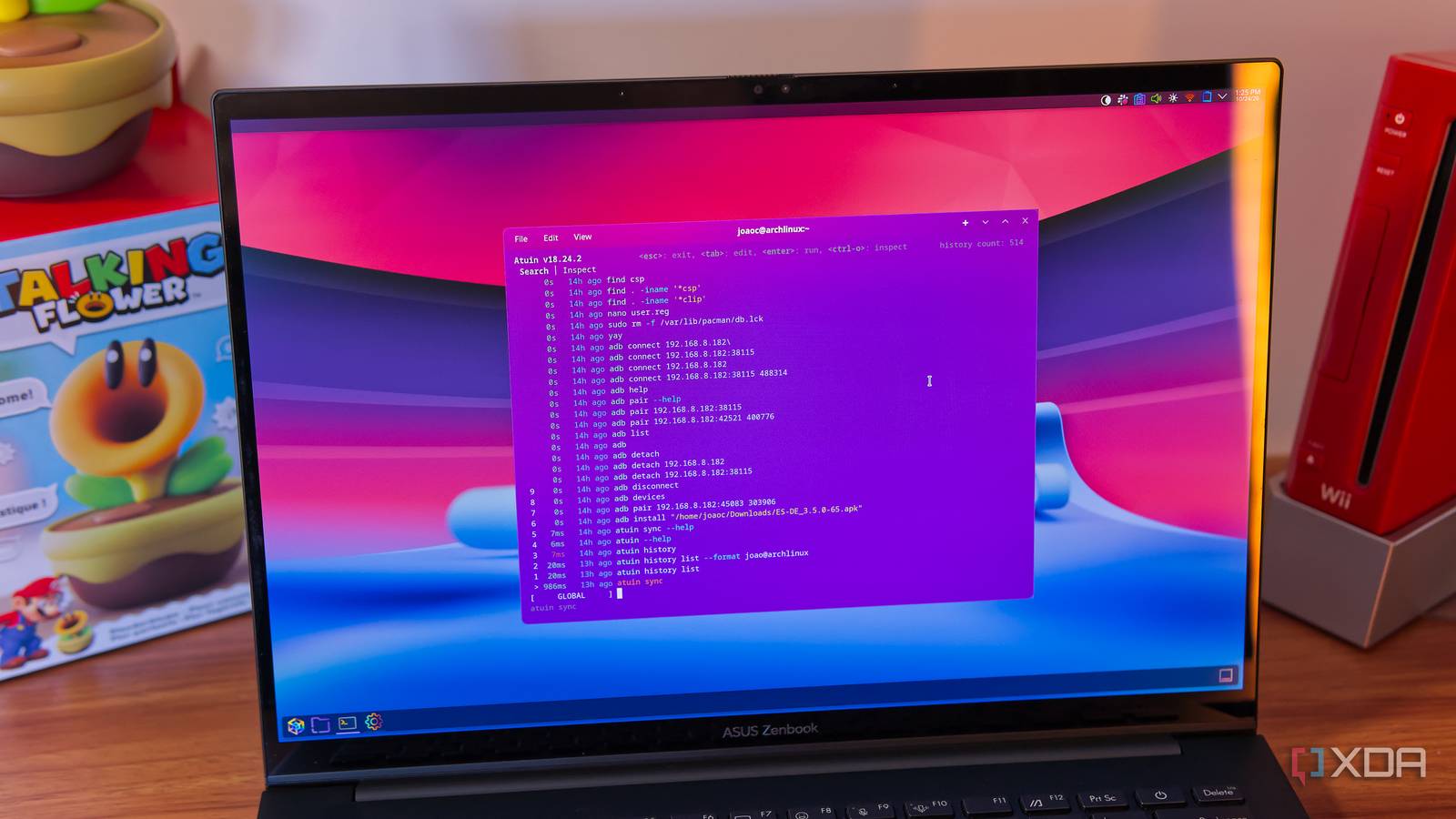
Published Oct 25, 2026, 2:00 PM EDT João has been covering the tech world for over 7 years, with a heavy focus on laptops and the Windows ecosystem. I also love all things tech and videogames, especially Nintendo, which he's always happy to talk about. Prior to joining XDA in 2021, he worked at Neowin: https://www.neowin.net/news/poster/jo%C3%A3o-carrasqueira/ Whether it's something as ubiquitous as your browser history or something more specific like your clipboard, keeping data in sync across devices can be useful in a wide range of ways. But one thing I'd never thought about syncing is my history of terminal commands. I didn't even think it would be possible. As it turns out, it is possible thanks to a tool called Atuin, and now that I've tried it, it's quickly become apparent that it belongs on the PCs of anyone who spends a long time in the terminal. Syncing is easy and secure You're in control I'll admit that I went into this project thinking it would be a mess to set up, but it was surprisingly easy to get started. All you have to do is run the script provided on the website with the following command: curl --proto '=https' --tlsv1.2 -LsSf https://setup.atuin.sh | sh This will download and install Atuin, then prompt you to sign in or create an account to sync over the hosted cloud server. You can actually sync using a self-hosted server, if you prefer that, but your data is end-to-end encrypted when syncing over the cloud, so I personally didn't bother with this. It's not like I type sensitive information into my terminal often anyway. Once you've set up the first computer, you can then sign in on other PCs and enter the automatically generated to link your devices together. You can obtain the key on your original PC by typing in atuin key. It's a fairly long passphrase, so you'll want to be careful so you don't have to type it in again. From then on, it defaults to automatically syncing every five minutes, though you can change this. You can also manually sync at any time with the atuin sync command. Atuin replaces the standard terminal history with a SQLite file that syncs to the server and then to your other PCs. Finding old commands is easy An improved terminal history Syncing may be the biggest selling point of Atuin, but it's also a little more than that. Once you've set it up, pressing the up arrow on your keyboard brings up a list with your entire history across devices, and you can easily browse it by scrolling the list, or you can start typing to search for specific commands in your history and narrow down your options. As you scroll, then nine commands preceding your current selection also get assigned a number, and you can press Alt + (number) to pull the respective command into your edit line. Pressing the up arrow is an optional trigger, though, and you can configure Atuin to disable it and use the other shortcut Ctrl+R. This shortcut not only brings up the history itself, but it also allows you to flip through different filtering modes. The default history shows commands from all your devices, but switching between modes lets you change to results only from the current device, commands from the current session, or commands run in the current directory. Even beyond syncing, it makes the terminal history much more useful and old commands become easier to find quickly. Of course, the simple fact that I can see commands from other machines helps, too. I don't tend to spend a ton of time in the terminal, but even something as simple as running a command to install or update apps makes things a lot easier. It supports multiple shells On all major platforms Of course, when you're talking about syncing the terminal history, it's worth remembering that there are different shells out there, but Atuin actually accounts for this and supports multiple, though to different extents. Zsh, bash, and fish are considered "tier 1" citizens, meaning all features are supported. nushell, xonsh, and PowerShell are technically supported, but certain Atuin features are missing. Thankfully, that doesn't include the history part, which works perfectly. I had some issues at first due to restrictions on running scripts out of the box, but once I changed the execution policy, it worked fine. For the supported shells, you can see the synced history regardless of what shell you're using, but with a caveat. While you can use the atuin history list to see your history file with every single command, pressing the up arrow or Ctrl+R only brings up history from the same shell you're currently using by default. I was testing this on a plain Arch laptop, which uses bash by default, and a CachyOS PC, which uses fish, and it took me some time to realize why the history wasn't showing up on both devices even though it said it was synced. The same happened when I was using PowerShell. You have to modify the config file for Atuin (on Linux, by default, it's stored in ~/.atuin/config.toml) to enable search results for all shells. under the [search] section, simply add a line that says shells = "all" This will make your history appear properly across devices that use different shells. Of course, you may not always want that. There isn't much use for bash commands on Windows PowerShell, so you can configure this per device. My terminal history goes everywhere It doesn't take long to understand why having access to your terminal history across devices is a good thing, even if you only occasionally use the terminal. I've had many instances where I wished I could grab a command I used on a different PC, and this makes it possible to access my entire history of commands and make sure they never get lost. It's just plain text, so you can store it pretty much indefinitely without much of a problem, and it's great.
This free tool syncs your terminal history between PCs, and it belongs on every developer's machine
Full Article
Original Source
Read the full article at Xda-developers →KhanList aggregates and links to publicly available news content. We do not host full articles from third-party sources. Always verify important information with original sources.