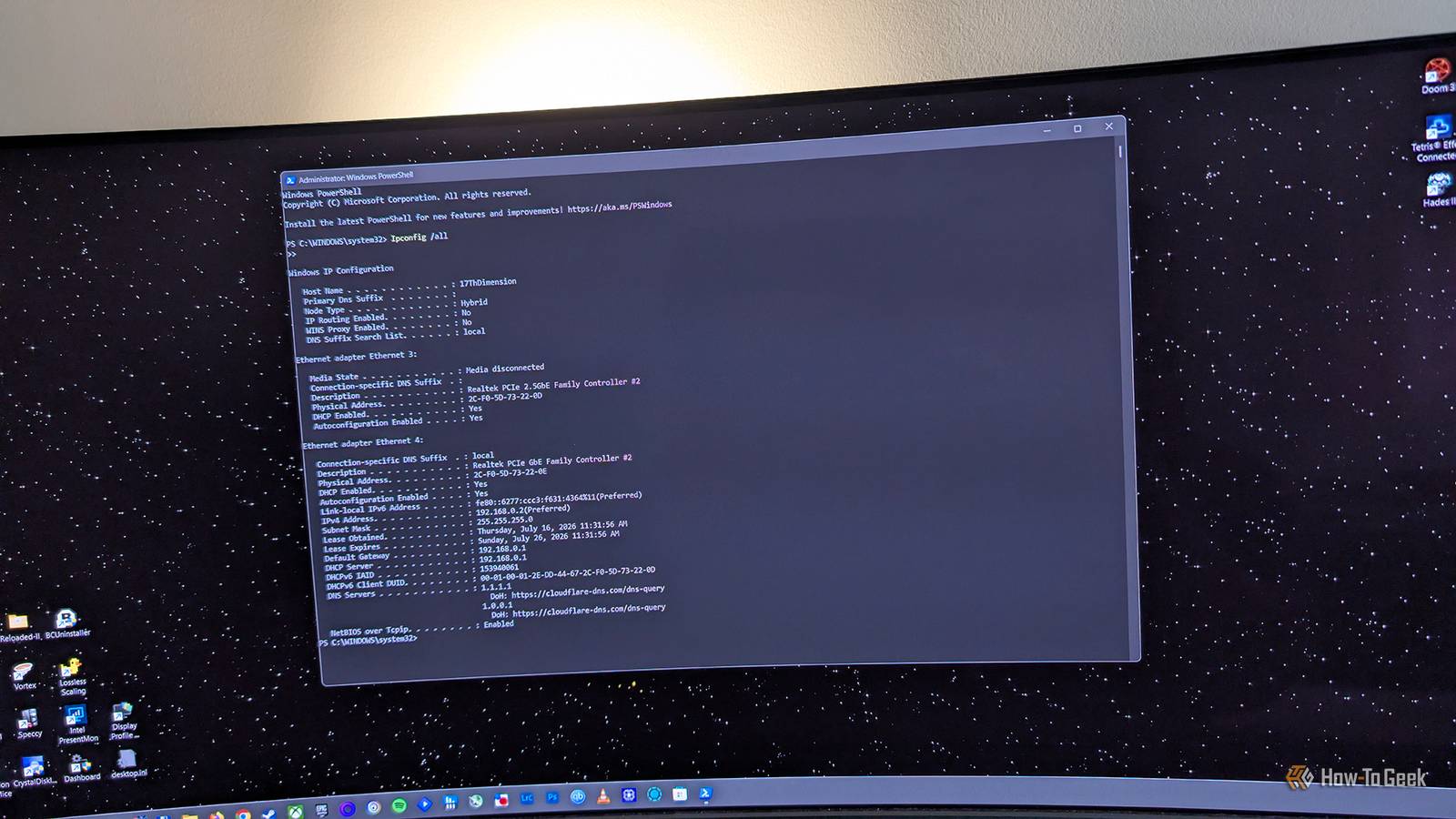
Published Jul 19, 2026, 6:30 AM EDT Ever since he got his first smartphone, the legendary Nokia 6600, back in 2005, Goran became obsessed with technology. This obsession had only gotten worse after he received his first gaming PC a couple of months later. He fell in love with video games in the early '90s, shortly after embarking on his gaming journey with the Sega Master System II and SNES. Since then, he has built dozens of PCs, played thousands of games, and authored hundreds of articles about PC hardware, gaming hardware, and video games. He knows everything there is to know about the PC gaming and PC hardware space, and while his console gaming knowledge isn't as comprehensive, he considers himself a console veteran. Goran has almost a decade of experience writing about tech and video games for numerous web publications including TechSpot, TechPowerUp, and EsportsHeadlines. He has been writing for How-To Geek since December 2022. When he isn't gaming or deciding which component of his PC to upgrade next, you can find him strolling around Novi Sad while listening to music and contemplating what to play next. Network issues can often be infuriating because everything seems to work as it's supposed to—except your internet connection. Then your internet connection starts working fine, but websites take forever to load. Then there are those frustrating intermittent connection issues that come and go seemingly at random. Fret not, because Windows offers a slew of handy network troubleshooting tools. Each of the ones I'm sharing below can be run with a single command in Windows PowerShell. They won't solve every issue, but in many cases they can help you narrow down or even identify where the problem lies, which is the first step toward fixing it. Before we start, I recommend running PowerShell as an administrator because some of the following commands require administrator privileges. Ipconfig The first step of every network troubleshooting process Typing the ipconfig command should be the first step of every troubleshooting process because it gives you information about your PC's network adapters, your router's IP address (listed as Default Gateway), and your PC's local IP address. To see the full picture, which includes additional information, type: Ipconfig /all If you've been having issues with your DNS server, such as getting a DNS Server Is Not Responding error, you can run the following command to flush your PC's DNS cache: ipconfig /flushdns Next, refreshing your PC's IP address can be a surprisingly effective way to solve various network issues. While the two commands listed below are far from being miracle workers, they cost nothing to run. The only issue is that if you have any firewall rules set up on your router that include your PC's IP address, you'll need to adjust them after refreshing your PC's IP address. To refresh your PC's IP address, type the following: ipconfig /releaseipconfig /renew Before we move on, you should know that typing ipconfig /? will show you a list of every available parameter, along with an explanation of what each one does, which can come in handy when troubleshooting network issues. Ping Find out the state of your connection ping is another simple yet effective network troubleshooting tool that can help you narrow down the source of your network issues. For instance, let's say your Wi-Fi or Ethernet icon shows you're connected, but your browser won't load any websites. The first step is to check whether your router is working properly. To do this, simply type ping followed by your router's IP address. In my case, I need to type the following: ping 192.168.0.1 As you can see, my router is working fine, meaning the problem likely isn't with my local network. The next step is to ping a reliable server that's available 24/7. google.com is a solid choice: ping google.com If everything works, that's swell. But if it doesn't, and you can, for instance, reach google.com on your phone while using mobile data, the issue could stem from your ISP. Nslookup Performing a DNS lookup can tell you how your DNS server is performing This is another handy troubleshooting tool that can identify issues with your DNS server. For instance, I found out that my ISP's DNS server wasn't the fastest after I had switched ISPs and ran this command to see how it performed. As you can see in the first screenshot, when I run the command while using my ISP's DNS server, I always get two DNS request timed out messages before receiving the IP address of the website I'm testing. However, when I switch my DNS server to Cloudflare's 1.1.1.1, I get no such errors. In other words, my ISP's DNS server doesn't have trouble resolving websites—it just takes a bit longer to do so. This led me to switch my DNS server to Cloudflare's 1.1.1.1 a while ago. The general command you want to use here is: nslookup nameofthewebsite.com All you have to do is replace nameofthewebsite.com with a real website, such as howtogeek.com. If you want to perform the lookup using a different DNS server, simply add its IP address to the end of the command, like so: nslookup howtogeek.com 1.1.1.1 Running this command can be handy when your download speed is maxed out, but websites are slow to load, or when you can't reach a specific website even though every other website works fine. Netsh A collection of handy network troubleshooting tools The netsh (Network Shell) command has a number of uses that can prove quite handy when troubleshooting network issues. For instance, running: netsh winsock resetnetsh int ip reset will reset the TCP/IP stack and reset the Windows Sockets (Winsock) catalog to its default settings, which can solve various connection problems. Don't forget to reboot your PC after running these commands. You can also run: netsh wlan show profiles To see the Wi-Fi profiles saved on your PC. You can delete a specific profile (if you no longer use it or are having issues connecting to that Wi-Fi network) with: netsh wlan delete profile name="Name of the profile you want to delete" Tracert Trace the route of data packets Running tracert can show you the entire path packets take from your PC to the website you're trying to reach. It also shows the delay at each stop and can help you identify where the problem lies, if there is one. Traceroute works by sending a sequence of packets with increasing TTL (Time to Live) values. Each packet expires at a different hop, allowing tracert to identify every node along the route (your router, your ISP's routers, external routers, and so on). The first packet has a TTL of 1, the second a TTL of 2, the third a TTL of 3—you know the drill. If there's a sudden latency spike at one specific router that persists for the rest of the route, there might be an issue at the hop that introduced the spike. Similarly, seeing Request timed out messages at certain hops is usually fine (it can mean a specific router doesn't respond to traceroute requests or takes too long to respond), but if the final hop times out, there might be an issue somewhere on the route, or the destination simply doesn't respond to traceroute requests. If you also can't open the website in your browser, for instance, you may have a network issue. Restart-NetAdapter Sometimes, all you need to do is restart your network adapter This command is as simple as they get, but restarting your network adapter can be the quick fix you need for your network woes. You can do this manually, but running the command is faster. All you need to type into PowerShell is: Restart-NetAdapter -Name "The name of the active adapter" You can find the name of your network adapter by running ipconfig. Since my active network adapter is listed as Ethernet 4 (I have two Ethernet ports on my motherboard), I have to type: Restart-NetAdapter -Name "Ethernet 4" If you don't want to bother looking up the name of your network adapter, just run: Get-NetAdapter | Restart-NetAdapter This automatically restarts all of your network adapters. Don't be afraid of PowerShell, embrace it Seeing a command-line interface can be daunting—I know that because I've been using Windows PCs since I was a teenager. But if you start with a few simple commands, you'll realize that PowerShell is anything but scary. You can use it to solve common Windows issues, disable Windows features that aren't available in Settings, and run all kinds of simple yet effective repair tools.
The Windows command line is hiding these 6 awesome network troubleshooting tools
Full Article
📰 Original Source
Read full article at Howtogeek →KhanList aggregates and links to publicly available news content. We do not host full articles from third-party sources. Always verify important information with original sources.