
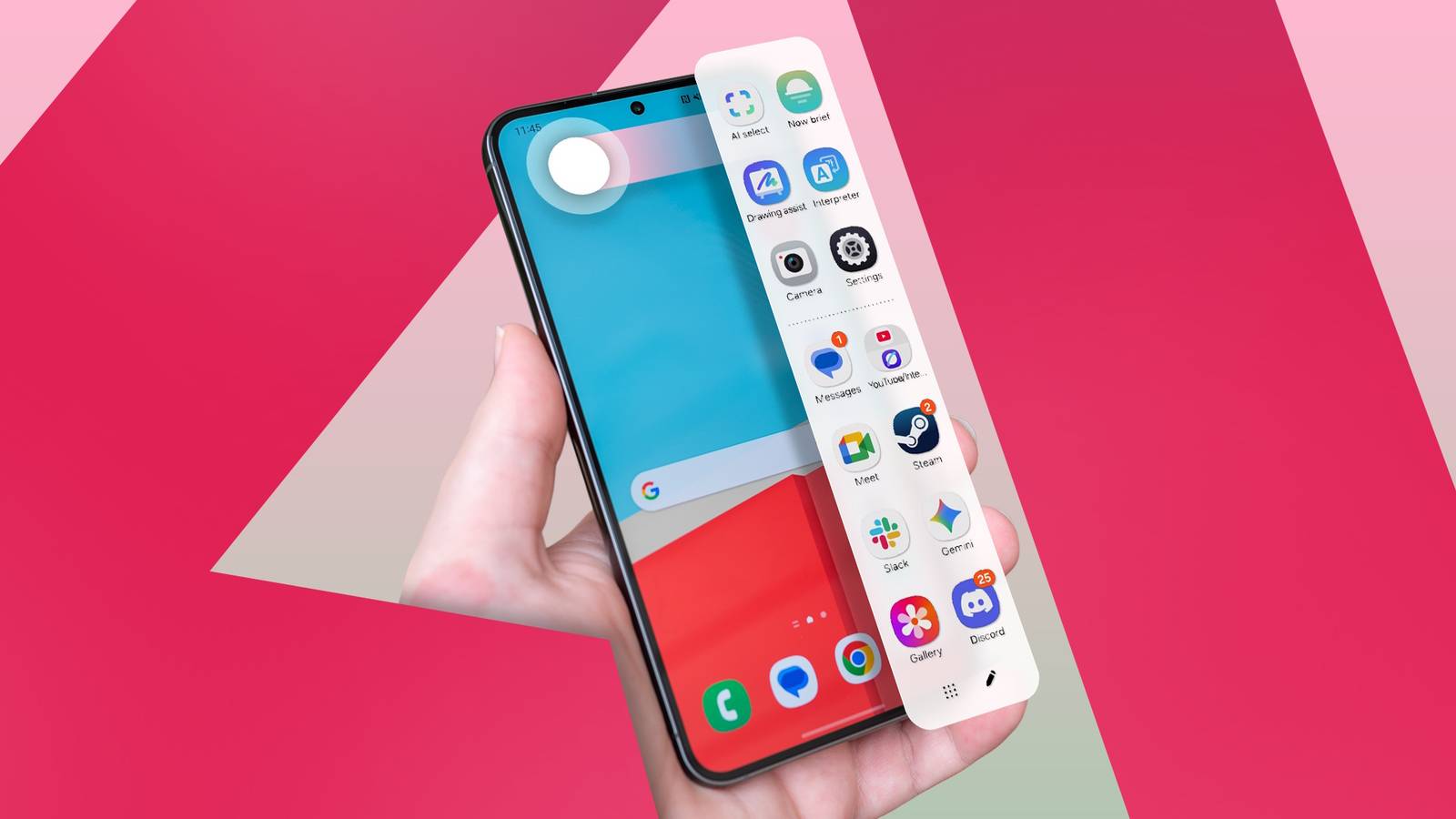
Published Sep 12, 2026, 8:15 AM EDT Parth is a technology analyst and writer specializing in the comprehensive review and feature exploration of the Android ecosystem. His work focus on productivity apps and flagship devices, particularly Google Pixel and Samsung mobile hardware and software. He provides expert guidance on productivity software, system optimization, and the advanced functionalities that allow users to maximize their device's potential. His analyses are crucial resources for readers seeking to master complex operating system features and streamline their digital workflows. When he is not busy with technical analysis and software evaluation, Parth dedicates his time to watching K-dramas, studying mobile technology trends and the role of artificial intelligence. For years, my Samsung phone felt like just another Android slab. I used the basic One UI features, explored Good Lock, tweaked camera settings, and designed an ideal home screen with plenty of widgets, but I never truly tapped into its potential. That changed when I stopped ignoring that tiny, translucent tab on the side of my screen: the Edge panel. Far from a simple app shortcut bar, the Edge panel is one of the most critical, customizable, and efficient features in Samsung's One UI. What is the Edge panel on Samsung phones, anyway? It gives you instant access to your most-used apps The evolution of the Edge panel is a great story of how Samsung turned a niche feature into a universal productivity tool. It's a gateway to true mobile multitasking. The Edge panel is that tiny, semi-transparent tab that's docked on the side of your Samsung phone's display. A quick swipe inward on that tab pulls out a customizable drawer of tools, apps, tasks, and more. It is designed to give you instant access to almost anything, no matter what app you're in. What I love about the Edge panel's history is that it was born out of necessity. Specifically, the need to utilize the new hardware. I remember when it was introduced in 2014 with the Samsung Galaxy Note 4 Edge. The purpose then was simple: to take advantage of the display's unique curved section. It was a novel way to get notifications, weather, or quick access to contacts without obstructing the main screen. Samsung improved it with every software update, and now the Edge panel isn’t limited to flagship devices. It's a standard part of the One UI experience on modern Galaxy phones, regardless of whether they have a curved display or a flat screen. Edge panel is a productivity powerhouse It's more than a quick shortcut For me, the Edge panel is more than a convenient shortcut. It's the central hub of my mobile workflow. It's the fastest way I have to cut through digital clutter and get things done. Its power comes from instant, system-wide access. No matter whether I'm deep inside an email, browsing a web page, or playing a game. I have the People Edge panel set up with my four most-called contacts: my partner, boss, and parents. Tapping their picture initiates a call. It's a tiny time saver that adds up over the day. My Edge panel also holds my most used apps: WhatsApp, Samsung Notes, calculator, and OneDrive. No more swiping between home screens or hunting in the app drawer. I swipe, tap, and I'm in the app I need. As a Samsung Reminders fan, I appreciate how well it integrates. I keep the Reminders Edge panel active, which gives me an immediate, glanceable view of my critical, time-sensitive tasks. The Edge panel is my customizable tool belt. It removes friction, saves countless taps, and lets me launch apps, call contacts, and fly through my tasks. Edge panel is packed with customization options You can make it look any way you want What separates the Edge panel from simple static docks is the depth of its customization options. I love that I control the handle. I can adjust the handle's position vertically anywhere along the side of the screen. It's within easy reach of my thumb. I can also change the size and color to make it visible or virtually invisible. The ability to hide it on the lock screen is also a great security and distraction-free feature. I can disable and enable panels to show only the ones I truly use. If I'm traveling, I might enable the Weather panel. If I'm at work, I will ensure my app pairs and tasks panels are the only ones active. By controlling where it sits, how visible it is, and what content it displays, I have turned the Edge panel from a default system feature into a personalized, effective power tool. What about non-Samsung users? There's always a workaround If you don't have a Samsung phone, you can still replicate the same experience using third-party apps. While there are several such apps on the Play Store, I recommend Edge Screen as it's frequently updated and covers all the basic functions. You can try it out if you want to enable such functionality on your Android phone. However, none of the third-party apps come close to One UI's native Edge panel. Power user in one tap Looking back, it's almost embarrassing how long I let my Samsung phone run at half speed. The Edge panel isn't a gimmick. It's a thoughtful add-on that rewires how I interact with my device. If you have been searching for that one secret feature to master One UI and get maximum value from your Samsung phone, you can stop looking. And if your Samsung phone is eligible for the latest One UI 9 update, check out these features to get the best out of it.
The hidden Samsung One UI feature that turned me into a Galaxy power user
Full Article
Original Source
Read the full article at Androidpolice →KhanList aggregates and links to publicly available news content. We do not host full articles from third-party sources. Always verify important information with original sources.