
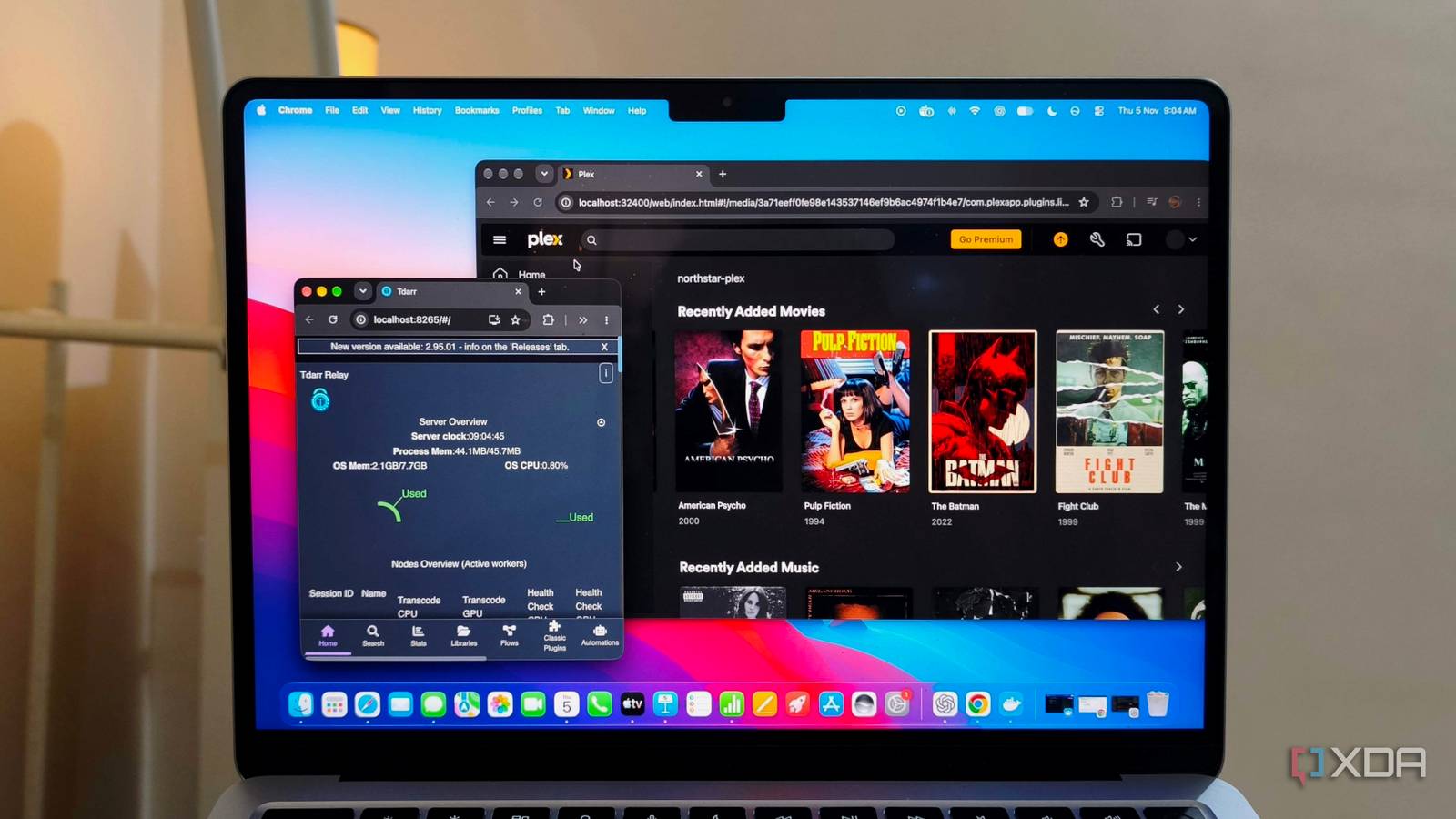
Published Nov 6, 2026, 6:00 PM EST Anurag is an experienced journalist and author who’s been covering tech for the past 5 years, with a focus on Windows, Android, and Apple. He’s written for sites like Android Police, Neowin, Dexerto, and MakeTechEasier. Anurag’s always pumped about tech and loves getting his hands on the latest gadgets. When he's not procrastinating, you’ll probably find him catching the newest movies in theaters or scrolling through Twitter from his bed. My NAS holds a large movie library, plus backups, documents, and other files, and I’d like to keep it all. Buying a new drive in 2026 is a pipe dream, so I’d rather make the most of the storage I already have. That means finding ways to make my movies take up less space without ruining how they look on my TV. I am using Tdarr to do that. It handles that job by automatically re-encoding files using settings you choose. You point it at your library, set the rules, and let it work through the movies instead of converting each one manually. It shrank my library by roughly a third, and I can’t tell the difference when I watch the converted files on my TV. Getting Tdarr to work through the library You decide what gets converted The movies on your NAS don’t necessarily use the same video codec or encoding settings, even when they share the same resolution. That gives you room to reduce their size without dropping a 4K movie to 1080p. HEVC, also called H.265, compresses video more efficiently than H.264, making older H.264 files useful candidates for conversion. You could handle those conversions individually with HandBrake, but working through a large collection would get tedious. Tdarr uses FFmpeg or HandBrake to process files according to your rules, so you don’t have to keep adding movies to a queue yourself. The setup has two parts – a server that manages the library and a node that does the encoding. Both can run on the same machine, or you can put the node on another computer. The latter is useful when your NAS holds the movies, but you want a more capable computer to handle the conversions. You also assign a cache folder where Tdarr can write its temporary output. From there, you choose the encoder and quality settings. Those settings matter more than chasing the smallest possible file. If you push the compression too far, it removes detail, and one quality value won’t produce the same result across different encoders. For an initial test, I used copies of a few movies and kept the originals available for comparison. You want to preserve the resolution and retain the audio tracks and subtitles you use, then check the output before letting Tdarr replace anything. Once you’re happy with those samples, you have a configuration worth applying to more of the library. The smaller files still look good on my TV The storage savings are easier to spot I had more than 8TB of media in my library, and Tdarr freed up TBs of space without removing the movies themselves. That’s the overall saving across the collection, though individual files won’t all shrink by the same percentage. The source video and encoding settings determine how much space each conversion saves. For example, grainy footage needs more data to preserve its detail than a cleaner image. It's not just the storage that I saved – I can’t tell the difference on my TV, and that makes the reduction worth it for me. Re-encoding with lossy settings does discard information, so I’m not claiming the converted files preserve every detail of the originals. I’m saying that whatever difference exists hasn’t made itself obvious when I watch them. If you try this yourself, look beyond a bright, relatively still scene. Look for banding in dark backgrounds and gradients, compression artifacts during fast movement, and any loss of grain or fine texture. Those are more useful checks than opening the file properties and confirming that the output still says 4K. Tdarr can keep working as the library grows New additions get the same treatment Tdarr can also watch your media folders for additions and process them using the rules you’ve already configured. Just make sure those rules also tell Tdarr when to leave a file alone. You can skip videos already in your chosen codec to prevent unnecessary repeat conversions. Files that are already small deserve some consideration, too, since another encode costs processing time and discards more information without guaranteeing a worthwhile reduction. Also, since HDR and Dolby Vision files need settings that preserve the relevant metadata, I wouldn’t send them through an untested configuration. Tdarr even lets you choose processing windows and limit how many workers run at once. If encoding competes with your backups or makes the computer sluggish during the day, you can move those jobs to quieter hours. You can also build checks into the workflow before it replaces an original. A size check can reject an output larger than its source, and a thorough health check can scan the video for decoding errors. There’s still room for other cleanup tools alongside Tdarr. I previously recovered 900GB with Krokiet by reviewing duplicates and redundant movie releases. Tdarr
Tdarr shrank my media library by a third, and I can't tell the difference on my TV
Full Article
Original Source
Read the full article at Xda-developers →KhanList aggregates and links to publicly available news content. We do not host full articles from third-party sources. Always verify important information with original sources.