
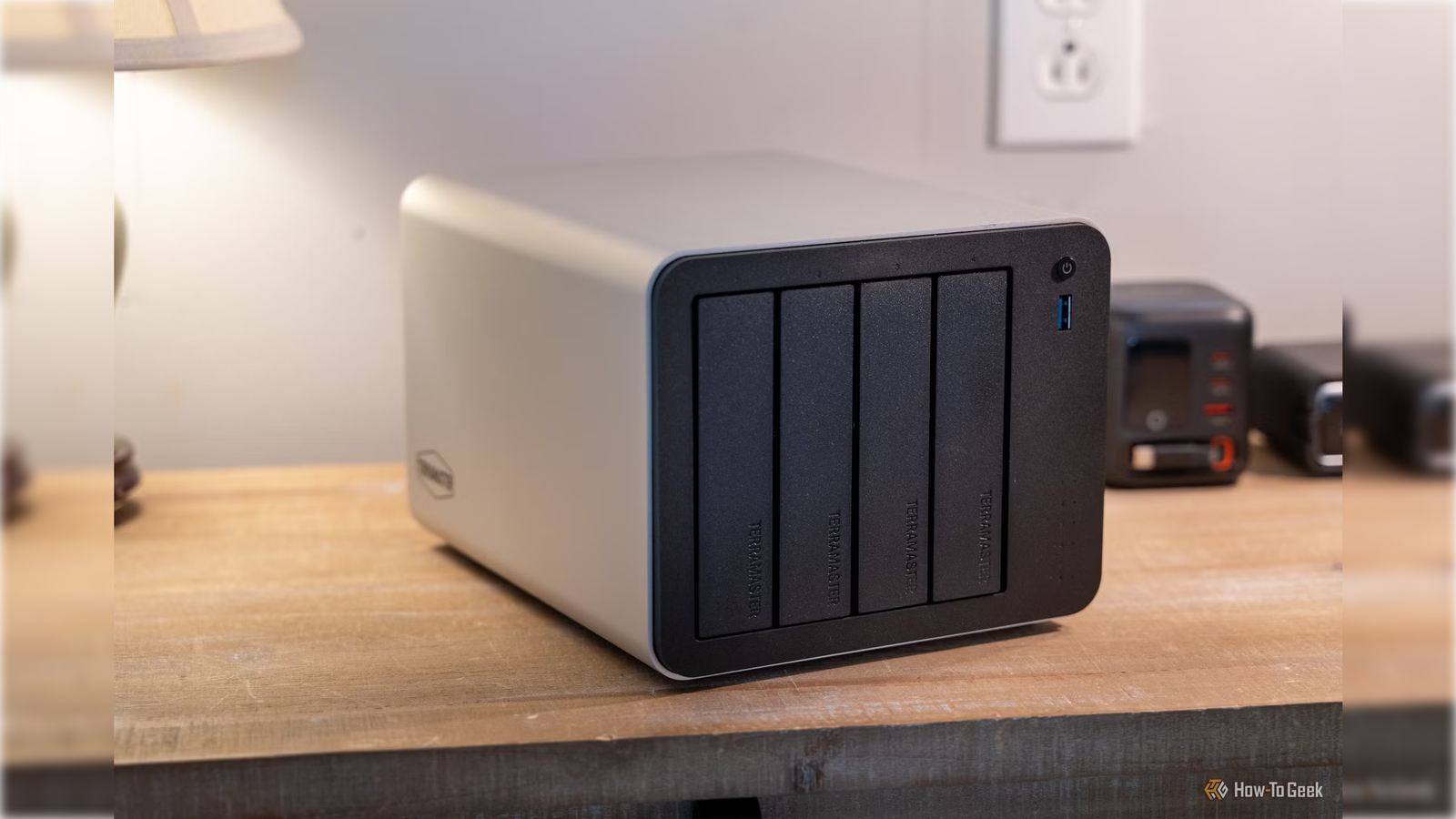
Published Sep 28, 2026, 6:30 AM EDT Umair Khurshid is a technology writer and developer with a strong focus on Linux, FreeBSD, cloud infrastructure, and automation. Before focusing on writing, Umair worked as a developer and DevOps engineer building and automating cloud-native systems. I wanted to see whether I could do something more interesting with my NAS than simply use it for storage. I decided to run games on it and stream them across my local network to another computer, with the NAS handling the rendering while the client handled the display and controls. I used a TerraMaster F4–425 Pro NAS and focused on games that matched the hardware rather than trying to turn it into a replacement for a dedicated gaming PC. Steam Remote Play is where I started It requires very little configuration I started with Steam Remote Play because it was the obvious option for a Steam library. Steam already includes the feature, so I did not have to build a separate streaming stack before I could start testing games. When you play a game directly on a PC, the computer renders the frames and sends them straight to the display. With Remote Play, the host has to capture the output, encode it, send it across the network, and receive my input from the client. The client then decodes the video and displays it. Steam takes care of much of that automatically. I could therefore concentrate on whether the NAS could actually run the games rather than spending the first part of the experiment configuring the streaming system. I then moved to Sunshine and Moonlight because I wanted more control over what I could stream. Sunshine gives you a general-purpose streaming host, while Moonlight provides clients for a wide range of devices. Sunshine can also launch applications directly, so I was not limited to games that happened to work through Steam. That flexibility was useful, although it also exposed more of the technical work involved. Sunshine showed me how much is involved in game streaming Audio was one of the less obvious problems I initially thought about Sunshine primarily as a video-streaming application, but I also had to deal with audio. The host needs an audio source that Sunshine can capture and send to the client, which is more complicated on a headless NAS than on a normal desktop with speakers or a monitor already connected. Sunshine supports different audio configurations, including virtual audio devices. On Linux, that can involve choosing the appropriate PulseAudio or PipeWire sink. A conventional gaming PC already has a display and audio device attached to it. A NAS sitting somewhere on the network usually does not have either configured in a way that makes game streaming immediately happy. The same problem applies to display capture. Sunshine supports headless configurations, but getting a completely headless Linux gaming host working requires additional configuration. Once I had those pieces working, the setup was much less troublesome, but they were part of the actual work involved. I noticed that latency was more than network latency Encoding and display added their own delays When I first thought about game streaming, I mostly considered the network connection. After using it, I realized that the network is only one part of the latency budget. The game first has to render a frame. Sunshine captures and encodes it. The network carries it to Moonlight, and the client decodes it and presents it on the display. My input then has to travel in the opposite direction. V-Sync also introduces another display interval, while buffering can smooth network jitter at the cost of additional latency. I therefore found that the same network could feel very different depending on the settings. I also noticed that keeping the stream and display at modest matching refresh rates made the experience easier to manage, while aggressive V-Sync or buffering settings could trade responsiveness for smoother output. That is one reason I would be much more comfortable using this setup for a strategy game or RPG than for a competitive shooter. Lightweight Steam games were the easiest targets I had much better results with older and less demanding titles Once I had the streaming side working, I started testing games that were realistic for the NAS hardware. Stardew Valley, Terraria, FTL: Faster Than Light, Into the Breach, Vampire Survivors, and Balatro were the sort of games I found much easier to justify. Older games such as Half-Life 2 and Portal 2 also run smoothly at 60 fps at 1080p. I also experimented with Lutris and Heroic, but Wine and Proton compatibility still depended on the individual game. Titles such as Destiny 2 remained problematic because of their anti-cheat requirements, while games with unusual launchers or Windows dependencies could require additional work. The most convincing gaming workload for me was emulation. I could use RetroArch with different emulator cores for systems such as the NES, SNES, Game Boy, Game Boy Advance, Sega Genesis, and PlayStation. This worked well with the idea of a NAS because I could keep the game files, saves, and emulator configuration centralized instead of maintaining a separate library on every machine. However, I must say that you have to be careful with the word “emulation” because hardware requirements vary enormously between systems. Running a SNES emulator is nothing like running RPCS3. RPCS3 emulates the PlayStation 3 and relies heavily on modern CPU performance as well as Vulkan-capable graphics hardware. I also tried Ryujinx, which is similarly demanding, and it didn’t work for me. I also found that CPU performance mattered differently depending on the emulator. More cores do not automatically compensate for weak single-thread performance when an emulator’s workload depends heavily on a small number of fast CPU cores. Gaming changed the NAS workload I had to account for heat and resource contention Gaming was also a very different workload from what I normally expected the NAS to handle. A NAS can spend much of its time handling relatively short CPU bursts, storage operations, networking, containers, and background services. Running a game continuously pushed the CPU or graphics hardware much harder, and the additional encoding workload increased that pressure. I therefore had to consider temperatures and fan noise rather than treating gaming as a free extra service. This matters even more when the NAS is handling other work at the same time. A machine that performs perfectly well while gaming on its own may behave differently if it is simultaneously serving files, running containers, performing backups, or hosting virtual machines. I would also be reluctant to run a heavy game during a storage-intensive operation without checking resource utilization first. The gaming workload competes with the same CPU, memory, and potentially GPU resources that the rest of the NAS depends on. That is an opportunity cost I would not ignore simply because the NAS is already running. GPU passthrough can turn it into a remote gaming PC I found the idea much harder to justify once a dedicated GPU was involved I also tried the more ambitious approach of putting a gaming VM on the NAS and passing a GPU through to it. I used an older NVIDIA GeForce GTX 1070 8GB, which was more than capable of handling the lightweight games I was testing. Getting the VM running was not the difficult part. The problems started when I tried to make the passed-through GPU behave like a normal graphics card. I had to enable IOMMU in the system firmware, identify the GPU and its audio function as separate PCI devices, and make sure the host did not load the NVIDIA driver before the VM started. When the host claimed the card first, the VM could not initialize it properly. I also ran into the usual display problem with a headless VM. The GPU was physically passed through to the guest, but there was no monitor attached to it. I ended up having to deal with a dummy HDMI plug and configure the guest so that it would expose the expected display resolution. Audio needed separate attention as well because the HDMI audio function belonged to the same PCI device group as the GPU. Once I finally had the VM running, it worked, but I was now maintaining a complete Windows gaming machine inside my NAS. Compared to what I could get from a used gaming PC, a desktop with the same GTX 1070 would let me play without dealing with having to pull way too many things together. I would use it as a centralized host rather than a gaming PC replacement After going through the entire setup, I think the most useful role for my NAS is hosting lightweight PC games and emulators that I want to access from several devices. That arrangement makes sense when the NAS is already running and has spare resources. I get a centralized library without having to install everything on the living-room machine, while the client can remain small and inexpensive. If I had to buy a GPU, build a gaming VM, solve passthrough problems, configure virtual audio and display devices, and tune the streaming stack just to play modern games, I would skip the NAS entirely and buy a gaming PC instead.
Streaming games from a NAS seemed like a great idea until I hit these 4 problems
Full Article
Original Source
Read the full article at Howtogeek →KhanList aggregates and links to publicly available news content. We do not host full articles from third-party sources. Always verify important information with original sources.