
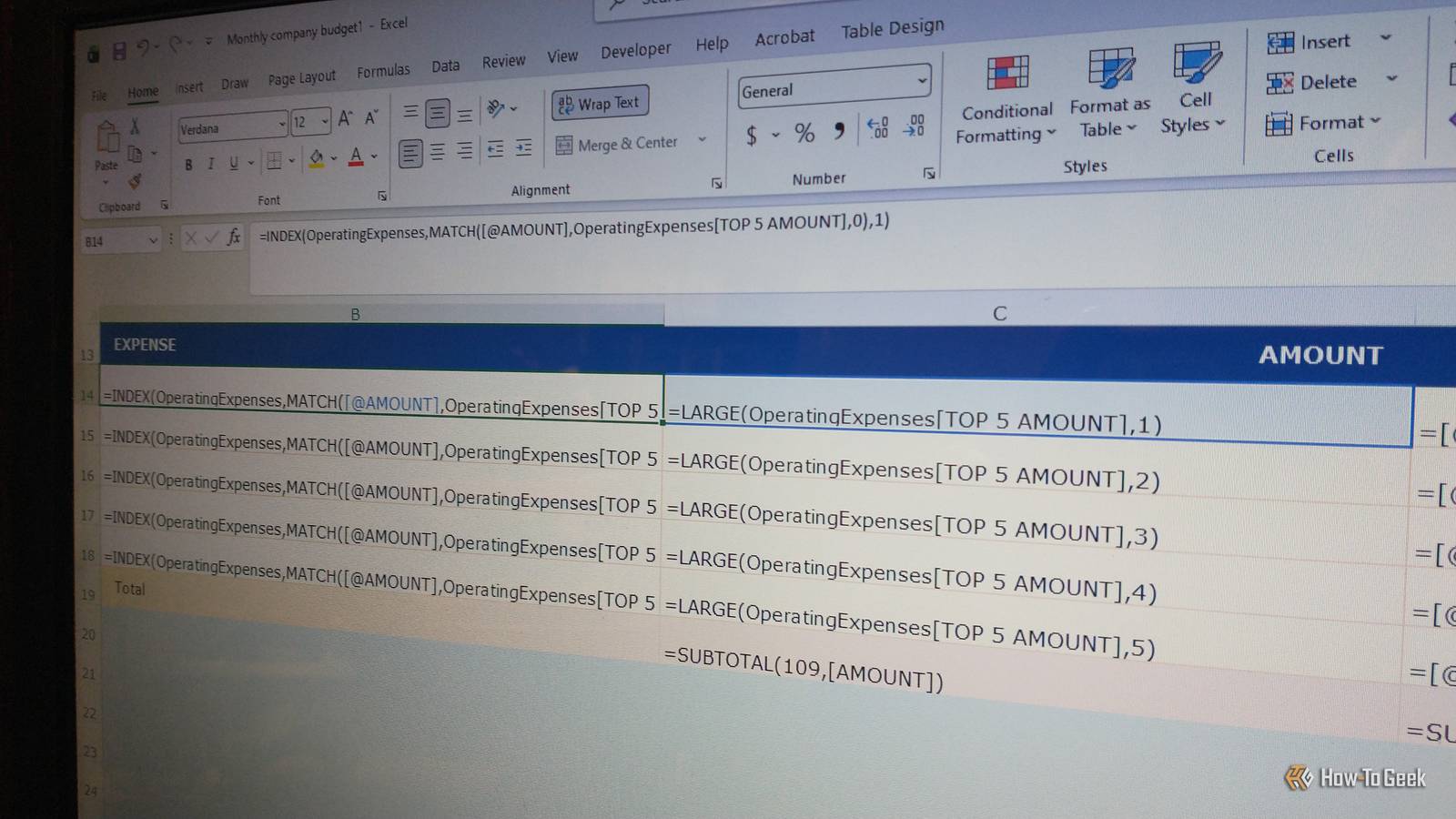
Published Sep 26, 2026, 5:30 PM EDT Steve has been editing and writing content for almost two decades, including product reviews, tech news, how-to guides, and even lifestyle and health topics. He’s served as chief editor for publications like Tech Junkie and Alphr, and has written and edited content for many other tech-related sites. His expertise in Windows, Android, iOS, Mac, and Linux simplifies the gadget and computer world for others, enabling them to shop, connect, learn, tweak, and optimize devices and software to suit their needs. When he’s not writing or editing content, he enjoys repairing and optimizing devices (and game consoles), watching movies, golfing, and spending time with the family. Excel has been around for quite some time, from its original debut as Microsoft Multiplan in 1985 for Macintosh to becoming Excel in 1987 for Windows. Since then, it has continued to improve functionality, capabilities, and even the GUI. The number of formulas, VBA scripting, and macros you can customize to your needs make the software worth going back to. I love its huge library of functions, including formulas and references to information from cells, workbooks, and worksheet tabs. Hotkeys are also a great feature that most people never consider, or even think about — it's a simpler way to handle specific actions and save time. With a combination of keypresses, it becomes easier to navigate your spreadsheets and update calculations or data fast and efficiently. There's one hotkey combo I love using all the time because I can flip back and forth to verify my formulas and data outputs — it keeps my data accurate and up to date while saving time and avoiding repeated actions. Checking calculations for accuracy has never been easier Yes, you can view all formulas at once instead of cell by cell I find it extremely annoying when I have to click each cell containing a formula to ensure the calculations and their cell references are up to date and error-free. It's especially painful in larger databases or spreadsheets with many worksheet tabs and calculations. The good news is that you don't have to deal with those tedious steps when you can press Ctrl + ` to view all cells containing formulas. Once you press it, any cell containing a formula appears right inside the cell, so you can review them all without clicking each one individually. You can learn more about Excel formulas if needed to help guide your formula editing and creation processes. Imagine needing to verify that all necessary cells are included in a SUM function, or the average for a set of cells using the AVERAGE function. Missing just one cell in the formula can affect other functions/formulas and their outcome. This hotkey makes it easy to verify accuracy within each cell. Whenever you're done reviewing and editing, press the hotkey combo again and watch it revert to the cell's actual results. It's the perfect shortcut (and cheat) you can use to verify all cell ranges and worksheet tabs for the desired calculated results. You can easily check references and lookups, too, without repeated keypresses Ctrl+' does more than display math functions Aside from proofing and editing mathematical conditions and formulas, you can use the same hotkey to view references to workbooks, cells, and worksheet tabs. Sometimes, you don't need a mathematical calculation in a cell but want to display data from a different location. Whenever you press Ctrl + ` on your keyboard, you also get to review all references and lookup functions used to display data in each cell. If combined with formulas, this ensures that your cell is pulling the right data from another workbook, worksheet tab, or cell in the existing spreadsheet — It's one of many simple Excel tips and tricks to save you time and ensure accuracy. I often need to reference other workbooks or areas, and this trick lets me verify the right locations and ensure proper calculations or cell contents within the current spreadsheet. If you need to duplicate another tab's data in your current sheet via the older INDEX and MATCH functions or use a modern function like XLOOKUP, you can view all formulas in an instant to verify accuracy and ensure the right output appears in the desired cell of the current worksheet. For my simplified uses, I mainly focus on basic formulas like =NOTES!$E$15 to duplicate the formulated data found in the "Notes" tab within column "E" and row "15." If there were spaces in the tab name, I'd add a single quote to the beginning and end of the name, such as =’3032 Acct Bal’!$E$14. The Alt+` hotkey is also beneficial for long formulas Yes, complex formulas with various functions are also viewable I sometimes use formulas with the SUMIF function to grab data from a particular table's column — based on category names displayed in the cells, such as "Checking," "Savings," or "Other." It finds the cells with the specific name and adds their values together, placing the total value into the current tab’s cell by using something like =SUMIF('CashSpending'[Account],"=" &[@Account],CashSpending[Amount]). If I have a table (i.e., CashSpending) where the column cells include the text “Checking,” Savings,” or “Other,” it could be used to only add a total of values from the “Checking” category and then display that total in the current tab’s selected cell. Your formulas can be much larger than the above example (and include several common Excel functions), but you can see the value of showing all formulas at once with the Alt + ` hotkey combination. Extra-long formulas may be cut off when displayed using Alt + `, but you can expand them by selecting the associated cells and using another hotkey, Alt + H + O + I, to expand them for better viewing. Press Ctrl + Z to undo it — you cannot make changes until you undo, or you’ll lose them. Click the cell and make the edits. Other hotkeys you can use to complement your formula shortcut Save more time with more shortcuts Excel is loaded with hotkey combinations, but some easily complement your formula shortcut to make reviewing and editing more efficient and productive. When I'm working with functions and formulas, I often need to go back to the previous formula cell, which I do by pressing Ctrl + Backspace. Another valuable one is Alt + W + N, which opens the same file in a second window, allowing me to place both windows side by side. I can open another tab in the second window to compare the formulas in both sections whenever they are associated with each other. If you need to jump to the precedent cell (the cell that the current one calls from), you can do so by pressing Ctrl + G. This hotkey combo comes in handy when you want to see which cell the current one pulls its data from. When it comes to mathematical formulas using specific functions, you may see cells filled with "0" when unused. Adding a dot after each colon between cells in your formula eliminates having a "0" in blank calculated cells, such as =SUM(F2:.F12)+(G2:.G12). If "F12" and "G12" are empty (a row), the periods remove the "0" from the calculated cell in "H12" to keep the row and your spreadsheet looking clean—it also makes editing easier to do. The Alt + ` hotkey is certainly one of many beneficial shortcuts, perfect for formula verification and editing Hotkeys definitely help speed up the tedious process of managing and editing spreadsheets and workbooks, and the Alt + ` hotkey is no exception. It helps prevent formula miscalculations and inaccurate results, and displaying all formulas right in your spreadsheet certainly helps. Gone are the days of using the click-and-check process. Now you have a convenient feature that helps you visually see all functions and formulas in your worksheets at the same time.
Stop clicking every cell to check formulas: This Excel shortcut shows them all instantly
Full Article
Original Source
Read the full article at Howtogeek →KhanList aggregates and links to publicly available news content. We do not host full articles from third-party sources. Always verify important information with original sources.