
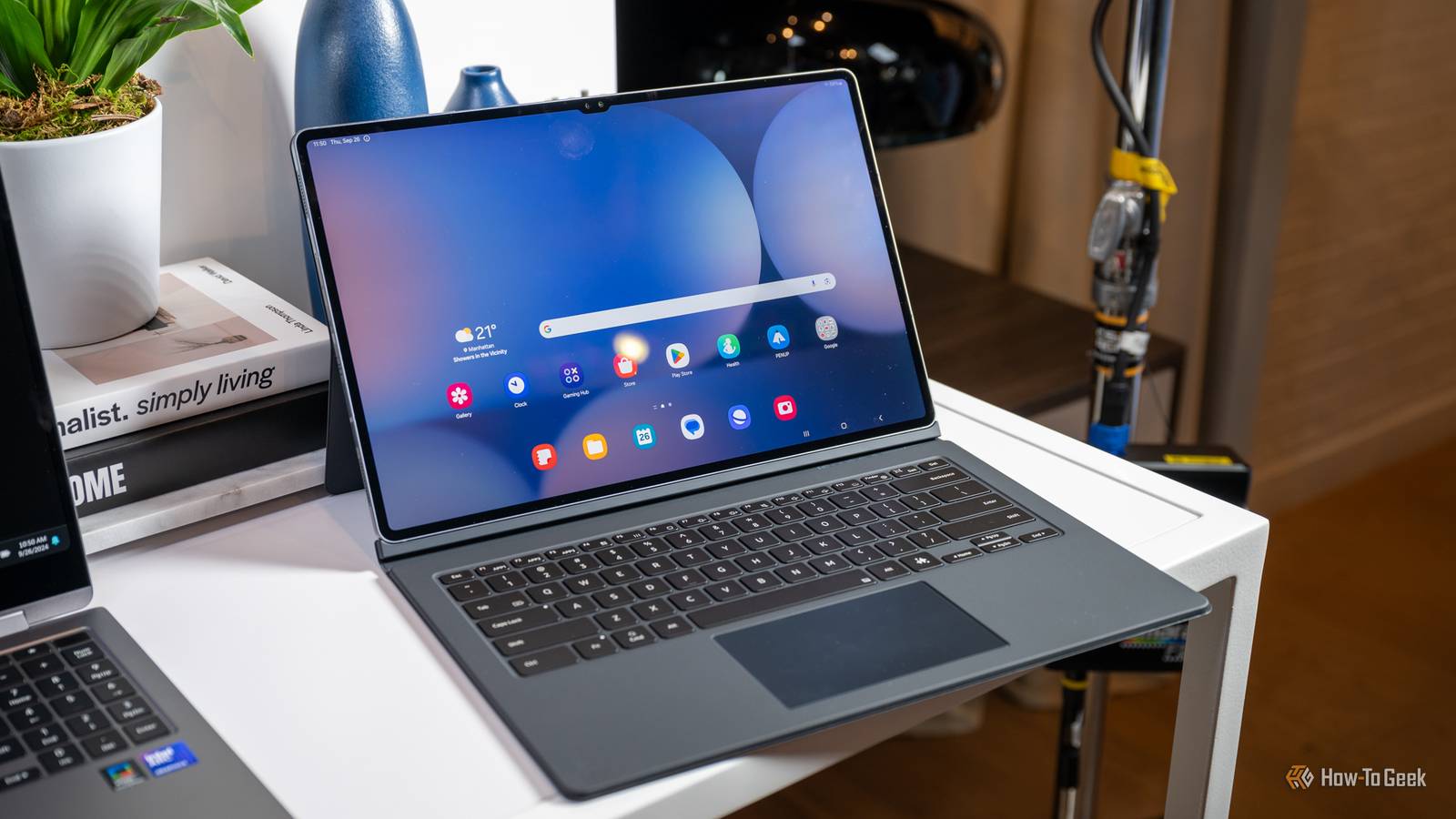
Published Sep 5, 2026, 12:00 PM EDT Bertel is a lifelong tech enthusiast with over a decade of experience writing thousands of articles about Android devices, Linux, and more. Before joining the How-To Geek team, Bertel wrote for the likes of MakeUseOf, MakeTechEasier, and Android Police—at the latter he wrote over 3,500 articles. He delights in helping others decide which tech to bring into their lives... and which tech to do without. Bertel graduated from the College of William and Mary in 2012 with degrees in History and Government. He has spent his entire career as a tech journalist covering Android, Linux, wearables, smart home devices, and more. If you walk into a big box store and look at Samsung tablets, you may be surprised to see that they almost feel more like picking up a Microsoft Surface than an iPad. Samsung has quietly made enough changes to Android that the latest Galaxy Tab slates don't look all that different from the Windows laptops across the aisle. Each tablet has a taskbar at the bottom Just like a laptop Credit: Hannah Stryker / How-To Geek You might expect these desktop settings to be tucked away, waiting for the curious to discover them once the default experience feels too basic. That's not the case at all. When you're looking at the tablet in the store, you'll likely see a taskbar across the bottom of the screen, very similar to what you'd see on a Windows laptop or a Chromebook. This taskbar doesn't appear on the home screen, but it shows up whenever you launch an app. The default behavior is for apps to open fullscreen, but you can switch between them quickly by tapping on their icon on a launcher. This makes multitasking feel less like a phone and more like a PC. Apps can appear in floating windows Multitasking works better on a tablet than it does on a smartphone In the store, you may see windows floating around. This is how things looked when I recently took my son to Best Buy to pick out a Samsung Galaxy A9+ (get the 8GB model; the extra RAM is worth it). Whether Best Buy did this deliberately or it was previous customers playing around, I don't know, but it left an impact. To get floating windows on your Samsung tablet, simply hold down on an icon in the taskbar and drag it up to the center of the screen. If you're off-center, this will trigger split-screen multitasking instead. Dragging an icon to the top or bottom will split the screen horizontally, whereas dragging an icon to the left or right will divide the screen vertically. Hovering in the middle gets you the pop-up window. A pop-up window has minimize, maximize, and close buttons, just like on any desktop OS. You can also pin a window above other windows and toggle the transparency. These are virtually the same window management features you see when using Samsung DeX to turn your phone into a PC. Each tablet has an optional keyboard case And you can use any Bluetooth or USB keyboard, too Credit: Hannah Stryker / How-To Geek Keyboard cases for tablets were once a novel thing. This was a key selling point of the original Microsoft Surface tablet. Now, you can assume a tablet will launch with an optional keyboard case, whether it's the BOOX Tab Ultra C Pro or the Samsung Galaxy Tab S10+. That doesn't change the fact that adding a keyboard does make a tablet feel less like a tablet and more like a laptop. The issue at that point becomes software, but Android in general, and Samsung in particular, has come a long way. Pressing Alt + Tab will switch between recent apps. The usual formatting shortcuts work while typing. You can take screenshots. For the most part, the keyboard works on Android the way you're used to keyboards working. A Bluetooth mouse works like on a laptop Nothing's forcing you to use the touchscreen Credit: Bertel King / How-To Geek Samsung's standard keyboard cases don't have touchpads, though there is a version for larger models that does. Higher-end Galaxy tablets also work with an S Pen, not unlike the one I use each day with my Galaxy Z Fold, offering an even greater degree of precision. Still, there's no substituting a mouse. Fortunately, using a Bluetooth mouse with an Android device feels just like connecting one to a PC. The mouse reconnects instantly, the cursor is responsive, and the standard mouse buttons do what you expect. The experience isn't perfect. Some of the quirks of using Android desktops also apply to using a mouse with Android tablets. Some apps aren't optimized for a mouse, meaning some apps treat your cursor like a PC would, while others pretend the cursor is a finger. Nonetheless, it's more usable than you might think. Samsung makes surprisingly good apps Plus, its phones and tablets play nice together Credit: Justin Duino / How-To Geek Samsung tablets benefit from Samsung's suite of first-party apps. Samsung Internet is a better web browser than you might think, one that scales up to resemble a desktop browser both on tablets and on DeX. Samsung My Files resembles a desktop file manager and, frankly, packs all of the features I need. I actually find it easier to move files around on a Samsung device than I did back when I used a Linux desktop. Samsung Gallery is a good way to manage photos saved directly to your device. It may not come for Photoshop any time soon, but it's a solid way to touch up photos. Samsung Notes is great for use with a stylus, so it kind of competes with OneNote. It's also good for typing out quick notes, sort of how you'd use Google Keep. Yet Samsung Notes can export any of those notes as Word documents, PowerPoint presentations, or PDFs, making it somewhat of a basic office suite. It also is the default way to view PDFs, making it a replacement for Adobe Acrobat Reader. All of this is to say that Samsung tablets have an advantage over tablets from Lenovo or Google in that Samsung offers software out of the box that frankly handles much of what people need a PC to do without them having to search through the Play Store. And you can still install all the same Google apps you might find on a Pixel Tablet, so you aren't missing out. Quiz 8 Questions · Test Your KnowledgeSamsung's most premium devicesTrivia challenge From folding screens to flagship cameras — how well do you know Samsung's finest hardware? Galaxy SFoldablesDesignCamerasInnovation Begin Which Samsung Galaxy S series phone was the first to feature a built-in S Pen stylus? ASamsung Galaxy S21 UltraBSamsung Galaxy S20 UltraCSamsung Galaxy S22 UltraDSamsung Galaxy S23 Ultra Correct! The Galaxy S21 Ultra was the first S series device to support the S Pen, though it didn't include one in the box. This marked a significant shift, bridging the gap between the S and Note lineups after Samsung discontinued the Note series. Not quite. It was the Galaxy S21 Ultra that first introduced S Pen support to the S series in 2021. While later Ultra models refined the experience, Samsung made its big statement by merging Note-style functionality into the S lineup with that device. Continue What was the name of Samsung's very first commercially released foldable smartphone? ASamsung Galaxy Z FoldBSamsung Galaxy FoldCSamsung Galaxy XDSamsung Galaxy Z Flip Correct! The Samsung Galaxy Fold launched in 2019 and was simply called the 'Galaxy Fold,' without the 'Z' branding that came later. It was a landmark device despite a rocky start, including a delayed launch after durability concerns were raised by early reviewers. Not quite. Samsung's first foldable was simply the Galaxy Fold, released in 2019. The 'Z' branding wasn't introduced until later generations. The original launch was notably delayed after pre-release units suffered screen damage, prompting Samsung to redesign key components. Continue What marketing name did Samsung give to the curved-edge display design featured on its premium Galaxy S6 Edge and subsequent Edge models? AInfinity EdgeBEdge ScreenCCurved DisplayDDual Edge Correct! Samsung called the feature 'Edge Screen,' and it allowed notifications, contacts, and app shortcuts to appear along the curved side of the display. It was a defining visual feature of Samsung's premium lineup for several generations and set the brand apart aesthetically. Not quite. Samsung branded the curved display technology as 'Edge Screen' on devices like the Galaxy S6 Edge. The 'Infinity' branding came later and referred to the near-bezel-less display design. Edge Screen was a bold design move that made Samsung's flagships instantly recognizable. Continue The Samsung Galaxy S23 Ultra shipped with a groundbreaking camera sensor. What was its resolution? A108 megapixelsB200 megapixelsC150 megapixelsD64 megapixels Correct! The Galaxy S23 Ultra featured a 200-megapixel main sensor, the first Samsung flagship to reach that milestone. Using pixel-binning technology, it could combine multiple pixels to produce sharp, detailed shots even in low light while keeping file sizes manageable. Not quite. The Galaxy S23 Ultra packed an impressive 200-megapixel main camera sensor. Samsung used pixel-binning to merge smaller pixels into larger effective ones for better low-light performance. It was a significant leap from the 108MP sensors found in previous Ultra models. Continue Which Samsung premium device was the first to feature an under-display camera, hiding the front-facing lens beneath the screen? ASamsung Galaxy Z Fold 3BSamsung Galaxy Z Fold 4CSamsung Galaxy S22 UltraDSamsung Galaxy Z Fold 2 Correct! The Galaxy Z Fold 3, released in 2021, was the first Samsung device to feature an under-display camera on its inner foldable screen. While the technology wasn't perfect and the camera produced softer images, it was a pioneering step toward truly full-screen smartphone designs. Not quite. Samsung debuted its under-display camera technology in the Galaxy Z Fold 3 in 2021. The inner screen hid the selfie camera beneath the display pixels, which was a first for a mainstream Samsung product. Image quality was a trade-off, but the innovation showed where display tech was heading. Continue The Samsung Galaxy S series launched in 2010. Which chipset powered the original Galaxy S? AQualcomm Snapdragon 820BSamsung Exynos 3110CMediaTek Dimensity 1000DApple A4 chip Correct! The original Galaxy S was powered by the Samsung Exynos 3110, clocked at 1GHz. It was one of Samsung's earliest homegrown processors and helped establish the brand's ambition to control both the hardware and software of its flagship devices from the ground up. Not quite. The original Samsung Galaxy S ran on the Samsung Exynos 3110 processor. This chip was Samsung's own silicon, clocking in at 1GHz, which was impressive for 2010. It laid the foundation for Samsung's long-running Exynos chipset line that continues to power its devices today. Continue What hinge technology did Samsung introduce with the Galaxy Z Fold 3 and Z Flip 3 to improve durability? AHydroShield hingeBAquaHingeCArmor Aluminum hingeDIPX8 hinge seal Correct! Samsung introduced HydroShield hinge technology with the Z Fold 3 and Z Flip 3, making them the first foldable phones with IPX8 water resistance. This was a major durability milestone for foldables, which had previously been seen as fragile and impractical for everyday use. Not quite. The technology was called HydroShield, and it allowed the Galaxy Z Fold 3 and Z Flip 3 to achieve IPX8 water resistance — a first for foldable phones. Sealing a hinge that must flex thousands of times was a significant engineering challenge that Samsung overcame with this design. Continue Samsung's Galaxy S24 Ultra replaced the curved display found on Ultra predecessors with what kind of screen design? AA micro-curved displayBA flat displayCA wraparound displayDA flexible rollable display Correct! The Galaxy S24 Ultra moved to a flat display, departing from the curved-edge screens that had defined Samsung's Ultra lineup for years. Samsung made this change in response to user feedback, as many preferred flat screens for reduced glare, better screen protector compatibility, and improved S Pen precision. Not quite. Samsung switched to a flat display on the Galaxy S24 Ultra, ending the curved screen era for the Ultra line. This was a deliberate response to community feedback, with users citing difficulties applying screen protectors and unintentional edge touches as reasons they preferred a flat panel. See My Score Challenge CompleteYour Score / 8 Thanks for playing! Try Again Android can replace a Chromebook for most people And it's not even a downgrade Most people don't need all the complexity that comes from using a Windows PC. There's too much that can break. There are so many ads from Microsoft to deal with, and installing software is a landmine to people who aren't familiar with the culture of browsing the web for EXEs, separating the good ones from the bad. For quite a while now, Chromebooks have been an easy recommendation for people who primarily need to check email, browse the web, and maybe do a little online shopping. Tablets can be an even better fit. There's something about tablets that even toddlers quickly figure out how to navigate. It's an interface that's simply easier for more people to understand. Consider skipping the laptop or Chromebook Android tablets have reached a point where if a Chromebook meets your needs, then an Android tablet can likely also do everything you need done. It's similar enough, and you're gaining a more enjoyable way to watch videos, read books, and play games in the process. And if you're going to get an Android tablet, Samsung's are the most capable ones you can buy.
Seen a Samsung tablet lately? It's like buying a PC
Full Article
Original Source
Read the full article at Howtogeek →KhanList aggregates and links to publicly available news content. We do not host full articles from third-party sources. Always verify important information with original sources.