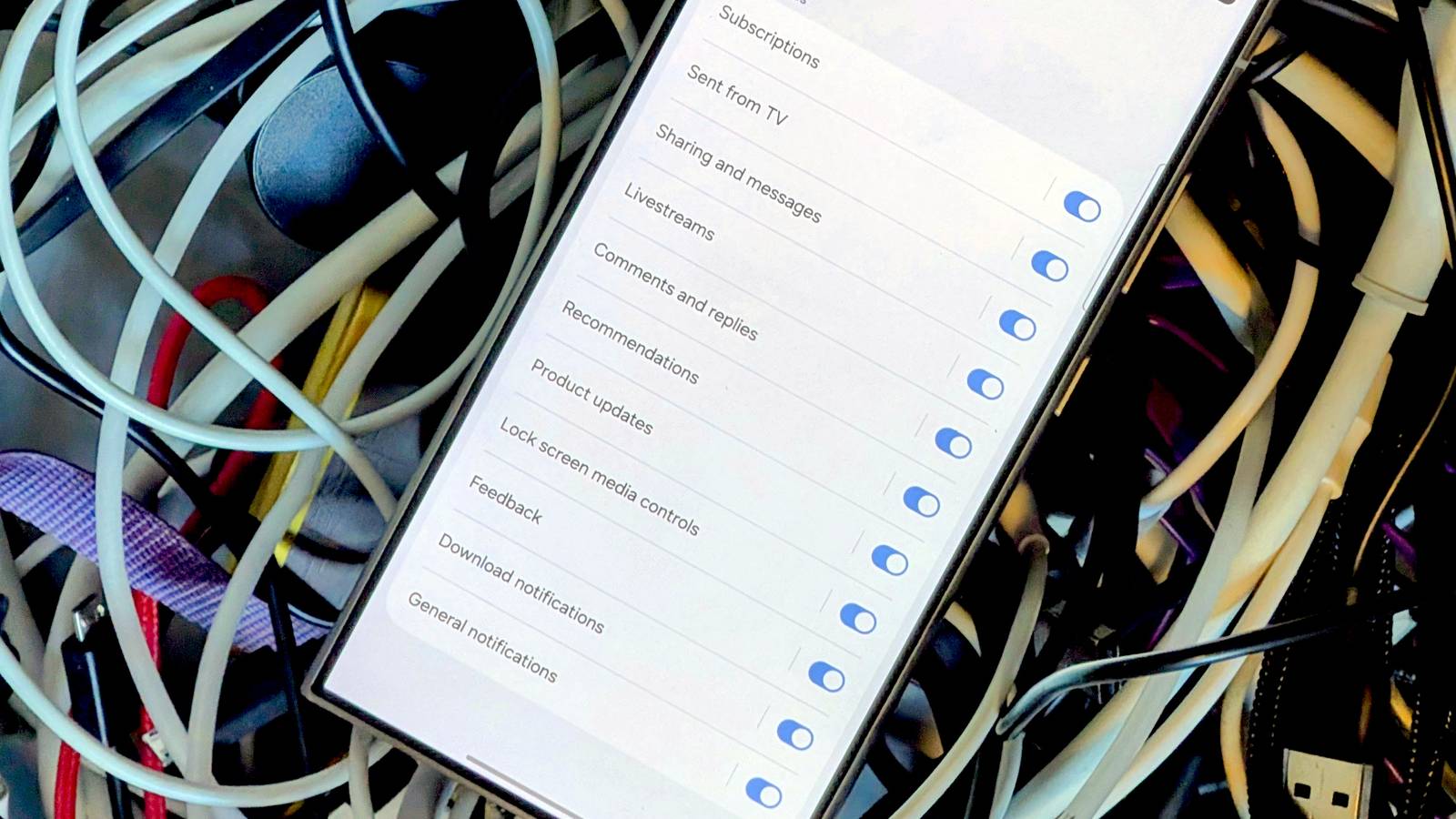
Published Jul 30, 2026, 10:46 AM EDT Joe Fedewa has been writing about technology for over a decade. Android and the rest of the Google ecosystem have been a focus for years, as well as reviewing devices, hosting podcasts, filming videos, and writing tutorials. Joe loves all things technology and is also an avid DIYer and food blogger. He has written thousands of articles, hundreds of tutorials, and dozens of reviews. Before joining How-To Geek, Joe worked at XDA-Developers as Managing Editor and covered news from the Google ecosystem. He got his start in the industry covering Windows Phone on a small blog, and later moved to Phandroid where he covered Android news, reviewed devices, wrote tutorials, created YouTube videos, and hosted a podcast. From smartphones to Bluetooth earbuds to Z-Wave switches, Joe is interested in all kinds of technology. After several years of jailbreaking and heavily modifying an iPod Touch, he moved on to his first smartphone, the HTC DROID Eris. He's been hooked ever since. Samsung has been using Android for over 15 years, but it’s always done things its own way. You know a Galaxy phone when you see one, and that includes the software. One UI doesn’t work quite the same as plain Android—sometimes that’s good, sometimes it’s very annoying. Notifications are one area where Samsung seems to have very different ideas from Google. It immediately throws me off whenever I use a Galaxy phone. However, as much as Samsung may try to hide things, most of the normal Android settings are available if you look hard enough. That is exactly how I fixed my biggest gripe with notifications on Samsung Galaxy phones. What are “Notification Categories” on Android? Save yourself from notification noise Way back in 2017, Google introduced a feature called “notification channels” in Android 8.0 Oreo. The name has since been changed to “notification categories,” but it still works essentially the same as it did nearly a decade ago. Here’s the pitch: An app is bombarding you with notifications all day, every day, but you don’t want to turn off notifications completely because a few of them are actually important. Notification categories allow apps to, you guessed it, categorize their notifications. That way, you can turn off the categories you don’t care about without turning off notifications altogether. Let’s look at the YouTube app for an example. It has notification categories for subscriptions, livestreams, comments and replies, recommendations, messages, downloads, product updates, and more. Personally, I really only care about updates from my subscriptions—I turn all that other noise off. You’ll find that most Android apps have at least a couple of notification categories. Well, unless you’ve been using a Galaxy phone for a few years. Samsung decided to hide notification categories and make users turn them on. Meanwhile, on other Android phones, it’s just a basic feature in the notification section for every app. How to enable Notification Categories on a Samsung phone It’s easy to fix Samsung’s mistake By default, Samsung doesn’t give you many options when it comes to app notifications. You can turn them on or off and choose how they look when they appear, but that’s pretty much it. If an app is being annoying with notifications, but some are actually useful, you’re left with an all-or-nothing decision. Here’s how to fix it. Open the Settings on your Galaxy phone and go to Notifications > Advanced settings. Enable “Manage notification categories for each app.” Now, when you go to the notification section for an app (Settings > Notifications > App notifications), you’ll see “Notification categories” at the bottom. All those extra categories I mentioned are here for your toggling enjoyment. Why is Samsung afraid of Notification Categories? This is one of those decisions that I simply don’t understand. Notification categories make the Android experience better. It’s a feature that allows people to be in control of the apps on their phone, rather than the other way around. It’s also not a complicated feature that could be confusing to the average person. You have to be interested in adjusting notifications to even find it, and if that’s the case, it’s probably exactly what you were hoping to find. One UI has a lot going for it, but there are little things like this that make me prefer other phones with more “stock” software. I expect Android to work like Android, and when that gets disrupted, I feel out of place. Thankfully, this is one thing you can fix for yourself. Samsung Galaxy S26+ $1025 $1300 Save $275 SoC Snapdragon 8 Elite Gen 5 Display 6.7-inch Dynamic AMOLED 2X
Samsung hides Android's best notification feature behind a toggle—and I don't know why
Full Article
Original Source
Read the full article at Howtogeek →KhanList aggregates and links to publicly available news content. We do not host full articles from third-party sources. Always verify important information with original sources.