
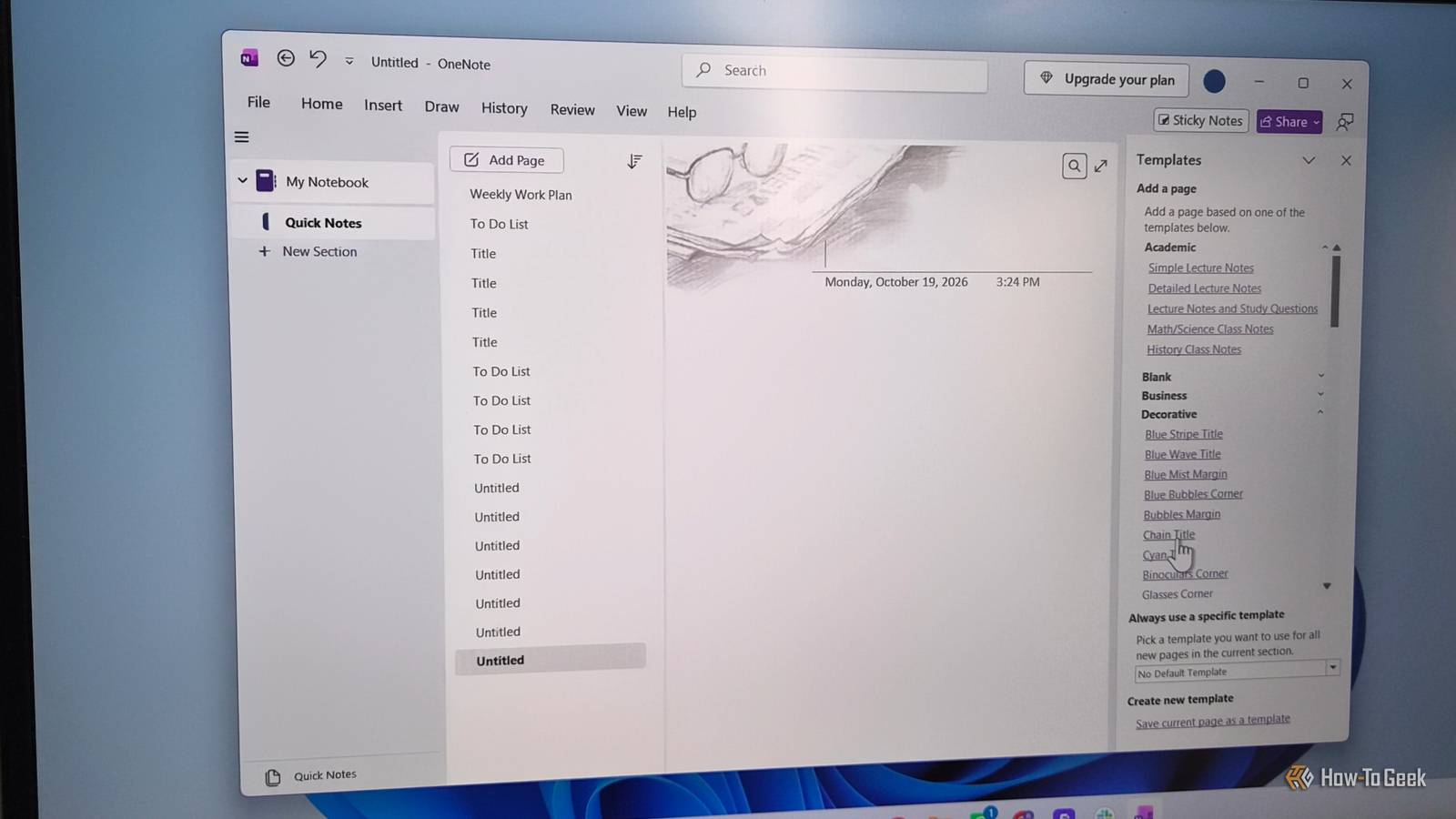
Published Nov 8, 2026, 1:30 PM EST A Computer Engineer turned tech-savvy. Sanya is part of the How to Geek team, and she covers Android, Samsung, Google, apps, and everyday technology, combining hands-on experience with thorough research. She helps readers understand technology without getting lost in technical jargon. I use OneNote for everything from saving article ideas to keeping track of things I need to do later. The problem? My brain treats half of these things like temporary files. I save a useful webpage, forget where I put it, and then waste time searching for it again. Brilliant system, right? So I started using OneNote a little differently. I don’t want to spend more time managing my notes than actually using them. These five tricks aren’t complicated hacks that require an hour of setup or a YouTube tutorial playing in another tab. Save web pages in seconds. Save web pages in seconds Let OneNote do the clipping I invest a lot of time researching articles, so I’m always coming across useful webpages I want to save for later. The problem is that “I’ll come back to this tab” is usually a lie. A few hours later, I had a dozen tabs open and no clue where I saw that one detail I needed. Annoying, especially when I’m on a deadline. OneNote Web Clipper makes this easier. I can save an article’s main content straight to OneNote instead of copying text and links onto a page myself. I don’t have to keep the original tab open or remember to bookmark it. To use it, install the OneNote Web Clipper extension in Edge or Chrome. Open an article, click the extension, choose Article, select where to save it, and click Clip. Next time I need that source, I know where to look. Keep track of every to-do Use OneNote tags to flag tasks I used to dump everything in OneNote and assume I’d remember what I needed to do. A note about an article to finish would sit right next to a random idea or a link I wanted to read later. When I opened the page again, I had to scan through everything to find the tasks I hadn’t finished. Not exactly helpful when I’m trying to get work done. Now, I use OneNote’s tags to mark tasks that need my attention. On Windows, I click the line I want to flag and press Ctrl + 1 to apply the To-Do tag. I use it for things like fact-checking, finishing a draft, or replying to an editor. The checkbox makes unfinished tasks easier to spot, so I don’t have to reread the entire page just to figure out what’s left. Link pages instead of searching for them I use OneNote to keep track of everyday stuff, too. For example, I might have one page with grocery items and another with recipes I want to try. If I find a recipe I like, I don’t want to waste time searching through my notebook for it every time I need it. That’s why I use page links. In OneNote for Windows, I right-click the page I want to link to and select Copy Link to Page. Then I paste that link into my grocery or meal-planning note. Next time I’m planning dinner, I can jump straight to the recipe instead of hunting for it. It’s an easy way to connect notes that belong together, even when they’re saved on different pages. Stop rebuilding the same pages Use templates for repeat tasks I get tired of setting up the same page over and over. Take weekly planning, for example. I want space for my to-do list, appointments, and things I need to remember, but I don’t want to create those headings from scratch every Sunday. I have better things to do than play page designer every week. That’s where OneNote templates help. In the Windows desktop app, I can open a page with the layout I want, then go to Insert -> Page Templates and choose a ready-made design. I can also create my own layout and reuse it for recurring tasks. Once I have a weekly planner I like, I can start with the same structure each time instead of rebuilding it. It’s a small time-saver, but those repeated little jobs add up. Find text inside images Let OneNote search your screenshots I take screenshots of recipes, shopping lists, and random bits of information I know I’ll need later. Last week, I wanted to find the name of an ingredient I’d saved in a screenshot, but I couldn’t remember which one. I wasn’t about to open 30 images just to find one word. I can put screenshots into OneNote and use its text recognition to make the information easier to find. On OneNote for Windows, I right-click an image and select Copy Text from Picture when that option is available. I can paste the text into my note and search for it later. For example, if I save a recipe screenshot, I can copy the ingredients into OneNote instead of typing them out one by one. I’ll be using this for my Finland trip to keep my packing lists, itinerary, and places to visit organized in one place. Stop making note-taking harder than it needs to be OneNote is very personal to me. I like that it keeps getting useful features instead of making me jump between different apps for every little thing. Now I can’t wait to use it to plan my trip to Finland. I already rely on it a lot, and these little tricks give me even more reasons to stick with it.
OneNote tricks that save me time every day
Full Article
Original Source
Read the full article at Howtogeek →KhanList aggregates and links to publicly available news content. We do not host full articles from third-party sources. Always verify important information with original sources.