
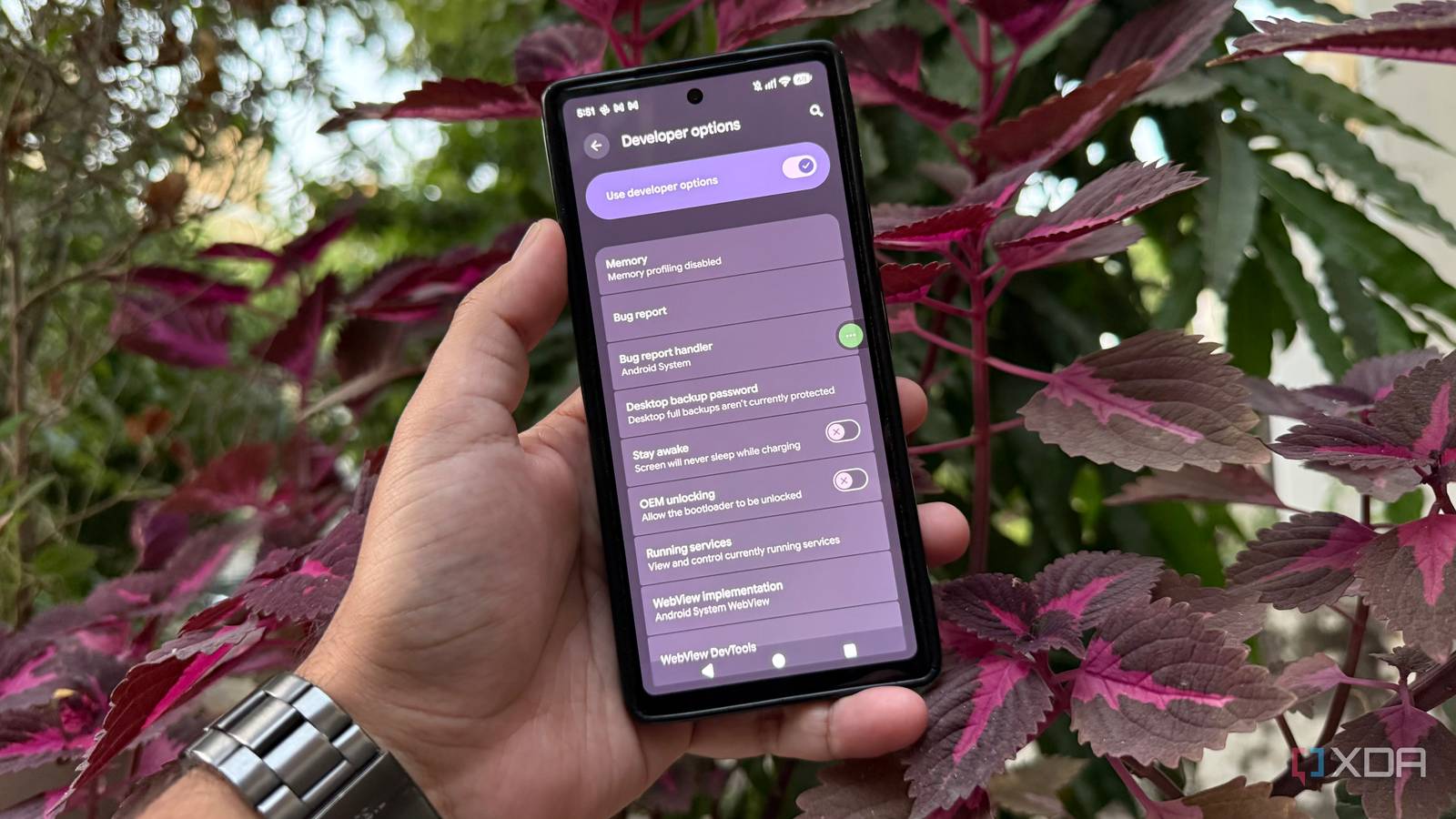
Published Nov 8, 2026, 2:00 PM EST Beginning his professional journey in the tech industry in 2018, Yash spent over three years as a Software Engineer. After that, he shifted his focus to empowering readers through informative and engaging content on his tech blog – DiGiTAL BiRYANi. He has also published tech articles for MakeTechEasier. He loves to explore new tech gadgets and platforms. When he is not writing, you’ll find him exploring food. He is known as Digital Chef Yash among his readers because of his love for Technology and Food. I like keeping my Pixel running smoothly without third-party optimization apps. Developer Options lets you fine-tune Android. I tested a few to see whether their benefits justified the trade-offs. I tested this on my old Pixel 6, which still handles most of my daily tasks but doesn't feel as fresh as it once did. Rather than relying on generic performance-boosting tricks, I wanted to see whether changing a few built-in settings could improve the experience. Some tweaks made an immediate difference, while others weren't worth keeping. Getting under the hood of Pixel Developer Options is a menu Google keeps out of sight for regular users. It isn't listed alongside the usual display or battery settings, but enabling it takes only a few steps. I opened Settings -> About phone, scrolled down to Build number, and tapped it seven times. Android confirmed that Developer Options were enabled, and I entered my screen lock when prompted. The menu was then available under Settings -> System -> Developer options. The menu contains plenty of tools intended for app testing and debugging. I ignored the options I didn't need and concentrated on those that could influence my phone's day-to-day behavior. Reduced these animation settings to make my Pixel feel faster I cut down Android's waiting time The first adjustments were Window animation scale, Transition animation scale, and Animator duration scale. These options control how long interface animations take to play. Window animation scale affects pop-ups and windows. The Transition animation scale controls movement between screens, and the Animator duration scale applies to other animated interface elements. All three were set to 1x by default, so I changed each one to 0.5x. App launches, screen transitions, and returning to the home screen all felt more immediate because the animations finished sooner. The phone wasn't processing tasks faster; I was spending less time watching transitions. Shorter animations make the interface feel quicker, but don't reduce the time an app needs to load content. I also tested turning all three animations off. Transitions became almost instant, but the interface felt abrupt and lost some of the visual feedback that makes Android pleasant to use. I changed them back to 0.5x, which gave me a better balance between speed and smoothness. This was the easiest adjustment to live with. Experimented with GPU settings But not every tweak was worth keeping The graphics options offered another interesting experiment: Force 4x MSAA. This setting enables multi-sample anti-aliasing in compatible OpenGL ES apps. In simple terms, it can smooth jagged edges and make graphics look cleaner, particularly in some games. It is a graphics-quality option, not a general setting for speeding up every app on the phone. I enabled it, but couldn't see a meaningful difference in my usual apps. The extra graphics processing also put more work on the GPU, increasing power consumption and heat in compatible apps. I don’t play games regularly on my mobile phone, and the other visual improvement wasn't convincing enough to justify the additional graphics workload, so I switched it off. It may help in specific testing or gaming scenarios but wasn't useful for my everyday needs. Explored background process and refresh rate settings to improve responsiveness Keeping multitasking smooth and scrolling fluid I also checked memory management. Developer Options includes a Background process limit, which lets you restrict how many processes can remain active in the background. Limiting them might free up some memory, but it can also make apps reload when you return to them. Since I regularly switch between apps, I didn't want unnecessary reloads or to lose my place. So, I left this option at its default setting and let Android manage memory. The display menu had a more noticeable option for my use: Force peak refresh rate. Enabling it makes the display use its highest supported refresh rate rather than allowing it to switch down dynamically. With the setting enabled, scrolling through apps and moving around menus looked smoother and more fluid. It was most apparent when moving through long feeds or quickly navigating lists, where a higher refresh rate makes motion easier to follow. Keeping the display at its peak refresh rate can use more battery, so the benefit may not suit everyone. I liked the smoother feel during this experiment, but would monitor battery life before leaving it enabled permanently. The Force peak refresh rate option isn't available on every Android phone. Its availability depends on the device model, hardware, and Android version. Even among Pixel phones, you might not find this option in Developer Options on all models. Sometimes the best Android tweaks are the simplest ones Developer Options gave me a better understanding of how much control Android offers beyond its regular settings menu. I also learned that just because an option is available doesn't mean it's worth enabling. Some are designed for very specific situations, while others are better left to Android's default behavior. I'll probably keep exploring these lesser-known controls whenever I want to understand my phone better. After all, knowing what a setting actually does is far more useful than blindly following another optimization tip.
I explored these hidden Pixel developer settings and my phone feels faster
Full Article
Original Source
Read the full article at Xda-developers →KhanList aggregates and links to publicly available news content. We do not host full articles from third-party sources. Always verify important information with original sources.