
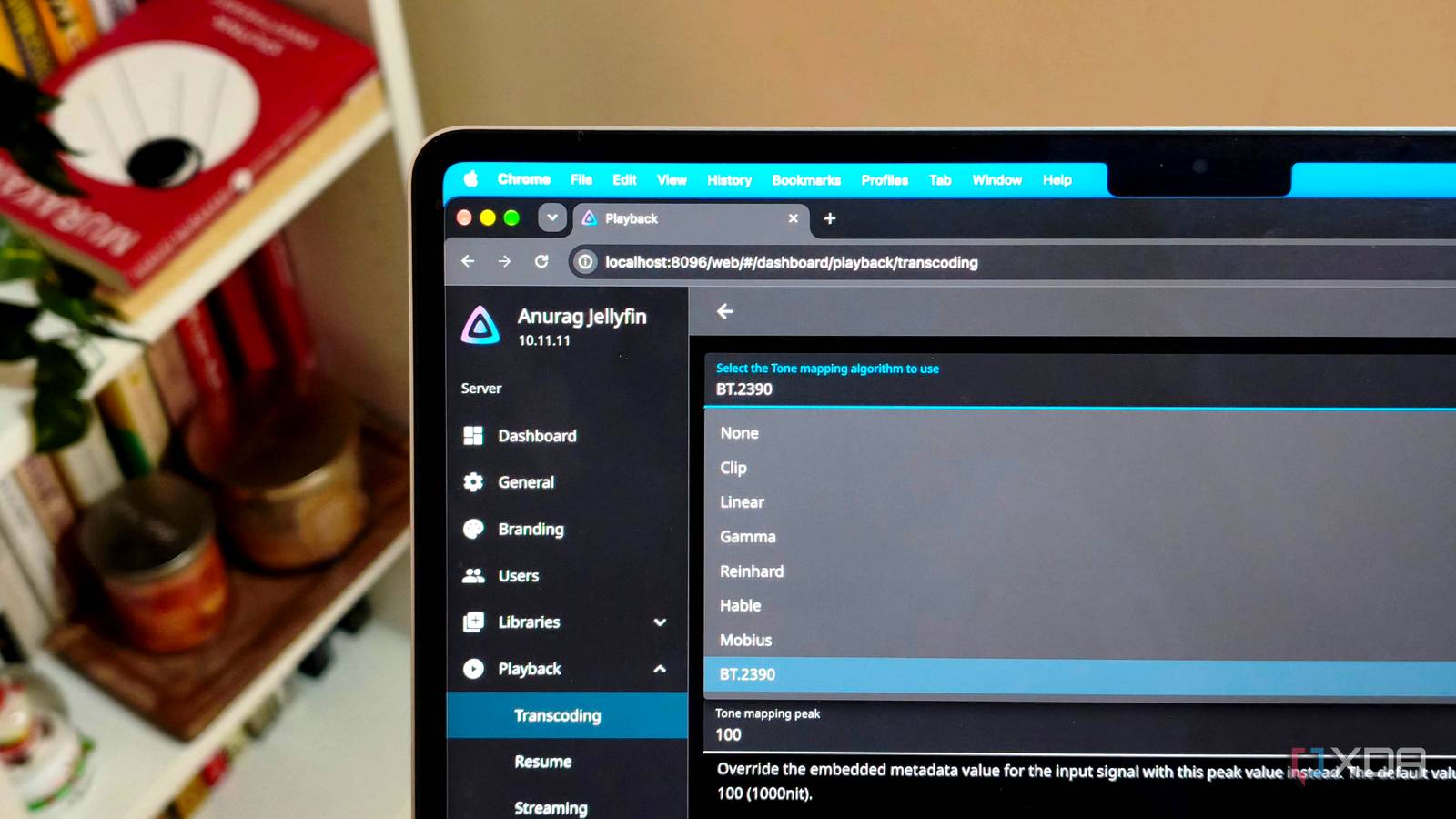
Published Nov 8, 2026, 2:30 PM EST Anurag is an experienced journalist and author who’s been covering tech for the past 5 years, with a focus on Windows, Android, and Apple. He’s written for sites like Android Police, Neowin, Dexerto, and MakeTechEasier. Anurag’s always pumped about tech and loves getting his hands on the latest gadgets. When he's not procrastinating, you’ll probably find him catching the newest movies in theaters or scrolling through Twitter from his bed. One of the reasons I built a Jellyfin server was to have all my movies and shows in one place, accessible from any TV in the house. But 4K HDR content made that a little difficult. A movie that looked great on one TV would appear washed out on another, simply because not every TV supports the same HDR formats. I can maintain separate HDR and SDR copies of my movies, but then I would end up using even more storage for the same content. Thankfully, Jellyfin has a built-in solution: HDR tone mapping. Once configured properly, it lets you play movies from the same 4K HDR library across different TVs without worrying about display compatibility. What tone mapping actually fixes And why HDR content doesn't look right on every TV HDR has become common in movies and shows, especially if you're downloading 4K releases for your media library. But having a 4K TV doesn't really mean it can display HDR content properly. Even among HDR-capable TVs, support for formats like HDR10, HDR10+, and Dolby Vision varies. This is where things become tricky when you're using the same Jellyfin library across multiple devices. HDR video contains a much wider range of brightness and, typically, a wider range of colors than standard dynamic range (SDR) video. That extra information lets compatible displays show brighter highlights, deeper shadows, and more detailed colors. But when you try to play that content on a TV that can’t reproduce those characteristics, the picture can look washed out, excessively dark, or have highlights that lose their detail. This is what tone mapping addresses. It takes the brightness information from an HDR video and maps it to the range an SDR display can reproduce. The process also needs appropriate color conversion to ensure the resulting picture looks natural. You won't get the full HDR experience on an SDR television, but you can still get a good-looking image without the obvious problems caused by incorrect HDR handling. Jellyfin handles this through its transcoding pipeline. If your TV and playback client support the original HDR file, Jellyfin can simply Direct Play it without changing the video. If the client cannot handle the format and Jellyfin needs to transcode the video, tone mapping lets it produce an SDR version the device can display correctly. Configuring tone mapping in Jellyfin Hardware acceleration makes all the difference Jellyfin already has tone mapping built in, but getting it to work properly requires a little configuration. The biggest thing to sort out is hardware acceleration. To convert a 4K HDR movie to SDR in real time, you need a lot of processing power, and relying entirely on the CPU can lead to buffering and playback issues. Thankfully, Jellyfin supports hardware acceleration on Intel, AMD, NVIDIA, and Rockchip hardware. You can find these options under Dashboard > Playback > Transcoding. The first thing you'll need to do is select the appropriate hardware acceleration method for your server. Intel systems generally use Quick Sync, NVIDIA GPUs use NVENC, and Rockchip-based NAS devices use RKMPP. Once selected, you can enable hardware decoding for the formats your hardware supports, particularly HEVC 10-bit, which is commonly used for 4K HDR movies. Further down the same page, you'll find the Enable Tone Mapping option. Turn it on and select a tone-mapping algorithm. I recommend starting with BT.2390, which is also Jellyfin's recommended default. Once everything is configured, play a 4K HDR movie on a device that requires SDR conversion. Open Jellyfin's dashboard and check the active playback session. It should show that the video is being transcoded. You can also inspect the FFmpeg transcoding logs to confirm that hardware acceleration and tone mapping are actually being used. Your Jellyfin client matters more than you think The TV isn't the only thing determining playback Getting the server configured properly is important, but there's another part of the setup that deserves some attention – the Jellyfin client you're using. You could have a perfectly capable 4K HDR television and still run into playback problems because the app you're using doesn't support a particular video format. For example, the Jellyfin app running directly on your TV and the one running on a dedicated streaming device like an NVIDIA Shield or Apple TV 4K can have different playback capabilities. Even on the same hardware, different apps and video players can handle codecs, subtitles, and HDR formats differently. This matters most with Dolby Vision, where support depends on the video profile, the playback software, and the device itself. Playback compatibility also goes beyond video formats. Some movies come with audio tracks that your TV or sound system cannot decode, so Jellyfin has to convert the audio. That isn't particularly demanding, but subtitles can create a bigger problem. If the client cannot display a subtitle format, Jellyfin may need to burn those subtitles directly into the video, forcing a full video transcode even when the original video would otherwise play without conversion. Jellyfin also maintains a codec compatibility chart that lists what different clients support. It's worth checking if you regularly encounter files that require transcoding unexpectedly. After all, getting your server to handle 4K HDR conversion is useful, but avoiding unnecessary transcoding in the first place is even better. One less thing to worry about with Jellyfin I already spend enough time managing my media library, so having to keep separate versions of movies for different TVs was the last thing I wanted. Jellyfin's tone mapping takes care of that without much effort, and it's another reason I prefer running my own media server.
My Jellyfin server handles 4K HDR on every TV in the house after I set up tone mapping properly
Full Article
Original Source
Read the full article at Xda-developers →KhanList aggregates and links to publicly available news content. We do not host full articles from third-party sources. Always verify important information with original sources.