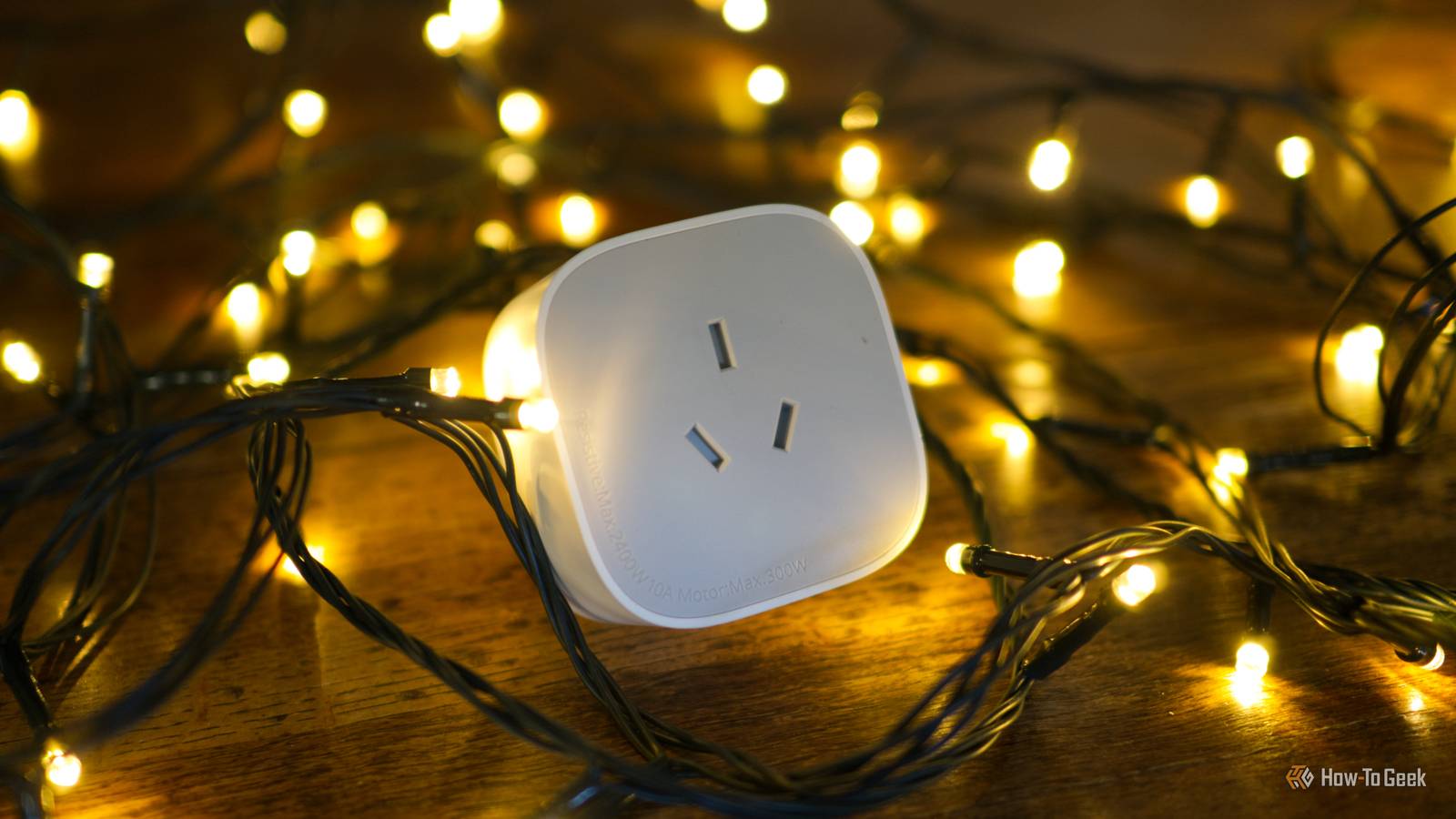
Published Jul 30, 2026, 2:45 PM EDT Monica J. White is a journalist with over a decade of experience in covering technology. She built her first PC nearly 20 years ago, and she has since built and tested dozens of PCs. PC hardware is her main beat, and graphics cards and the GPU market at large are her main area of interest, but she has written thousands of articles covering everything related to PCs, laptops, handhelds, and peripherals. From GPUs and CPUs to headsets and software, Monica's always willing to geek out over all things related to computing. Outside of her work with How-To Geek, Monica contributes to TechRadar, PC Gamer, Tom's Guide, Laptop Mag, SlashGear, Whop, and Digital Trends, among others. Her ultimate goal is to make PC gaming and computing approachable and fun to any audience. Monica spends a lot of time elbow-deep in her PC case, as she's always making upgrades, testing something, or plotting out her next build. She's the go-to tech support person in her immediate circle, so she's never out of things to do. Whenever she has spare time, you'll find her gaming until the early hours and hanging out with her dog. WPA3 is one of those router settings that most people will tell you to use. You might have done it and assumed your job was done, but that's not always true. Unfortunately. One ancient (well, as ancient as can be in this context) smart plug or another IoT device could be sabotaging your network, and you might not even know about it. WPA3 transition mode is doing exactly what it was designed to do Compatibility is what you want, in theory Before you get too into the weeds with this, let's go over what WPA3 even is. WPA stands for Wi-Fi Protected Access, and it's the security standard your router uses to control how devices authenticate and how traffic is encrypted on your wireless network. WPA2 has been the default for years, while WPA3 is the newer version with stronger protections against password guessing and certain types of wireless attacks. When you dive into your router settings, you'll often be presented with the choice between WPA2 and WPA3. (Not always, though, as some ISP-issued routers won't let you pick.) This choice is a bigger deal than it seems, as you're essentially deciding which security method devices must use to join your network. And yeah, that is pretty important. Now, transition mode? WPA3 transition mode is a compatibility setting that allows one Wi-Fi network to support WPA2 and WPA3 at the same time. You may also see it called WPA2/WPA3 mixed mode or WPA2/WPA3-Personal. Instead of forcing every device to use the newer standard, the router lets each one connect using whichever version it supports. Your phone and laptop may connect through WPA3, but older smart home gear will still get in through WPA2. It's nice, convenient, sure. But it might make you think your network is more secure than it really is. Govee Smart Plug $28 $30 Save $2 Perhaps all you need is a better smart plug? Govee's option is ideal for Google Assistant users. Connectivity Wi-Fi & Bluetooth Your router may claim it's using WPA3 while still happily accepting WPA2 Make sure to double-check Credit: Ismar Hrnjicevic / How-To Geek You see, things can get a little sneaky when you dive into the WPA3 transition mode rabbit hole. Your router's dashboard may tell you that WPA3 is enabled, and honestly, that'll be enough to put most inquisitive minds at rest. However, that doesn't necessarily mean the network is running in WPA3-only mode, and that's the key difference. If the security setting says WPA2/WPA3-Personal, mixed mode, or transition mode, the router is still advertising both standards and accepting connections from devices that run only WPA2. You may be unaware of it, and that can be a problem. To check which setting you're actually using, open the wireless security section of your router settings and check the exact mode selected for each network. You may also be able to open the list of all devices connected to your network and see which device is using which protocol. Any device you spot still using WPA2 when you thought you were, in fact, using WPA3, is proof that the router is more flexible than you might have intended. Keeping WPA2 available limits the security upgrade WPA3-only lets you enforce newer protections Credit: Patrick Campanale / How-To Geek That flexibility is nice, but it's not free. WPA3 uses a newer authentication method called SAE, which makes captured Wi-Fi handshakes much less useful to anyone trying to guess your password offline. It also requires Protected Management Frames, which help prevent certain attacks that try to disconnect devices from your network. Your WPA3-capable devices can still use those fancy protections in transition mode, but WPA2 remains available for anything that asks for it. Switching the network to WPA3-only closes that compatibility door and forces every device to stick to WPA3. It's a "my way or the highway" situation. But, of course, the moment you put your foot down, those older IoT devices that don't support WPA3 may be left with no way to function. Put old smart home devices on a separate WPA2 network Keep the main SSID WPA3-only Credit: Bertel King / How-To Geek Far be it from me telling you to get rid of all your smart plugs, bulbs, and what-have-yous, though. The solution is to just open your router settings and look for an option to create a guest, IoT, or secondary Wi-Fi network. This is also useful for moving devices between 2.4GHz and 5GHz. Give the new network a separate name from your main network, set its security to WPA2-Personal with AES, and connect only the older devices that refuse to cooperate with WPA3. If your router offers client isolation or an option that blocks access to the main local network, enable it so those devices can reach the internet without freely poking around your computers and storage drives. Once the holdouts have moved, return to security settings for your main SSID and change it from WPA2/WPA3 transition mode to WPA3-Personal only. Reconnect all the good stuff to this strictly WPA3 network and enjoy. Sometimes it comes down to convenience vs. security Transition mode isn't some security disaster that will blow up your whole network, and for plenty of people, one dying smart plug isn't going to make or break their connection. But if you want to prioritize security above all else, creating a separate network for those things you trust just a little bit less is a sensible move. UniFi Dream Router 7 9/10 Brand Unifi Range 1,750 square feet A secure router is the backbone of a secure home network, and UniFi's Dream 7 is one of our favorites.
One old smart plug is undoing your entire Wi-Fi security upgrade
Full Article
Original Source
Read the full article at Howtogeek →KhanList aggregates and links to publicly available news content. We do not host full articles from third-party sources. Always verify important information with original sources.