
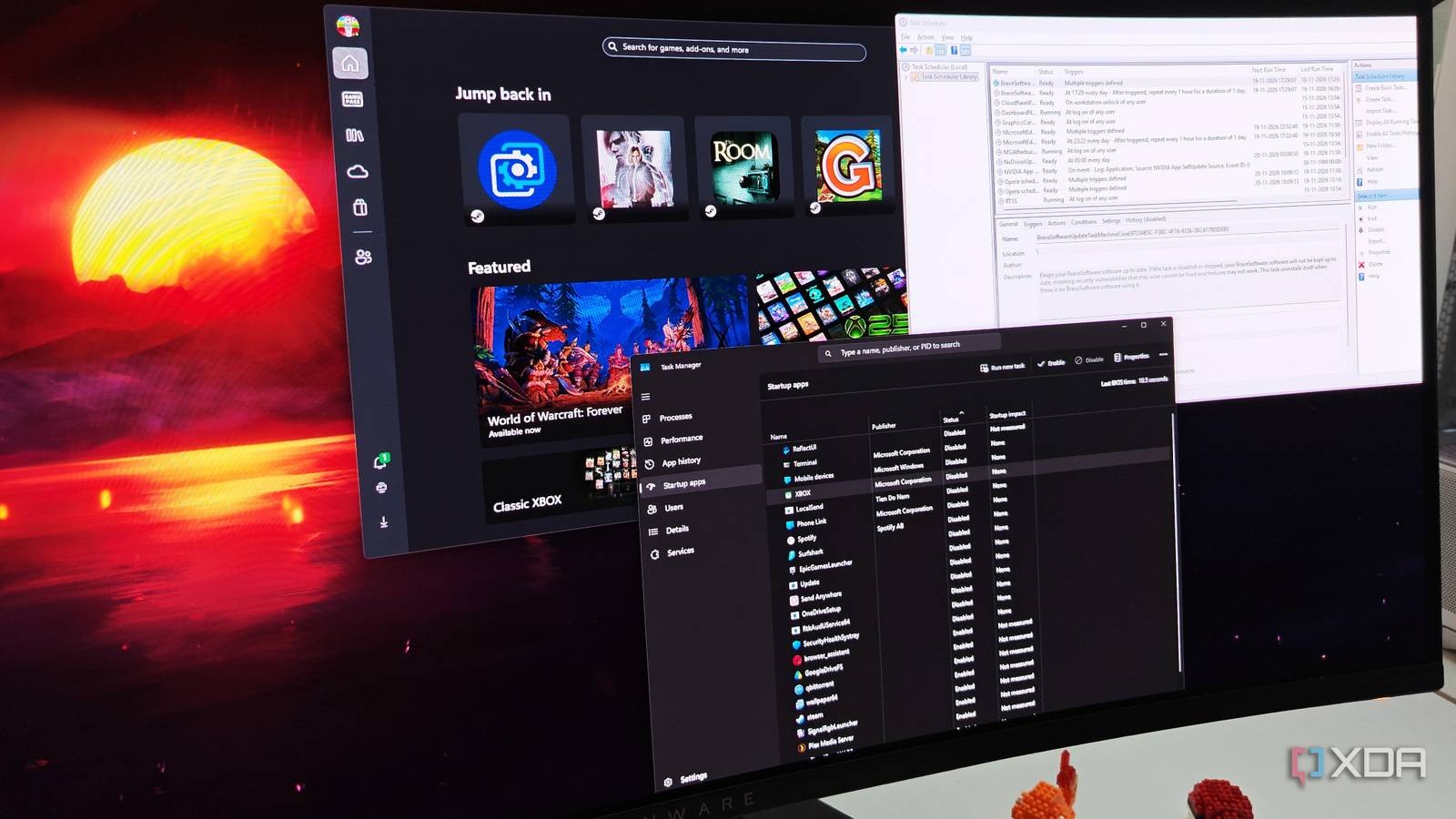
Published Nov 20, 2026, 1:30 PM EST After a 7-year corporate stint, Tanveer found his love for writing and tech too much to resist. An MBA in Marketing and the owner of a PC building business, he writes on PC hardware, technology, and Windows. When not scouring the web for ideas, he can be found building PCs, watching anime, or playing Smash Karts on his RTX 3080 (sigh). Keeping my startup apps at a minimum became second nature long ago. When almost every single app adds itself to the list of startup items in Task Manager, disabling the ones you don't need at every boot becomes necessary. It not only makes the system feel snappier, but also helps minimize clutter. That said, I recently discovered that keeping an eye on the Startup apps tab in Task Manager isn't enough. Depending on the type of program you install on your PC, it can launch on startup in a number of different ways. These configurations are different from the regular startup items list you see in Task Manager, which is why you may be surprised to see some apps launch at startup even after being disabled. The reasons behind it could be the app's own settings or other triggers inside Windows that are created during installation. While checking each one of these factors is a bit of extra work, you only need to do it occasionally. The payoff is worth it, and the process becomes faster once you get the hang of it. In-app preferences can override your Task Manager startup settings Some apps can be sneaky For the longest time, I thought disabling apps in Task Manager meant they would never show up on startup again. However, when I started seeing more than a few on the system tray, I rechecked the Startup apps tab in Task Manager, just to ensure I wasn't mistaken. And sure enough, they were still toggled "disabled" on the list. So, what was going on? To figure it out, I opened each of the apps in question, such as Spotify, Surfshark, and Xbox. Checking the settings screen for each of them revealed that the Launch app on startup option, or a variant of it, was turned on. This was the reason these apps were showing up when they shouldn't have. I could have sworn that I had turned this setting off inside the apps, at least for some of them, but an update can sometimes revert these settings. So, if you're seeing the same behavior on your PC, visit the settings page for any apps that are mysteriously launching at startup, and turn the auto-launch option off for good. The Startup folder can still launch apps that you disabled in Task Manager You can't let the list of shortcuts build up There's a Startup folder located at %AppData%\Microsoft\Windows\Start Menu\Programs which stores shortcuts to apps that are configured to launch at startup. Some apps find their way to this folder during installation, and even if they're disabled in Task Manager, they still launch at startup. This is one of the major reasons why you may see a few too many apps running in the background. You can type shell:startup in a Run window and press Enter to directly navigate to this folder. Inspect the apps listed here and disable the ones you don't want on startup. It can feel annoying to manage startup apps in multiple locations this way, but you only need to revisit this folder once in a while when the app count on your PC goes up. Otherwise, the impact on your boot time and system resources stays mostly the same. The main app is disabled, but not its secondary processes or scheduled tasks Modern apps have a lot of baggage Some apps have secondary or helper components to manage additional tasks such as updates. Even if the main app is disabled in Task Manager, these helper processes can still launch at startup, often triggering the main app anyway. Once you identify such processes, you can disable them permanently. Another way apps can add to the list of startup items is by creating scheduled tasks in Task Scheduler. These tasks typically deal with regular updates or cloud handshakes, and can launch an otherwise disabled app, overriding your preferences. This is why you can often spot an app in the Processes tab in Task Manager that you never launched manually. Open Task Scheduler and click Task Scheduler Library in the left pane of the window. Here, you can see a list of all scheduled tasks that Windows is running based on different rules. You can disable the ones that you're sure are related to third-party apps that you don't want on boot. Since Windows manages its own updates and backups via scheduled tasks, it's important not to disable important system tasks. Permanently disabling startup apps can be more involved than you think Most people disable the apps they don't want in Task Manager, thinking they've put a leash on their startup items. However, many apps still find a way to launch via in-app settings, helper components, scheduled tasks, or a separate Startup folder. You need to investigate each of these sources every once in a while to ensure stray apps aren't needlessly cluttering your system.
My Windows PC keeps launching apps I already disabled, and I finally found the reason why
Full Article
Original Source
Read the full article at Xda-developers →KhanList aggregates and links to publicly available news content. We do not host full articles from third-party sources. Always verify important information with original sources.