
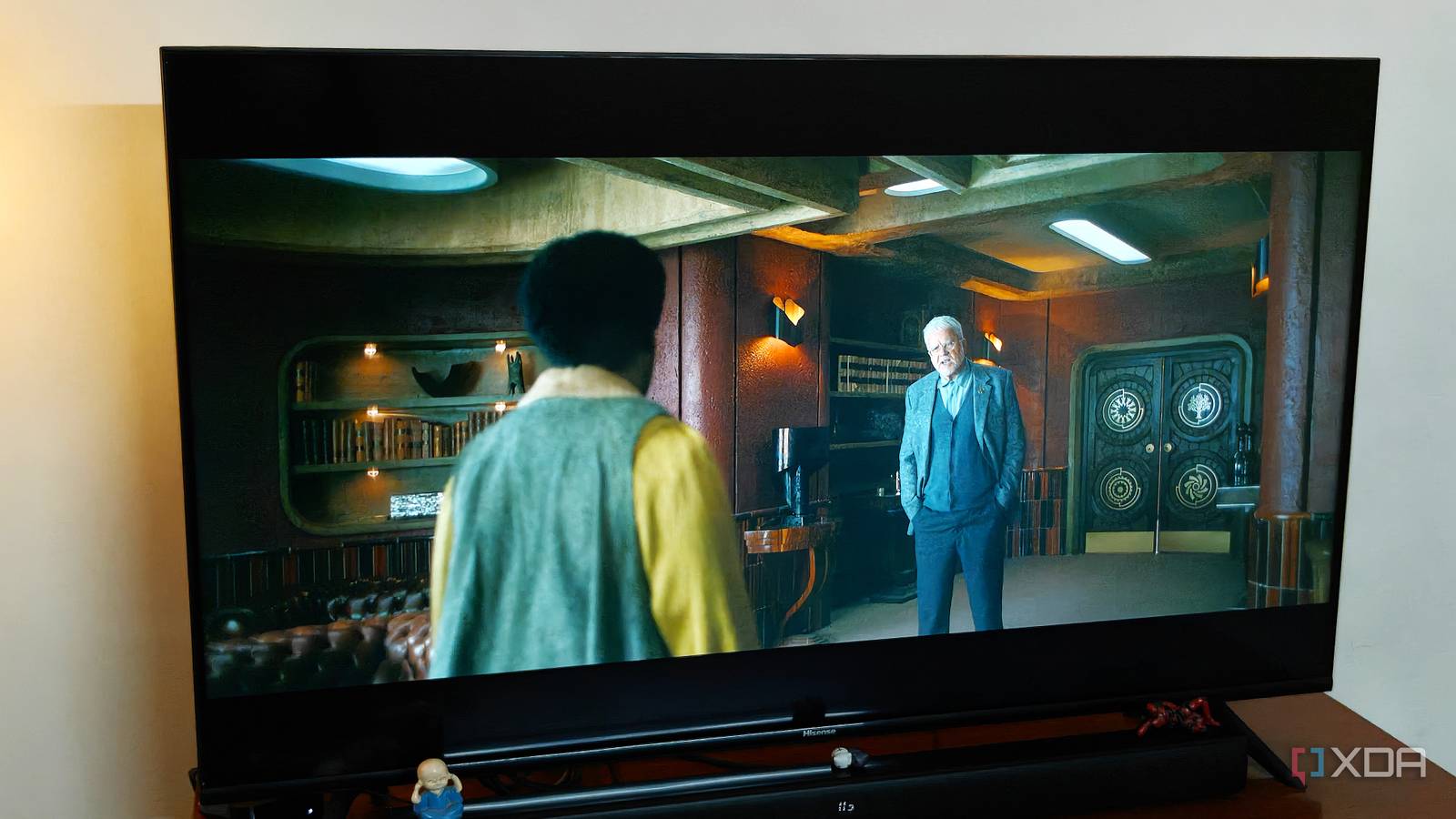
Published Oct 7, 2026, 6:00 PM EDT After a 7-year corporate stint, Tanveer found his love for writing and tech too much to resist. An MBA in Marketing and the owner of a PC building business, he writes on PC hardware, technology, and Windows. When not scouring the web for ideas, he can be found building PCs, watching anime, or playing Smash Karts on his RTX 3080 (sigh). I've been using a soundbar instead of my TV's onboard speakers for years because, well, the latter is rarely a good option. When I got this TV back in 2020, its speakers were serviceable for a while. After all, I finished The Last of Us Part 2 without ever buying a soundbar. That said, the TV speakers started showing their limits as soon as I watched a few movies and TV shows. The volume was fine, but the sound separation left a lot to be desired. Overall, the audio experience was hollow, which prompted me to buy a soundbar a few months later. Recently, I was testing the soundbar on my PC, hoping to replace my existing PC audio setup and buy a new speaker system for the TV. This forced me to make do with the TV speakers for a few days, and I found out that they aren't as bad as I had thought, provided I tweaked a crucial setting. I was content with seeing "Dolby Atmos" on the screen The TV's speakers weren't equipped to handle it For the first few hours without my soundbar, I assumed the TV speakers were doing the best they could. They weren't great to begin with, so the muddy audio I was hearing was expected. However, I glanced at the screen and saw that my Apple TV 4K was sending Dolby Atmos audio to the TV. This wasn't a surprise, considering I had picked that setting, but it worked well with the soundbar, not the TV speakers. The muffled, inaudible dialogue was because the TV speakers couldn't process the incoming Atmos signal. Apple TV showed that Dolby Atmos was playing, but that only meant that it was sending that particular audio stream to the TV. Since the TV's speakers weren't equipped to handle the incoming multichannel bitstream, they downmixed it to stereo, creating a poor audio experience. Checking my TV's audio settings made it clear — the audio output was set to "Pass Through." While this was ideal for a soundbar that could process Dolby Atmos, it was suboptimal for the TV's onboard speakers. Fixing the audio format mismatch is the key Let the TV speakers receive a safe audio signal It was time to change the video input to my Android TV and head into its audio settings. I had to pick an option that let the TV process the incoming audio from the Apple TV 4K properly. I changed the audio output from "Pass Through" to "PCM," which means Pulse Code Modulation. PCM is an uncompressed digital audio format that often converts the incoming audio to stereo format due to bandwidth limitations on older TVs. Switching to PCM instantly made dialogue in movies and TV shows clearer. I was technically hearing an inferior audio signal now, stripped of object-based height effects, but my TV speakers weren't equipped for that anyway. At least, I could now make out dialogue properly and the soundstage was overall better. If you have a modern TV with onboard speakers that support Dolby Atmos or other lossless audio formats, pick those output formats in the audio settings. Streaming apps typically send Dolby Digital instead of Dolby Atmos, but even that has surround-sound effects, which a capable TV can process natively. You might have better luck with Dialogue Enhancement or Auto Volume TV speakers need all the help they can get Modern movie and TV audio is infamous for terrible audio mixing where people can't make out what the characters are saying half the time. This forces people to turn on subtitles or make do with their existing audio setup. Even after changing the audio format on your TV, you may still not hear the dialogue properly. Thankfully, you have a few more settings to experiment with. The first is dialogue enhancement, which may have different names depending on your TV. On the Apple TV 4K, it's called Enhance Dialogue, but on your TV it might be called Clear Voice or Voice Enhancement. Turning this on isolates and boosts human speech frequencies, which should make dialogue clearer. The other setting is called Auto Volume or Night Mode on different TV models. This setting compresses the audio signal to reduce the gap between loud and quiet moments, effectively preventing dialogue from getting buried under loud sounds. Note that these settings will suppress other sounds in the audio stream, so your overall experience may vary. Check how you like the results, and turn these settings off if you're not impressed. My TV speakers are bad, but they can be improved I had dismissed my TV's onboard speakers as terrible, but it turns out I could have made them decent with a few audio tweaks. The main change I made to improve the audio experience was changing the audio format. This lets the TV process the incoming audio in a format it could safely handle. Experiment with every audio setting on your TV to make the most of your TV speakers.
My TV speakers were never the problem, and one audio setting fixed dialogue I couldn't hear
Full Article
Original Source
Read the full article at Xda-developers →KhanList aggregates and links to publicly available news content. We do not host full articles from third-party sources. Always verify important information with original sources.