
Published Nov 26, 2026, 6:00 AM EST Shekhar Vaidya is a veteran technology journalist and computer science engineer. He is the founder of TechLatest, where he has spent years providing technical analysis on hardware and Windows ecosystems. Now a Computing Writer at XDA, Shekhar leverages his deep background in NAS, storage solutions, and PC internals to help readers master their tech. I have been a Google Drive (now Google One) user for more than a decade. Even after building my own homelab with servers and NAS, I still have cloud storage with me. For my Windows PC and MacBook, it was easy to use Google’s Drive app, but on the Debian server and NAS, there’s no official way. A few weeks ago, for an article, I was testing rclone against the Google Drive app’s stream feature. The result of the test was something else, but while testing rclone, I came across its bisync feature. Today, all four of my machines share one Google Drive folder, even without the official app. Google left two of my machines out So I stopped using Google's app on all four The new generation Google Drive app on both Windows and macOS is pretty good. Both the stream and mirror files features are what a power user like me needs. But when it comes to operations on machines where the app is not supported, the workflow breaks. The best example is my Debian server and the Synology NAS. With rclone’s bisync feature, the whole equation flipped. Today, if I drop a PDF file to my server (shared folder), a sync run pushes the file to Google Drive in under five seconds, and it takes another few seconds to pull it onto my Windows PC. The scenario is similar with my NAS and MacBook. It looks like a simple thing, but setting the system up on all four machines took quite a bit of time and testing. Windows was already set up in my case, so the tough part of configuring it for the first time and tuning it was already behind me. And among the other three machines, only the NAS hesitated the most. My NAS is an old 2-bay NAS from Synology (DS218j). It currently acts as dumb bulk storage in my homelab. This particular model doesn't support Docker due to hardware limitations, so installing rclone on it took a different path. I had to download the ARMv7 build of rclone and place it inside the NAS’s primary volume to make it work. rclone is a static binary, so no Docker or package was needed anyway. But I had to exclude @eaDir (thumbnails) and #recycle folders from the sync so that it wouldn’t upload its junk to everyone. One quick piece of advice: if you are setting up the same Google Drive or any other cloud storage on a different machine, you don’t have to reconfigure each step again on every machine. Just copy the already signed-in rclone.conf file to that machine, and you are good. I learned it the hard way; I tried to set up rclone on the server from scratch and got stuck with a few errors. I put it on a timer, then tried to break it The older edit survived under a new name Everything looked seamless, but there was one major issue with this whole system. The whole process was manual. I had to rerun the rclone bisync command manually every time to perform the synchronization. Manual sync was alright if I were disciplined, but I knew myself well enough that in a day or two, I would forget about it and abandon the whole setup. So, to cope with that, I put a small automation on every machine. A systemd timer on Debian, Task Scheduler on Windows, DSM Task Scheduler on the NAS, and a launched agent on macOS. All four automations did the same thing: every five minutes they ran the rclone bisync command and pushed or pulled new files to or from the remote Google Drive. As always, the scripts and steps are there on my GitHub for you to check. Even though I knew it might not happen with my workflow, I still wanted to test whether rclone would handle a conflict. So I orchestrated an intentional conflict in a file. I created a conflict-test.txt file on the server and synced it to the PC. Before editing the files, I made sure the automations on both the machines were turned off so they wouldn’t run and sync anything. And then I edited and appended the files on both the machines one by one, server first and then PC. After both the edits, I ran the sync command on the server; it pushed the changed file to the remote with no issues. Then I ran the sync command on the PC; rclone instantly flagged that there were changes in both the paths (PATH1 - remote, PATH2 - PC). It compared both the paths and kept the PC version as is while it renamed the server version as filename.conflict1 without deleting it. It meant both win and loss; it neither merged the files nor deleted them. It always keeps the newer file by each machine’s modified time because of the --conflict-resolve newer flag in the command. In my case, it kept the PC version because it was edited a couple of seconds later. The conflict was intentional, but the automated run makes it easier to solve the conflict. I set all the automations to run every five minutes, so there would be a delay to deal with any changes. Five minutes is enough for me, because I rarely work on two machines at the same time. Not instant, but always there Yes, I know it is not as good as the Google Drive app, but it proved the system works even on machines Google never built an app for. For me, it is a reliable solution because none of the machines are more than a few minutes behind on my important files. If the server and the NAS weren’t in the mix, I would have definitely lived with the Google Drive app. A few small trade-offs are there, but it is worth the work it is doing. Rclone A free, open-source command-line tool that syncs files between your machines and cloud storage like Google Drive, on Windows, macOS, Linux and even a 32-bit ARM NAS.
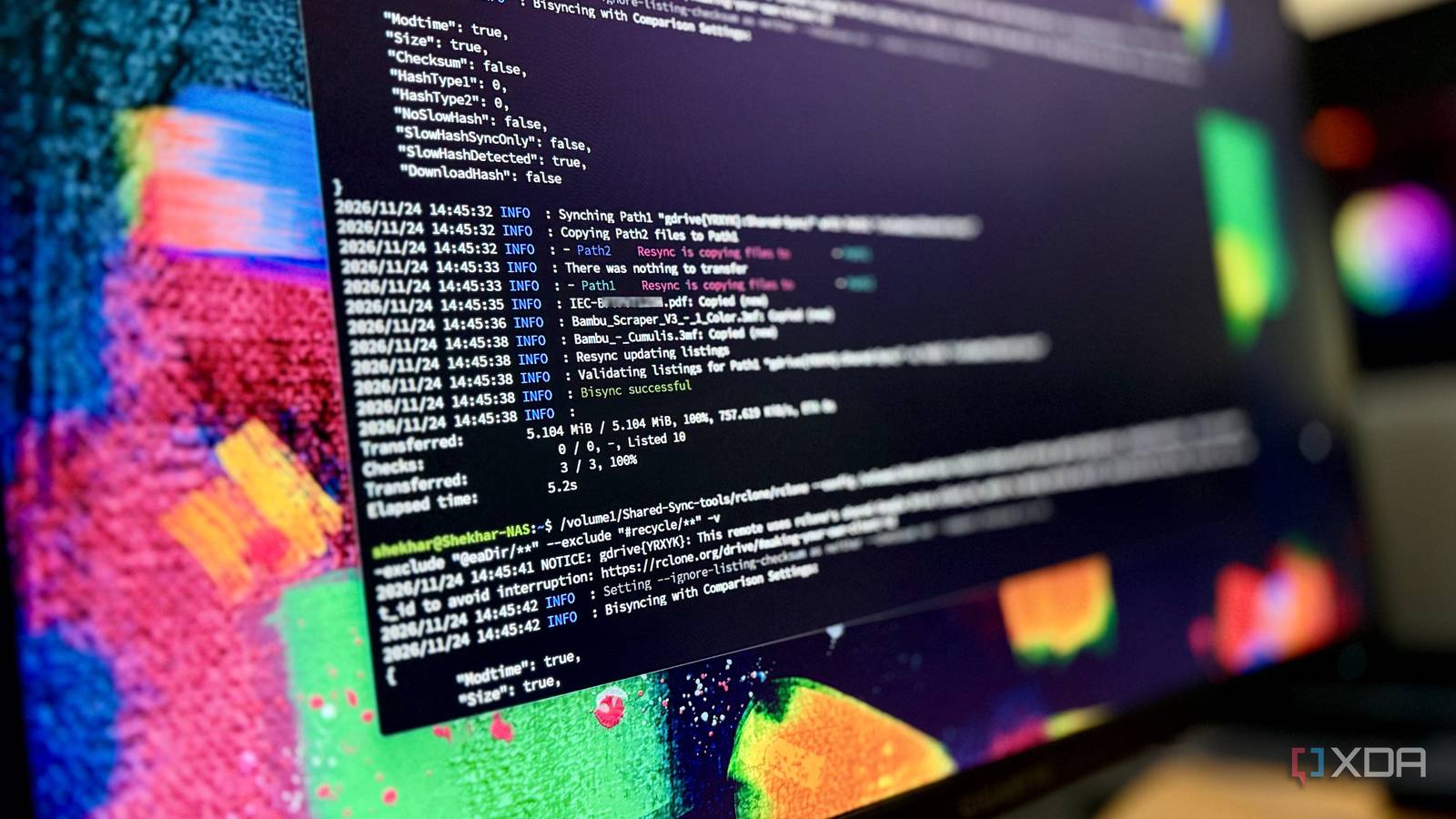
My server, NAS, PC, and Mac all share one Google Drive folder, and none of them run Google's app
Full Article
Original Source
Read the full article at Xda-developers →KhanList aggregates and links to publicly available news content. We do not host full articles from third-party sources. Always verify important information with original sources.