
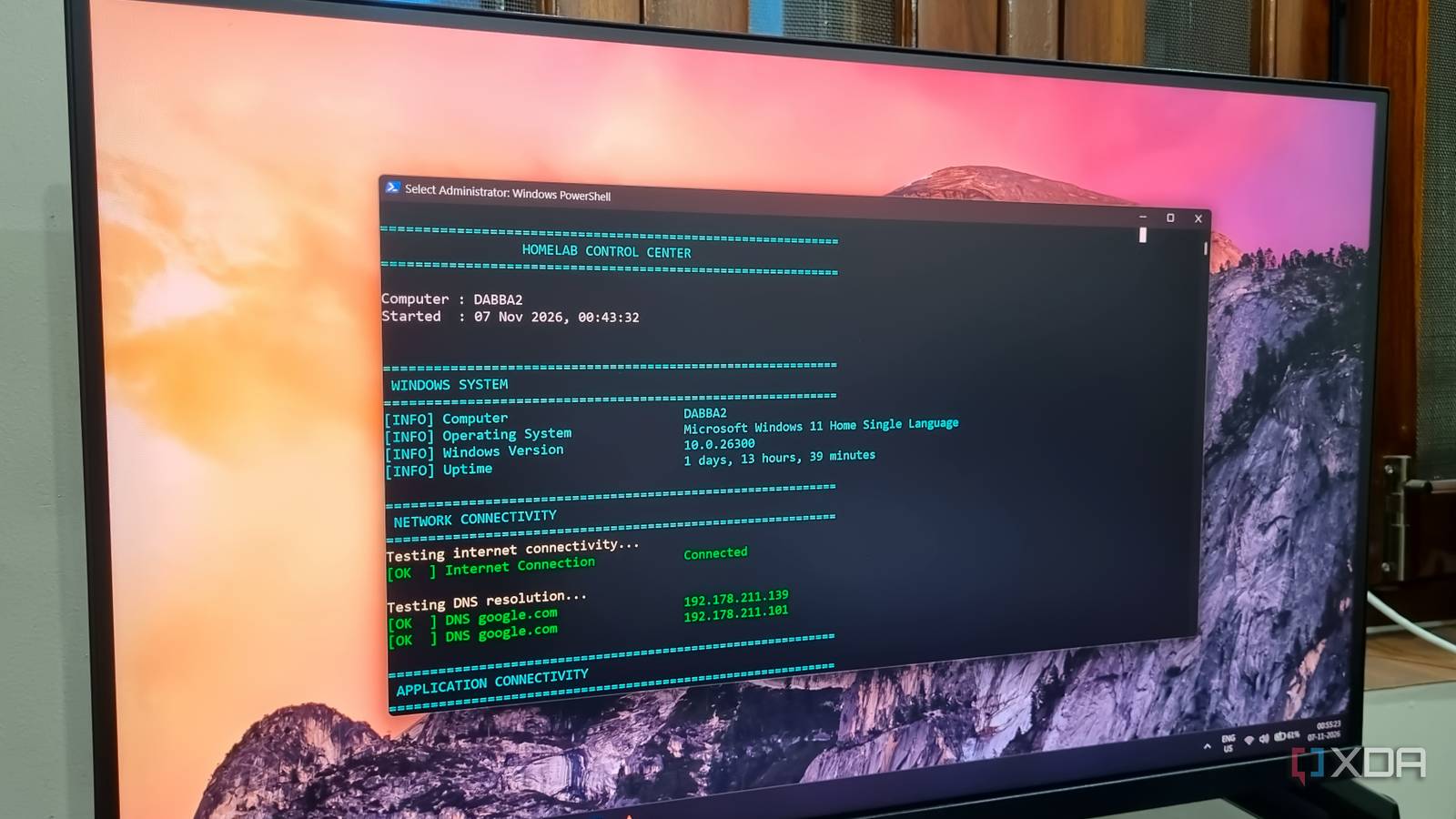
Published Nov 7, 2026, 9:00 AM EST Abhishek is an author at XDA who covers computing. He has loved computers since he got the Lenovo G570 in 2012. Abhishek holds a master's degree in computer applications and began his writing career in 2018. He loves writing how-to articles, listicles, and informational posts on popular operating systems and web services. He closely follows the Windows Insider program and tests new Insider builds to discover upcoming experimental features and upgrades. His past work includes long-term collaborations with reputed publications like Tom's Hardware, and Windows Latest. When not writing anything, he is busy watching new episodes of One Piece or searching for something binge-worthy. PowerShell is my most-used utility in Windows 11. I host a few home servers and use SSH to connect to and manage servers from my main PC. So, I end up typing the same commands repeatedly for both servers. As you can expect, managing two separate servers requires me to log in to them and check if the hosted tools work properly. I also need to confirm whether the system can connect to the internet and check for any recent errors. My current workflow wastes a lot of time on these tasks, so I thought of building a PowerShell profile. It would run all these actions whenever I launch PowerShell and free me up for real work. Let's explore why you should use one too, especially if you are into automation. PowerShell profile takes over mundane jobs A script to check everything The sole purpose of using a PowerShell profile is to automate most of the mundane jobs you do in every session. I have already described most of the checks I needed to do before I could begin interacting with the servers. So, it's a combination of a script file and a dedicated profile that makes it possible. You define everything you want in the script, then configure the profile to run it in every new PowerShell session. It’s more sophisticated than a simple script because the tool actually connects to servers via SSH, runs a few commands, and displays their output in the PowerShell window. It even includes a few custom commands, which are very helpful for managing these servers. I use aliases in PowerShell because they help shorten excessively long commands. However, the script skips aliases and creates tiny commands for a bunch of functions, like accessing a system via SSH. For example, an SSH command needs a target device address and password. But my script's custom SSH commands directly connect to the server with ssh113 and ssh110. Preliminary checks examine system availability Available connections and other statistics The script creates a CLI dashboard that shows all necessary statistics in one place. It starts with the details of the host computer, including its version and uptime. Since SSH can work on the local network without the internet, the script checks for internet access and DNS resolution as well. Next, it moves to application connectivity and mentions all the available apps and their correct URLs. After the profile script completes the basic system check, it moves on to the individual server checks. But don’t I need to sign in to the server to pull all the statistics? No. A traditional SSH session requires you to enter a password when you want to connect to a server. But you can use an SSH key to bypass this frequent authentication altogether. Windows already has OpenSSH built in, and you can use it to generate a key that will enable password-less access. After generating the key, you have to create an .ssh directory and add your public key to the authorized_keys file on all the target devices. It’s a one-time effort, and you don’t have to worry about password authentication anymore. The script accesses the server via SSH and then begins building a basic system report. It displays the usual system details, and then moves on to the serious stuff like Docker container and service status. I can also view the current temperature, bind mounts, available updates, and inactive services. I was experimenting with a Kopia server on the thin client, and it’s currently disabled to make room for Immich. The dashboard reports that the container exists but isn’t active, along with the number of days. It then reports all the Tailscale devices on the network and which ones are currently active. It also includes a brief overview of recent errors, along with DNS and internet checks. Then the next server section begins and repeats the same metrics. I deliberately messed with the containers to check how it responds to an unhealthy container. The reports indicated a problem in the config file, and then the script shows a few commands. PowerShell profiles can do a lot You might wonder why I chose to build with a PowerShell profile? Wouldn't a web dashboard be enough for basic monitoring? A dedicated web dashboard that pulls data from your servers is a great idea. But most of those dashboards offer very limited control. Don't assume that I've never experimented with dashboards. I've used Homarr and Glance in the past and even Beszel and Glances for Docker system monitoring. However, it's inferior to my custom PowerShell profile’s dashboard. Self-hosted dashboards often limit control to Docker systems only and offer no way to change the host OS. So, I have to use SSH anyway, and it seems exhausting to hop between a browser dashboard and an SSH session. My PowerShell profile builds a far better dashboard with accurate reports on what works and what needs immediate attention. I get the gist of everything happening on my server in a single terminal window. A hosted dashboard can fail if the server is unresponsive or powered off, but my profile doesn’t share the same weakness. It runs actions on available servers and produces error messages for those it can’t connect to. Try PowerShell profiles I use scripts and Task Scheduler to automate them, but PowerShell profiles work on a different level. My custom profile acts as a dashboard that checks every little detail about the current system and servers. It runs whenever I launch PowerShell and doesn’t depend on any other tool. However, my current profile works well for the Linux servers; I’ll need to modify it to include a WSL machine I use on a secondary Windows PC. There’s also room for a lot of cosmetic improvements that can make the CLI dashboard a little more inviting. Windows 11 Pro A USB installation drive and license key for Windows 11 Pro, with additional features like Hyper-V and Windows Sandbox support.
My PowerShell profile runs a dozen small jobs every time I open a terminal, and halves my workload
Full Article
Original Source
Read the full article at Xda-developers →KhanList aggregates and links to publicly available news content. We do not host full articles from third-party sources. Always verify important information with original sources.