
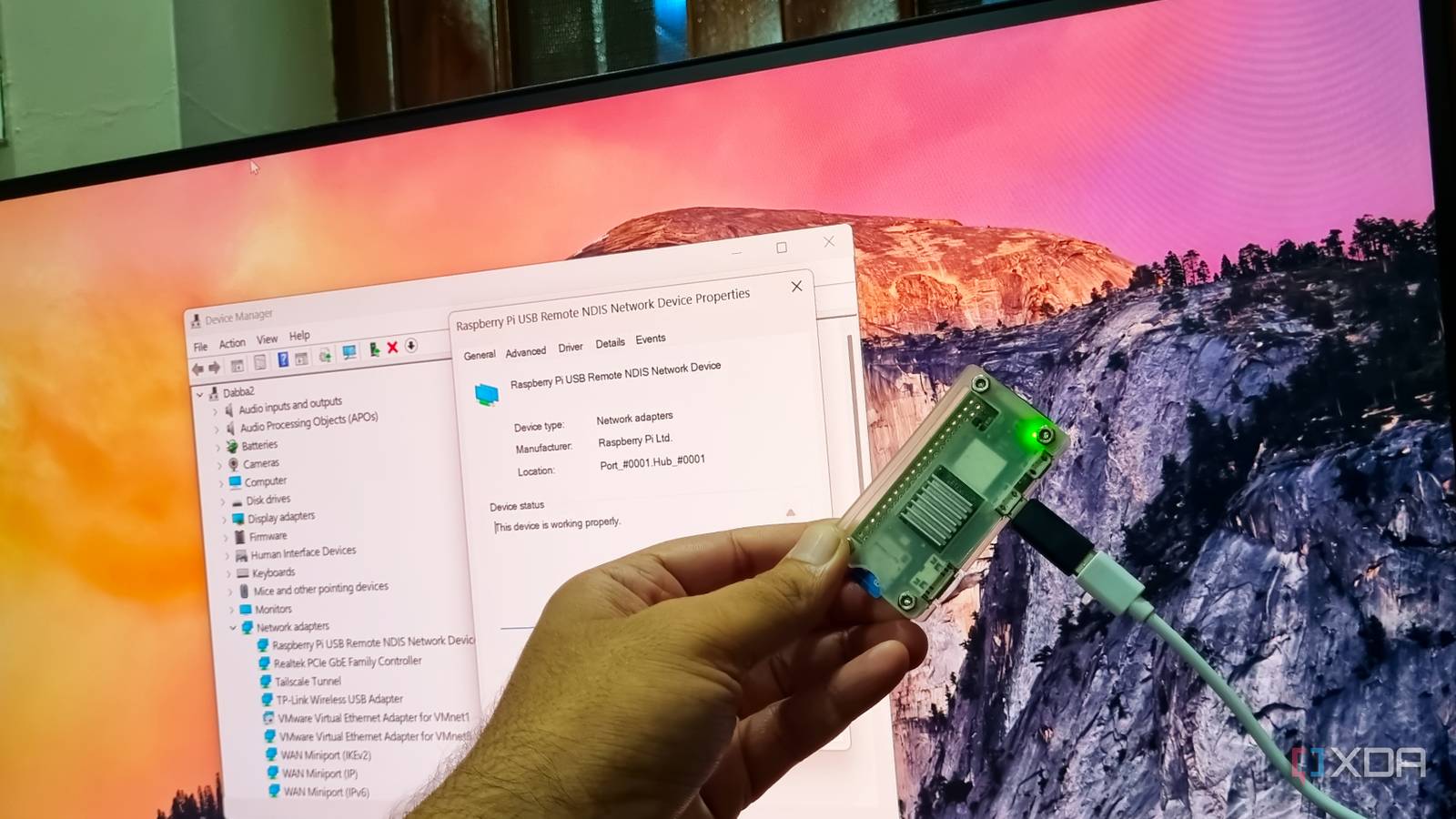
Published Nov 5, 2026, 7:00 AM EST Abhishek is an author at XDA who covers computing. He has loved computers since he got the Lenovo G570 in 2012. Abhishek holds a master's degree in computer applications and began his writing career in 2018. He loves writing how-to articles, listicles, and informational posts on popular operating systems and web services. He closely follows the Windows Insider program and tests new Insider builds to discover upcoming experimental features and upgrades. His past work includes long-term collaborations with reputed publications like Tom's Hardware, and Windows Latest. When not writing anything, he is busy watching new episodes of One Piece or searching for something binge-worthy. The Raspberry Pi Zero 2 W is the cheapest SBC to try out the Raspberry Pi ecosystem. It has wireless connectivity, GPIO pins, and, if configured right, can actually run a mini server with some lightweight tools. However, as you progress in your home lab journey, weak devices like the Raspberry Pi Zero 2 W become less useful. You might invest in a thin client or mini PC or upgrade to a better Raspberry Pi model with better specs and connectivity. But it feels bad just to let the board collect dust instead of doing something useful. Raspberry Pi supports USB gadget mode, and it's an excellent way to repurpose your weak SBC. I enabled the mode and discovered many ways to turn it into a useful USB gadget. Let's discuss it. USB gadget mode is pretty interesting Turning an SBC into a USB device your PC recognizes If you connect your Raspberry Pi Zero 2 W to your Windows PC, there's a chance that it might recognize it at all. The reason for that is that Windows doesn't see it as a USB device. Or rather, the Raspberry Pi Zero 2 W doesn't tell the Windows PC that it's a USB device. So, you have to enable the mode and tweak a few settings to get the project up and running. There are several modules included with the USB gadget mode. You can pick a simple one like USB Ethernet to access the SBC directly over SSH through the USB port. Another interesting one is USB mass storage mode, which lets you use the Raspberry Pi like a flash drive. Your SD card becomes directly accessible like any other USB drive. Other notable modes include HID, which several DIY users leverage to use the SBC as an input device. You can add a few buttons to the Raspberry Pi and then use it as a single/multi-action button. It also supports Serial mode, which makes the SBC appear as a COM port on the computer. You can also turn the SBC into a webcam or use it as an audio device. Setting up USB Ethernet mode on the SBC Don't expect it to get right on the first attempt I had an existing DietPi installation on the SD card. So, I purged it and installed the Raspberry Pi OS Lite 64-bit on it. I also preconfigured SSH, a user, and a few more things via the Raspberry Pi Imager tool. Then, I accessed my Raspberry Pi via SSH to add support for the USB gadget mode. The first change that you must make is in the config.txt file. Add the following line to enable the peripheral mode: [all] dtoverlay=dwc2,dr_mode=peripheral The next file is cmdline.txt, which contains what actions happen at boot. You have to add parameters to enable the USB controller and load the Ethernet gadget driver. modules-load=dwc2,g_ether After a quick reboot, the SBC needed a manual IP address assignment and a few tweaks. On the Windows PC side, it didn't appear as a device at first. So, I had to install the appropriate RNDIS driver, and then only the SBC appeared as a network device. After assigning an IP address to the SBC, I also had to edit the Raspberry Pi's network settings. I edited the IPv4 settings using the Control Panel and added the IP address via which my PC could connect to the USB gadget, aka the SBC. Once that was done, the Raspberry Pi could use the USB connection for power and be available for SSH over the newly assigned IP address. Using your SBC as a USB gadget on a PC Giving a new purpose to the Raspberry Pi You might wonder why we went through all this trouble just to connect to the Raspberry Pi over SSH. You can do the same by using the same Wi-Fi connection. But this is different because it creates a direct connection between the two devices. Using Ethernet mode lets me connect to the SBC even if my main router goes down during power outages. The SBC receives power from the PC and remains accessible over a custom IP address. Doing so makes the troubleshooting much easier than it should be. Now, I can do experiments on the board even if I’m not on the home network. There is no need to connect it to a Wi-Fi router anymore. I can also use the Raspberry Pi Zero 2 W as a USB Wi-Fi adapter that connects to the router and provides an internet connection over USB. If you have a laptop like mine whose Wi-Fi card doesn’t work anymore, you can use the SBC to build a custom one. It requires additional setup, like enabling IP forwarding and NAT, to use it as a Wi-Fi device. The fun doesn’t stop here because I can build a direct file-transfer device that doesn’t need the home network. That said, USB Ethernet is just one of the many modes that you can try. I also love the USB mass storage and the HID mode. You can build a usable input machine that controls your PC with it. Think of a four-button set that can issue actions like powering off the computer or launching a tool. My weak Raspberry Pi Zero 2 W is useful again Weak SBCs are never fun after you buy more powerful ones. I have built a dedicated password manager server with Vaultwarden on one of the Raspberry Pi Zero 2 W boards. But I didn’t have an idea for the next one, and the USB gadget mode makes things interesting again. I can use the board as a mass storage device or turn it into a Wi-Fi dongle for my laptop. These are just a few roles that the SBC can take on without needing any additional resources. My next goal is to turn it into a HID device, but that needs additional setup, including a breadboard, some buttons, and knowledge of circuitry. Raspberry Pi Zero 2 W The Raspberry Pi Zero 2 W is a small SBC with Wi-Fi and Bluetooth connectivity.
My Pi Zero 2 W is useless as a computer, but as a USB gadget for my PC, it's brilliant
Full Article
Original Source
Read the full article at Xda-developers →KhanList aggregates and links to publicly available news content. We do not host full articles from third-party sources. Always verify important information with original sources.