
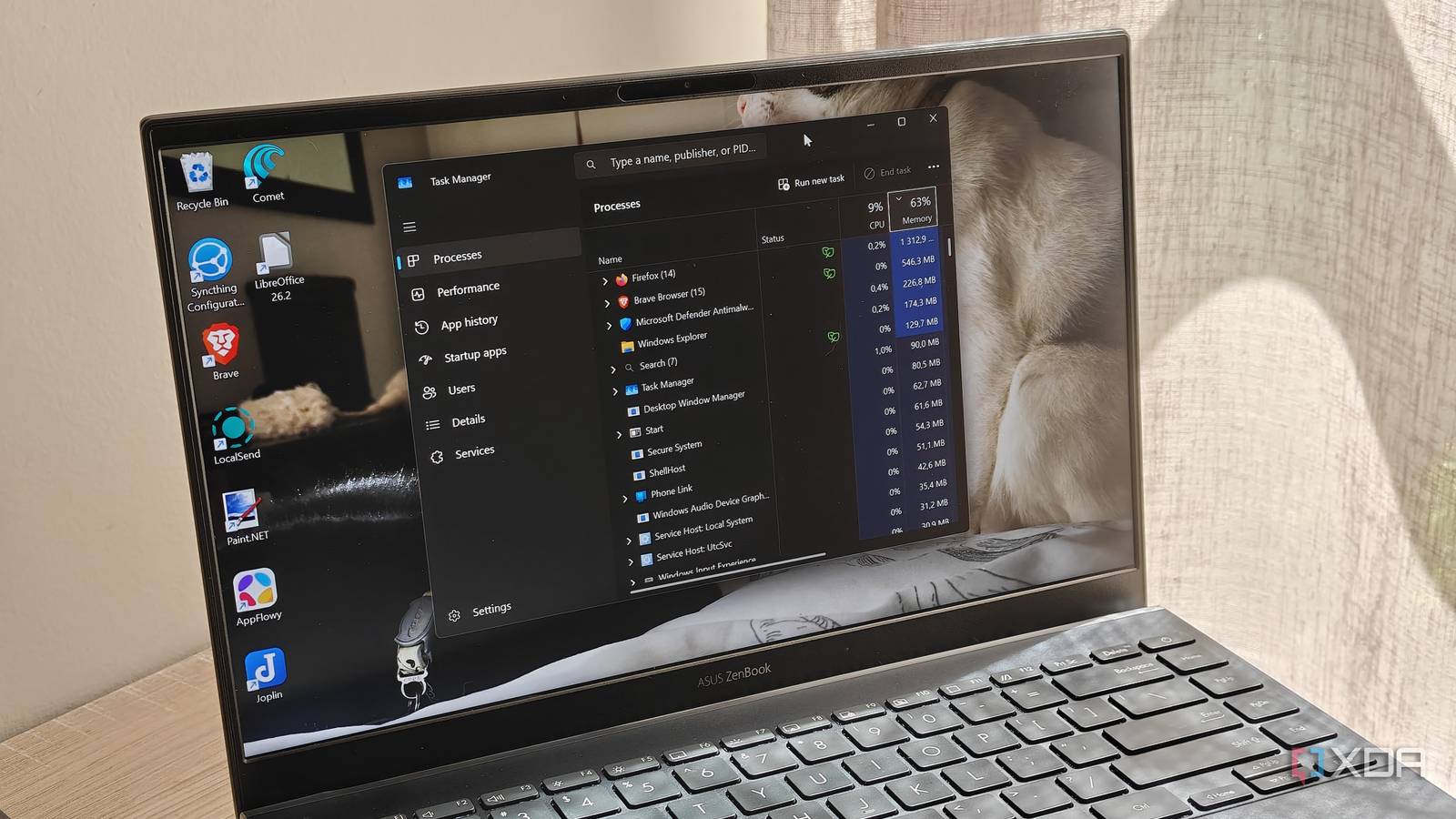
Published Nov 1, 2026, 10:00 AM EST Megan is a Software Writer at XDA Developers who has been writing about consumer technology since 2016. With a postgraduate degree in New Media journalism, she has always been passionate about diving deep into topics and writing about them in a way that makes them easier to understand for everyday consumers. She runs her own blog called Tech Valkyrie and has contributed to Tom's Guide and Android Authority. She also worked at MakeUseOf as a Lead Editor. In her spare time she plays video games and geeks out about the latest tech. Ever since I enabled every PowerToys utility on my PC to see which ones were stuck, RAM has been at the forefront of my mind. This is because Command Palette displays your system resource usage in a handy bar at the top of your screen. That's when I realized that my PC was consistently using over 80% of its 16GB RAM capacity — and I couldn't quite figure out what was using everything up. RAM usage by itself isn't a problem, but I noticed that my PC was struggling with tasks it had handled perfectly fine just before. This included opening documents in LibreOffice and running Docker Desktop. Suddenly, my PC would freeze up, and I couldn't finish the work I needed to do. Even though Task Manager has always been my go-to in these scenarios, the tool wasn't giving me the insights I needed. That's when I decided to dive into different Windows tools, as well as a Sysinternals app, to figure out exactly what was going on. When faced with my RAM problem, Task Manager wasn't enough My usual option wasn't quite sufficient Whenever you experience jittery performance or freezing, Task Manager is the first port of call. When I noticed that my RAM usage was consistently high, and my computer would freeze when opening certain apps, I quickly turned to Task Manager to see what was going on. It identified that my browser was the most RAM-hungry process. But when I added together the usage of my most intensive apps, they only accounted for 6GB of RAM. This made me realize that there must be more going on in the background. Of course, not all 16GB of RAM is available, with around 2GB set as hardware-reserved memory. For my browser tabs, it also couldn't identify which ones were the culprits for the highest RAM usage in Task Manager. I knew that certain tabs were consuming more resources than others, since simply having fewer tabs didn't always lower usage. But I also wanted to see what processes were taking up the remaining RAM that was being used. That's when I decided to turn to other tools to see exactly what was going on. I wanted to check if there were any malicious processes running on my system, or Windows processes that were taking up too much RAM. Process Explorer A more detailed tool than Task Manager I wanted a more detailed view of what was going on with my PC, so I decided to try out Process Explorer. The SysInternals tool that acts as a Task Manager alternative. While its UI isn't as clean as Task Manager, it offers important information and features. Some of these are for power users, but I found that just having a different interface helped me find processes I had previously missed. Its online search feature also worked better for me than Task Manager's, since it doesn't default to Bing. This helped me quickly check what each process did, since I wanted to check if there was any malware running on my system. While Task Manager shows many of the same processes when using the detailed view, seeing it presented differently in Process Explorer was helpful. The app helped me identify Windows Resume as a process taking up resources. I don't use the feature, so having it enabled was using up RAM that I needed. While it wasn't a huge contributor to my RAM usage, disabling the feature freed up a few more resources. Process Explorer Process Explorer is a SysInternals tool which shows more details about running stasks on your PC and provides advanced management options. Resource Monitor A built-in Windows utility Resource Monitor is another tool I tried, and it's already built right into Windows. You can access it in the search bar, or simply use the Win + R shortcut and enter the command resmon. Switch to the Memory tab and you will see an overview of your running tasks. There is a bit more detail than Task Manager, as well as a different format for presenting RAM usage. I particularly like that Resource Monitor includes a handy graph at the bottom that shows your memory divided into Hardware Reserved, In Use, Modified, Standby, and Free. When you hover over the column titles, you also get a short description of what each column means — making it a bit more user-friendly for people who aren't power users. After using both Resource Monitor and Process Explorer, one thing was clear: I couldn't find any malicious processes contributing to my high RAM usage, only normal system apps. While I trimmed down a few unnecessary apps and features, my browser continued to be the real culprit. So I turned to a tool that would let me hone in on which tabs were causing problems. My browser's built-in task manager Finding which tabs were the biggest problems While I managed to get my memory usage back into the 70s, I also realized that I needed to rein in my browser. Luckily, most browsers come with a built-in task manager. In Brave, you can access this by clicking on the hamburger icon, selecting More tools, and then selecting Task manager. You can also use the shortcut Shift + Esc. This brings up a small window that allows you to see the memory footprint of the different tabs you're using. You can also switch between specific views such as Tabs & extensions, Browser, and All tasks. While I'm guilty of having way too many tabs open, looking at my task manager showed me that specific tabs mattered much more than just the sheer number. For example, the CMS tab I was using accounted for 1GB of memory by itself. Another tab from LinkedIn accounted for another 875MB. I could end these tasks right in the Task Manager, or simply close the guilty tab if it wasn't buried between a dozen others. By doing this, I was able to bring my RAM usage down to the 60s for the first time in weeks. Now that I've been consistently monitoring and closing tabs with high memory usage, my PC's performance has been a lot more stable. There are multiple tools to help you monitor your memory usage If Task Manager doesn't give you the information you need, try other tools. Sometimes, just seeing the information presented differently helps you spot memory hogs. If your browser is the biggest RAM user like mine was, you can also use its built-in task manager to rein in the tabs that are causing the most problems.
My PC was using over 80% of its RAM, and these tools helped me figure out why
Full Article
Original Source
Read the full article at Xda-developers →KhanList aggregates and links to publicly available news content. We do not host full articles from third-party sources. Always verify important information with original sources.