
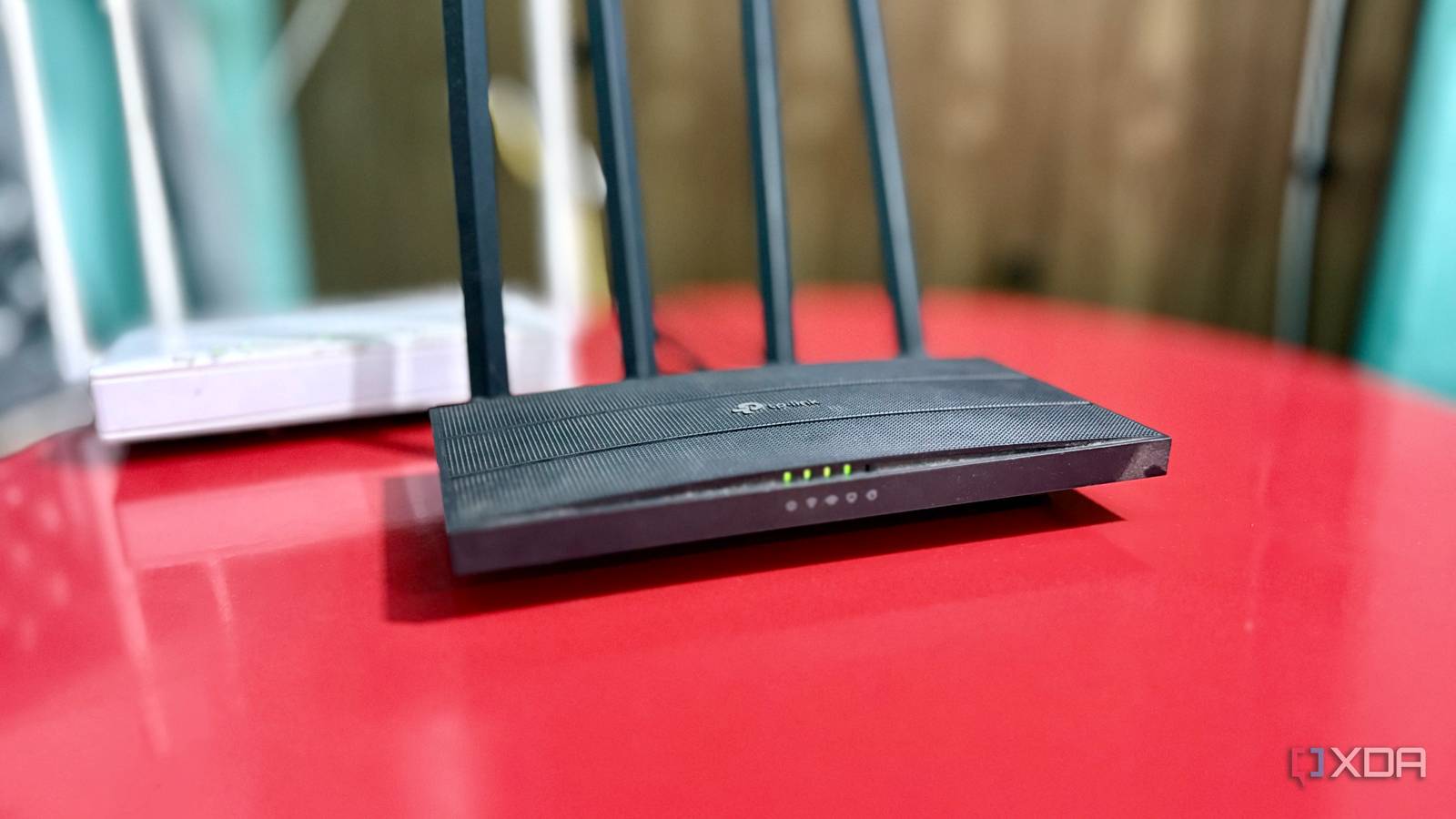
Published Nov 27, 2026, 1:00 PM EST Jasmine is Software and PC Hardware Author at XDA with years of tech reporting experience ranging from AI chatbots right down to gaming hardware, she's covered just about everything. Whether it's breaking news about the latest AMD NPUs or creating video tutorials on social media platforms, Jasmine has contributed to the world of AI and tech in a variety of ways including interviewing the CEO of Razer, AMD's Director of Product Marketing and the VP of Lenovo. Passionate about gaming and PC technology, she has built countless computers, keyboards and other peripherals - knowing them inside and out. I decided to build a locally hosted smart home environment using Home Assistant running on local hardware, specifically built to avoid cloud latency and third-party server round trips. But sometimes I had noticeable delays when triggering routine local automations, such as motion-activated lighting, smart plug toggles, or door sensor alerts. I checked the CPU/RAM utilization on my home lab, inspected automation YAML/logic traces, and tested a wired Ethernet backhaul, but the issue remained. This is because the bottleneck wasn't hardware performance or software execution but radio frequency contention on my 2.4 GHz band, caused by a single default router channel configuration. Having automatic channel selection enabled can cause overlap with neighboring networks and, as a result, impact your local smart home. Why does Wi-Fi affect local control? Local smart homes typically use the 2.4GHz band Smart home devices transmit tiny payloads, often just a few bytes of MQTT, HTTP, or CoAP state data, but even if your internet speeds and throughput are more than enough, they don't always prevent automation lag. Small packets are instead limited by airtime and contention rather than throughput. Wi-Fi uses a carrier sense multiple access with collision avoidance protocol, often called CSMA/CA. Wi-Fi is a half-duplex shared medium, so a smart plug or sensor must listen before transmitting, even if it doesn't actually need to contact the cloud. This means when the channel is busy, the device enters a random backoff timer, delaying packet delivery and causing what we perceive as lag. Under FCC regulations in the U.S., the 2.4 GHz ISM band only provides 11 usable channels, of which only three channels (1, 6, and 11) are completely non-overlapping at a standard 20 MHz width. This means if you're using a channel that can overlap with your neighbors, you might be encountering latency as a result of this too. Most budget Wi-Fi smart plugs, bulbs, and sensors rely on older single-stream Wi-Fi 4 radios. These low-power clients transmit at lower data rates and lack modern efficiency features like Wi-Fi 6's OFDMA or Target Wake Time, causing them to consume disproportionate airtime and suffer heavily when competing against high-traffic devices. Your local devices suffer as a result of cross-protocol interference. IEEE 802.15.4 protocols, including Zigbee and Thread, also operate in the 2.4 GHz spectrum. Because Wi-Fi signals transmit at significantly higher power compared to low-power Zigbee/Thread radios, a poorly balanced Wi-Fi channel and its adjacent sideband lobes can drown out your local coordinated traffic, forcing packet retransmissions. Diagnose the issue Audit your home before making any changes Before actually adjusting any settings, it's worth diagnosing the bottleneck because what you're experiencing in your smart home may not be a result of the issue that I encountered. You can verify where the delay occurs using built-in platform tools such as Home Assistant's automation trace timelines, which distinguish between trigger receipt, condition evaluation, and action execution. You can also use ICMP ping tests from a wired host to Wi-Fi IoT endpoints. If you're hoping to identify packet loss and high jitter, you might notice that idle local ping times sit somewhere between 10 and 20ms. But RF congestion can cause intermittent spikes of 200ms to over 1,000ms, accompanied by dropped packets that force TCP/MQTT retransmissions. You can also audit the surrounding wireless environment using a Wi-Fi analyzer on your phone. These wireless diagnostic tools can scan and inspect RSSI, co-channel interference, and adjacent-channel overlap from neighboring apartments or houses. It's particularly important to audit this if you live in an apartment building or other dense environments. This router setting might be causing issues Auto channel selection is common on consumer routers One of the most common router defaults makes use of auto channel selection. If your consumer router is set to auto, it can frequently jump to intermediate overlapping channels (like Channel 3, 4, or 8) or fail to reevaluate congestion dynamically after boot, landing directly on top of a neighbor's high-traffic mesh system. Another setting that's common is the 40 MHz channel width. Routers configured to 20/40 MHz or locked to 40 MHz on the 2.4 GHz band bond two adjacent channels together, consuming roughly half of the entire 2.4 GHz spectrum. In residential neighborhoods, this can lead to overlapping interference and triggers frequent 802.11n coexistence or fallback mechanisms, increasing overhead and latency. The easiest fix to rectify this issue is adjusting your router's wireless radio settings by disabling automatic channel selection and locking the 2.4GHz radio to a fixed, non-overlapping 20MHz channel. You can ensure you don't have to deal with this overlap. Static channel assignment prevents the router from periodically dropping clients during background channel scans and guarantees a predictable RF boundary between Wi-Fi clients and 802.15.4 mesh networks. After making this change, I noticed a difference in my automation response time, with a reduction in end-to-end execution. For example, a motion sensor trigger leading to a smart bulb state change dropped from an inconsistent, laggy reaction time down to a consistent sub-200ms response. Unfortunately, changing this setting won't fix other issues you might encounter. If you're still noticing lag after making this adjustment, then your issues might be as a result of hardware dead zones (where RSSI drops below -75 dBm) or as a result of poorly coded cloud polling integrations masquerading as local control. Sometimes, even underpowered routers can hit hard NAT/DHCP client limits, so these might be worth exploring too. My smart home feels snappy But this might not work for every smart home Local smart home reliability depends as much on the physical RF spectrum management as it does on server hardware or automation software. If you're experiencing intermittent IoT sluggishness, then it might be worth auditing your 2.4GHz channel width and channel assignment before buying new hubs or upgrading routers. Setting a strict 20MHz channel width on a clean, non-overlapping channel is a zero-cost, 2-minute configuration change that brought me predictable determinism back to my local wireless automations.
My local smart home automations were lagging, and changing one Wi-Fi channel setting was the reason
Full Article
Original Source
Read the full article at Xda-developers →KhanList aggregates and links to publicly available news content. We do not host full articles from third-party sources. Always verify important information with original sources.