
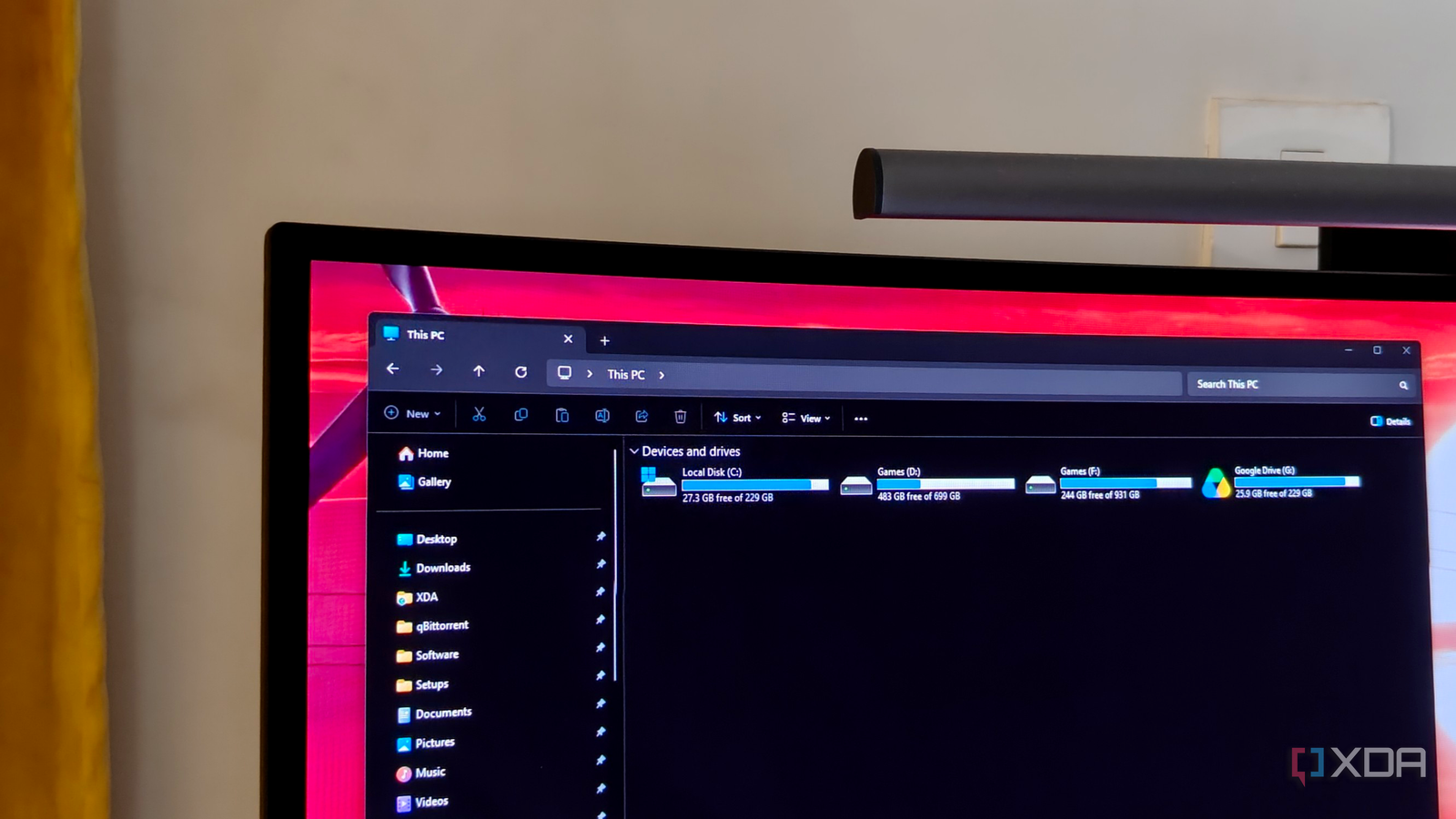
Published Aug 29, 2026, 7:00 AM EDT After a 7-year corporate stint, Tanveer found his love for writing and tech too much to resist. An MBA in Marketing and the owner of a PC building business, he writes on PC hardware, technology, and Windows. When not scouring the web for ideas, he can be found building PCs, watching anime, or playing Smash Karts on his RTX 3080 (sigh). SSD prices show no signs of coming down, so making your existing drive last for longer has become more important than ever. My main drive is a 1TB Gen4 NVMe SSD, with a 1TB Gen3 drive reserved solely for games. My C: drive is decently large at around 230 GB, but that doesn't stop Windows from nearly filling the partition every few months. There's a lot of stuff taking up precious SSD space in the background, and that's exactly what I removed first. However, not everything can be deleted randomly from the C: drive. What can be safely cleaned up, though, is the WinSxS folder, and a simple DISM command does it for you. It can give you 10–15 GB of space on your SSD without deleting any necessary files. I had already gone through the usual suspects A Windows folder was hiding in plain sight It seems I can never rest easy as long as I'm running Windows 11 on my PC. Every few months, there's either a problematic update, a sudden performance drop, or a desperate call from the system to clean up space on the C: drive. It's the latter that I was grappling with last week as my boot partition shrank to under 30 GB. It was still working fine, showing no signs of performance slowdown, but it was at the point that I had to resume cleanup duty. I started with my usual checklist, checking whether I had forgotten some files in the Recycle Bin or if hiberfil.sys was taking up too much space on the C: drive. WizTree showed that it was indeed quite large, so I disabled hibernation (I don't use it anyway). I also checked the Downloads folder, ran Disk Cleanup, and the Storage Sense toggle in the storage settings. Everything was as it should be, but I kept looking for more stuff to remove. That's when I saw the WinSxS folder in WizTree, which was about 17 GB. I Googled it and found that it can be safely cleaned up, but not manually. It's recommended to use a specific command to perform the cleanup. I found a DISM command to recover SSD space for free I had middling results, but you might have better luck The DISM Cleanup-Image command targets this WinSxS (Windows Side-by-Side) folder. It's the component store on Windows, where the OS stores multiple versions of system files simultaneously. This allows different programs on your PC to use different versions of the same file without running into conflicts. The problem is that this folder can grow larger over time as Windows retains older update files to enable system rollback. If your Windows installation has been running flawlessly for a while, you can safely run the designated cleanup command to recover a significant amount of space on your small boot partition. My Windows 11 image hasn't given me any issues in months, and I back it up regularly in case it goes belly up someday. The backup image is stored on my external hard drive to protect precious SSD storage. Hence, I decided to go ahead with the WinSxS cleanup. The first order of business was running the DISM /Online /Cleanup-Image /AnalyzeComponentStore command to confirm the size of the folder. It showed me a 17 GB component store, which, if fully recovered, would have been significant. So, I ran the DISM /Online /Cleanup-Image /StartComponentCleanup command. This command is supposed to remove all historical updates except the most recent one, so that you still have one version to roll back to. A bit disappointingly, my WinSxS was still around 11 GB, which I confirmed by running the "Analyze" variant of the command again. I had recovered only around 6–7 GB of space, which wasn't nothing, but it wasn't game-changing either. There's another variant of this command, namely DISM /Online /Cleanup-Image /StartComponentCleanup /ResetBase, which is supposed to remove all historical updates, preventing any rollback. Hence, I decided not to go that far. My Windows installation apparently needs those 11 GB worth of system files to function properly; my WinSxS can't be shrunk further. Your mileage may vary, so I recommend running this command at least once. If you're running seriously short of space on the C: drive, it can give you some much-needed breathing room. Built-in Windows tools and commands can recover a lot of SSD space You don't need too many third-party tools to reclaim space on a fast-filling SSD. Windows has native utilities and commands that can clean up unnecessary files instantly. The DISM Cleanup-Image command is a useful one for people with smaller boot partitions, as it can get rid of older Windows update components you no longer need. The space you manage to recover will vary on different systems, but it's worth a try.
My C: drive was getting full, so I ran a single command to recover free SSD space in seconds
Full Article
Original Source
Read the full article at Xda-developers →KhanList aggregates and links to publicly available news content. We do not host full articles from third-party sources. Always verify important information with original sources.