
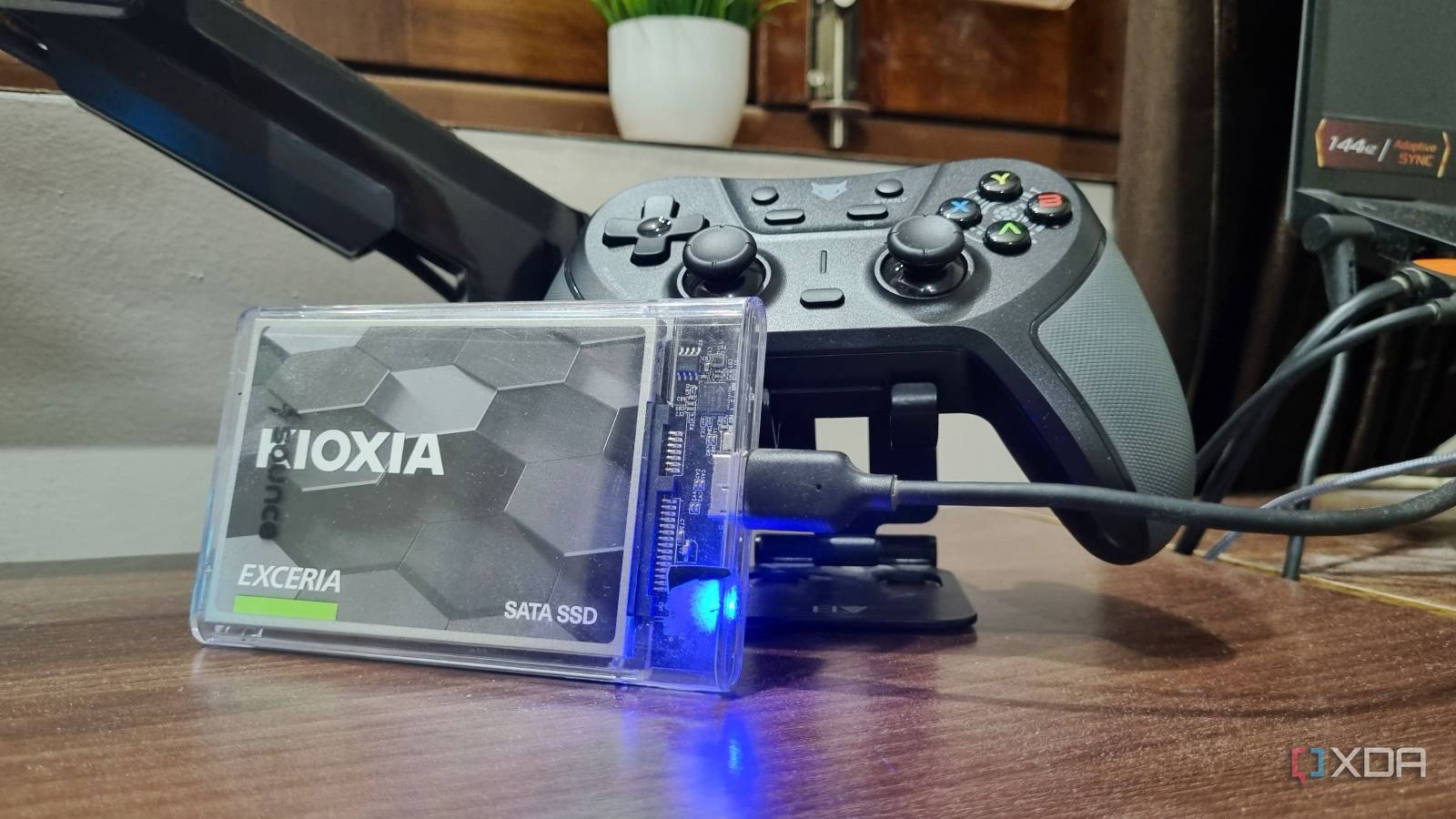
Published Aug 29, 2026, 2:30 PM EDT Abhishek is an author at XDA who covers computing. He has loved computers since he got the Lenovo G570 in 2012. Abhishek holds a master's degree in computer applications and began his writing career in 2018. He loves writing how-to articles, listicles, and informational posts on popular operating systems and web services. He closely follows the Windows Insider program and tests new Insider builds to discover upcoming experimental features and upgrades. His past work includes long-term collaborations with reputed publications like Tom's Hardware, and Windows Latest. When not writing anything, he is busy watching new episodes of One Piece or searching for something binge-worthy. Modern PCs include a single, blazing-fast NVMe SSD as the primary storage. But if you have a slightly old system, it could use an SSD and an HDD. A small storage capacity, but still considerably fast storage, as the OS drive coupled with a slower but large capacity hard disk is what I've been doing for a decade. But like all storage media, SATA HDDs and SSDs aren't impervious to problems and sometimes even catastrophic failures. When such an incident occurs, you are left wondering what to do with the disk drive. Unlike a USB drive, there’s no way to directly plug the drive into another working system. If it's a PC, you might connect it to one of the SATA connectors in the storage bay. Sadly, that luxury is missing from laptops, and it’s the reason why I keep multiple SATA-to-USB adapters and enclosures in my desk drawer. Checking if the drive still works Imagine you've been using a 2.5-inch SATA SSD for quite some time. You’ve ignored its degradation indicators, as most of us do, and one fine day, when you decide to start your PC, it won’t boot. I’ve been in that situation with one of my old laptops, where I used a cheap 2.5-inch old SSD for a couple of years before it quit on me. Ironically, I had to submit an assignment that same day, and saving my file locally on that drive became a nightmare. A drive that cannot boot the OS demands a physical inspection. I popped the laptop’s back cover open, haphazardly unscrewed everything with a screwdriver, and detached the drive from the SATA connector. I repeated that twice, and the drive still wouldn’t boot the OS, which forced me to think of other ways to fix it. The first “smart” idea was to put it in my roommate’s laptop and see if the system found it. But his laptop didn’t have a SATA port, which made me miserable and livid. I took it to a repair shop, and the drive turned out to be dead. At least that’s what the repair guy told me. I purchased a new one from him, a new one with less storage capacity, because that’s what my pocket allowed, and moved on. I noticed that he was using a USB disk enclosure to check it, but didn’t feel it was important enough to buy. The incident happened again, this time with an old laptop HDD I bought in 2012 and gave to my cousin. This time, I replaced the disk and bought a SATA-to-USB adapter, vowing never to buy new disks without checking them first. Figuring out the problems with the drive During my college days, my roommate bought an entry-level Lenovo laptop for his sister. The 512GB hard disk refused to boot the OS after the warranty period expired, but this time, I had the means to check the drive. First, I connected it to my PC, opened Disk Management, and checked whether it appeared. The drive did so a few times before it permanently vanished from the interface. I tried to format the drive, but it was beyond repair. Still, I knew something was seriously wrong with the drive. I used a few tools like CrystalDiskInfo to check it, but I had to suggest a replacement. The SATA-to-USB adapter I used was cheap and had a different connector cable than what I use now. It had a USB-A to Mini-B cable, while the modern ones use the Micro-USB connector. Since then, I’ve bought many SATA-to-USB adapters with enclosures to try to use cheap HDDs and SSDs mainly. I currently have one from Kioxia and one from Zebronics, both in independent enclosures. Another perk of having a SATA-to-USB adapter is the ability to copy useful contents to another system, without needing an external USB hard disk. You can simply remove the SATA disk, put it in an enclosure, and connect it to another system for file access and copying. There will be no problem with copying files or volumes to another system unless the drive has unsupported file systems, damaged partitions, or uses an encryption mechanism. A $6 adapter helps with diagnosis Always keep one in your toolkit You’ll find plenty of options if you look for a SATA-to-USB adapter, ranging from cheap $5-10 options to more expensive ones from brands like UGREEN and more. I’ve never invested in very expensive ones, as the cheap ones deliver acceptable read-write speeds. However, most cheap ones claim USB 3.0 connectivity but turn out to be USB 2.0, which can be significantly slower if you use them for file transfers. So, keeping a couple of these adapters won’t hurt if you run into trouble. You can connect the drive to it, connect to another PC when you can find one, and run these tools. Even if you have a rescue USB with the right diagnostic tools, sometimes pressing the power button does nothing. You can detach the drive and move the important data to another drive or system before you send the computer for repairs. The adapter is also a cheap way to use old internal drives as external ones and use them for temporary file transfers or as a backup disk. A small but useful accessory The SATA-to-USB adapter might not be a daily-use accessory, but having a spare one is a great preventive measure. You can use it to scan and test old, unresponsive drives and format them before installing a new OS. It also works well as a file transfer tool. You can also take additional steps to identify a failing drive early and build a rescue plan USB that can help diagnose issues or clone it to an external disk. SABRENT USB 3.0 to SATA External Hard Drive A lay-flat docking station that can double up as a SATA-to-USB adapter for old drives.
I keep a $6 SATA-to-USB adapter in my desk, and it's recovered more drives than any software I've paid for
Full Article
Original Source
Read the full article at Xda-developers →KhanList aggregates and links to publicly available news content. We do not host full articles from third-party sources. Always verify important information with original sources.