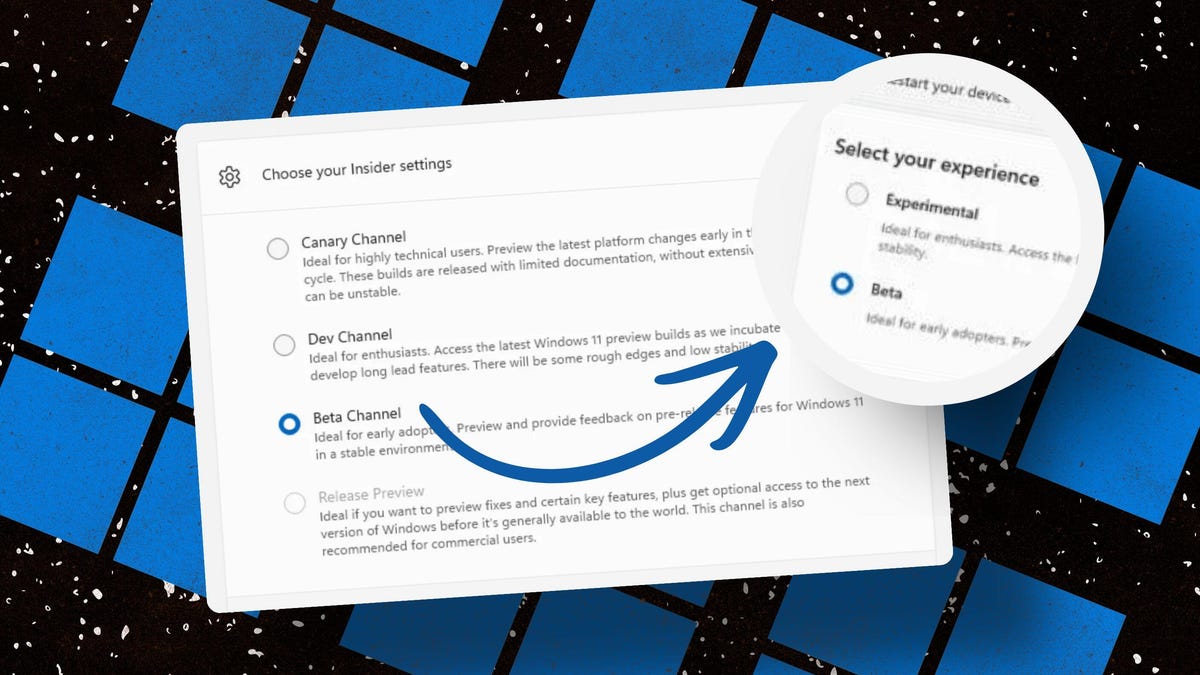
Ed Bott / Elyse Betters Picaro / ZDNETFollow ZDNET: Add us as a preferred source on Google.As a member of Microsoft's Windows Insider Program, I run Windows 11 Insider builds on both my desktop and laptop via virtual machines. With these pre-release editions, I'm able to test and write about changes to Windows before they officially hit the general public.Sometimes the changes highlight new features that hopefully will improve Windows 11 in small but key ways. Other times, the changes are designed to fix or correct features that don't work right or that Microsoft bungled in some way. One prime example? The company killed the option to move your Windows 11 taskbar to any side of the screen and is now finally restoring that capability through the latest insider builds.Also: Microsoft's new Windows 11 recovery tool is the ultimate Undo button - how to enable itAny Windows user can sign up for the Windows 11 Insider Program to try out the builds. Since the builds can be unstable, you should run them on a spare PC or virtual environment. Otherwise, my story on "How to join Microsoft's Windows Insider Program (and why you should)" provides the steps for getting started. With an eye on all the insider updates that Microsoft has pushed out this year, here are my five favorite changes. With Windows 10, you were able to move the taskbar to any side of the screen -- left, right, top, or bottom. In Windows 11, Microsoft clobbered that capability, restricting you to just aligning the taskbar to the left or center spot, thus triggering many user complaints. With its hands properly slapped over this blooper, the company has restored those options in the latest insider build.To try this, right-click the taskbar and select Taskbar settings from the pop-up menu. Scroll down the settings screen and click Taskbar behaviors if it's not already open. Under Taskbar position are four thumbnail windows showing the different sides of the screen. Just select the side you prefer.As a bonus, you can also shrink the size of the taskbar. To do this, click the drop-down menu for Taskbar size and set it to Small. Show more Screenshot by Lance Whitney/ZDNET In the current version of Windows 11, the Search box is a cluttered mess with several intrusive and unnecessary sections, including ones promoting top apps, AI tools, trending news, and games. With the latest insider builds, Microsoft has cleaned up its search act. Now, the box is more sparse and helpful, displaying just a list of suggested searches or recent searches. You can also tweak the settings to control whether you want to see web results and Microsoft Store suggestions.To check this out in the latest insider build, just click the Search field on the taskbar. Up pops a list of relevant or useful suggested searches, allowing you to quickly choose one you might want. To tweak the results, click the gear icon in the Search box. You can then clear your search history, select what types of search results you want to see, and determine which folders Windows will check when you run a search. Show more Screenshot by Lance Whitney/ZDNET Microsoft offers a variety of ways to restore or recover Windows in the event of a boot problem or other glitch. One option now available in the latest insider build is Cloud restore. Here, you can restore Windows to a clean state even if it won't boot up. Plus, Cloud rebuild automatically adds the latest updates and patches courtesy of Windows Update.Also: You can soon restore Windows 11 from scratch even if it can't boot up - here's howThe main downside is that your personal files, custom settings, and installed apps won't come along for the ride. But at least this method will restore Windows cleanly. And once Windows is running again, hopefully you can restore your personal items from a backup.Let's say your PC is failing to boot up. At some point, Windows should load the Windows Recovery Environment (WinRE) screen with your local network connection active. From there, select Troubleshoot, click Recovery and uninstall, and then click Cloud rebuild. Review the target Windows build, edition, and language, and click Continue. Follow the steps until Windows has been rebuilt with the latest updates, and you should be able to log back in to your desktop. Show more Screenshot by Lance Whitney/ZDNET Sometimes you have to restart your PC multiple times in a single month to install one update after another. The latest Windows 11 insider build aims to reduce that annoyance by packaging certain update types together. Specifically, the new Windows Update process bundles the usual Patch Tuesday monthly updates with driver, .NET, and firmware change. This means you should have to reboot your PC only once per month to install all the patches and other updates you need.This capability should automatically be enabled in the latest insider build. To check, go to Settings, click Windows Update, and then select Windows Insider Program. Click the option for Feature flags and select the button next to Fewer update restarts. If the menu indicates that the Current state is set to Enabled, you're set. If not, change the setting to Enabled. The next time any supported updates that require a reboot are available, Windows will try to wait until it can install them all in one shot. Show more Screenshot by Lance Whitney/ZDNET In the past, the insider builds were a mishmash, forcing you to choose among four different confusing channels -- Canary, Dev, Beta, and Release Preview. Each successive channel was supposed to be more experimental but less stable. However, figuring out which channel to use was a challenge. To combat this confusion, Microsoft switched the program to two channels -- Experimental and Beta.Experimental offers features still being developed, while Beta is a more mature channel with features almost ready to officially roll out. Paring down the options from four to two makes the entire process much clearer and simpler. Just choose the channel you want when you set up the program in Windows 11, and you're good to go. Show more Screenshot by Lance Whitney/ZDNETWhen might these features arrive for everyone? That's difficult to say. Sometimes the changes in the insider builds appear in a few months; other times the wait is much longer. But hopefully we'll see all or most of these go live before the year is over.Featured Editorial standards
My 5 favorite Windows Insider features in 2026 so far
Full Article
Original Source
Read the full article at Zdnet →KhanList aggregates and links to publicly available news content. We do not host full articles from third-party sources. Always verify important information with original sources.