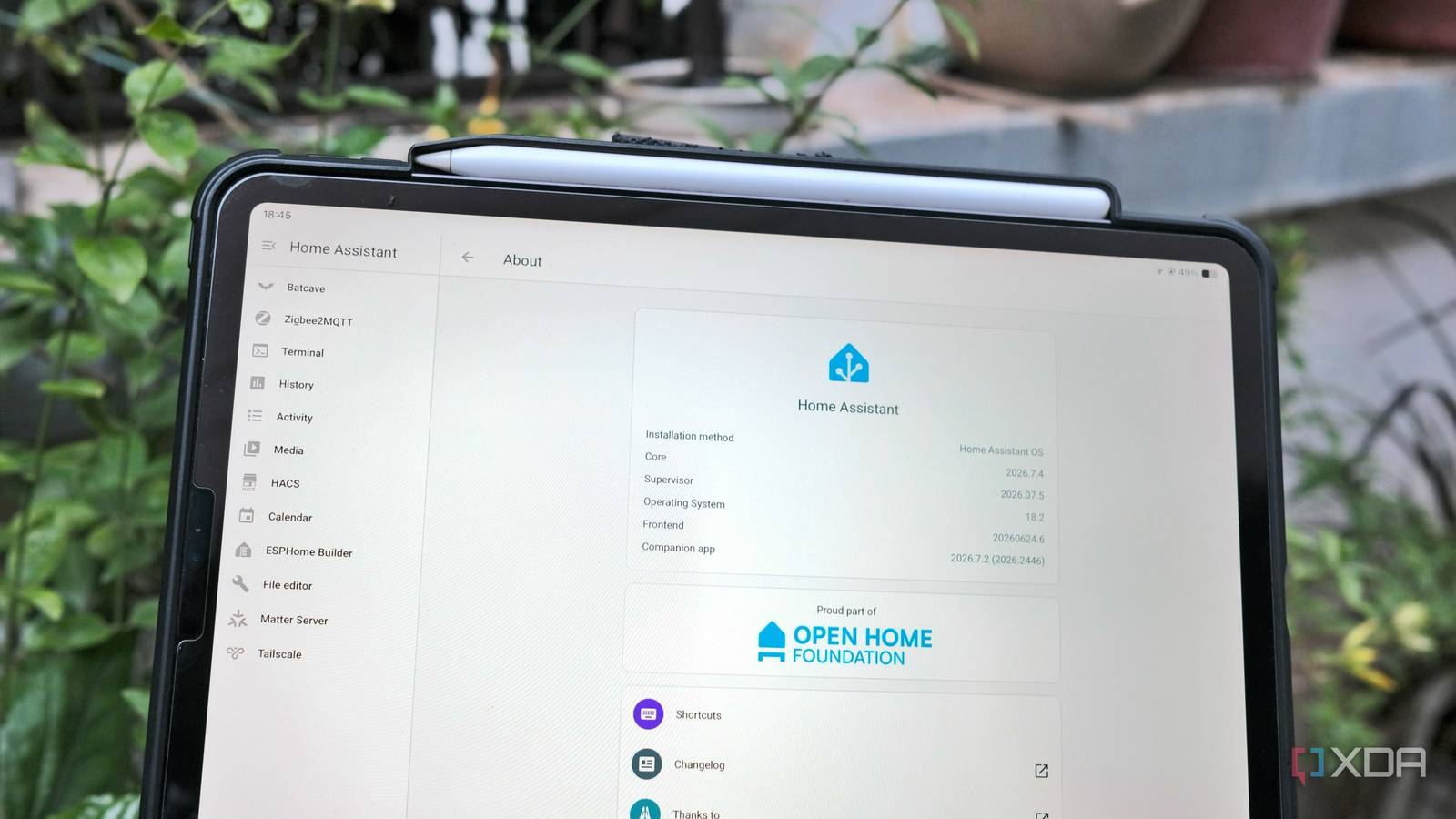
Published Aug 3, 2026, 1:30 PM EDT Samir Makwana is a technology journalist and editor from India since past 18 years and his work appears on MakeUseOf, HowToGeek, GSMArena, BGR, GuidingTech, The Inquisitr, TechInAsia, TechWiser, and others. He has written news, features, and gadget reviews for national technology media publications. His passion is to help people with their technology problems and gadget purchases. For that, he has worked for some of the biggest international technology publications, covering news, explainers, how-to guides, listicles, and product-buying guides. He has worked as an editor and managed teams since 2015. His expertise broadly covers computers, smartphones, game consoles, headphones, smart home products, browsers, and apps. Besides adding devices to Home Assistant, I enjoy building automations with it. Whether it’s automating lights or reacting to motion in the living room, Home Assistant makes it easy. By default, I end up reaching for a template to create an automation. Most of the time, I’d use a value_template to compare states since it felt safer than trusting a built-in trigger I didn’t fully understand. And it worked. Over time, my automations.yaml turned into a graveyard of near-identical templates. Each one was solving a problem Home Assistant probably had a trigger for. Looking back, every automation felt like dealing with a Jinja project. Debugging an automation that misfired or stopped meant guessing which state had changed. Thankfully, Home Assistant’s 2026.7 release changed the templating and provided tools for half the jobs I was doing with Jinja. That’s how I learned why my templates kept failing, and I needed to stop overcomplicating automations. My first mistake was templating things that never needed one Every condition turned into a Jinja wall I assumed automation required specific numeric thresholds, when in reality the trigger just needed a device or sensor state. I’d typically write a numeric state condition in a template, which converts the state to a number before comparing it to a threshold. I’d been burned by a battery sensor reporting as “unknown,” which would break the automation. For example, a condition checking states(‘sensor.hallway_battery’) was included in the template because I didn’t want to rely on the sensor to report a clean number. With motion, I repeated the same thing. I pointed an automation at three specific sensor entity IDs instead of configuring it for a room. Choosing between a state trigger, a numeric state trigger, and a device trigger always felt confusing. Still, the template worked no matter which one I picked. But when a sensor became unavailable for a few seconds, one of them would silently break, and I’d have no idea why the automation just didn’t run. Home Assistant 2026.7 update quietly fixed that Purpose-specific triggers became the default Home Assistant had kept purpose-specific triggers under Labs since late 2025. Since I wanted stability, I ignored them along with other beta feature toggles. With the latest update, those triggers graduated from Labs and moved to the default automation-building interface. Instead of picking a state trigger for a device and working out which value means low, I now pick the ‘Battery low’ option, and I’m done. The temperature crossed a threshold, a device turned on, and a handful of others are now sitting right next to the ‘Battery low’ option in the picker. Instead of scrolling through a list of sensor entities, I now target just the area. So if I have to swap a sensor, it doesn’t affect the automation at all. The trigger picker now frees me from badly recreating everything in Jinja, which I’ve been doing for the past year. I finally got to see where exactly my templates broke Traces now point at the wrong line Earlier, I used Traces to figure out what went wrong with automation, and it usually led me to an incorrect entity or device state. But now, templates are easier to trust because automation traces show template errors rather than hiding them. Debugging an automation template involved testing it in Developer Tools -> Template and reviewing the output to make improvements. I don’t need to do that extra step now. When a script or automation fails, the trace points me to the exact location of the error. That’s when templating finally clicked for me, because I could now watch it fail right in front of me instead of troubleshooting it in the dark. Faster templates changed the way I test them, not how they run Trial and error no longer feels like a punishment This release makes the templates render up to 40% faster, thanks to under-the-hood optimizations to the template engine. On paper, it sounds like a footnote to the performance. But in practice, it changed how quickly I tweak a template. Testing out templates in the Developer Tools -> Template had just enough lag that I’d write the whole thing, run it once, and hope it didn’t error out. Now, I rerun a tweaked template after every small change, and it’s faster than before. I adjusted one filter, hit render, and readjusted it. That loop taught me Jinja quirks more than any tutorial, like the small gotchas around missing values that I only picked up by breaking the template a few times and noticing what fixed it. I still reach for templates, only for the right reasons now Using native blocks first, and then template if nothing else fits I continue using my previous templates and haven’t deleted any. I don’t think anyone should either. In an automation, purpose-specific triggers handle the ‘when something happens’ part well. The templates can still combine multiple unrelated conditions into one readable expression, format a notification message with live sensor values, or average three temperature sensors across the house before deciding whether to start the AC. I now reach for native triggers or conditions first to make the best of the interface. Otherwise, I use a template when I can’t find a block that meets my needs. I stopped overcomplicating automations, still templating Looking back, I realize that Jinja syntax wasn’t that hard for me. I couldn’t see where my templates were failing. I tried wrapping simple logic in templates ‘just in case,’ which turned easy automations into complicated ones. Home Assistant 2026.7 release introduced native blocks for building automations, rather than forcing everything through templates. It made automation failures easy to spot. If you’ve been, like me, relying too much on templates, it’s worth opening your automation editor and checking whether a purpose-specific trigger can replace them. Home Assistant OS Windows, macOS, Linux iOS compatible Yes Android compatible Yes Home Assistant is the best way to connect your smart home systems together.
Most Home Assistant automations don't need templates — here's what changed my mind
Full Article
Original Source
Read the full article at Xda-developers →KhanList aggregates and links to publicly available news content. We do not host full articles from third-party sources. Always verify important information with original sources.