
Published Nov 20, 2026, 3:25 PM EST Dibakar Ghosh is a tech journalist at How-To Geek with over a decade of experience using and writing about open-source software, Linux, Android, AI, and personal productivity. He writes about software, operating systems, and tools that help people get more from the technology they already use. Sign in to your How-To Geek account Microsoft has just announced that it’s retiring Microsoft To Do on June 30, 2027, and this isn’t the first time they’re doing something like this. For context, Microsoft bought Wunderlist back in 2015, then discontinued it in 2020, making Microsoft To Do its successor. And now, six years later, we're hearing that it's getting sunsetted, too, in favor of Microsoft Planner, which, by the way, isn't available to people on Microsoft 365 Personal and Family plans. These folks now have to find another third-party app to migrate to. Now, I don’t know about you, but a to-do app is supposed to be one of the simplest things on your computer. Replacing it every few years because it no longer fits into a company's future plans is just annoying. So, if you're planning to make the switch right now, I want you to choose wisely and make sure your next app is a forever home for your tasks. And if you're looking for recommendations, may I point you to Super Productivity — the free, open-source personal task management app I've been using for the past six years. Your tasks are future-proof with Super Productivity No company should decide the fate of your to-do list In all honesty, I can't really promise you that Super Productivity will be around forever or survive the heat death of the universe — nobody can promise that about any app. The developer could decide to stop working on it one day, and nobody can really stop them. However, even if the current developer steps away, someone else can step in and continue maintaining it. That's the beauty of open-source software. Furthermore, Super Productivity is a popular app, with over 500 contributors, 24K stars, and nearly 10 years of active development. The lead developer is also heavily invested in the project. I've been using the app for the past six years and have seen it receive regular updates, ranging from new features to interface improvements, all at a level of quality comparable to paid alternatives. As such, I'm pretty confident that the app is here to stay for the foreseeable future. That said, let's say you're feeling overly pessimistic and want to consider the hypothetical scenario in which nobody maintains the app anymore. Even then, you can rest assured that your tasks are safe, as they're all stored locally in a JSON file rather than on someone else's server. And since the project is open source, you can visit its GitHub repository, see how the file is structured, and read the JSON file yourself. Alternatively, you can point an AI at it and have it create a viewer app. You could even fork Super Productivity and keep running your own personal copy. Either way, your tasks aren't locked away. Super Productivity Super Productivity is a free, open-source personal task management system for power users and people with a lot going on in their lives. It's available on Windows, Linux, macOS, Android, iOS, and as a web app. It'll help you store your tasks and finish them, too The app is all about making you super productive Super Productivity isn't just a mere to-do list app — it's a full-fledged task management system. It's packed with features to streamline task capture and actually help you get things done. After all, it's got productivity right in its name. Capturing tasks is as simple as hitting a keyboard shortcut (Ctrl+Shift+A by default) from anywhere on your computer and starting to type. There's also a mobile app for capturing tasks on the go. You can simply add a task name, or directly include extra details using short syntaxes like #tag, +project, @due-date, and so on. Each task can also have subtasks. You can even add attachments and notes to a task so you know what it's about when you revisit it later. Beyond this, the app also integrates with popular tools like Jira, Trello, GitHub, GitLab, Linear, and ClickUp, as well as Google Calendar and Outlook Calendar. This lets you sync your issues, tasks, and events from those platforms into Super Productivity quite easily. You can use it as a simple to-do list app or take advantage of some of its more advanced features. For example, there's an Eisenhower Matrix that lets you organize tasks based on urgency and importance, helping you prioritize what to work on. There's also a Kanban board to help you track your progress on each task. You can even assign an estimated time to each task, use a Pomodoro timer to track how long it actually takes you to complete it, and then compare the two to get a better sense of how accurate your estimates are. However, my personal favorite feature is Voice Reminder. It lets you type in a custom message and, after a set time interval, uses text-to-speech technology to read that message aloud. I've found this particularly useful as my personal cheerleader. I know my focus tends to drift after about 30 minutes, so I've configured it to tell me, "Focus on your work, you need to earn money," every 30 minutes. It's not a straight-up Microsoft To Do replacement, though But do you even want it to be? Credit: Lucas Gouveia / How-To Geek | Microsoft | KsanderDN / Shutterstock As powerful as Super Productivity is, it isn't a one-to-one replacement for Microsoft To Do. One of the main features you'll lose is the ability to turn flagged emails into tasks. That's one of To Do's key selling points. But it's also the kind of feature you only get when you're part of an ecosystem. And after seeing how much trouble you can get into by putting all your eggs in one basket, do you really want to tie yourself to an ecosystem? As convenient as that feature is, I don't find it much of a hassle to check my emails and create a corresponding task in Super Productivity whenever necessary. Another feature you'll miss is shared lists. Super Productivity is a local-first tool, which means all your tasks stay on your device by default. This makes sharing lists with friends and family a bit of an issue. However, there's a simple workaround. Super Productivity supports two-way syncing with Trello and Nextcloud. So, you can sync your tasks with either of these services and then share them with other people whenever necessary. A quick trick to migrate your Microsoft To Do tasks over to Super Productivity Don’t wait for Microsoft to hand your tasks back At the time of writing, Microsoft To Do doesn't have an export button that lets you easily move your tasks to another app. But there's a simple workaround. Super Productivity has a plugin called Brain Dump that lets you paste a properly formatted text dump and automatically turns it into a list of tasks with all the essential meta data. So, all we need to do is get our Microsoft To Do tasks into a format that Brain Dump can understand. Now, to do that, we'll use Microsoft To Do's built-in printing feature to export our task lists. Simply open any list, click the three-dot button at the top, and select Print list. We'll print every list of tasks we want to carry over as a separate PDF file. Next, we'll feed those PDFs into an LLM and ask it to extract all the tasks into the properly formatted text that Super Productivity accepts. Here's a prompt to help you do that: I'm moving my tasks from Microsoft To Do to Super Productivity. I've attached PDFs of my To Do lists, one PDF per list. Convert every task in them into a list I can paste into Super Productivity's Brain Dump plugin. Rules for the task list: - Write one task per line, and start every task line with a dash and a space ("- "). Put the task list in a single plain-text code block, with no headings, numbering, or commentary inside it. - Skip tasks that are already completed. - At the end of each task, add the name of the list it came from as a tag: a space, then # followed by the list name in lowercase with no spaces. For example, a task from the "Home Projects" list gets #homeprojects. - If a task has a due date, add it as @YYYY-MM-DD with no space after the @. - If a task is marked as important, add p1. - If a task has steps, put each step on its own line directly below the task, indented by exactly four spaces and starting with "- ". - Don't add dates, priorities, or time estimates that aren't in the PDFs. - Don't put notes or repeat schedules in the task list, because Brain Dump can't import them. - Keep every task name exactly as it's written. After the code block, add a section titled "Fix these by hand" with two lists: 1. Notes to add: every task that had a note, with the task name and the full note text, so I can paste each note into that task in Super Productivity. 2. Repeats to set up: every task that repeats, with the task name and its repeat schedule (for example, "Every Monday" or "Monthly on the 1st"), so I can set it up again in Super Productivity. If either list would be empty, write "None" under it. Example task list: - Renew passport #errands @2026-12-05 p1 - Book an appointment - Print the application form - Buy groceries #shopping This is why open-source apps are so important We live in a digital age, and almost every part of our lives depends on software. Now, whether that's a good thing or a bad thing depends on who controls that software. As such, I firmly believe that, at least for your personal stuff, you should be using free and open-source software. At least that way, you don't have to worry about your data and workflows being at the mercy of some big corporation and its future plans.
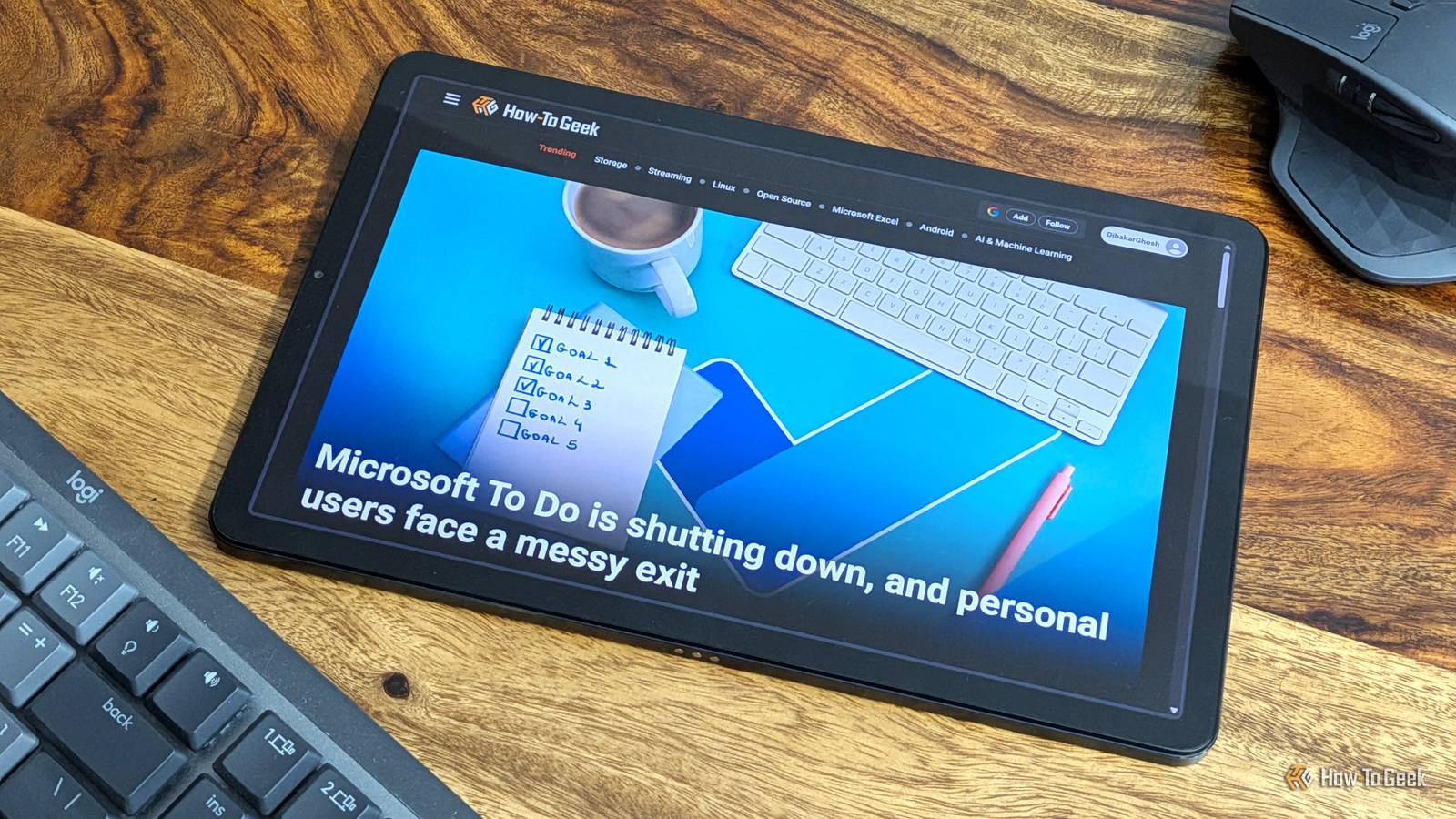
Microsoft is killing To Do — this free, open-source app is the forever home your tasks deserve
Full Article
Original Source
Read the full article at Howtogeek →KhanList aggregates and links to publicly available news content. We do not host full articles from third-party sources. Always verify important information with original sources.