
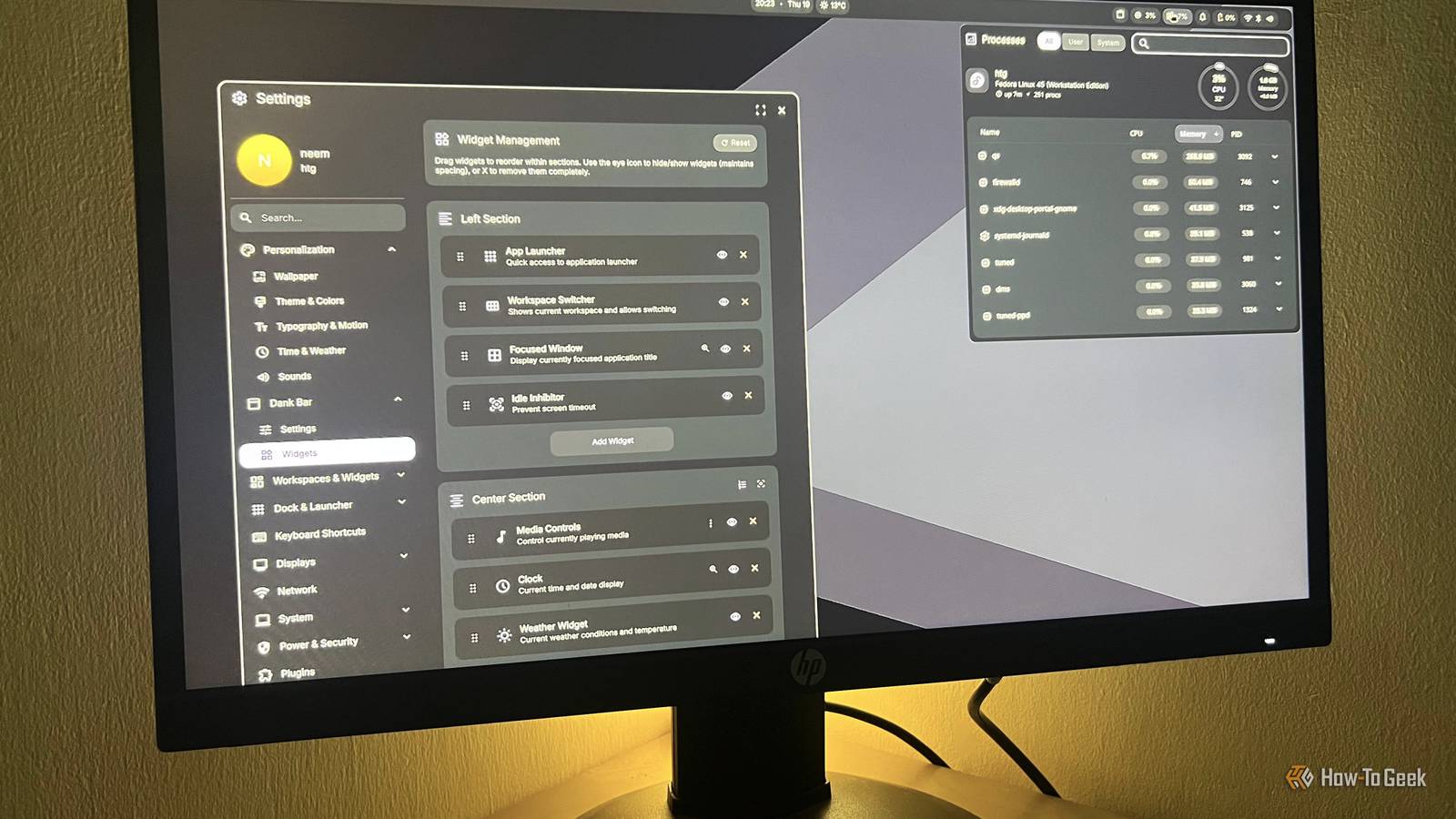
Published Nov 20, 2026, 4:00 PM EST Nimrah has spent the last five-plus years writing about technology, with Linux being one of her favorite subjects to explore. Her work covers everything from Linux and open-source software to databases, cybersecurity, and everyday software. She has contributed to Baeldung, Make Tech Easier, and LinuxHint. She particularly enjoys turning a concept that initially seems complicated into something anyone can understand. Away from tech, she loves to read, cook new recipes, and try new restaurants and cuisines. As someone who enjoys tinkering with Linux, I'm always tempted to try something that promises to make my desktop look or behave differently. My latest experiment was Dux Modular Shell (DMS 2.1), previously known as DankMaterialShell. I installed it on Fedora Workstation alongside the Niri compositor, expecting to spend some time troubleshooting compatibility issues or unexpected errors. Surprisingly, the installation was quick and painless. What I didn't expect was how dramatically it would change my desktop. Fedora was still underneath, but the experience felt like I had booted into an entirely different operating system. I gave my Fedora desktop a complete makeover What is DankMaterialShell, and why did I try it? DMS is a customizable desktop shell built with Quickshell that brings together desktop components like panels, application launchers, notifications, widgets, and system controls. Instead of installing an entirely new desktop environment, you can use it with a supported Wayland compositor and build a desktop experience around the components you actually want. I’ve tried plenty of distros and desktops, but this time I wanted to see how far I could go without leaving Fedora Workstation. DMS caught my attention because it promised a different approach to desktop customization, and it had recently been rebranded and updated. I decided to pair it with niri, a compositor that scrolls windows sideways instead of tiling them into a grid. I expected the install to be the hard part. It wasn’t. One command installs DMS and its dependencies on Fedora, Arch, Debian, Ubuntu, openSUSE, and Gentoo. I ran it, picked niri, and logged out. No compatibility errors, no troubleshooting. Before I knew it, I was staring at a completely different desktop. The best part is that GNOME stayed installed. It remained a separate session on the login screen, so I could go back whenever I wanted. That safety net should be enough to motivate you to try it at least once. My Fedora desktop barely looks like Fedora anymore A new panel, launcher, and plenty of desktop extras The first thing you’ll notice is the visual transformation. DMS gives you a completely different panel, with system information, application access, and shortcuts arranged so the desktop feels more like a futuristic workstation than a conventional Linux installation. The application launcher is another highlight. Instead of GNOME’s familiar application overview, you get a dedicated launcher that handles searching and opening apps inside the new interface. It fits the overall aesthetic, so launching an app feels like part of the same experience. The control center brings several system controls together, giving you quick access to settings and toggles without digging through menus. It’s particularly satisfying when everything follows the same visual language. The components don’t feel like random customization tools thrown together. They feel like parts of a deliberately designed desktop. DMS also gives you plenty of extras to play with. Notifications, media controls, clipboard history, calendar information, and system monitoring widgets make the interface feel like a complete desktop environment, and you can keep useful information in view without opening separate applications. I particularly like how much information you can put directly on your desktop or panel. If you enjoy having system information, shortcuts, and useful controls visible at all times, there's plenty to appreciate here. You can also customize the appearance to create a more cohesive experience rather than settling for Fedora's default look. Honestly, this is where DMS starts feeling less like a collection of desktop tweaks and more like a completely different operating system. Niri makes this experience even more interesting DMS and Niri make an interesting combination I was already impressed by how different my desktop looked, but Niri (compositors) changed how it felt to use it. Unlike the traditional desktop layout where windows overlap or sit side by side, Niri uses a scrolling layout. Open a few applications, and instead of squeezing them all onto your screen, they line up horizontally. You can scroll between them as you work, almost like moving through a row of open tasks. This takes some getting used to, especially if you've spent years using GNOME or KDE. But there's something satisfying about watching your workspace expand as you open more applications. Combined with DMS's futuristic interface, it makes the whole desktop feel like something pulled straight out of a sci-fi movie. And that's what makes this combination interesting. You're not just changing the wallpaper, adding a fancy panel, or installing a handful of extensions. You're changing how your desktop looks and how you interact with it, without giving up Fedora underneath. DMS isn't without its rough edges You'll need time to get comfortable I didn't run into installation problems, but getting familiar with DMS was another story. If you're coming from GNOME or KDE, you'll need some time to figure out where everything lives. Some controls are in unfamiliar places, and the keyboard shortcuts aren't necessarily the ones you've spent years using. Niri adds another adjustment because its window-management approach is different from conventional desktops. You'll need to learn its navigation shortcuts and get comfortable moving between windows in a scrolling layout. None of this makes DMS difficult to use, but don't expect to feel completely at home immediately. The interface is easy to admire; learning its workflow takes a little longer. Customization takes effort too. Much of it happens in config files, which is half the fun for a tinkerer and a chore for everyone else. It’s also a young, fast-moving project, so new features arrive quickly, and the occasional bug can too. None of this makes DMS difficult to use, but don't expect to feel completely at home immediately. The interface is easy to admire; learning its workflow takes a little longer. Who should try DankMaterialShell? If you enjoy making your Linux desktop look cool, DMS is absolutely worth exploring. It has the kind of futuristic, almost movie-like aesthetic you'd expect from a computer interface in a technology thriller. People who like keeping everything on their panels and desktops, from system information to shortcuts and widgets, will probably have a great time customizing it. However, I'm not entirely convinced it's for everyone. I generally prefer terminal-focused minimalism, darker colors, and a relatively uncluttered desktop. While I loved experimenting with DMS, I suspect I'd eventually get bored or irritated with having so much happening on my screen. Still, that's the beauty of Linux. You don't have to change distributions to try something completely different. And if you're a fellow tinkerer, DMS is one experiment I'd recommend trying at least once.
I tried DankMaterialShell, and my Linux desktop now feels like a new OS
Full Article
Original Source
Read the full article at Howtogeek →KhanList aggregates and links to publicly available news content. We do not host full articles from third-party sources. Always verify important information with original sources.