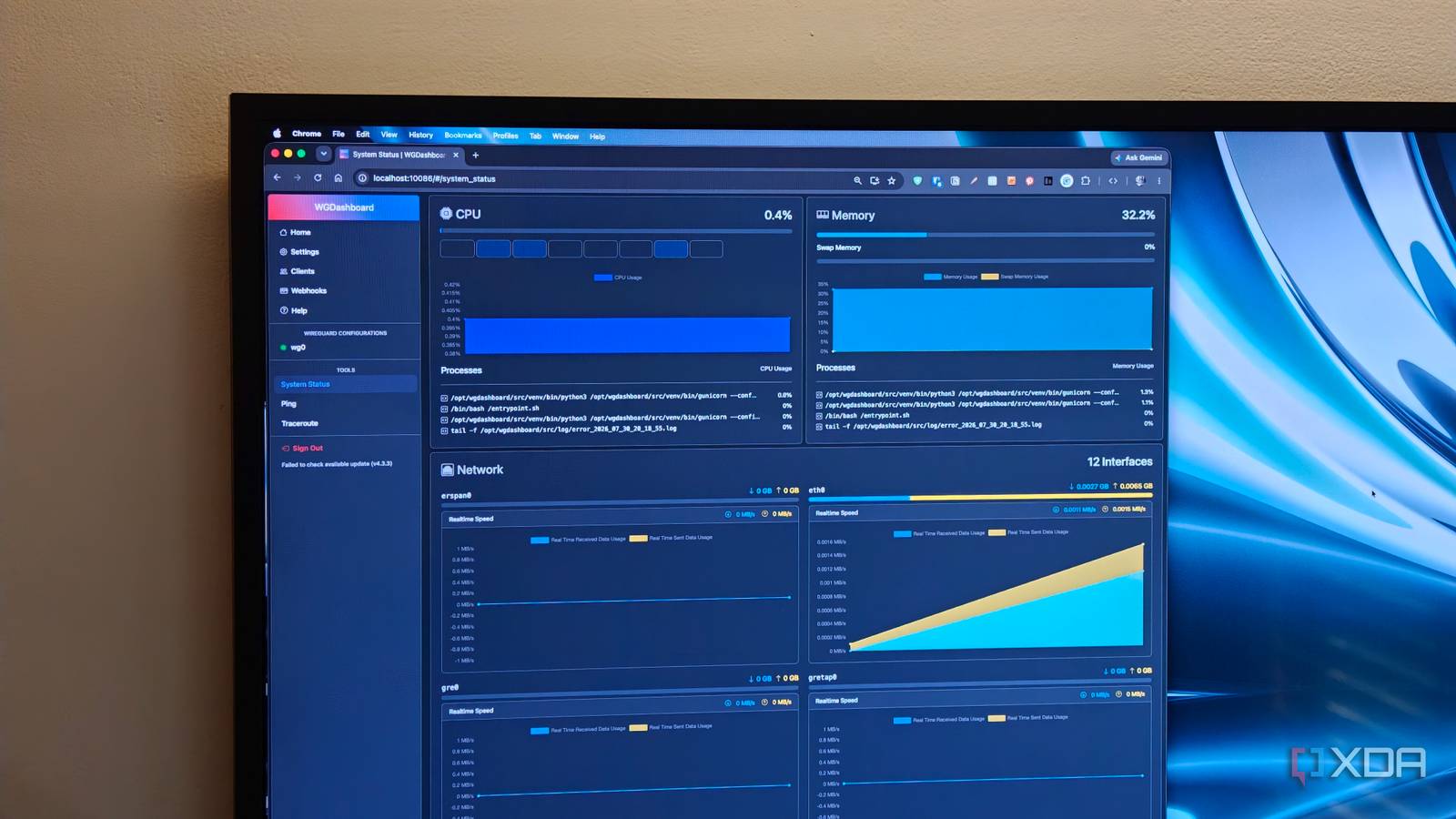
Published Aug 3, 2026, 1:00 PM EDT Dhruv Bhutani has been writing about consumer technology since 2008, offering deep insights into the personal technology landscape through features and opinion pieces. He writes for XDA-Developers, where he focuses on topics like productivity, networking, self-hosting, and more. Over the years, his work has also appeared in leading publications such as Android Police, Android Authority, CNET, PCMag, and more. Outside of his professional work, Dhruv is an avid fan of horror media spanning films and literature, enjoys fitness activities, collects vinyl records, and plays the guitar. WireGuard is one of the best additions I've made to my home stack in recent years. I travel a fair bit, and when I'm out and about, WireGuard gives me secure access to my NAS, Home Assistant instance, and other self-hosted services without exposing them to the internet. But as useful as WireGuard is, managing it isn't the easiest thing around. Setting up every device means generating keys, editing configuration files, assigning IP addresses and more. If you're tech-savvy, it's tedious at best. If you're not, it can be quite daunting. In search of a better solution to the problem, I ended up installing WGDashboard. This open-source tool lets you manage everything related to WireGuard from an easy-to-understand dashboard, instead of configuration files, and removes most of the manual work that comes with managing it. It's a must-install for every WireGuard user in my books. Removing the tedious bits of using WireGuard Adding new devices takes seconds, and you get an excellent overview display Credit: The biggest reason why WGDashboard has become an integral part of my WireGuard setup is that it simplifies every task associated with it. Let's take adding a new device as an example. Whether I'm setting up WireGuard on a new phone, laptop, or tablet, I can create a peer using the dashboard, give it a name, and the rest gets handled automatically. WGDashboard generates the keys, assigns the peer an available VPN address, and creates the full configuration file. You'll also get a QR code, so there's no need to copy configuration files between devices. Just scan the QR code, and within a few seconds, the profile is added to the phone. As someone who often swaps between devices, speed of access is important. Having profiles that auto-generate with minimal input goes a long way toward speeding up that workflow. The dashboard also gives me a much better overview of my network than WireGuard does on its own. I can easily see all the devices connected to the server, when they last checked in, and how much data they've transferred. Unlike traditional WireGuard configurations, where I might have to SSH into my system and check the logs, I can usually identify and diagnose issues right from my dashboard. Over time, I've come to appreciate solutions that integrate all the relevant tools that you might need in one spot. For that reason, WGDashboard gets another nod of approval from me. Ping and trace route functions are simple enough to run from the terminal, but having them built in here means that you're not left juggling tabs for basic functionality. Additionally, the system status tab gives you a pretty overview of the overall, well, status of your system. It's all very thoughtfully organized. On that note, another feature that I like a lot is that it'll work with an existing WireGuard configuration. You don't need to rebuild your VPN configuration from scratch or add clients. So, if you're already running WireGuard, you can simply install WGDashboard and continue as before, just this time with a nicer-looking interface. Managing more than a handful of peers can become complicated real quick WGDashboard keeps all your peers organized There's a reason WireGuard is so well loved. It's easy to set up and generally not very fussy. However, keeping it organized is a different story. I use my VPN across a multitude of devices. There are the obvious ones, like phones and tablets, but also my laptop. I've also given my family members access, which means handling all the different configurations can get fairly challenging. WGDashboard solves that problem by simplifying the nomenclature and the way it handles individual peers. Peers are handled as actual devices rather than configuration blocks. Each device gets a name, a profile, and a configuration history. This simplistic presentation makes it much more convenient to handle larger volumes of peers. WGDashboard also makes it a cinch to manage said peers. It quite literally takes a second to restrict access to a specific peer if you no longer want it to connect to your WireGuard instance. You don't even have to delete the peer to change its access level. Similarly, I love how easy it makes it to generate a fresh QR code or download configuration files. I switch phones a lot, and the convenience built into WGDashboard means that I can set up and get back online within seconds. Look, much of the functionality here is already available in WireGuard. WGDashboard just makes it more visible and easier to configure. The goal here is to simplify managing WireGuard, and WGDashboard handles it beautifully. A must-have companion if you use WireGuard WGDashboard doesn't dramatically change the WireGuard usage experience, nor is it supposed to. Instead, the focus here is on the user experience, and there's a difference between the two. The goal is to simplify managing WireGuard. I've found myself spending less time handling configuration files or looking up client profiles. It's even saved me time while troubleshooting connections. There's value in those time savings, and that's before we get to the interface's general simplicity and intuitiveness. If WireGuard is something you use on a daily basis, WGDashboard is absolutely worth installing. The open-source, self-hosted tool goes a long way towards making administration much easier and quicker. WGDashboard WGDashboard is a self-hosted interface that lets you manage WireGuard servers, peers and configurations from a single dashboard.
Managing WireGuard across multiple devices used to be a nightmare — this changes everything
Full Article
Original Source
Read the full article at Xda-developers →KhanList aggregates and links to publicly available news content. We do not host full articles from third-party sources. Always verify important information with original sources.