
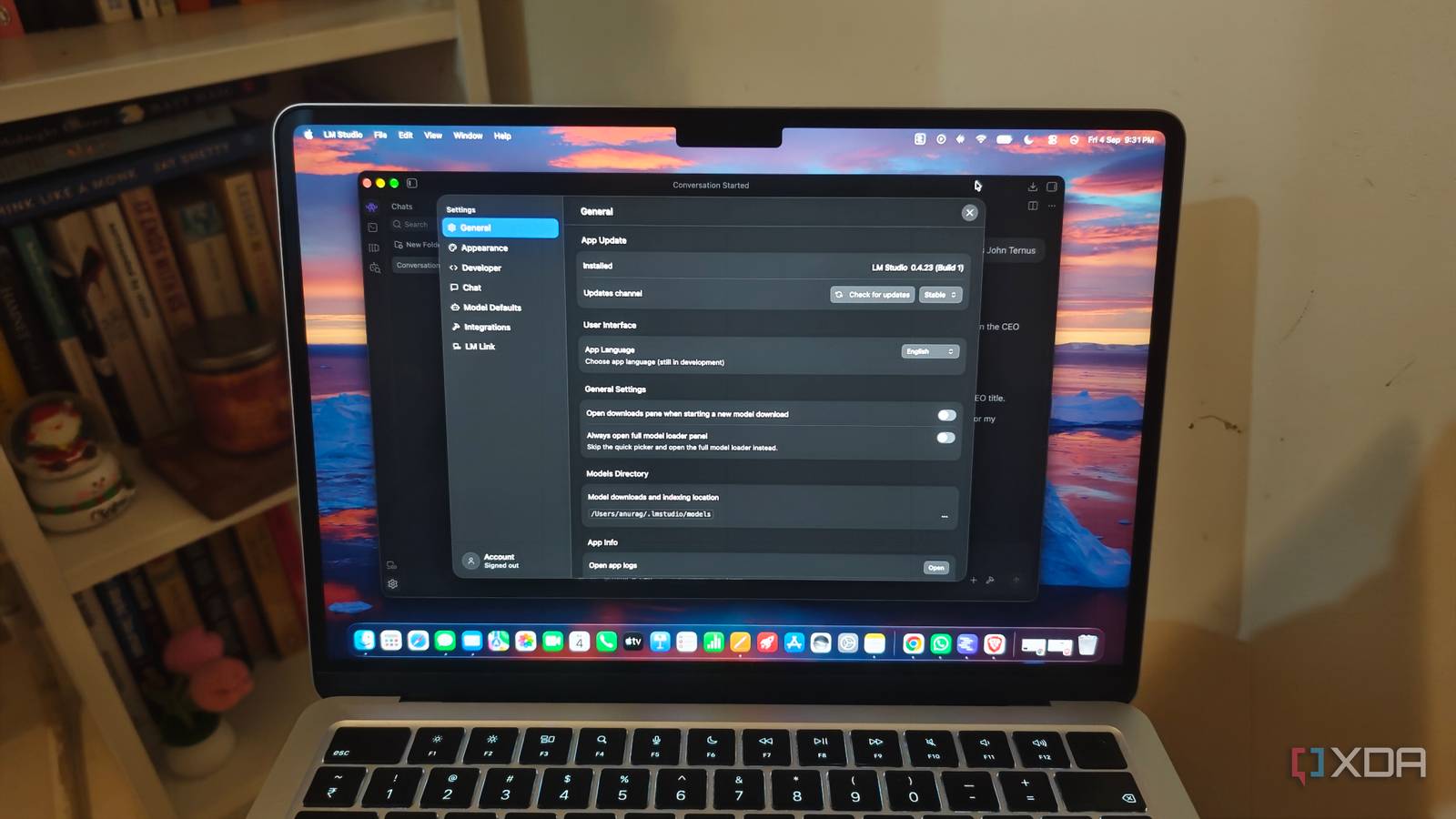
Published Sep 6, 2026, 2:00 PM EDT Anurag is an experienced journalist and author who’s been covering tech for the past 5 years, with a focus on Windows, Android, and Apple. He’s written for sites like Android Police, Neowin, Dexerto, and MakeTechEasier. Anurag’s always pumped about tech and loves getting his hands on the latest gadgets. When he's not procrastinating, you’ll probably find him catching the newest movies in theaters or scrolling through Twitter from his bed. I’ve been using LM Studio for months, and it’s been working just fine. The app makes it super easy to download a model, load it, and start chatting, so there aren’t many reasons for me to dig through the settings. But a tinkerer will tinker, and that tinkering led me to discover a bunch of settings that made me realize just how much I was missing. The default settings are not always in your favor. For example, a GPU offload setting can push you into painfully slow shared memory, LM Studio can hold more of the model in system RAM than necessary, and long chats can waste time reprocessing the same context. There are also model-wide defaults and a way to skip the lengthy thinking stage when you only need a quick answer. These are the five settings I wish I’d found sooner. Leave some VRAM unused Using more VRAM causes more harm than good LM Studio has a GPU offload slider, which makes it tempting to move every model layer onto your graphics card because it can speed up generation. The problem is that model weights aren’t the only thing using VRAM. LM Studio also needs space for the KV cache, which grows with your context window and prompt length, while Windows and your display need room. If VRAM use crosses the limit, the system can spill data into shared system memory. That fallback is slower than dedicated VRAM and can massively reduce generation speed. The better solution is to switch LM Studio to Power User Mode and set GPU offload manually. You can start near the maximum, then lower it by one or two layers while viewing dedicated and shared GPU memory in Task Manager. I'd suggest leaving at least 500MB of VRAM free for the operating system and display, and testing with the context length you plan to use. Stop keeping the entire model in RAM You're risking slowing down the rest of your system LM Studio can keep a full copy of a model in system RAM even when its layers are offloaded to the GPU. The option is called Keep Entire Model in RAM, and it sits under the advanced hardware settings. It sounds useful if you assume the CPU needs that copy as a fallback, but it can eat through a huge chunk of memory. That extra copy leaves less RAM for other applications running beside LM Studio. Since running local LLMs on personal computers is already memory-intensive, this setting can push other applications to the page file or swap space, which can slow your computer down. Meanwhile, the GPU is already holding and processing the offloaded portion of the model. If you’re offloading a significant part of the model to your GPU, open the advanced hardware settings and turn Keep Entire Model in RAM off. LM Studio can use the GPU-resident weights without retaining a second copy in system memory, so your generation speed should remain the same. You simply recover RAM for everything else. Stop configuring the same model over and over LM Studio buries a huge time-saver LM Studio buries a huge time-saver in the My Models tab. Every model can have its own default inference settings, yet the controls inside a chat make it look like you need to adjust temperature, context length, and the system prompt for each conversation. Click the folder icon to open My Models, find the model, and select the gear beside it. The Inference tab contains the settings LM Studio applies whenever that model is loaded. Set the context window you use, choose a temperature that suits the model, and add a system prompt if you regularly give it the same role or instructions. Save those changes once, and they carry across future chat sessions. Turn off thinking when you don’t need it Use it only when you need it Reasoning models can spend 40 seconds on a simple request before they produce an answer. That extra thinking is overkill when you want a summary, a rewrite, or a quick factual response. LM Studio doesn’t always expose a switch for it, either. For models whose Jinja chat template supports the enable_thinking variable, you can disable the reasoning stage from the Prompt Template editor. Open the model’s Prompt Template section and add the line at the top of the template: {%- set enable_thinking = false %} Reload the model after saving the change. The template will then tell the model to answer in its standard instruct mode instead of generating a reasoning block first. LM Studio alternatives are also worth exploring If you ditched Ollama because you thought LM Studio was what you needed, I have news for you. Tools like BaseRT and llama.cpp offer even better performance. If you want convenience, you can also use Docker Model Runner, which offers all the features you need and makes more sense for Docker-intensive workflows. LM Studio LM Studio is a multi-platform application that you can use to converse with an LLM running on your computer. With support for hundreds of models and all kinds of computers, it's the best way to experience LLMs.
I've been using LM Studio for months, and I wish I knew about these 4 settings sooner
Full Article
Original Source
Read the full article at Xda-developers →KhanList aggregates and links to publicly available news content. We do not host full articles from third-party sources. Always verify important information with original sources.