
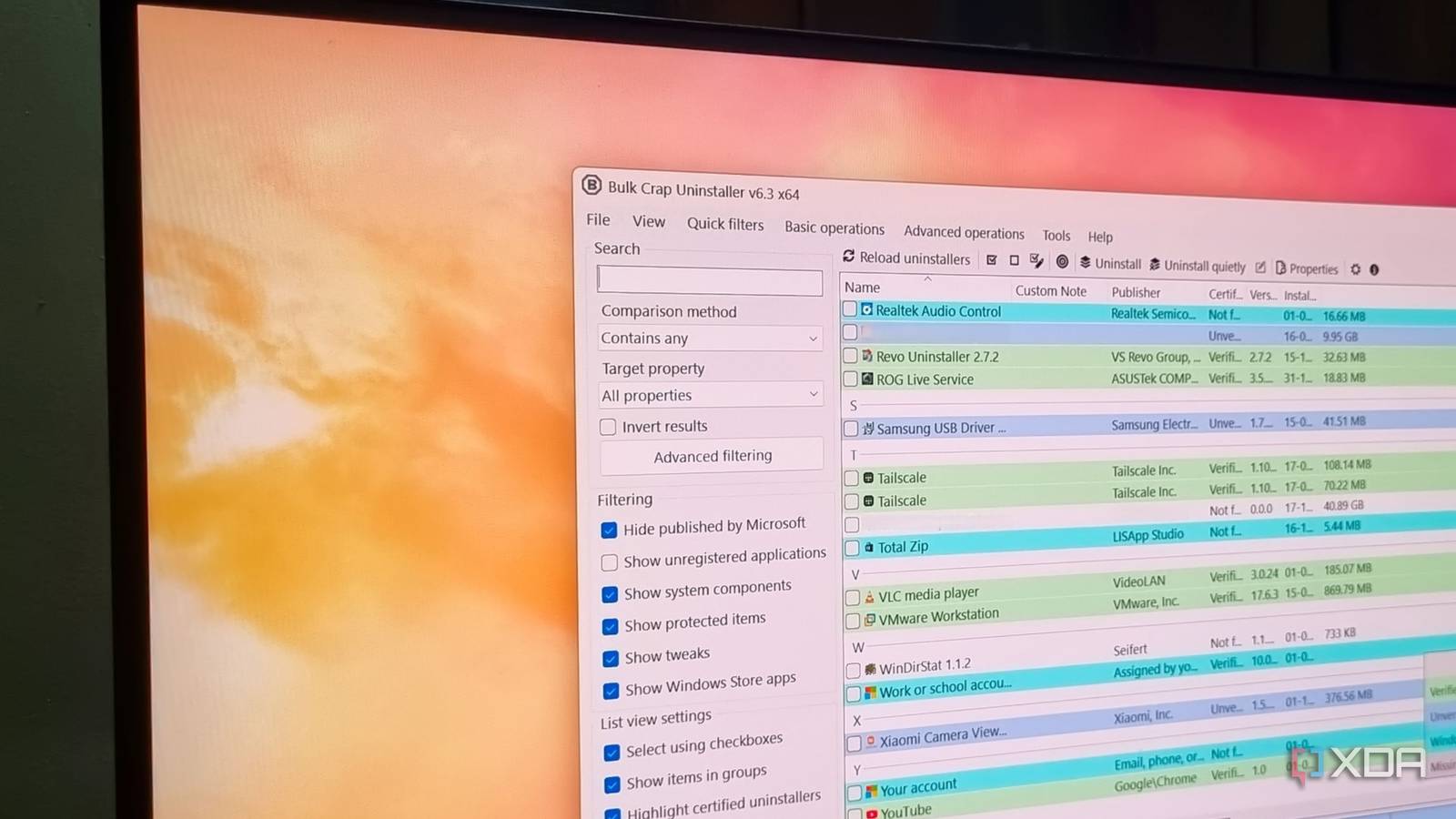
Published Nov 18, 2026, 7:30 AM EST Abhishek is an author at XDA who covers computing. He has loved computers since he got the Lenovo G570 in 2012. Abhishek holds a master's degree in computer applications and began his writing career in 2018. He loves writing how-to articles, listicles, and informational posts on popular operating systems and web services. He closely follows the Windows Insider program and tests new Insider builds to discover upcoming experimental features and upgrades. His past work includes long-term collaborations with reputed publications like Tom's Hardware, and Windows Latest. When not writing anything, he is busy watching new episodes of One Piece or searching for something binge-worthy. Windows 11 might be the “most” advanced and good-looking OS to date by Microsoft's standards. But it still has a long way to go before all necessary features are available in the OS. It hurts to say that even after a quarter of the 21st century, Windows doesn't have a good software uninstallation experience. It's a complete mess where store apps and third-party software removal options exist in different locations. Revo Uninstaller is one third-party option that can help with this problem. It has a dedicated uninstaller and remnant file removal feature, along with a few other tools like unrecoverable deletion. Sadly, the good features like multiple app removals and other things are exclusive to the paid tier. So I found a better, open-source alternative that has been in this segment for quite some time and even topples Revo Uninstaller in some areas. Windows 11's app removal is infuriating Third-party software removal apps fix this problem Before I discuss why I use Bulk Crap Uninstaller (BCU), there are a few things about the Windows installation process that I find absolutely ridiculous. If I want to remove a third-party software installed via a setup file, I need to use the Settings app or the old Control Panel utility. Some third-party software doesn't appear in the Settings app, and Microsoft apps don't appear in the Control Panel utility due to differences in design philosophy. The Start menu shows an Uninstall button but mostly redirects to the Settings app. You have to then select the app and then proceed with the removal. I also detest the idea of not including a multi-uninstallation option in the Settings app or Control Panel. You must select and uninstall each app individually and also deal with the pop-ups. There's no silent removal feature in the Settings app. You might suggest Winget as an alternative route to remove any installed package (Store app or software). However, Winget isn't the most desirable solution for a less tech-savvy, CLI beginner. No one expects to learn to use a package manager on Windows just to remove apps that they don't need anymore. Bulk Crap Uninstaller fills in the gaps A free, beginner-friendly solution Revo Uninstaller is not a bad tool, but it tends to lock some features that I need behind a paywall. If you find it useful, you can opt for the app, but I wouldn't, especially when there's an open-source option available. A direct comparison between Revo and Bulk Crap Uninstaller’s interface shows that both lack the modern UI feel. But it's not as bad as you expect, and it's perfectly usable. The main reason for using either of these tools is software uninstallation and removing the leftovers. Both work well for these two tasks and suggest creating a restore point as a safety measure. However, the first noticeable difference is that Revo doesn't list the Microsoft apps in the same list. It has a separate Windows apps section for that. I had read about the free version lacking this feature and was excited to try it out. But it didn't succeed on the first run when I tried removing the Quick Share app by Samsung. It just launched a PowerShell window and was stuck in the operation for some time. You can remove Microsoft apps from the Settings app. It worked on the second try, so there could be a glitch with that specific task. Bulk Crap Uninstaller doesn't struggle with Microsoft Store app removal. It has a more detailed app list and divides them into multiple categories. There are options to hide apps published by Microsoft, show unrestricted applications, and reveal system components. It can also show protected items, tweaks, and Windows Store apps. All of this is available in a single list that you can filter based on these attributes, which is good to have. So, Bulk Crap Uninstaller can go deeper and find things you wouldn’t normally see with native Windows tools or Revo Uninstaller. Revo Uninstaller has a Hunter mode that can scan and find the details of any open application. But it still struggles to identify packages like Bulk Crap Uninstaller. Batch removal is a godsend No more individual selections My biggest argument for using Bulk Crap Uninstaller is its ability to select multiple apps and then remove them one-by-one. You can select the apps from the main list, and then click the Uninstall or Uninstall quietly button in the toolbar. Revo Uninstaller doesn’t have such a feature in the free version, and you need to upgrade to access it. Bulk Crap Uninstaller walks you through a few steps to confirm the apps, create a restore point, and add other changes before starting the removal. Some software may still show a pop-up window to confirm the removal, but that’s not a huge letdown. Not all apps support silent removal, but you can still remove a huge set of software in one go. It prompts you to check for remaining files and delete them as well, while displaying a Confidence rating. Revo Uninstaller also uses a risk assessment technique, but it would be better if the free tier offered multiple app removals. Both apps include a few system maintenance and cleanup options, but there's nothing unique that I would prefer over built-in Windows tools. Revo has an Evidence remover and Unrecoverable delete, but I haven't tested them to verify the claims. My goal was to remove multiple apps, silent removals, and no adware, and Bulk Crap Uninstaller contains all these features. Use Bulk Crap Uninstaller There's no guarantee that Windows 11 will implement the uninstallation features I want, and I would prefer Bulk Crap Uninstaller until then. I tried Revo, and it would have been a great tool if the free tier let me select multiple apps for removal at once. Bulk Crap Uninstaller is open-source, offers granular search and filters, and doesn't cost a dime. Why look elsewhere at all? BCUninstaller BCUnisntaller allows you to uninstall multiple apps in one go, freeing up space while saving you time.
I'm uninstalling Revo for good, because this free, open-source tool removes apps in bulk without a paywall
Full Article
Original Source
Read the full article at Xda-developers →KhanList aggregates and links to publicly available news content. We do not host full articles from third-party sources. Always verify important information with original sources.