
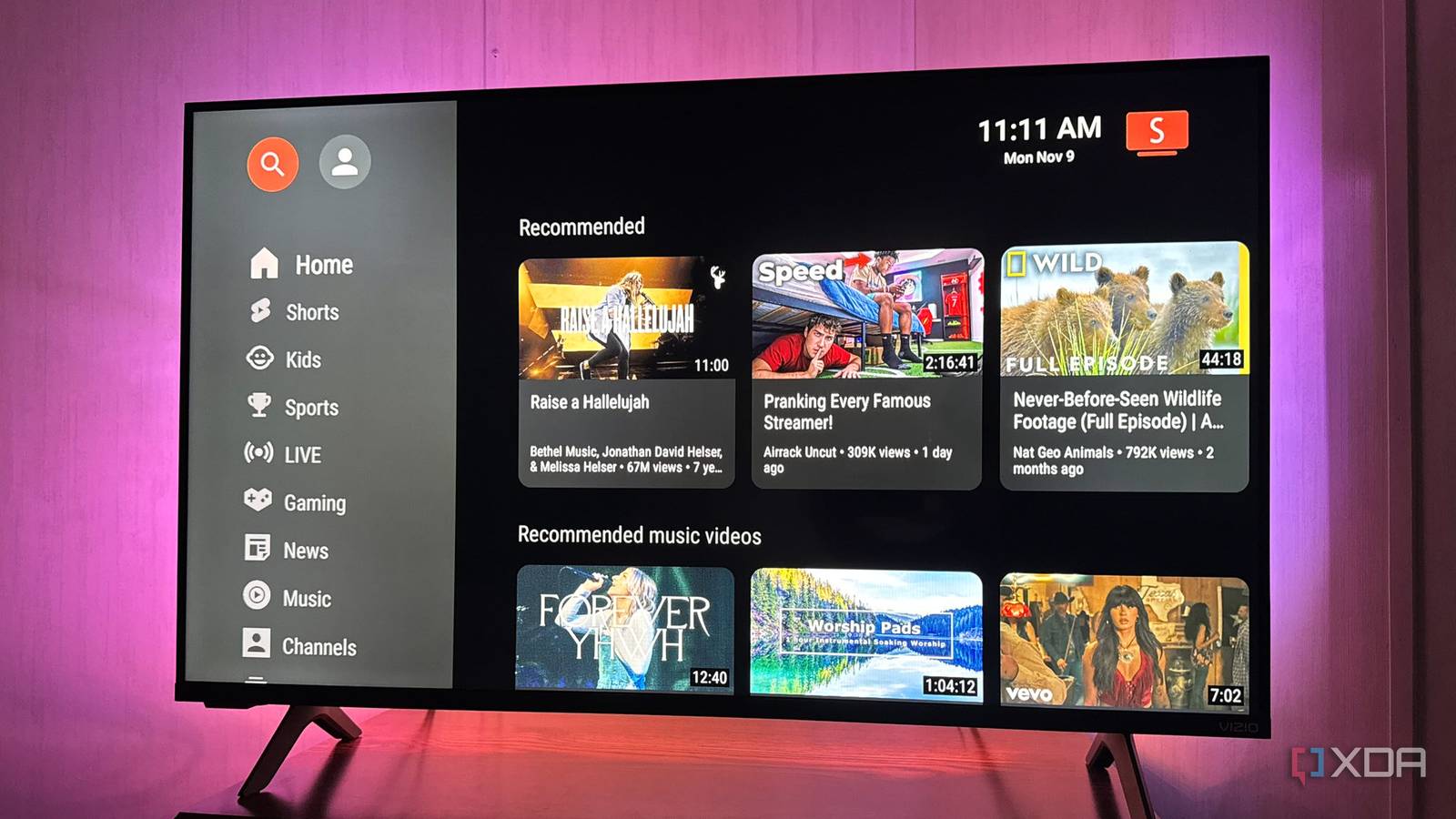
Published Nov 12, 2026, 3:00 PM EST Based in rural Minnesota, Brian Burgess worked in IT for 10 years before finding his passion for writing about consumer technology. Brian earned his degree in computer and network technology in 2000. He held various IT positions, including help desk support, router installations for IBM, database administration, and other associate network administration roles. He's been a personal technology journalist for 18 years and has written thousands of articles about Microsoft products and services, Android, iOS, streaming, and more. He has written for notable tech sites including XDA, InformationWeek, How-To Geek, Byte, groovyPost, and others. When he is away from the keyboard, you will hear him playing guitar, working outdoors, and watching Star Trek. Like most people, I consume a lot of content on YouTube. I like to keep up with favorite channels and watch random videos about virtually any topic under the sun. I watch a lot of videos on the big screen, but I don't like sponsored ad reads interrupting something I'm enjoying. I also don't need the lame Shorts that appear while I'm searching for something meaningful to watch. When I go to the home page anymore, it is littered with poor recommendations, useless Shorts, and other content that hogs the big screen. It's annoying that the platform's algorithm thinks I want to view a video based on accidental clicks or leaving autoplay on. So I have a better experience with a free app on my streaming stick. Getting the right streaming stick and app version An Android-based Fire TV Stick to sideload To begin having a better YouTube experience, you'll need to install the SmartTube APK, which is available on GitHub or F-Droid. The app can only be installed on a Fire TV Stick running Fire OS or other Android devices. New Fire TV Sticks with the locked-down Linux-based Vega OS are taking over, and sideloading is coming to an end. Of course, it will also work with Android TV devices. I sideloaded the latest stable version on my 2025 Fire TV 4K Plus. It and the 2023 4K Max are the only sticks left on Amazon that run Fire OS. I used Downloader since this was a one-off installation. I could also have used ADB from my PC. In fact, I would have if it were part of my project to future-proof a remaining Android-based Fire TV Stick with APKs. Either way it's installed, once you launch it, you'll be greeted with a clean and customizable interface for your favorite videos. An improved YouTube experience on the big screen A more customized video platform without ads The app lets you customize a lot: the player, what it does and doesn't display, video streams, and more. When I go to YouTube, I want to watch content, not ads. I've set my profile for that since Google bought the service years ago, and tweaked it over time. However, the Shorts feature bugs me to no end. Sure, I have been guilty of clicking on "baity" Shorts before, but I'm often disappointed. So, one of the better features is the ability to hide them throughout my video navigation. Head to Settings > General > Hide Content and check the "Hide content everywhere" option. If you don't want to get rid of them completely, you can go down the list and choose which sections to hide them from. The app has been improved, but some Shorts slip through, as results vary. Another essential setting to manage is SponsorBlock. That's when creators do an in-video ad read for a company, product, or other type of promotion. Depending on the personality, the reads can take five minutes or more and are annoying to skip through. They are even more annoying if you can't skip them. Open Settings, select the SponsorBlock icon, and check it to enable it if it's not already. I keep all the default options turned off, but you can leave categories like intros or credits on if you want. For instance, some like hearing intros or other sections of videos. When something is blocked, a brief notification will display, but you can turn that off too. But this feature relies on the community to submit timestamps, so it won't catch every block in all videos. There are more customizable settings available Tweaking the YouTube experience If there is something you want to add or subtract from your YouTube video experience, there is likely a setting for it. The two biggest selling points for me are changing the behavior of ads and Shorts, but I adjusted several options. I can adjust the interface, general options, search, auto frame rate, remote control, and more. The first time I used SmartTube, I spent most of my time tweaking all of its available settings to make it my own. Another great place to make tweaks is in the playback and player controls. By default, it provides a healthy number of player options that are easy to navigate with a remote. But I can adjust them even further by adding or removing buttons and controls I don't use. I can have a player that is as complex or minimalist as I want. It is much better than the official YouTube app on a Fire TV Stick. Take control over your video viewing with SmartTube Fire TV sticks are littered with ads and unwanted items. Luckily, you can declutter the OS on Android-powered sticks with alternative launchers and apps like SmartTube. At the very least, it gets you out of a busy, cluttered interface and into a calmer environment where you can watch your YouTube videos in peace. You can watch and control them the way that works best for you. SmartTube
I watch YouTube on my TV without ads or Shorts now, and it took one app on a streaming stick
Full Article
Original Source
Read the full article at Xda-developers →KhanList aggregates and links to publicly available news content. We do not host full articles from third-party sources. Always verify important information with original sources.