
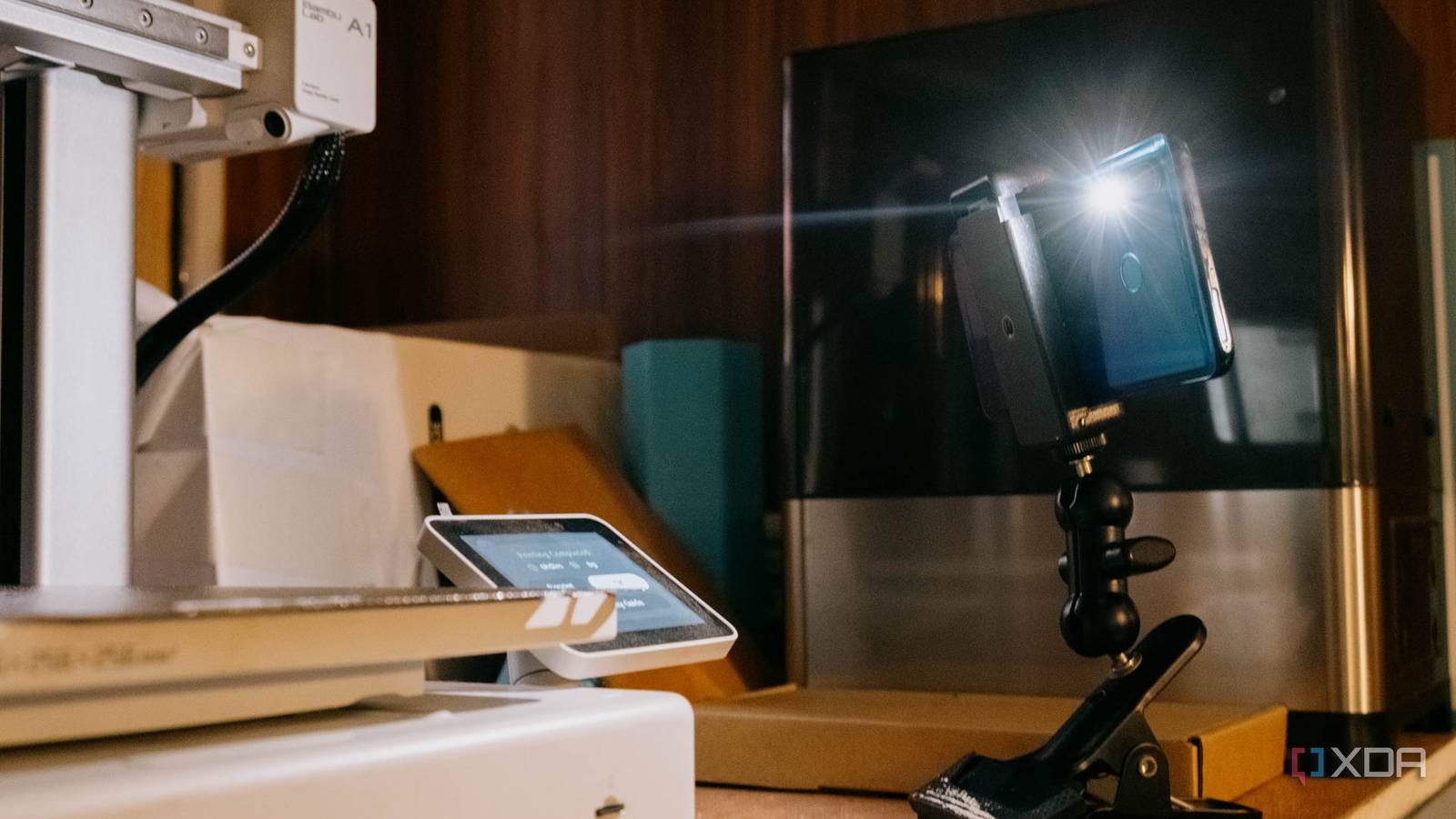
Published Nov 12, 2026, 3:30 PM EST Jhet has gamified his life as a skill collector. He has skills ranging from woodworking and leatherwork all the way to CAD and electronics. He loves optimizing and customizing his experience with his stuff; fixing, modifying, and optimizing them to fit his needs. He has previously written for MakeUseOf.com and showcases his projects on his TikTok and YouTube channels. He is also an avid PC gamer with over 4000 hours in various FPS games and aim trainers. We inevitably have to upgrade our phones every few years, and you probably have an old phone lying around that still works, but you don’t use it. I have a Huawei P30 Lite that I’ve repurposed for many jobs over the years, and since I’ve had my 3D printer, its latest job is a CCTV that watches my prints or my cats when I’m away. An Android phone is surprisingly capable of being a wireless surveillance camera You just need to keep it charged Android phones have surprisingly decent cameras for surveillance use, especially if there’s enough light on the subject. Most Android phones way back in 2016 had a video resolution of 1080p as standard, so clarity isn’t much of an issue at all — the main worry is going to be the likely limited battery life of an old Android phone; either way, however, you’ll need to keep it plugged in and charging while it’s in use for long periods, but an old lithium battery that’s constantly getting powered may pose a risk. There are ways to make a dummy battery for an Android phone so you don’t have to worry about a hot and bloated lithium battery potentially causing a disaster; the method that GreatScott! shows in his video is quite simple and could be further cleaned up. You don’t have to drill into the side of your phone, though; you can just tidy up the wires another way. This battery bypass method is much safer than a lithium battery, as it only deals with low voltage and low current, especially if you’re just powering it with a USB-A power brick. Lithium batteries pose a fire hazard; dispose of the old lithium battery responsibly and don't just keep it lying around. Also, the dummy battery modification has no components that pose a fire hazard, but you should still be careful with any DIY alternative power source. All you need now is a way to broadcast the phone’s camera footage, so you can access it anywhere. Apps I used to remotely access my Android surveillance camera There’s convenience, and there’s privacy; pick your poison The newer your phone is, the easier it will be to use it as a surveillance camera, since some apps stop working on older Android versions. I’m using an IP Webcam, which requires an Android version of at least 6.0, so Android phones from 2016 or newer are ideal. XDA has previously covered using AlfredCamera for surveillance, which I also tried and found quite convenient to use. However, I much prefer the privacy of self-hosting to convenience; I don’t like having to connect an account to the app and run my footage through cloud services that could easily take my footage for whatever reason. If you’re anything like me, having autonomy without businesses potentially snooping around and collecting data is important. Using IP Webcam and Tailscale is my preferred easy self-hosted method; to use this method, scroll all the way down on IP Webcam and tap Start server; this will open up the camera, and at the bottom will be IPv4 and IPv6 IP addresses. You can use those if you’re connected to the same network, but for remote access, have Tailscale downloaded on both devices and logged in to the same account with both devices connected; then, on the viewing device, copy the IPv4 address of the host device and add “:8080” to the end of it in the viewing device's web browser. This gives you access to the phone, allowing you to use all the features. IP Webcam’s web UI has a lot of features, including zooming, turning on the light, manually controlling exposure settings, changing video resolution, etc. I especially like the 2-way microphone feature, allowing me to talk to my cats if I use it to watch them instead of my 3D printer. You also have a choice of video renderers and audio player formats, and motion detection with customizable detection areas. Using IP Camera with RustDesk to start prints and watch them remotely Adding more control to your private setup Using an old Android phone may come with reliability issues, and the IP Webcam app may crash. I noticed it crashes because the phone gets really hot since it's constantly charging (which is why I eventually want to use the dummy battery method). However, just in case, I also have a backup to start the server again: RustDesk. RustDesk is a multiplatform remote desktop software, working across Windows, Mac, Linux, and even Android, so I can control the surveillance phone remotely to start IP Webcam back up. To avoid messing with the server setup, I’m once again using Tailscale, since it’s already on all of my devices. To use RustDesk, simply download the version compatible with your devices; in my case, it’s the ARM64 Android version. On the host device, you’re going to want to set up a few things in RustDesk before you can use it with Tailscale easily: First, head to the Share screen tab below, and give it permissions for Screen capture and Input control — these will allow you to view and control the host from your other devices. It will also ask for file management stuff, so accept those as well. Once those are set up, tap on the three dots in the upper left and select Accept sessions via password, and make sure to do the Set permanent password as well. If you don’t do this, you won’t be able to connect remotely since it will ask for a one-time password, which you will not have access to when you’re away from the host phone. Finally, in the Settings tab below, scroll down to the Share screen section and enable Direct IP access. This will allow you to use the host device’s Tailscale IP address instead of needing to set up the server and use the RustDesk Remote ID. You can now tap Start Service in the Share screen tab, and the app will let you know that remote access is ready. To access the host phone remotely, simply have both devices connected and logged in to the same Tailscale account, copy the IPV4 address of the host device just like in IP Webcam, and paste it in the Remote ID section at the top part of the Connection tab, then input the RustDesk password you set on the host device, and you should have access to it. Since you’re already using RustDesk, you might as well also install it on your PC and turn on the same Direct IP access, connect with Tailscale, and access it remotely. This way, you can also download 3D files, do some 3D modeling, and start prints from your PC. For some reason, I’ve never been able to start prints using Bambu Connect on my phone, so I use RustDesk to start print jobs from my PC. And besides, the Bambu Lab A1 camera is very choppy; the surveillance Android phone is smoother and clearer, allowing me to quickly identify problematic or failed prints and stop them before wasting any more filament. Gain remote access without giving up your privacy to cloud servers IP Camera, Tailscale, and RustDesk make a powerful combo that requires little setup to give you remote access to watch and start prints. While you can’t remove prints unless you have an automatic build plate removal system like on print farm setups, you can at least start a print and watch its progress while you’re away if you come across something you like or do some CAD in a cafe — provided your build plate is clean and ready to go.
I gave an old Android phone a second life as the camera that watches my 3D printer
Full Article
Original Source
Read the full article at Xda-developers →KhanList aggregates and links to publicly available news content. We do not host full articles from third-party sources. Always verify important information with original sources.