
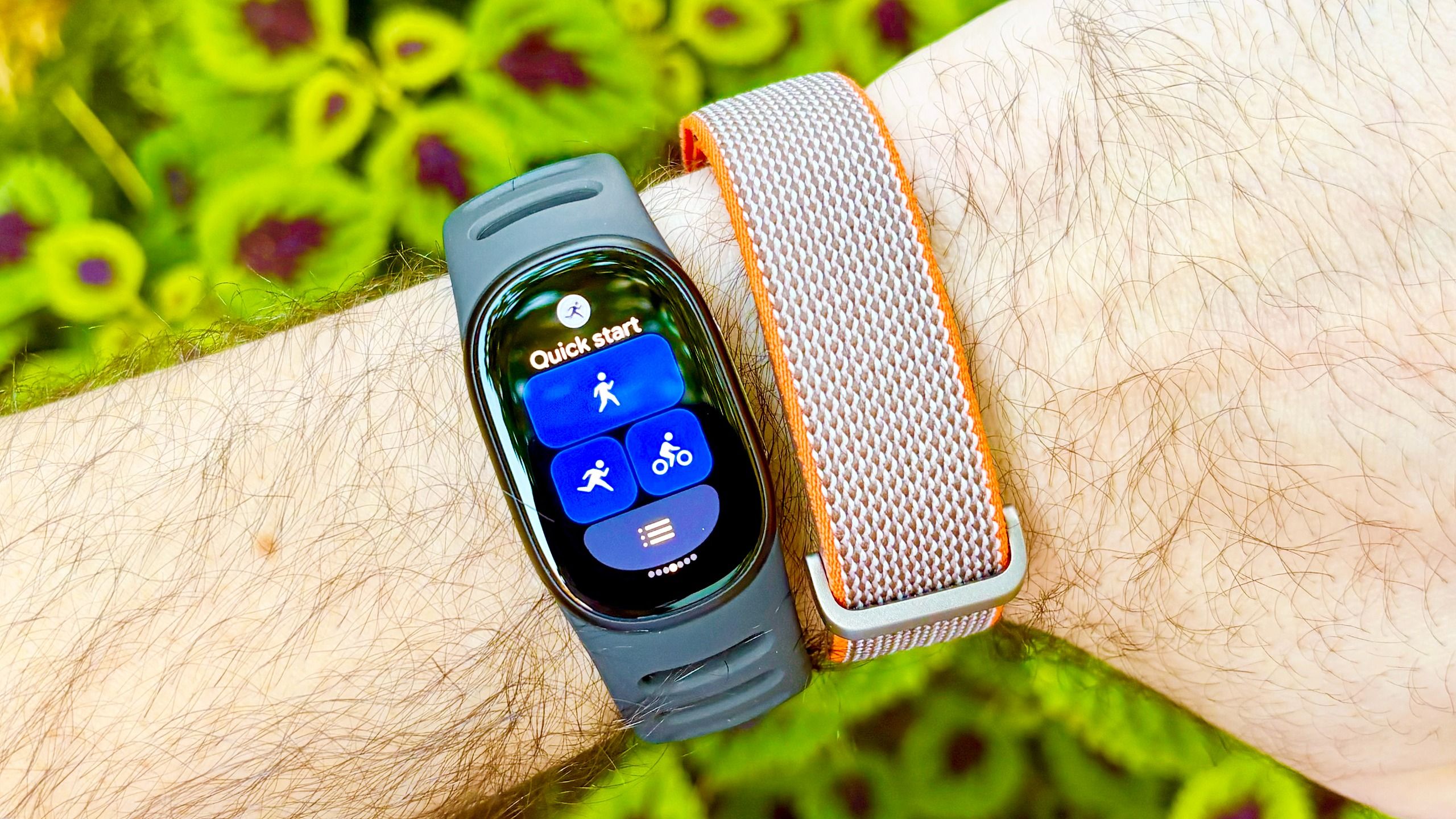
(Image credit: Dan Bracaglia/Tom's Guide) I just reviewed the Fitbit Edge and the Fitbit Air, and they are easily two of the best fitness trackers of 2026, and devices I’ll likely be recommending for the foreseeable future.However, one key criticism I had for both: Unreliable auto workout detection. Less of an issue for the screen-sporting Fitbit Edge than the screen-free Fitbit Air, I was hopeful Google would be quick to address this complaint with a firmware update.And sure enough, the Mountain View Mammoth did just that, announcing improvements to Automatic Activity Detection not just for the latest Fitbits but also the Pixel Watch 5 and older Pixel Watch models. (Image credit: Dan Bracaglia/Tom's Guide)The update expands the list of trackable activities from just a handful, like walking and bike riding, to over 100, with lots of popular and nuanced exercises covered.However, even without the latest firmware, there's a quick and easy way to improve auto activity tracking on the Fitbit Air and Fitbit Edge that's buried within the menus of the Google Health app.This fix addresses one of the two key conditions needed for workout tracking to kick in. You see, Google wearables, by default, require a sustained heart rate and a minimum workout duration of 15 minutes for auto-detection to work.However, users can manually lower the minimum duration to ten minutes, a change I've found tends to make auto-detection more reliable than the default settings. Here's how to change it.Get instant access to breaking news, the hottest reviews, great deals and helpful tips.How to improve auto activity tracking on the Fitbit Edge and Fitbit AirOpen the Google Health app and tap on your profile picture in the top right corner Scroll down and tap on ‘Google Health settings.’ Then scroll down and tap on ‘Activity’ under the ‘Preferences’ banner On the ‘Activity’ page, scroll down and tap on ‘Activity Detection’ near the bottom under the 'Feature settings' bannerTap on one of the listed activities and then tap on ‘Minimum duration’ Change the minimum duration threshold from the default to 10 minutes by swiping up/downTap ‘Save’ and then the back button to change the duration for other activities Read on to see full illustrated instructions for each step. 1. Open the Google Health app and tap on your profile picture To improve auto activity tracking on the Fitbit Edge, Fitbit Air, or Pixel Watch 5, first, open the Google Health app on your smartphone and tap on your profile picture in the top right corner of the screen. 2. Scroll down and tap on ‘Google Health settings,’ then tap on ‘Activity’ Next, scroll down and tap on "Google Health Settings," and then scroll down and tap on "Activity" under the "Preferences" banner. 3. Scroll down and tap on ‘Activity Detection’ Once on the Activity page, scroll down and tap on "Activity Detection" near the bottom of the page under the 'Feature settings' banner. 4. Tap on one of the listed activities and then tap on ‘Minimum duration’ On the Activity Detection page, go ahead and tap on one of the listed activities, like "Walk" or "Bike." Next, tap on "Minimum Duration" to adjust it to a shorter threshold. 5. Change the minimum duration threshold from the default to 10 minutes Change the minimum duration threshold from the default to 10 minutes by swiping up or down on the options shown. 6. Tap ‘Save’ and then the back button to change the duration for other activities Finally, with the duration changed to 10 minutes, tap on "Save" and then the back button in the upper left to adjust the minimum duration for other workout types. (Image credit: Dan Bracaglia/Tom's Guide)I recommend changing the workout duration to ten minutes — the minimum — for all of the activities listed, including walking, biking, and “All other workouts.” Unfortunately, when it comes to “Sports” workouts, the default duration of 15 minutes is the shortest option.It’s also worth noting that users can revisit a mislabeled activity in the Google Health app and manually correct the workout type. Moreover, the more activities you log on your Fitbit or Pixel Watch, the better your device should get at auto-detecting your favorites.Finally, keep in mind that auto-detected activities can take up to 30 minutes before appearing in the Google Health app. Follow Tom's Guide on Google News and add us as a preferred source to get our up-to-date news, analysis, and reviews in your feeds. Alternatively, you can read our content on the Tom's Guide app available now for iOS and Android. More from Tom's GuideI walked 6,000 steps with the Fitbit Edge vs Apple Watch 12 — and I'm shocked by the results3 reasons why I’m glad Google didn’t give the Fitbit Edge NFC3 reasons why the new Fitbit Edge beats the Fitbit Charge 6 — and 1 reason it doesn’t Dan Bracaglia is the Tom’s Guide editorial lead for all things smartwatches, fitness trackers and outdoor gear. With 15 years of experience as a consumer technology journalist testing everything from Oura Rings to instant cameras, Dan is deeply passionate about helping readers save money and make informed purchasing decisions. In the past year alone, Dan has assessed major product releases from the likes of Apple, Garmin, Google, Samsung, Polar and many others. An avid outdoor adventurer, Dan is based in the U.S. Pacific Northwest where he takes advantage of the beautiful surroundings every chance he gets. A lover of kayaking, hiking, swimming, biking, snowboarding and exploring, he also makes every effort to combine his day job with his passions. When not assessing the sleep tracking and heart rate accuracy of the latest tach gadgets, you can find him photographing Seattle’s vibrant underground music community.
I was having issues with Fitbit’s auto workout detection — until I changed this one setting
Full Article
Original Source
Read the full article at Tomsguide →KhanList aggregates and links to publicly available news content. We do not host full articles from third-party sources. Always verify important information with original sources.