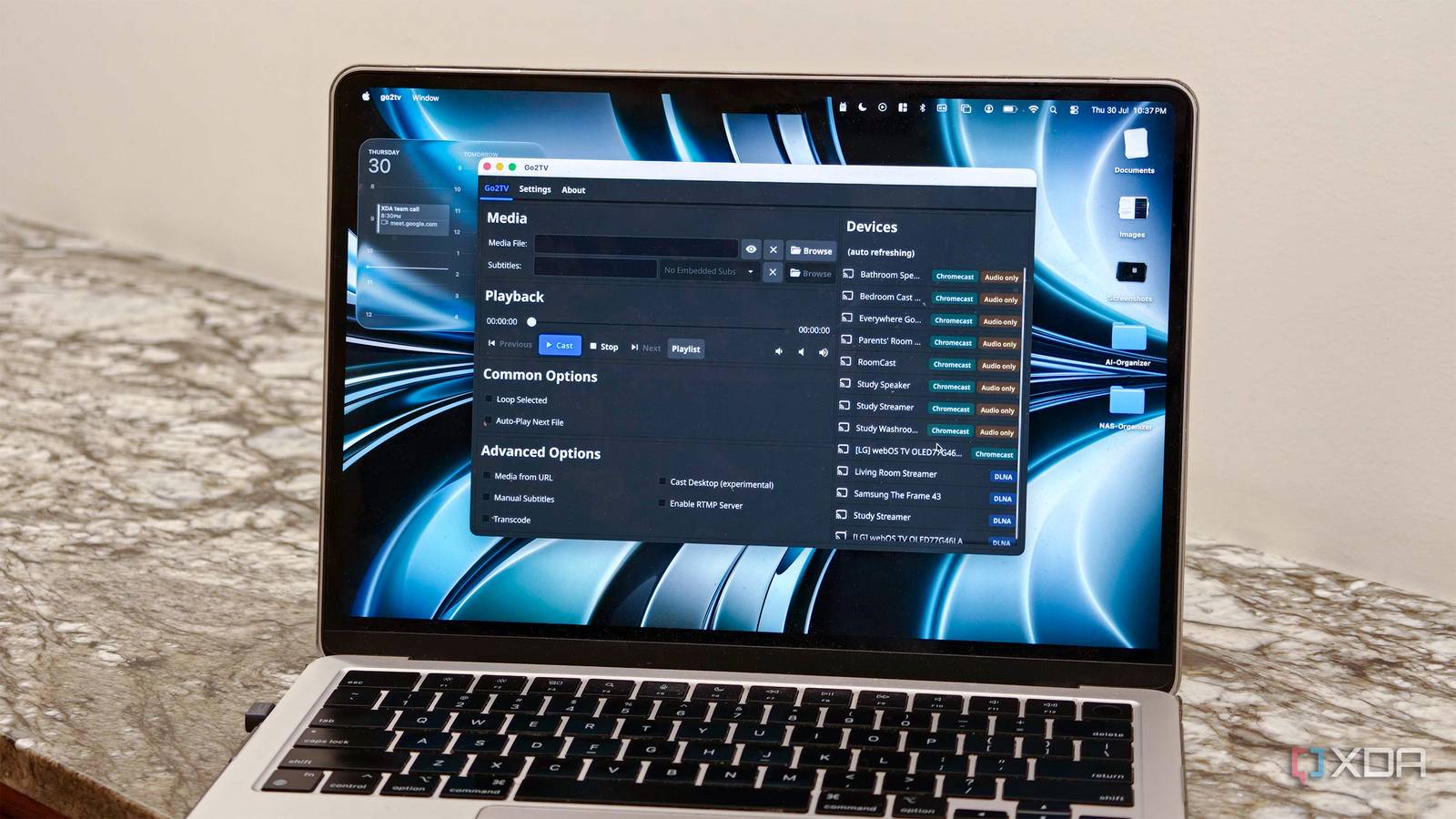
Published Aug 5, 2026, 4:30 PM EDT Dhruv Bhutani has been writing about consumer technology since 2008, offering deep insights into the personal technology landscape through features and opinion pieces. He writes for XDA-Developers, where he focuses on topics like productivity, networking, self-hosting, and more. Over the years, his work has also appeared in leading publications such as Android Police, Android Authority, CNET, PCMag, and more. Outside of his professional work, Dhruv is an avid fan of horror media spanning films and literature, enjoys fitness activities, collects vinyl records, and plays the guitar. Modern media consumption is entirely streaming-driven. It's convenient enough as long as you're trying to play a video from a streaming service. However, all too often I find myself streaming videos from sources that are not hosted on a conventional streaming service or even the cloud. Think home videos, meeting recordings, or even screen recordings. I really don't want to resort to moving these files to Plex or Jellyfin or even Google Photos. And I certainly don't want to move them to a USB drive to plug into my TV. That's why I started looking for open-source software to solve the problem. More importantly, that's what led me to Go2TV. This open-source app supports streaming directly from my computer to any Chromecast or DLNA target and includes everyday conveniences like subtitle support and the ability to transcode unsupported media. Basically, it solved my media streaming problems in one simple package and earned an instant recommendation from me. Go2TV takes the friction out of casting local videos Automatic transcoding and external subtitle support are excellent for edge-case uses Credit: As I mentioned earlier, I was trying to solve the problem of viewing things like meeting recordings and downloaded videos on a big screen. These videos have no place in a media library. What I needed was a quick way to move them from my computer to the TV. That's exactly what Go2TV does. This open-source app scans my local network, finds compatible devices, and lets me start streaming to them within a few clicks. It doesn't ask me to set default folders, config files, or even scan a library. In fact, there's no concept of a library. Just select the file, select your target, and hit cast. Once playback is over, go ahead and close the app. Easy as that. The advantages of using a tool like this start showing up almost immediately. The Cast protocol, for example, is fairly limited in its format support. So, when I start streaming a video from my computer, Go2TV handles the rest. If my TV can play the file directly, it'll stream the file directly. If it can't, all transcoding is handled automatically with little to no user input needed. Go2TV uses FFmpeg in the background, so it can comfortably handle most file formats in real time. Lately, I've been getting into anime, and all too often the embedded subtitles aren't up to scratch. My go-to strategy is to download external subtitles with the video. Handling all this within Plex or Jellyfin can be rather cumbersome, so I just use Go2TV to get the video up on my television. The app makes it easy to select an external subtitle file to go alongside the video. Basically, instead of manually combining files or switching players, I can send everything to the TV from one place. Useful for watching more than just downloaded videos Playlist support is great for binging shows or anime While my initial use case was to just put my downloaded video content on a big screen, I've found a few more surprisingly useful ways to implement Go2TV in my everyday workflow. As a hobbyist video creator, I often want to see in-progress edits on a large screen. Whether it's to validate color grading or just the placement of text elements, things can look dramatically different on a big screen. Now, anytime I do a render, I'll just pop open Go2TV and beam it over to my LG OLED television. I mentioned using the app to view anime on my television. That said, the built-in playlist support comes in surprisingly handy. I just queue up a range of videos for when I'm doing chores or making dinner and beam them straight from my computer to the Nest Hub in the kitchen and it starts streaming like magic. Instead of starting individual files manually, Go2TV makes sure that a folder full of episodes keeps playing automatically. If you need it, you'll like the fact that the app includes a CLI version. It's not for me, but if you want to run scripts or build some form of automation where a video in a folder autoplays on a target display, it should be possible. Personally, what stands out the most to me is that the app is hyper-focused. The entire goal here is to make it easy to get local videos up on a DLNA or Cast target — nothing more, nothing less. You won't find a media server here. Instead, what you will get is rock-solid reliability, and that's way more important in my books. The easiest way to cast local videos to a television Look, Go2TV is very much a utility-based application. It's not going to replace Plex or Jellyfin if getting your media library up on a big television is your goal. But that's not what I use it for anyway. I use Go2TV for random files on my desktop that I need to view on something bigger than my MacBook's 13-inch display. The app fills that gap perfectly. It streams all my local video flawlessly, handles edge cases requiring transcoding, and even supports external subtitles. That's exactly what I want from a utility like this. It focuses on a single job and does it well, which is why this open-source casting utility has become a must-install for me. Go2TV Go2TV is a free and open-source tool that lets you stream local videos to Chromecast and DLNA-compatible devices.
I use this open-source tool to easily cast any video to my smart TV
Full Article
Original Source
Read the full article at Xda-developers →KhanList aggregates and links to publicly available news content. We do not host full articles from third-party sources. Always verify important information with original sources.