
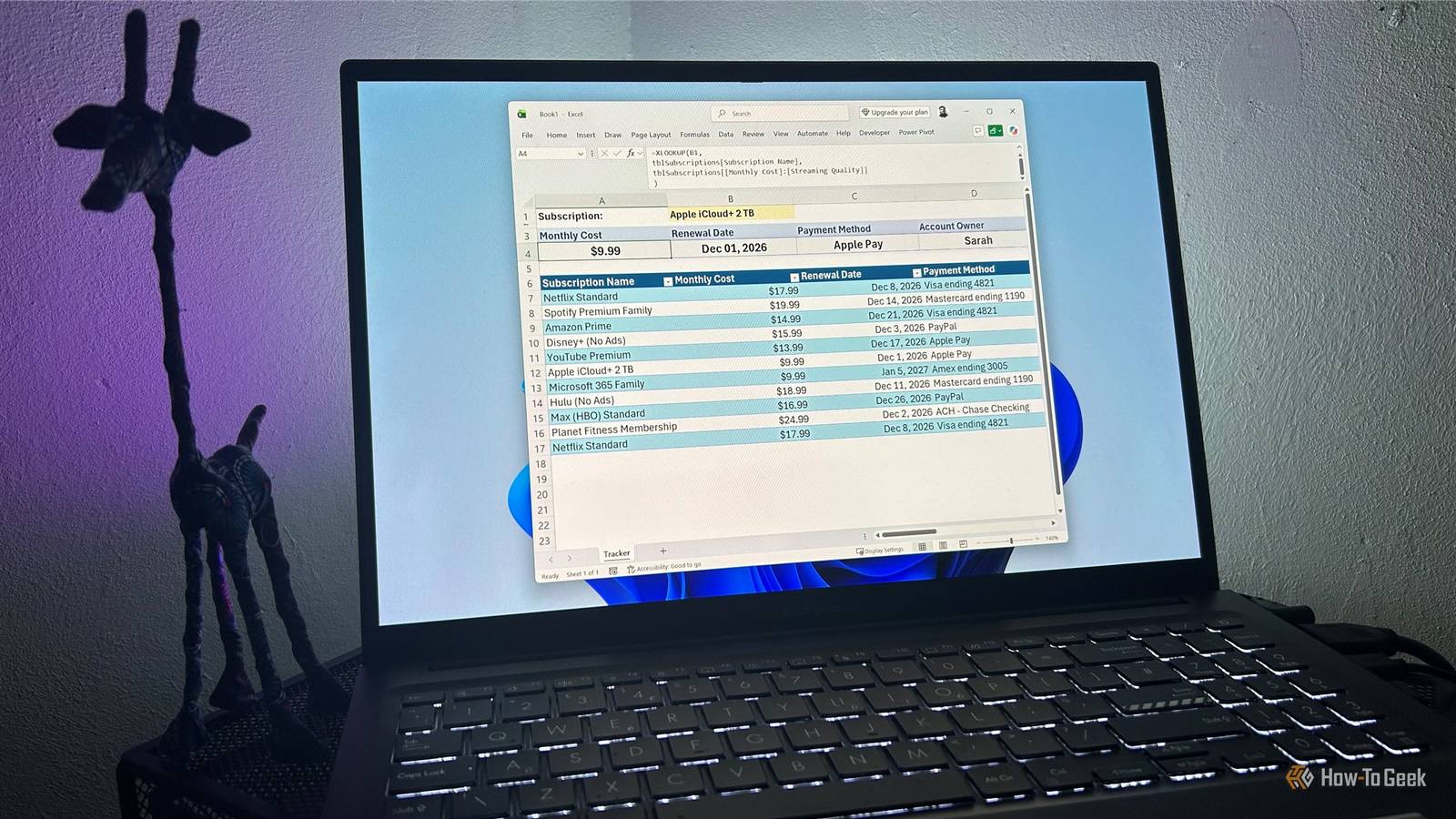
Published Nov 27, 2026, 7:00 AM EST Tony Phillips is a senior author at How-To Geek with over a decade of experience working with documents, data, and digital productivity tools. Holding a dual-honors degree in Linguistics and Hispanic Studies, he combines technical expertise with a passion for making complex topics easy to understand. Before joining How-To Geek in 2024, Tony worked as a document producer, data manager, legal document specialist, and content creator. He has also proofread and edited more than 3 million words of academic and professional writing. While Tony specializes in Microsoft 365, particularly Excel, his interests extend far beyond Office. He enjoys testing software, exploring open-source projects, discovering useful companion apps, and finding ways to customize and optimize Windows. Whether he's building spreadsheets, evaluating new tools, or uncovering hidden features, Tony enjoys helping readers get more from their technology. Outside of tech, he enjoys spending time with his dog, watching football, astrophotography, gardening, and golf. The best Excel functions aren't always the most powerful ones. They're the ones that quietly become part of your workflow, saving a few seconds here and a few minutes there until you can't imagine working without them. After years of using Excel every day, I've settled on three that do that more than most. One helps me pull information from other tables, one creates instant views of large datasets, and one answers data questions in seconds. Together, they save me more time than any other function I use. XLOOKUP My default way to pull data from another table If, like me, you use Excel regularly, you probably won't be surprised to see XLOOKUP on this list. If you're still relying on VLOOKUP, though, switching to XLOOKUP could be one of the biggest Excel upgrades you make this year. Years ago, I'd have to stop and think about whether a situation called for VLOOKUP, HLOOKUP, or an INDEX/MATCH combination. These days I rarely give it a second thought. XLOOKUP covers almost every lookup task I need to carry out, so I can focus on the result rather than choosing the right lookup formula. That's why it's usually the first function I reach for whenever I need information from another table. Whether I'm matching subscription records, categorizing bank transactions, or pulling details from a household tracker, it's almost always faster than trying to build the same solution with older lookup functions. I used to build separate lookup formulas whenever I needed several pieces of related information from a reference table. Now, if I need a subscription's cost, renewal date, and payment method, I can pull all three fields with a single XLOOKUP formula instead. Over time, I've also discovered that XLOOKUP can handle more complicated jobs than I expected, including lookups based on multiple criteria and lookups across both rows and columns. I also appreciate that XLOOKUP uses exact matches by default and can display a custom message when a match isn't found. That means less troubleshooting later when I'm trying to figure out why a worksheet isn't behaving the way I expected, and I don't have to spend time wrapping my formulas in IFERROR. FILTER I create instant views of large datasets I'm the kind of person who prefers to leave source data alone. Once I start manually sorting and filtering tables, I find it far too easy to overwrite something by mistake or forget that I've left a filter applied. When Microsoft introduced dynamic array functions to Excel, it solved a problem I'd had for years. FILTER is probably my favorite example of this. Before I started using it regularly, I'd constantly find myself applying filters to a table, copying the visible rows somewhere else, and then repeating the whole process the next time the data changed. It worked, but it was a repetitive job that seemed to take up far more time than it should have. Worse still, if something looked wrong later on, I'd often end up retracing my steps to make sure I hadn't altered the source data somewhere along the way. Now, whenever I need a focused view of a larger dataset, I usually reach for FILTER instead. If I want to see only overdue tasks, a list of soccer players who have scored goals, plants that need feeding this week, or transactions with a particular brand in my bank statement CSV, I can create the formula once and let Excel keep the list up to date for me. One of the biggest advantages of FILTER—and dynamic array functions in general—is that the results update automatically. Because I almost always work with Excel tables and structured references, new rows are automatically included in my filtered lists without me having to revisit the formula. I find the function even more useful when combined with other dynamic array functions. Pairing FILTER with SORT or UNIQUE lets me build reports and dashboards that update themselves whenever the underlying data changes. FILTER also handles multiple criteria. Even when I need to isolate records that meet several conditions at once, I can build the view I need with a single formula instead of creating intermediate tables or helper columns. Most of the time, I place the criteria in separate cells and reference those cells in the formula, which makes the view easy to adjust without rewriting anything. SUMIFS My quickest way to answer data questions If XLOOKUP helps me find information and FILTER helps me isolate it, SUMIFS is usually how I answer questions about it. Whenever I'm working with a large dataset, I constantly find myself asking questions like "How much did we spend on this?", "What's the total for that category?", or "How much money came from this source?" Before I learned SUMIFS properly, answering those questions usually meant filtering the data, selecting the relevant rows, and checking the total manually. That worked, but it was tedious. And to add insult to injury, the moment new data was added to the table, I'd have to repeat the whole process. Today, I build a SUMIFS formula as soon as I know I'm going to be asking the same question more than once. Whether I'm analyzing spending from a bank statement CSV, tracking subscriptions, or reviewing transactions in a household budget, I'd much rather let Excel calculate the answer automatically than spend time filtering and adding values myself. One thing I particularly like is that I can place my criteria in separate cells and reference them in the formula. I'll often add data validation drop-down lists to those cells, so I can analyze a different category, account, or date range with a couple of clicks instead of editing the formula each time. Once it's set up, Excel does all the hard work for me. Multiple criteria are a recurring theme across the functions on this list, and SUMIFS is no exception. If I need to total transactions for a particular month, category, and account, I can usually do it with a single formula rather than creating helper columns or intermediate calculations. At this point, using SUMIFS feels almost automatic. It's only when I stop and think about how much filtering and manual totaling it has replaced that I realize how much time it actually saves. Three functions I wouldn't want to work without These are the three Excel functions that save me the most time, but they're far from the only ones worth learning. I recently tested 10 functions I'd barely used before and found five that I'll almost certainly use more often going forward. Everyone's workflow is different. For me, the best ones aren't the flashiest or most advanced. They're the ones that cut out repetitive work, reduce mistakes, and help me get more done in less time. After all these years, these are still the three I reach for most often.
I use Excel all day, and these 3 functions save me the most time
Full Article
Original Source
Read the full article at Howtogeek →KhanList aggregates and links to publicly available news content. We do not host full articles from third-party sources. Always verify important information with original sources.