
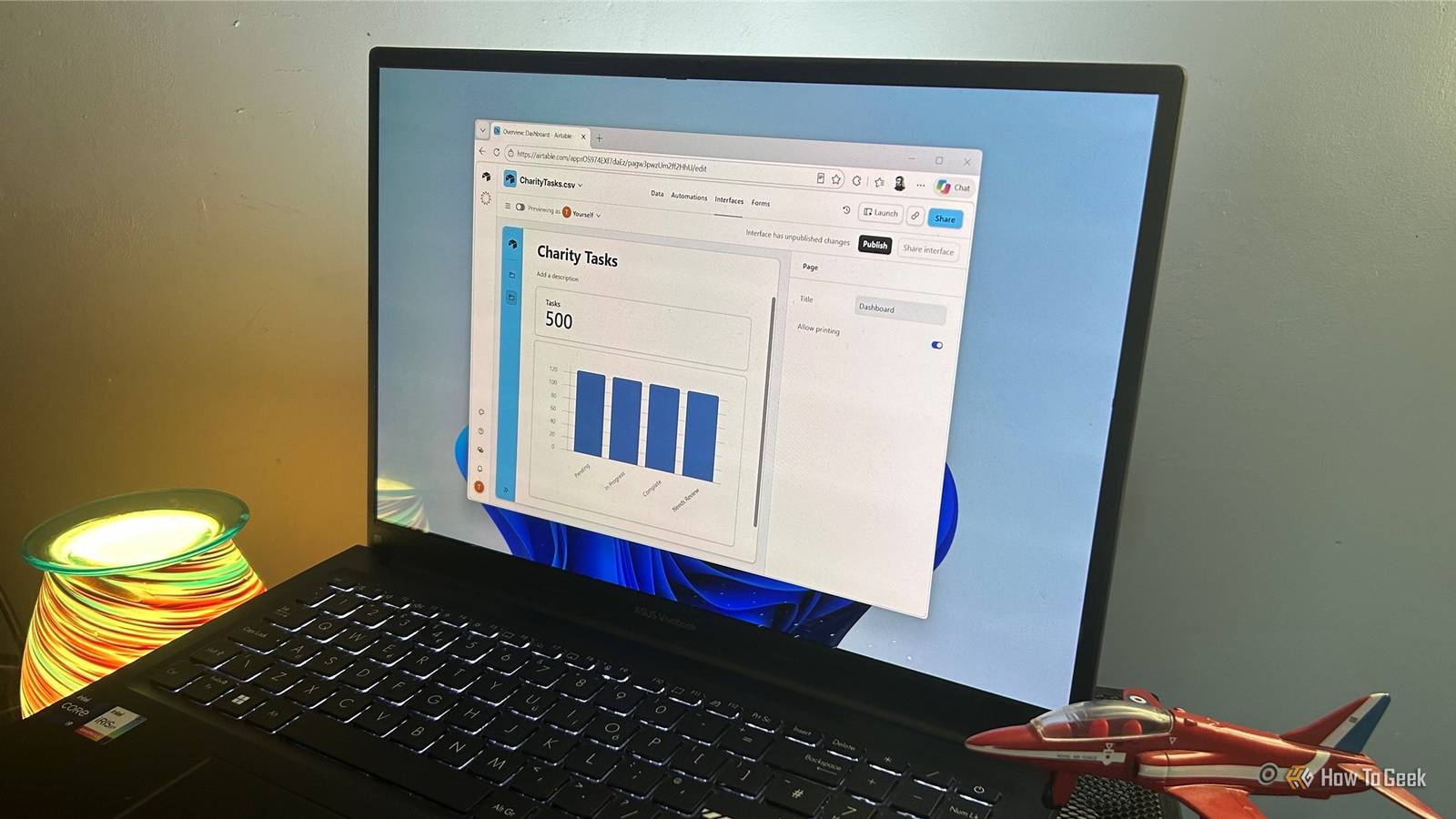
Published Nov 13, 2026, 10:30 AM EST Tony Phillips is a senior author at How-To Geek with over a decade of experience working with documents, data, and digital productivity tools. Holding a dual-honors degree in Linguistics and Hispanic Studies, he combines technical expertise with a passion for making complex topics easy to understand. Before joining How-To Geek in 2024, Tony worked as a document producer, data manager, legal document specialist, and content creator. He has also proofread and edited more than 3 million words of academic and professional writing. While Tony specializes in Microsoft 365, particularly Excel, his interests extend far beyond Office. He enjoys testing software, exploring open-source projects, discovering useful companion apps, and finding ways to customize and optimize Windows. Whether he's building spreadsheets, evaluating new tools, or uncovering hidden features, Tony enjoys helping readers get more from their technology. Outside of tech, he enjoys spending time with his dog, watching football, astrophotography, gardening, and golf. I've used Excel for years, and it does almost everything I need it to do. But there's a difference between organizing information in a spreadsheet and building an interface that makes it easy to manage. Creating dashboards, linking related information, and automating workflows can take considerable effort, even with Copilot. Excel is excellent at handling data, but sometimes I want something designed specifically for managing it. That's why I decided to try Airtable and Notion. Although these popular apps have different approaches to organizing information, both let you import spreadsheet data and build something more interactive around it. But one difference stood out to me: Airtable gave me access to features that Notion wanted me to pay for. I wanted to take my Excel tracker further 500 tasks, two new project-management systems My spreadsheet contained 500 tasks, with details including task IDs, assignees, descriptions, due dates, and statuses. I wanted to build a more complete system around that data, with a separate place to manage projects and a clearer view of how all the work fit together. I imported the same spreadsheet into both apps, then started building the project-management side of things. Airtable accepted my Excel workbook directly, while Notion's standard spreadsheet-import workflow needed me to save it as a CSV first. Neither import caused any problems, although Airtable made the process a little quicker. Both platforms made it easy to build on my data The project-management basics were a close match Once the data was in place, both apps presented it cleanly. The tables were easy to read, with sensible column widths and correctly recognized data types. Statuses appeared as colored labels, making it easy to scan the work at a glance. Neither platform left me with a cluttered spreadsheet that needed hours of tidying before I could use it. I then created a Kanban board in each app, grouping tasks by status. Moving a task from one column to another automatically updated its status in the underlying table, so I could switch between the two views without losing track of changes. Both made this straightforward, and I could customize the status labels and colors to match how I wanted to organize the work. Next, I created a separate Projects database in each app to test how well it worked alongside the task data. I added properties for descriptions, owners, start dates, target completion dates, and statuses, then linked four tasks to projects to test the relationship feature. Setting this up was easy in both platforms, and clicking a linked task opened its details in a useful record view. Both apps also let me build forms from existing database properties. The results looked polished, and I didn't have to design every question from scratch. At this point, either app could do the job. I could organize projects, browse their tasks, collect information through forms, and keep an eye on progress. The real differences emerged when I started exploring dashboards and automation. Notion's dashboard and automation restrictions changed the picture I created a Project Overview interface in Airtable using its dashboard layout. It automatically generated a record count and a chart showing the distribution of projects by status. I then added a list of projects and adjusted which fields appeared. The result was useful almost immediately. I got a quick overview without digging through the underlying tables, and I could see myself using the interface regularly. I built it in my Airtable Free workspace without needing to upgrade. I tried creating a similar overview in Notion. Its Projects database offered a Dashboard view, so I selected it. However, when I tried adding widgets or editing the dashboard layout, Notion told me I needed a Business plan. Automation revealed another difference. In Airtable, I configured an automation to look for a particular task record and update an additional field. I used TASK-0005 as the test record and set the automation to enter the word "Processed" in an Automation Check field. The preview showed the expected update. Airtable's Free plan includes 100 automation runs per workspace per month, giving you some room to experiment before needing to upgrade. Sharing interfaces with people who aren't base collaborators is also restricted to paid plans. When I tried to access database automations in Notion, I got an upgrade prompt. Its Free plan offered buttons, but trigger-based database automations required a paid subscription. There is a catch to Airtable's generosity, though. Its Free plan limits you to 1,000 records per base. My tracker already contained 500 tasks, and the four project records brought my total to 504. That gives me room to expand, but a much larger task database could reach the ceiling sooner than I'd like. Notion's Free plan doesn't have an equivalent fixed record limit on an individual workspace, so it gives you more breathing room if you're building a large database. Airtable gave me more tools to work with in my test, while Notion offered more room for additional records. That's worth considering if you're deciding where to take a large spreadsheet. Both AI assistants found the same overdue work Airtable made its AI allowance easier to track I also gave each platform's AI assistant the same job: find overdue, incomplete tasks, identify at-risk projects, and suggest ways to prioritize the outstanding work. Airtable took 33 seconds to respond, while Notion took 1 minute and 44 seconds. Both flagged the same nine overdue, incomplete tasks and gave me useful recommendations, although Notion went into a little more detail. Neither had a clear advantage overall. One difference I appreciated, though, was that Airtable showed me my remaining AI credits. I started with 500 credits for the month, and after my prompt, I could see that 490 remained. That makes it much easier to keep track of my usage and avoid running out unexpectedly in the middle of a workflow. Notion's AI trial worked too, but I couldn't find anything showing how much access I had left or how many more requests I could make before hitting the limit. As AI becomes part of everyday work, that uncertainty is frustrating. I'd choose Airtable for this particular project Both platforms made it easy to build on my Excel tracker, and Notion handled the everyday project-management basics just as well as Airtable. Notion may be the better fit if you want your projects to live alongside notes, documents, and other workspace content. But Airtable gave me more practical features to work with for free, including a useful project dashboard and automation tools. Its 1,000-record limit is worth bearing in mind, but I could see myself using it regularly. My Excel spreadsheet was a perfectly good starting point. Airtable simply gave me an easier way to work with the information I'd already organized.
I upgraded my Excel tracker with Airtable and Notion, and Airtable gave me more for free
Full Article
Original Source
Read the full article at Howtogeek →KhanList aggregates and links to publicly available news content. We do not host full articles from third-party sources. Always verify important information with original sources.