
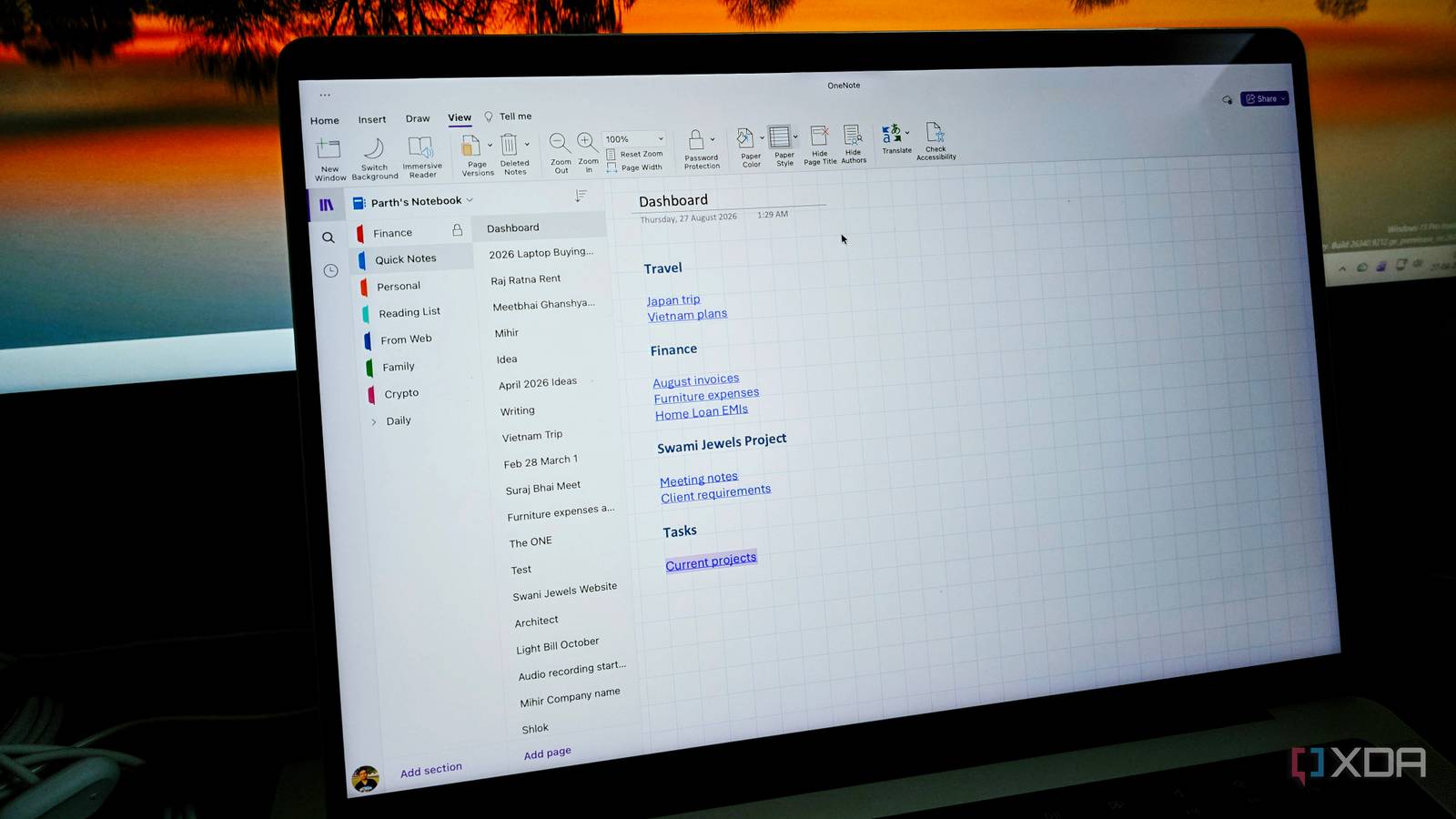
Published Sep 3, 2026, 7:30 AM EDT Parth, a seasoned tech writer, wields the keyboard (or pen) with finesse to unravel the intricacies of both Windows and Mac operating systems. He has covered evergreen content on mobile devices and computers for multiple publications over the last six years. You can find his work on AndroidPolice, GuidingTech and TechWiser. Whether it’s demystifying system updates, deciphering error codes, or exploring hidden features, Parth’s prose guides readers through the binary maze. When not immersed in tech jargon, you’ll find him sipping chai, pondering the next software review, and occasionally indulging in a friendly debate about mechanical keyboards. Managing dedicated apps for to-do lists, project tracking, quick scribbles, and daily planning sounds great on paper until you spend more time context-switching than actually getting work done. After hitting productivity burnout with single-purpose tools, I simplified my workflow with my preferred app: OneNote. By utilizing custom templates, flexible notebook hierarchies, and Copilot Notebooks, I turned the classic digital binder into a centralized daily hub that handles almost my entire routine. Core architecture and setup The master dashboard page When I set out to turn OneNote into a proper command center, the first thing I had to rethink was its structural hierarchy. Instead of treating notebooks like dumping grounds for random thoughts, I organized them around clear operational pillars using Notebooks, Section Groups, and Sections. I divided my life into a few clear sections and built a single Dashboard page at the top of my main notebook. Using OneNote’s internal page links, I added direct shortcuts on this dashboard to my active drafts, weekly priorities, and key resources. Now, instead of clicking through endless folders, I open one screen, tap a link, and start working. This setup proved its worth when I juggled writing deadlines while planning a family road trip. On my main dashboard, I kept my daily article targets on the left and my trip-planning section on the right. Inside the travel section, I kept flight confirmations, hotel bookings, a packing checklist, and a route map all on one page. Being able to check an article deadline, confirm a hotel booking, and update my to-do list all in one window kept me focused and saved me from juggling three different apps. Task and action management Custom tags over basic checkboxes For a long time, standard checkboxes were the weak link in my OneNote setup. Ticking a generic box works fine for a grocery run, but real projects are messier than that. To fix this, I customized OneNote’s tagging system to match how work actually moves. I set up custom tags with clear visual cues: High Priority for items that must get done today, Waiting on Reply for emails, and specific tags for different projects. Tagging actionable lines right inside my meeting notes or article outlines lets me capture context on the fly without breaking my flow. The real game-changer is pairing these tags with the Tag Summary. Instead of clicking through dozens of sections to hunt down open to-dos, I hit one shortcut, and OneNote pulls every tagged item across all my notebooks into a clean sidebar. Clicking any item in the pane jumps me straight to the exact page and paragraph it lives. When a task is done, I check it off directly in the summary, and it updates across my notebooks. OneNote canvas comes into play Not every idea starts as a clean bulleted list or a neat paragraph. When I am tackling a complex project, mapping out a long-form article structure, or figuring out a multi-step plan, typing into a blank document often feels too rigid. That is where OneNote on my iPad, paired with the Apple Pencil, has changed how I work. Whenever I kick off a new initiative, I grab the iPad, open a fresh page in my brainstorming section, and set the background to a light grid or dot layout. Using the Apple Pencil, I treat OneNote like an infinite whiteboard. I sketch rough mind maps, draw arrows connecting concepts, circle key pain points, and scribble quick handwritten notes alongside rough visual diagrams. There is zero pressure to make it look polished; it’s just about getting messy structure out of my head as quickly as possible. Only after the big picture is mapped out do I switch back to my desktop, open that same synced page, and type out the final, actionable project plan or article draft. Utilizing Copilot Notebooks It’s quite good, actually One of the most effective upgrades to my workflow was pairing my OneNote setup with Copilot Notebooks. The process is straightforward: I create a dedicated notebook inside Copilot and link the specific OneNote pages relevant to the project. Once added, I pull in supporting documents, spreadsheets, and PDFs directly from my OneDrive. Once those sources are connected, I can prompt Copilot with specific questions and get clear, sourced answers pulled directly from my notes in seconds. This workflow proved useful when I was working through an interior design project. I gathered vendor quotes, material specifications, room dimensions, architect notes, and budget estimates across several OneNote pages, alongside floor plans PDFs stored in OneDrive. Instead of cross-referencing multiple files to calculate numbers or recall details, I opened my Copilot notebook and asked questions like, ‘What were the specific tile dimensions we shortlisted for the kitchen?’ and got a relevant answer in no time. Cut the clutter of standalone apps You don’t need a pricey subscription or an overly complex productivity tool to stay organized. OneNote’s real strength is that it gets out of my way and gives me a blank, flexible canvas to build a workflow customized to how my brain works. So, what are you waiting for? Start small, experiment with custom layouts and page structures, and build a setup that fits your exact rhythm. Microsoft OneNote OneNote is a cross-platform note-taking app from Microsoft.
I turned OneNote into a personal command center, and now I barely open separate apps
Full Article
Original Source
Read the full article at Xda-developers →KhanList aggregates and links to publicly available news content. We do not host full articles from third-party sources. Always verify important information with original sources.