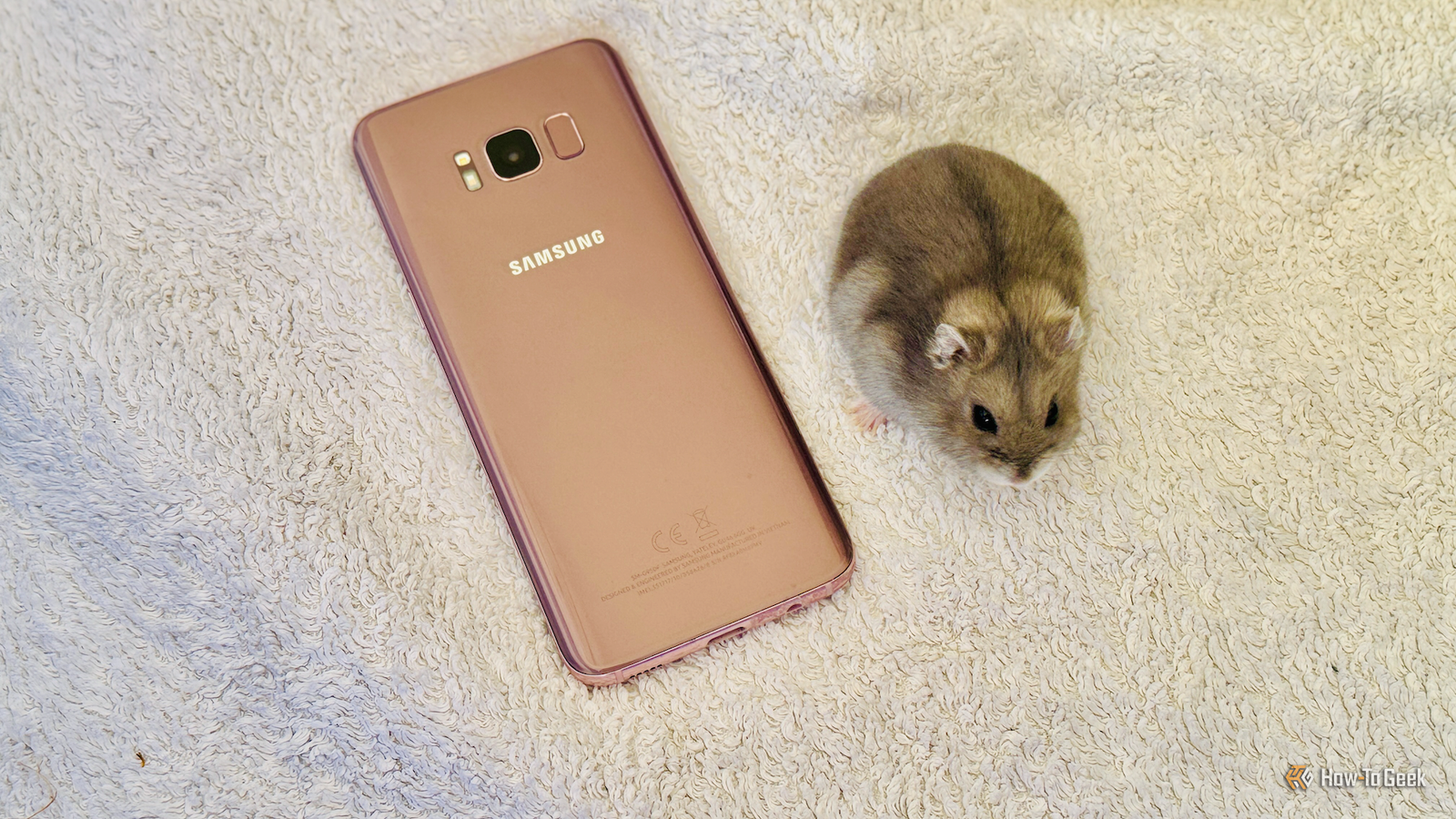
Credit: Adam Davidson / How-To Geek Published Aug 7, 2026, 1:00 PM EDT Adam has a degree in Engineering and has a life-long interest in technology. He has been writing for over a decade for various print and online publications, with a focus on consumer tech. He joined How-To Geek in 2024 while working at Pocket-lint. As well as being a long-term fan of Apple products, he also has a strong interest in smart home tech, running a Home Assistant server at home to automate all his smart home devices. He believes that the ideal smart home should work with minimal interaction from the user, with automations running as if by magic rather than requiring you to push buttons on a control panel. You can find more of his work on Muck Rack. Sign in to your How-To Geek account I have several security cameras in my smart home, both inside and out. I wanted to use a security camera for another project, but I didn't have one spare. Instead, I used a free app to turn my old Samsung Galaxy S8 into a dedicated smart camera. I wanted to monitor our hamster's cage The hamster is often asleep when we're awake Credit: Adam Davidson / How-To Geek My daughter has a pet hamster. She needs to get the hamster out regularly so that she can spot-clean the cage and give him some exercise in a large pen where he has more space to run about. The problem is that hamsters are often asleep during the day, so my daughter is constantly having to go and check to see if Mr. Nibbles is awake so that she can get him out. I wanted to set up a way to monitor Mr. Nibbles' cage so that we could be notified when he was up and about. My daughter could then get him out for exercise and clean his cage without having to keep checking on him every five minutes. All my security cameras were already in use I didn't want to buy another camera for this one use Credit: Adam Davidson / How-To Geek I knew that this should be simple enough to do using a security camera. Using basic motion detection features, I should be able to create an automation that would send an alert whenever motion was detected within the hamster's cage. The problem was that I needed a security camera to set this up. While I have several cameras in my smart home, they're all in use for other jobs. I didn't have a spare one that I could use to point at the hamster's cage. I didn't want to have to buy another camera for this simple task. It felt like overkill to buy an entire new camera just to sit looking at a hamster cage all day. I wondered if there was anything else that I could use, so I took a look through my drawers of tech junk. An old Samsung Galaxy S8 was all I needed It can do a better job than cheap Wi-Fi cameras It didn't take long to find exactly what I needed. I had an old Samsung Galaxy S8 lying in the drawer, and it was in perfect working order, including the 12MP rear camera. I installed the free, ad-supported IP Webcam app, which allows you to stream live video from your Android phone over your local network. The phone effectively becomes an IP camera, sharing a stream from the front or rear camera over the local network. I installed the Android IP Webcam integration in Home Assistant and entered the IP address, username, and password for the stream from the IP Webcam app. This generated multiple sensors, including a Motion Active sensor. I set up the camera so that it was pointing directly at the hamster cage and adjusted the motion detection zone so that it only covered the interior of the cage. A simple automation now sends an alert to my phone whenever motion is detected in that zone, with a cooldown timer to stop my phone getting spammed with notifications when Mr. Nibbles is up and about. The best part is that the camera on the Samsung Galaxy S8 is far better quality than the cheap security camera I would have bought instead. While it doesn't have the same night vision capabilities, I only need the notifications to work during the day, so it's a perfect fit. I set up an automation to reduce battery wear Leaving the S8 charging non-stop isn't a good idea There was one final thing that I needed to do before I could leave the phone running all day to monitor the hamster cage. Streaming video uses up the battery, and the S8 wasn't going to make it through the entire day without power. I didn’t want to leave it connected to power non-stop, since the Samsung Galaxy S8 doesn’t have the same battery protection features that later models have. It would mean that the phone would be continually kept close to 100% charge, which isn’t good for its health. I connected the phone charger to a smart plug and set up a simple automation. The Home Assistant Companion app exposes the current battery level, so the automation watches this value and turns off the smart plug when the charge reaches 80%. When the charge drops to 20%, the smart plug turns back on, and the process repeats. I can now run the camera connected to power all day while reducing the risk of the battery turning into a spicy pillow. I also don't need to worry about the phone running out of battery just before Mr. Nibbles comes out of his cage. Reusing old tech always feels good My wife always looks at my drawers and boxes of old tech junk in despair, but they come in very useful at times. By repurposing an old phone, I saved myself from having to buy a new security camera, and we always know when Mr. Nibbles is up and ready to play.
I turned my old Galaxy S8 into a security camera with one free app and zero new hardware
Full Article
Original Source
Read the full article at Howtogeek →KhanList aggregates and links to publicly available news content. We do not host full articles from third-party sources. Always verify important information with original sources.