
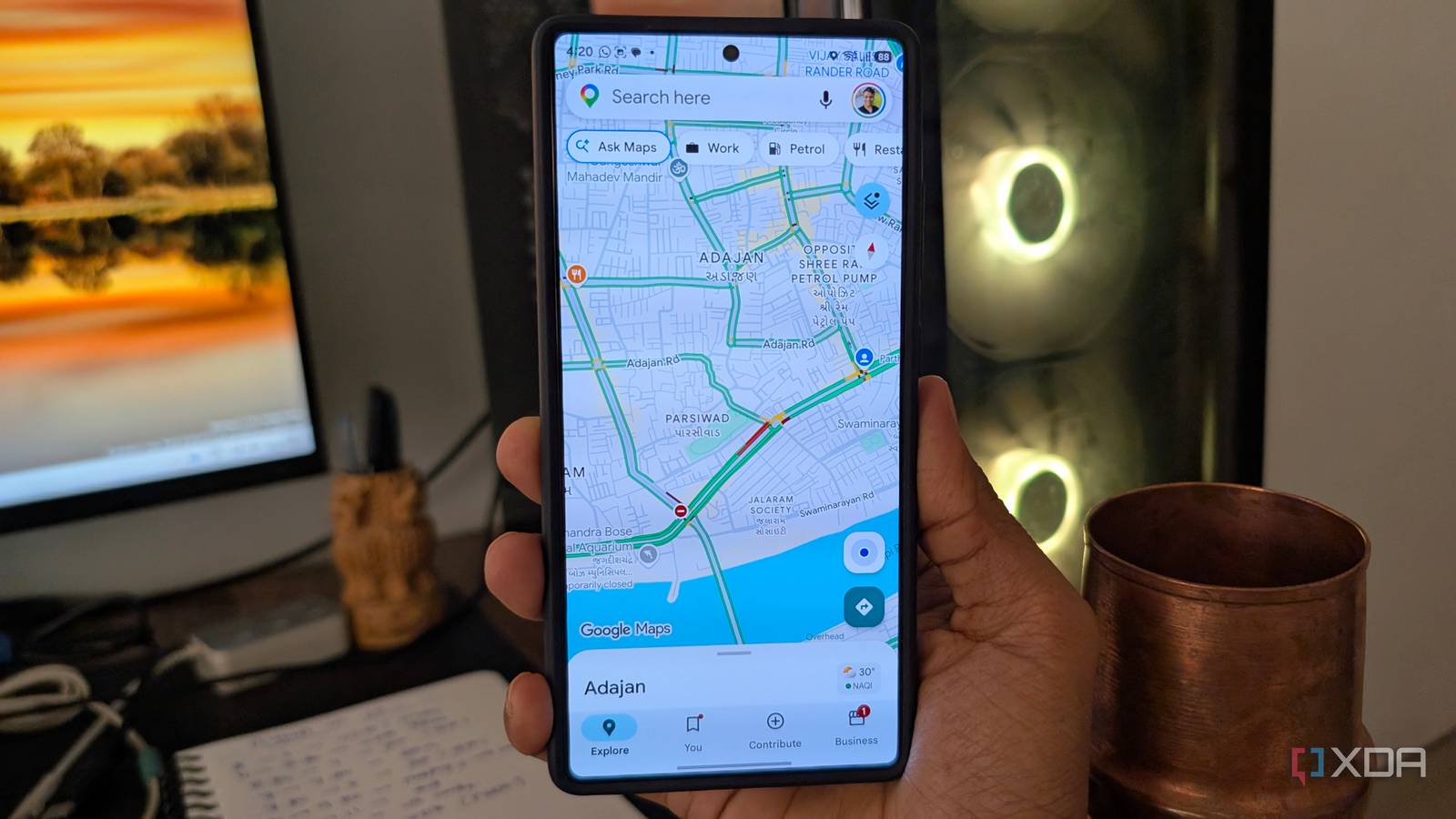
Published Aug 27, 2026, 8:30 AM EDT Parth, a seasoned tech writer, wields the keyboard (or pen) with finesse to unravel the intricacies of both Windows and Mac operating systems. He has covered evergreen content on mobile devices and computers for multiple publications over the last six years. You can find his work on AndroidPolice, GuidingTech and TechWiser. Whether it’s demystifying system updates, deciphering error codes, or exploring hidden features, Parth’s prose guides readers through the binary maze. When not immersed in tech jargon, you’ll find him sipping chai, pondering the next software review, and occasionally indulging in a friendly debate about mechanical keyboards. Most of my Google Maps trips used to begin the same way: enter the destination, check the ETA, and hit Start. I rarely looked beyond the route Maps had already picked for me. The problem is that an ETA only tells part of the story. I recently started checking the broader traffic picture before beginning navigation, and it has made my pre-drive routine far more useful. A single ETA doesn’t tell the whole story I can spot trouble before navigation starts I used to look at the ETA as the only number that mattered. If Google Maps said the drive would take 35 minutes, that was usually enough for me to hit Start and get going. But the single estimate does not show me what is happening across the roads around the suggested route. Sometimes the roads around that route are already filling up, another familiar road is moving much better, or the smartest option is leaving a few minutes later. Once I started checking the traffic layer first, I began noticing whether congestion was limited to one stretch, to a building around a major junction, or to the entire area. The broader view is useful because I can spot trouble before navigation even begins. If I see a long red or dark-red section on a road I normally take, I already know the drive could get messy. Sometimes I can use another familiar road, and other times I wait a few minutes before leaving. I still trust Google Maps to handle the actual routing, but checking traffic first gives me context that an ETA alone never really provided. You can simply tap the Map icon on the main screen and select Traffic under Map details. It helps most on routes I already know Sometimes I ignore my usual road entirely The traffic layer is actually most useful to me on routes I already know well. If I am heading to a familiar mall, restaurant, office, or another place I visit regularly, I usually do not need Google Maps to tell me every turn. I already know two or three different ways to get there. What I do not know is which one is moving better right now. That is where checking traffic before I leave makes a real difference. Instead of automatically taking the same road out of habit, I open the Traffic layer and quickly scan the surrounding alternatives. If my usual route is covered in red while another familiar road looks much cleaner, I have no problem ignoring my normal choice entirely. I don’t need to start navigation, wait for Maps to detect congestion, and then follow a reroute. I can make that decision before I even leave the parking spot. Just last week, I was heading from my home to a shopping mall, and I checked the traffic layer in Google Maps. Due to a political rally, it was way busier than usual on my preferred route, so I took another (although longer) route and managed to reach without spending any time in crowds. Sometimes the best move is waiting Pro tip: Set the departure time There are times when the Traffic layer tells me that changing roads won't help much. If almost every major road around me is covered in orange or red, I would rather wait 10 or 15 minutes than immediately join the congestion. That is useful when I am heading somewhere without a strict arrival time. I can finish a small task at home, grab a coffee, or simply leave a little later and check the map again. There is another Maps feature I use as a pro tip when I know about a trip in advance. After entering a destination and opening directions, I can tap the three-dot menu and choose a set departure or arrival time. I can then tell Maps when I plan to leave, and it estimates the journey based on expected traffic around that time. I find it handy for morning appointments or drives during rush hour. The traffic layer helps me with what is happening right now, while setting a departure time gives me a better idea of what the same drive could look like later. Used together, they have turned Maps into something I check before driving, not just something I follow once the journey has started. The Maps shortcut I always use The traffic layer hasn’t changed how Google Maps navigates for me, but it has changed how I start every drive. Instead of blindly taking the first route and dealing with congestion later, I now spend a few seconds checking what the road ahead actually looks like. For something that takes only a few seconds to check, it has become one of the easiest ways I have found to make Google Maps more useful.
I tried this hidden time-saving Google Maps feature, and now I never start a drive without it
Full Article
Original Source
Read the full article at Xda-developers →KhanList aggregates and links to publicly available news content. We do not host full articles from third-party sources. Always verify important information with original sources.