
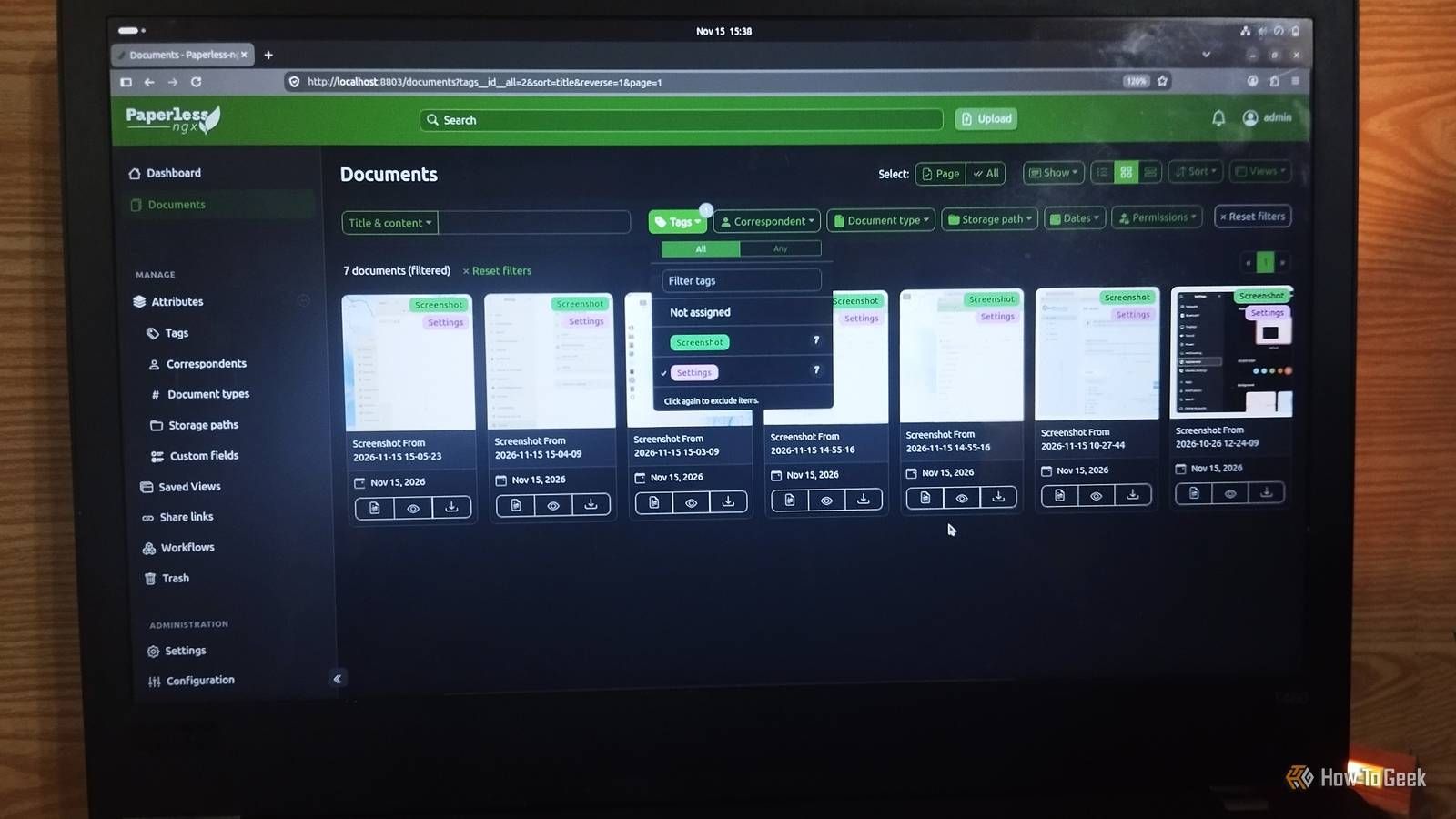
Published Nov 16, 2026, 10:30 AM EST Nimrah has spent the last five-plus years writing about technology, with Linux being one of her favorite subjects to explore. Her work covers everything from Linux and open-source software to databases, cybersecurity, and everyday software. She has contributed to Baeldung, Make Tech Easier, and LinuxHint. She particularly enjoys turning a concept that initially seems complicated into something anyone can understand. Away from tech, she loves to read, cook new recipes, and try new restaurants and cuisines. Let me be honest. My Downloads folder is a digital junk drawer, and my husband never lets me forget it. He's the kind of person who has folders within folders, separate SSDs, and even a cloud-based system to organize everything by date and category. Meanwhile, I've PDFs named final-first-draft-fedora-desktop-article (2).pdf and dozens of screenshots named after the exact second I took them. I finally decided to do something about it and tried Paperless-ngx. I uploaded some documents and images, then experimented with its OCR and automatic tagging features. The results surprised me. I finally found a home for my digital clutter What Paperless-ngx actually does Paperless-ngx is a free, open-source document management system that lets you store, organize, and retrieve files from your own server. Instead of relying on another company's cloud storage, your documents stay on your own machine. The idea is simple: rather than manually creating folders for every kind of file, Paperless-ngx gives you a central archive with searchable documents and several ways to organize them. You can assign tags, identify correspondents, define document types, and organize files using storage paths. You can even create nested tags with parent and child relationships, up to five levels deep. It also uses optical character recognition (OCR) to extract text from scanned documents and images, making their contents searchable. This means you can find information inside a screenshot or scanned PDF without relying on its filename. Running my own filing cabinet with Docker I deployed Paperless-ngx using Docker on my Ubuntu machine, which has four CPU cores and 10GB of RAM. Once it was running, I could access its web interface through my browser. The main dashboard gives you an overview of your document archive and quick access to its organizational tools. You can also share individual documents through public links with optional expiration dates. Paperless-ngx offers optional AI integrations for chatting with documents, document suggestions, and retrieving similar files. These features are disabled by default, and I left them that way because I wanted to see what I could accomplish without LLMs. As it turned out, there was plenty to explore. I could finally search inside my screenshots OCR even made image-based documents searchable One of the first things I tried was uploading images and documents containing readable text. Paperless-ngx automatically processes uploaded documents using optical character recognition (OCR), extracting text and making it searchable and selectable. This is particularly useful for scanned documents and screenshots. Normally, if you save a screenshot containing an invoice number or an address, you have to remember the filename or open the image and look for that information yourself. Paperless-ngx can extract that text, so you can search for words inside the document instead. This makes old files much easier to find, whether they're PDFs, PNGs, or scanned images. Keyword rules and neural networks did the sorting Tags are where things got particularly interesting. Initially, I created a few tags and manually assigned them to some of my uploaded documents. I then explored the matching algorithm settings. Paperless-ngx offers different ways to decide which documents should receive a particular tag. I tried both keyword-based matching and the Auto algorithm, which uses a neural network. The keyword-based approach is straightforward. You define matching rules using words or phrases that should appear in a document. For instance, you could create an Invoice tag that matches documents containing the word "Invoice" or a particular company's name. You can configure the rules to match any or all of your specified terms. Once configured, new documents containing those words receive the corresponding tag automatically. The Auto algorithm works differently. Rather than relying on specific keywords, it learns from documents you've already tagged manually. Paperless-ngx uses those examples to recognize patterns and predict which tags should apply to incoming documents. This means you need to give it some manually tagged documents first, particularly on a fresh installation. I experimented with both methods and found them useful for different situations. Keyword matching is predictable when you know exactly what words to look for, while Auto is handy when documents don't follow one consistent naming pattern. After configuring them and manually tagging some initial files, I started seeing subsequent uploads receive relevant tags without having to assign everything myself. Keep in mind that keyword rules only apply to newly uploaded documents. They won't automatically tag files already in your archive, so you'll need to organize those separately. I also liked that I could inspect and adjust the matching rules instead of blindly trusting automatic categorization. You can still correct a tag when Paperless-ngx gets something wrong. It's not a magical filing assistant that understands every document perfectly, but it can save you a fair amount of repetitive work. There's more to Paperless-ngx than OCR Sharing documents and organizing them your way OCR and automatic tagging were my main reasons for trying Paperless-ngx, but there's more to explore. You can generate public links to individual documents and optionally give those links an expiration date, making it easier to share a file without permanently exposing your entire archive. Its organization system is also more flexible than a collection of ordinary folders. You can combine tags, correspondents, document types, and storage paths to categorize documents in different ways. Parent tags let you build a hierarchy, which is useful when a flat list of labels starts getting difficult to manage. The optional LLM integrations are another interesting addition if you want to experiment with document chat and AI-powered suggestions later. I didn't enable them, though, and didn't need them for the OCR and tagging features I wanted to test. Should you try it? Paperless-ngx isn't a magic cleanup button for your entire computer. You'll still need to upload documents, manage storage, install updates, and maintain backups. But if you're comfortable with Docker and don't mind looking after your own server, it can give you a searchable personal archive that's well worth the effort. Its OCR makes even old scans and screenshots useful again, while automatic tagging saves you from manually sorting every new upload. That's a pretty big improvement when your filing system usually involves searching through a mountain of filenames. I'm not saying my Downloads folder is suddenly empty. That would be asking too much. But at least my important documents now have a proper home.
I tried Paperless-ngx and finally stopped using my Downloads folder as a filing cabinet
Full Article
Original Source
Read the full article at Howtogeek →KhanList aggregates and links to publicly available news content. We do not host full articles from third-party sources. Always verify important information with original sources.