
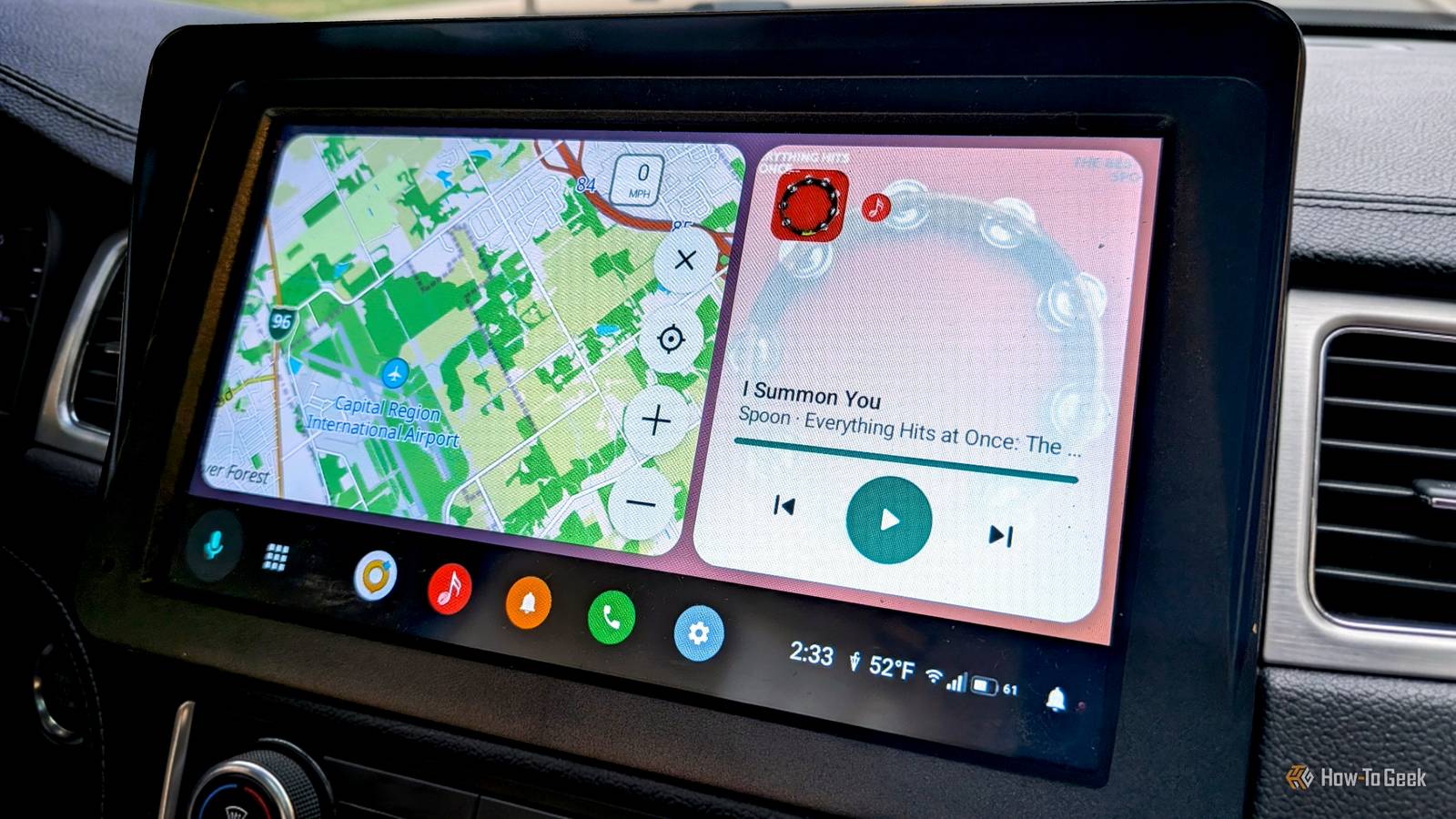
Published Nov 6, 2026, 4:31 PM EST Joe Fedewa has been writing about technology for over a decade. Android and the rest of the Google ecosystem have been a focus for years, as well as reviewing devices, hosting podcasts, filming videos, and writing tutorials. Joe loves all things technology and is also an avid DIYer and food blogger. He has written thousands of articles, hundreds of tutorials, and dozens of reviews. Before joining How-To Geek, Joe worked at XDA-Developers as Managing Editor and covered news from the Google ecosystem. He got his start in the industry covering Windows Phone on a small blog, and later moved to Phandroid where he covered Android news, reviewed devices, wrote tutorials, created YouTube videos, and hosted a podcast. From smartphones to Bluetooth earbuds to Z-Wave switches, Joe is interested in all kinds of technology. After several years of jailbreaking and heavily modifying an iPod Touch, he moved on to his first smartphone, the HTC DROID Eris. He's been hooked ever since. Despite its name, Android Auto is very different from Android on phones. You can't replace the home screen launcher, sideloaded apps aren't available, and Google services are even more tightly integrated. Thankfully, alternate options are starting to pop up, and I tried one. AARE is an open-source app that replicates the phone side of Android Auto. It uses the same projection protocol as the real Android Auto, which allows it to appear on the head unit display. The interface is familiar, but more flexible, and it supports a lot more apps than Android Auto does. Plus, unlike other methods I've played with, it doesn't require Google Play Services at all. A fully open Android Auto This is the real deal Before I go too far, it should be mentioned that AARE is currently in the "proof-of-concept" stage. That being said, I was able to use it without much trouble. Just know you're not getting as rock-solid of an experience as Android Auto. As I said, the developers have kept the interface pretty familiar. The main section of the screen is for maps, media controls go off to the side, and there's a taskbar that can be put on the bottom or side. That's a very surface-level impression, though. Credit: AARE For starters, you're not limited to Gemini for a voice assistant like you are in Android Auto. You can set it up to use your phone's default assistant, or choose from a list of compatible apps. Some appear on the car screen; others will run on the phone. Regardless, the assistant is called with the vehicle's voice button and listens through the vehicle's microphone. Just like it should. One of the biggest benefits of AARE is app "compatibility." AARE has workarounds that make it possible to use literally any app that you want on the car screen. Unlike standard Android Auto, sideloaded apps are available in the launcher. If an app doesn't support Android Auto, you can mirror your phone screen, but interact with it from the car screen. This is a bit rough, but it does work. For the most part, everything works how you'd expect. AARE reads notifications, so it works with Messages, WhatsApp, Discord, and any messaging app you'd use with Android Auto. It also supports any music or podcast app that uses the standard Android media services. For phone calls, AARE includes its own built-in app. Now, for downsides — there's one major one to point out. I mentioned that AARE doesn't require Google Play Services, and that means Google Maps and Waze don't work. They need Google Play Services in order to display their car interface. However, if you start navigation from your phone, AARE puts the next direction notification on the screen. You can try it without a car Give it a try from your phone AARE wasn't as complicated to get up and running as I expected. First, head over to the GitHub page and download the latest release (aare-[version].apk) on your Android phone. Install the APK, open the app, and tap "Preview car screen." You can get a feel for how it looks and feels before doing anything else. When you're ready for the real deal, run through the "Finish setting up" checklist. It'll help you grant the necessary permissions and set up car audio. You will need to allow restricted settings before you can grant Notification Access. For car audio, I recommend using the "Shizuku" method. Shizuku is another great app to know, and it's also not as complicated as it looks. Now, to actually connect to your car's head unit, it's essentially the same as standard Android Auto. Simply plug in a USB cable or pair your phone with your car. Tap "Connect" in AARE when prompted. Android Auto likes to get in the way, so I would also recommend disabling it in the Android settings. You're ready to drive! Take some time to browse the settings in the AARE app. There are quite a few customization options and nifty little features. For example, you can put weather in the taskbar, change the wallpaper, and permanently enable passenger mode. AARE is a proof of concept, and I can confidently say the concept works. I was very impressed by how easy it was to set up. If you don't use Google Maps or Waze, there's really not much of a downside to using AARE over Android Auto.
I tried an open-source Android Auto alternative in my car, and it beats Google's version in every way but one
Full Article
Original Source
Read the full article at Howtogeek →KhanList aggregates and links to publicly available news content. We do not host full articles from third-party sources. Always verify important information with original sources.