
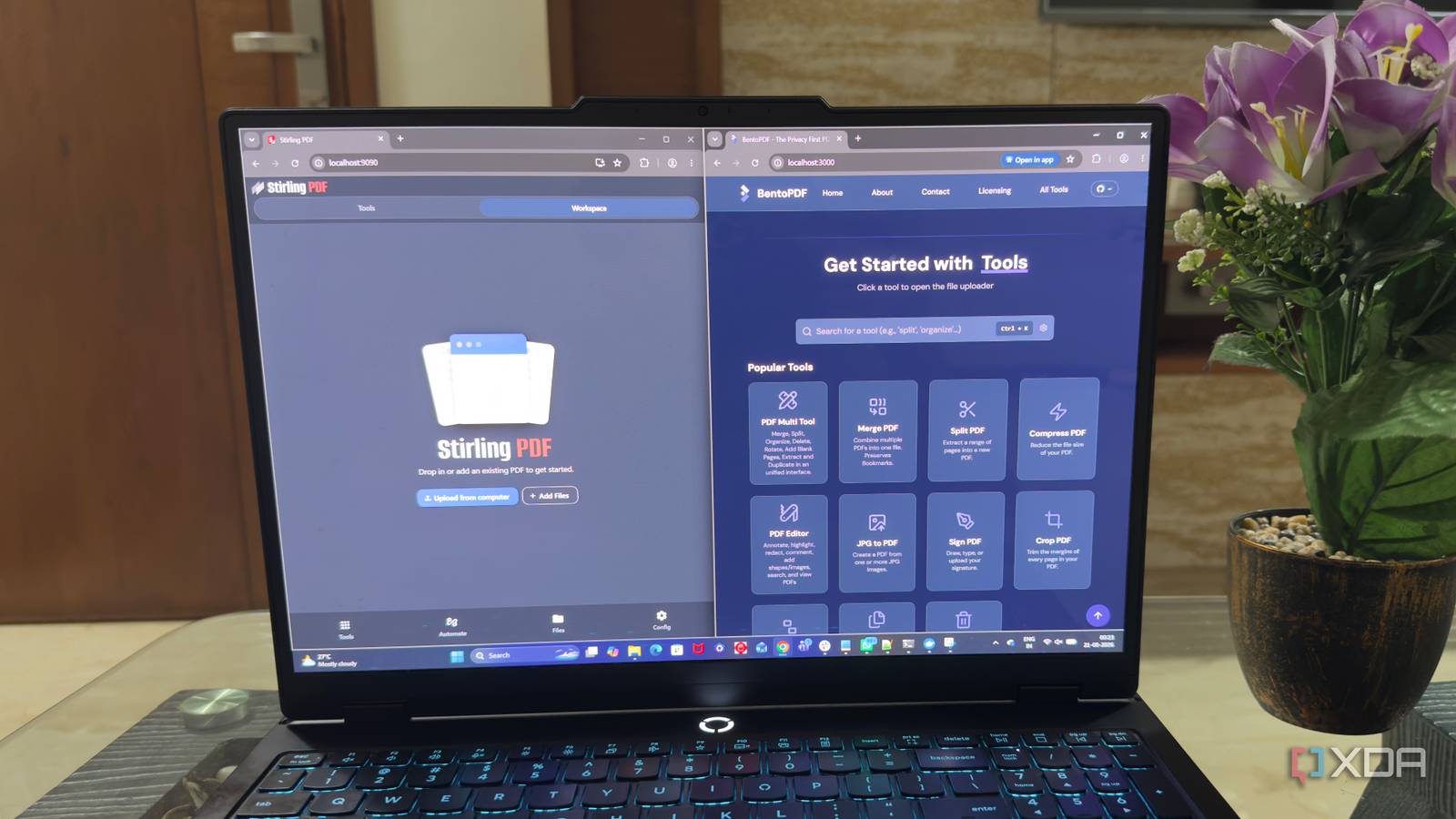
Published Aug 28, 2026, 6:00 AM EDT Beginning his professional journey in the tech industry in 2018, Yash spent over three years as a Software Engineer. After that, he shifted his focus to empowering readers through informative and engaging content on his tech blog – DiGiTAL BiRYANi. He has also published tech articles for MakeTechEasier. He loves to explore new tech gadgets and platforms. When he is not writing, you’ll find him exploring food. He is known as Digital Chef Yash among his readers because of his love for Technology and Food. Adobe Acrobat has been my default PDF tool for years, but I started wondering if I was paying for far more than I actually needed. Most of my PDF work is pretty routine, so installing another heavy desktop application didn't make much sense to me. Since I already run Docker containers for several parts of my workflow, I looked for PDF tools that fit into the same setup. I came across StirlingPDF and BentoPDF. I spent some time using both with my regular documents to see how they handled real-world PDF work. What I found was quite different from what I expected. StirlingPDF has a wide range of features A Swiss Army knife for PDFs StirlingPDF surprised me with just how much it can do from a single interface. I expected a few basic PDF tools, but the first time I opened the dashboard, I found a long list of options covering almost every PDF task I could think of. I could work with individual pages, extract specific pages from a document, rotate them, reorder them, or remove pages I no longer needed. It also offers tools to add images or text, apply watermarks, and adjust PDFs without opening another application. What I particularly liked was the range of conversion tools. StirlingPDF can convert PDFs to images and handle several other document-related conversions. I also found OCR tools, which are useful for scanned documents that don't contain selectable text. There are plenty of smaller tools too. I could flatten PDFs, add or remove metadata, compare documents, repair files, and even redact sensitive information. It also offers password protection and password removal when I have the required credentials. The sheer number of tools makes StirlingPDF feel less like a single-purpose PDF editor and more like a complete PDF toolbox. I didn't need all these features every day, but having them in the same place meant I didn't have to keep searching for another app whenever I ran into an unusual PDF task. That flexibility was what stood out most while testing it. Stirling PDF Stirling PDF is a free, open-source, and self-hosted web application that lets you perform over 50 manipulation tasks on PDF files. BentoPDF offers the simplest interface BentoPDF took a completely different approach from what I had just experienced with StirlingPDF. Instead of throwing a huge number of options in front of me, it kept the interface focused on what I was most likely to use. The best part is that the tools are presented clearly, without a crowded dashboard or menus that made me stop and figure out where a particular function was hiding. I could open BentoPDF, pick the task I wanted, and get started almost immediately. I also liked how clean the individual tool pages felt. Each operation had a straightforward workflow, with the file upload area and the relevant controls right where I expected them. There wasn't much to configure before getting the job done. This made BentoPDF feel less intimidating than a traditional PDF application. I didn't have to learn the interface before I could use it. Even when I hadn't used a particular tool before, I could usually understand what I needed to do just by looking at the screen. That simplicity became the main reason I enjoyed using BentoPDF. It doesn't try to overwhelm me with every possible PDF function. Instead, it keeps the experience focused and removes much of the friction between opening a document and finishing a task. BentoPDF BentoPDF provides fast, private, and free PDF tools. It processes files locally in your browser, ensuring privacy as your documents never reach their servers. It requires no account, offers all tools for free, and is built for speed. Both fit my workflow, but only one stays The one that is more resource-efficient After using both containers, I found that they can fit into my workflow for different reasons. StirlingPDF is the better choice when I need a large collection of PDF tools in one place. BentoPDF, on the other hand, feels much more focused on the tasks I actually do. The biggest reason I’m sticking with BentoPDF is its client-side approach. Since the PDF processing happens directly in the browser, there’s no need to send files back and forth to a server for every task. That makes the whole experience feel noticeably faster, especially for quick PDF jobs where I just want to get something done and move on. It also keeps the workflow simple. I don't need a feature-packed PDF application running when I only want to complete a quick task. So, BentoPDF is my winner. StirlingPDF is more capable, but BentoPDF gives me the combination I value more: a clean interface, fast client-side processing, and a lightweight workflow that fits naturally into my self-hosted setup. I didn't need Acrobat after all I went into this test expecting to find a decent replacement for Acrobat, but I realized I don't need an Acrobat clone at all. Both containers made PDF work feel less tied to a traditional desktop application, and that alone was a big win for me. What I liked most was having a tool that fits into the way I already manage my files and self-hosted services. I can open it when I need it, get the job done, and move on without adding another subscription to my software stack.
I tried 2 Docker-based PDF editors to replace Adobe Acrobat, and only one stood out
Full Article
Original Source
Read the full article at Xda-developers →KhanList aggregates and links to publicly available news content. We do not host full articles from third-party sources. Always verify important information with original sources.