
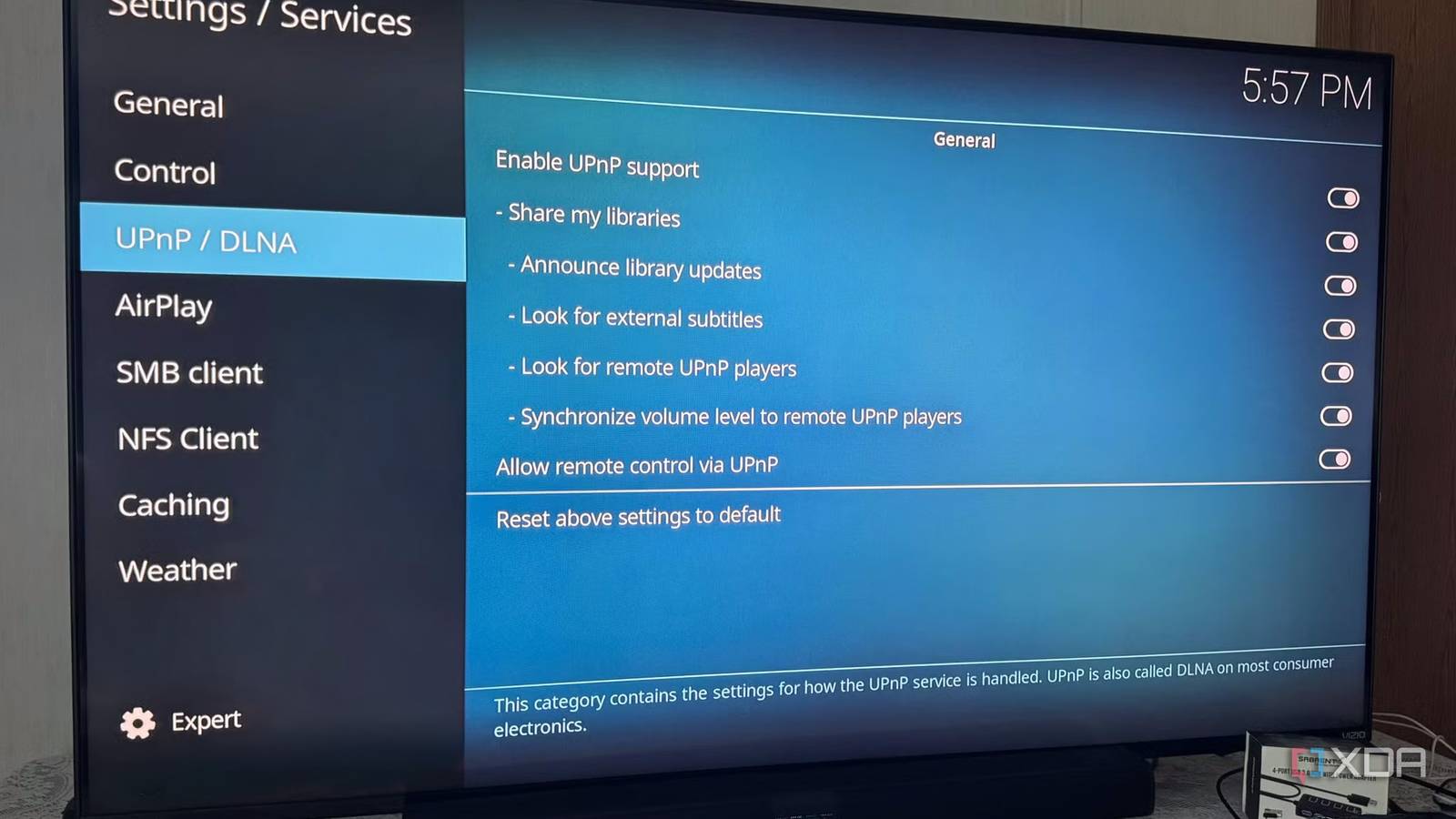
Published Aug 30, 2026, 6:00 PM EDT Maker, meme-r, and unabashed geek, Joe has been writing about technology since starting his career in 2018 at KnowTechie. He's covered everything from Apple to apps and crowdfunding and loves getting to the bottom of complicated topics. In that time, he's also written for SlashGear and numerous corporate clients before finding his home at XDA in the spring of 2023. He was the kid who took apart every toy to see how it worked, even if it didn't exactly go back together afterward. That's given him a solid background for explaining how complex systems work together, and he promises he's gotten better at the putting things back together stage since then. Creating a self-hosted media server or NAS with expensive equipment and Plex, Emby, or Jellyfin is simple. However, what about thinking outside the box and turning a budget Android TV box into one? I did the best I could with a cheap Onn box I got from Walmart, an external USB drive, a powered hub, and a bit of time and patience with Kodi. The Onn Android TV 4K Pro includes a USB port, and I already used a flash drive to make it a local media player. But I wanted to take it further and turn it into a self-hosted, local-network media streaming server — using Kodi with the UPnP/DLNA protocol and some building. Setting up the budget Android TV server Software and the right equipment I will start by saying this is more of a proof of concept than a tangible media server solution. This isn't like running Plex on an Nvidia Shield. I'm using Kodi, the UPnP/DLNA protocol, a few external drives, a powered USB hub, and VLC as the client. It can also be a slow experience for files to load up, even when the box is connected via Ethernet. Now, with that out of the way, I will start my journey. I could have used my 128GB flash drive to prove this can work, but I wanted to go bigger. I found an old Seagate 250GB external hard drive and plugged it into the Onn box. However, the box's USB 2.0 port can't power a spinning drive. To solve that problem, I figured I would need a powered USB hub with pass-through power. That works, but something unexpected came up. I found an older 250GB Samsung 860 EVO SATA SSD that was still new in the box and that I'd never installed anywhere. I popped the SSD into a UGREEN USB-C hard drive enclosure. I loaded both drives with media files. I connected both drives to the powered USB hub, then plugged everything into the Android TV box with a USB-A-to-C cable. Viola! The Onn's USB port could read the files on the drive — as if it were a flash thumb drive. Next, I installed Kodi on the box and added the SSD folders as sources. Once that was done, I enabled Kodi's UPnP/DNLA server, so other clients could see the files. I also made sure Kodi could see and play the files, so I didn't run into any unexpected issues. However, unexpected problems with Android, Kodi, and file formats arose. Onn 4K Pro Streaming Device $60 $60 Save $0 Problematic files, device bugs, and constant power Re-encoding certain media and known Kodi + Android issues Prior to networking the Android TV box, I tested various media files to ensure they would play. I used VLC since it plays virtually whatever you throw at it, but there were glaring problems from the start. For instance, I played several 4K AV1 files directly from the SSD, but the Onn Android box struggled to play them. I re-encoded the files to 1080p H.264 in HandBrake, and they played fine. I wanted to test this out before introducing large files to the network, apps, and other devices. There is also a problem with Android TV when trying to get Kodi to add directories from the external SSD to its library. Kodi's library indexing is a weak link that would make this feel like a real media server. I can see the external drive and play its media files in Kodi on the Android box. However, when I try to add a media source to File Manager in Kodi from external storage, it shows up as internal Android TV storage instead. There's a documented bug between Android storage permissions and Kodi's file manager. It can potentially be fixed with extensive workarounds that aren't practical for a $60 box. Power is also a consideration here. Like a server or NAS, you always want the Android TV box powered on. That is easy enough: enable developer options on the device and set it to always on, but something to keep in mind. A cheap Android TV box can serve as a self-hosted, local-media streaming server via UPnP/DLNA — but if Kodi's library indexing issue didn't exist (a well-documented bug on GitHub), it would feel more like a real media server. Kodi Workarounds for Kodi+Android Library Indexing If you really want to fight for it There are a few workarounds you can try if you want your cheap Android box to work with Kodi library indexing and bypass the Android storage problem. However, it will take some work. For instance, you could go to Videos > Files > Add videos > Browse, then manually enter the path to each drive and folder instead of clicking through the GUI. To do that, install a free tool like X-Plore File Manager to find the specific path to your drive, add the folder, and repeat the steps for each folder. You can also ensure Kodi's permissions by going to Settings > Apps > See all apps > Kodi > Permissions > Files and media, and setting it to "Allow all the time." That might be a simple fix, but I didn't have luck. Some users were able to back up their data and use the Android box to reformat the attached drive(s) as internal/adopted storage, and repopulate media, since Kodi's media-source picker often can't see attached drives. Unfortunately, none of these options worked for me with my Onn box, so I stopped fiddling with it. I have a UPnP/DLNA media file server. It's the best I could do, but it does what it's advertised to do. I can see the media files on the external drives connected to the cheap box and play them from VLC. I don't get the added benefits of poster art, watch history, or the other niceties of a Plex or Jellyfin server, but it will do in a pinch. Clients for Android Box+Kodi UPnP/DLNA server You don't have to only use Kodi I got tired of wasting time dealing with bugs and workarounds to get Kodi's library indexing to work — proving this is a clever experiment, but not a dedicated NAS or Jellyfin server replacement. The Android box isn't equipped to perform as a proper self-hosted media server. Once I pieced together my ragtag server, I just needed to choose a client to stream with. Like with proper servers such as Jellyfin or Plex, you don't have to use the default client. You can use any app that supports UPnP and DLNA. However, I went with the obvious choice in the tried-and-trusted VLC app on my Windows machine. Connecting was a breeze: launch VLC > Ctrl +L > Universal Plug'n'Play Services. Wait for the discovery to complete. It is faster and more reliable (in fact, everything is) to use an Ethernet cable to connect the devices. However, I stuck with Wi-Fi, knowing the discovery process would take a bit longer. There are around a dozen apps you can swap in for VLC, including Kodi, BubbleUPnP for Android, and nPlayer for iPhone. Windows Media Player Legacy is also a possibility on PC. However, I found VLC the most consistent in my testing between the budget box and a Windows PC. Although I thought I would see how my Mac fared, Infuse found my makeshift server right away, and playing media from either connected drive was a cinch; it looked great, too. Infuse also displayed movie posters and thumbnail art in its interface, so I will experiment with other clients to see which works best. Using a budget Android box as a media file server While this isn't an ideal solution like an always-on self-hosted server platform like Jellyfin or Plex running on a server or NAS, it was a fun project to try out. The Kodi/Google bug definitely got in the way of using the cheap box as a proper server. A budget Android TV box can function as a UPnP/DLNA-based media file server — external drives work, Kodi can browse and play files, and devices on the network can discover and stream from it. It's not a fully indexed, metadata-rich "true" media server experience like Jellyfin or Plex, because Android's storage permissions block Kodi's library — still a fun experiment.
I turned a cheap Android TV box into the ultimate self-hosted streaming server
Full Article
Original Source
Read the full article at Xda-developers →KhanList aggregates and links to publicly available news content. We do not host full articles from third-party sources. Always verify important information with original sources.