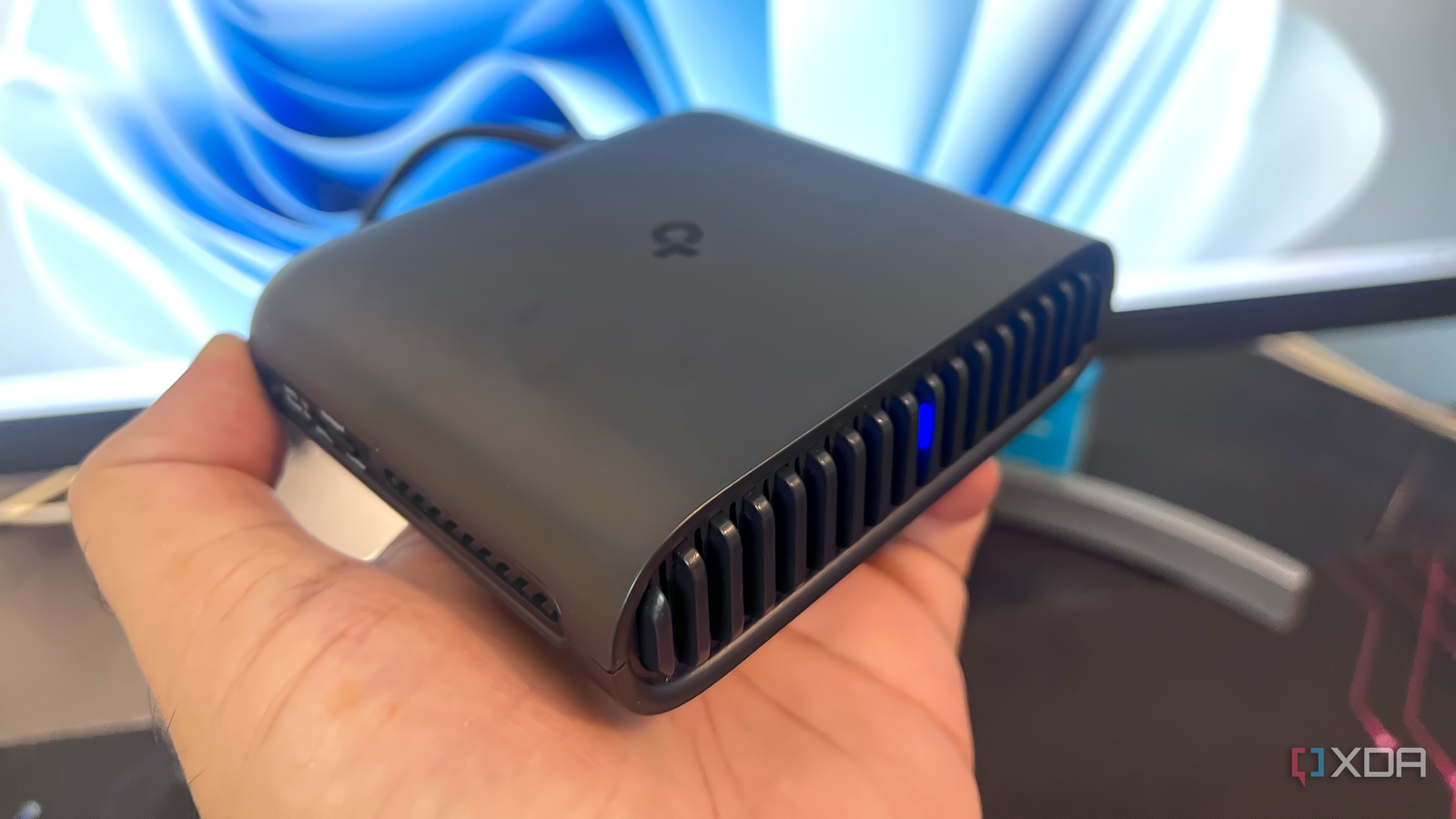
Published Jul 28, 2026, 10:00 AM EDT With over five years of experience in the tech industry, Kazim excels at simplifying complex topics, making them accessible to tech enthusiasts and general readers alike. He has extensively covered the Windows ecosystem, from Windows 7 to Windows 11. When he’s not writing, you’ll find Kazim planning weekend getaways or diving into tech verticals beyond his expertise. Last month, I added a travel router to my setup because I had to travel a lot in the following weeks. It was meant to streamline internet connectivity for all the devices I was taking with me. I will be honest, the travel router did that pretty well. But once I was back home, there was little use for the travel router. I wasn't planning another trip, and I wasn't inclined to let a perfectly good networking device sit idly by. That's when I started exploring what the little router could actually do. As it turns out, there are quite a few ways you can use a travel router at home. Despite the small size, it's still essentially a router and performs the same functions as one. And after I realized what my travel router was capable of, it has probably spent more time connected at home than it did while traveling. Seamless file sharing between devices It's a much simpler NAS If your travel router features a USB port, you can set up a low-cost NAS at home. Most travel routers I checked do have that. The best part is that the setup doesn't require too much effort or technical expertise. And the only other thing you need is a spare USB flash drive, an external HDD or SSD, or a microSD card and a card reader. As for the steps, it's really simple and shouldn't take more than 5–10 minutes of your time. All you need to do is plug the flash drive (or external drive) into the router, head into the router's settings, and enable SMB (Server Message Block). This will ensure access to the flash drive for all devices connected to the router. I used it to share files between two Windows laptops, a MacBook, and my iPhone. If you want internet-level access, turn on Internet FTP as well, though I would recommend against it for security reasons. Keeping the setup localized ensures better security. If you can, keep the travel router off the main network as well. At a time when people are increasingly focused on improving the router's security, the setup makes way more sense when it's completely off the internet. I should also warn you that there are a few drawbacks to this. First up, if your router has a USB 2.0 port instead of USB 3.0, file transfer will be far slower, and for a few, connecting the flash drive directly to another computer would make more sense. Second, it will increase your travel router's activity, straining its resources. Lastly, your flash drive may fail sooner due to increased read/write cycles. In my case, the flash drive, the same one I used to run Windows on, got warm after a while. To avoid damage, I now power off the travel router when I don't need it. So, it's best to avoid using the setup for critical files. Fixing Wi-Fi dead zones A travel router essentially acts as an extender If you have ever used a travel router, you know how it works. The travel router connects to a network, basically another router, and you then hook devices to the former. This way, every device connected to the travel router gets internet without actually connecting to the main router. This does make things a lot easier for you, but it also has another benefit: your travel router can act as an extender. You just need to place it between the router and the devices you intend to connect. At home, I plugged my travel router halfway between the main router and one of the corners where my 5GHz network was really patchy. Now, whenever I have to use my laptop or smartphone in that particular room, I just connect it to the travel router instead of the main router. I know it's no match for a dedicated mesh network, but it largely negates the need to get a Wi-Fi extender. And since I don't need seamless internet access in that particular room all the time, the travel router mostly remains free for other home uses. If you are in a similar situation and exploring Wi-Fi extenders, do, for once, consider a travel router instead. Connecting smart home devices My main router handles the more critical devices In the past year, I have purchased a bunch of smart home devices, from security cameras to smart plugs. Those did make my life easier, but a major issue became apparent much later. As the number of connected gadgets grew, so did the router's activity, increasing the risk of network instability. And I knew I had to move some IoT devices off the main router. So, for now, I have connected most of my smart home devices to the travel router. With the number of devices down, the home network feels somewhat more stable. Again, the extent of the improvements depends on the router you are using. If it's a basic, ISP-provided router, the improvements may be noticeable, while if you already have an advanced router, it could be negligible. There are other benefits, too. A cleaner home network is easier to troubleshoot and more secure. Many smart home devices lack advanced security standards, and having them off the main network keeps your important devices relatively more protected against threats. You can, of course, use an older router for this. A travel router is a value-for-money upgrade if you use it smartly Honestly, when I bought the travel router, I thought it would only be useful for a few weeks every year, not more. But in the past week, I have come to realize that it's just as useful at home. You just need to find one good use for the travel router, and it's instantly valuable even when you are not on the move. I am not saying it will replace a mesh system or a dedicated NAS, but if you are not looking for an elaborate setup and want to save some money, it's worth plugging the travel router back in instead of letting it sit in a drawer and collect dust.
I thought my travel router would collect dust, but I use it for these 3 things at home
Full Article
Original Source
Read the full article at Xda-developers →KhanList aggregates and links to publicly available news content. We do not host full articles from third-party sources. Always verify important information with original sources.