
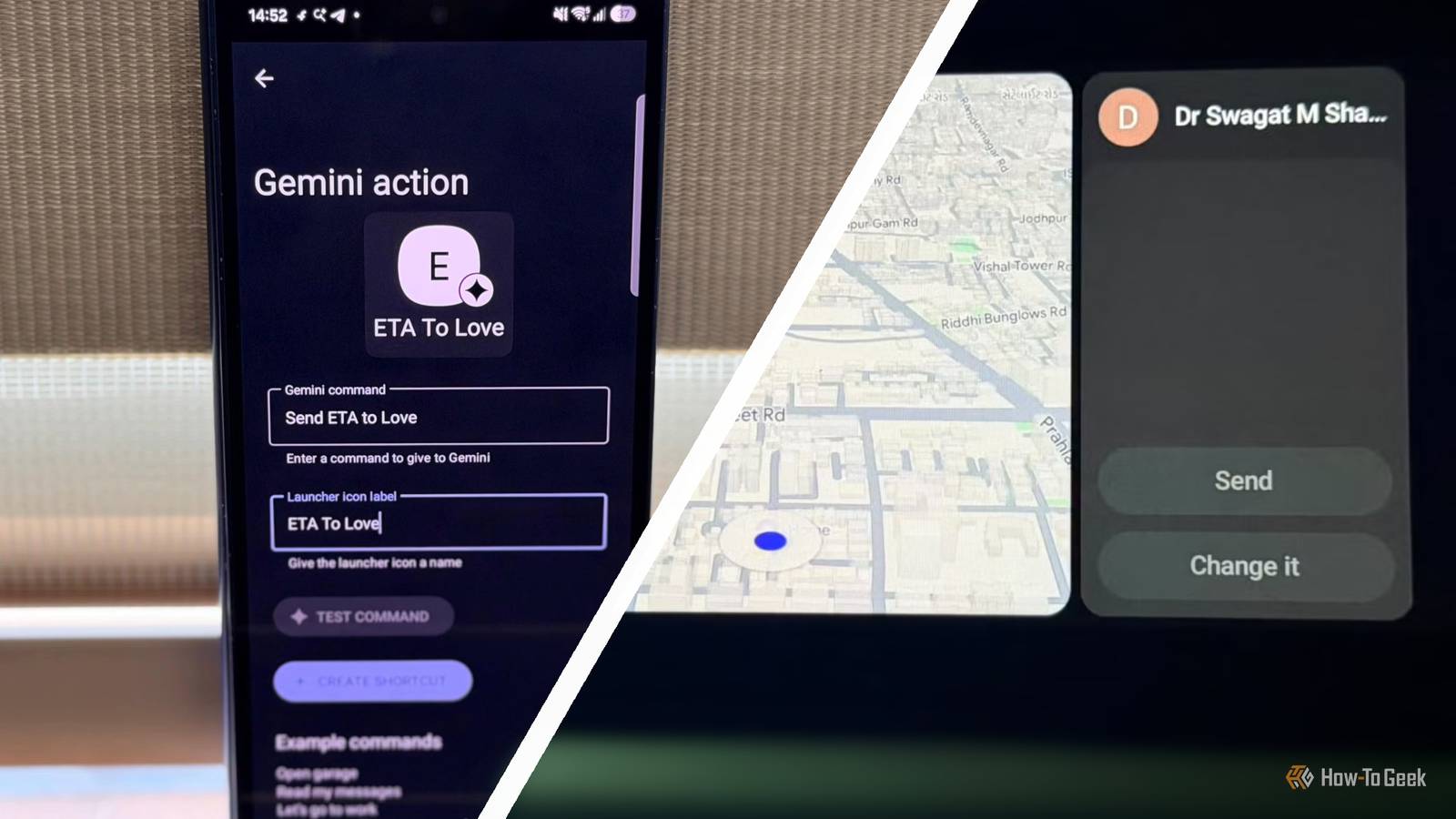
Published Oct 28, 2026, 1:00 PM EDT A Computer Engineer turned tech-savvy. Sanya is part of the How to Geek team, and she covers Android, Samsung, Google, apps, and everyday technology, combining hands-on experience with thorough research. She helps readers understand technology without getting lost in technical jargon. I use Android Auto almost every day, and a few things about it drive me absolutely nuts. My wireless connection drops out, message notifications interrupt my music, Gemini struggles with commands, and some apps I want aren’t even on the launcher. I used to put up with these annoyances because I thought that’s just how Android Auto works. Then I started looking for fixes, and I wish I’d done it sooner. Here are four Android Auto problems I fixed (or found ways to work around) that made my drives a lot more enjoyable. Android Auto wireless kept dropping out One minute, it works; the next, it’s gone I get irritated pretty quickly when Android Auto cuts out while Google Maps is guiding me through traffic. I rely on it for directions and Spotify, so a sudden disconnection means my music stops and I have to figure out what went wrong. I started exploring my Galaxy Z Fold 6’s settings to see if I could make the wireless connection more reliable. First, I opened Settings -> Connections -> Wi-Fi -> Intelligent Wi-Fi and switched off Switch to mobile data and Switch to better Wi-Fi networks. This prevented my phone from automatically jumping between network connections. I also checked that Power saving was disabled before heading out and removed battery restrictions for Android Auto. These tweaks gave me a few practical troubleshooting steps to try when the connection acts up. Now, instead of immediately blaming my car’s infotainment system, I know which phone settings to check first. Fun fact. I still carry a cable for emergencies because sometimes, the old-fashioned fix is a lifesaver. Message notifications kept interrupting my music Every message came with a soundtrack change I literally move my body to any Justin Bieber song, but message notifications can ruin the whole vibe. Every time a message arrives, I feel cheated. I literally pause my music, especially when my daughter’s group starts discussing project ideas, so that I don’t miss the best part of my song. I found a simple fix in Android Auto settings. Under message notifications, I turned off Play message chime to stop the extra notification sound. I also checked Show group conversation, which controls whether group conversations appear, and Show first line of message, which controls message previews. If you want fewer interruptions altogether, you can turn off Show message notifications. If you still want message alerts, you can keep notifications enabled and mute the especially noisy conversation. You can also ask Gemini to read messages aloud when it’s safe, rather than checking your phone. I prefer keeping the chime off. My messages can wait a few minutes; my favorite song can’t. Gemini couldn’t handle my multi-app commands I gave a little training first Taking my parents along for a drive means listening to a running commentary on how I should drive, where I should turn, and what I should do next in life. I don’t need Gemini adding to the chaos by misunderstanding my commands, either. So, I started creating custom Gemini Actions for things I do regularly. I have shortcuts for sending my ETA to my husband on Messages and creating a grocery list in Google Keep before my Saturday errands. To make common requests easier, I checked Settings -> Connected devices -> Android Auto -> Customize launcher -> Add a shortcut to the launcher on my Fold 6. If you see A Gemini action, you can create a shortcut by entering a command and giving it a name. Now, I can trigger these saved actions with a single tap on my Android Auto dashboard. It saves me from wrestling with Gemini when I should be watching the road and listening to my parents' advice. Use the Test Command option to check your action while parked or connected to Android Auto before relying on it during a drive. Android Auto hides the apps I want I shouldn’t have to hunt for apps Not every app you install on your phone automatically appears on your Android Auto dashboard. Your car only shows apps that support Android Auto, so you can’t add everything you want. On my Fold 6, I went to Android Auto settings and searched for Customize launcher to check which apps were available. I could also rearrange them to keep my favorites near the top. If an app you use regularly is missing, open it on your phone first and check the launcher again. Also, Samsung’s battery settings can put unused apps to sleep, so check whether that’s happening to an app you need. Once I’ve made my changes, I reconnect Android Auto and check the launcher. At least my favorite apps won’t be buried at the bottom anymore. I drive more and sing along to my favorite songs Of course, you might have other Android Auto problems that drive you crazy, but if these four sound familiar, you’ve got a few fixes to try. Not every issue has a perfect solution, and some things still need Google to fix. I just don’t want to spend every drive troubleshooting my car’s screen. I really want to enjoy Justin Bieber’s new song.
I thought I had to live with these 4 Android Auto problems (I was wrong)
Full Article
Original Source
Read the full article at Howtogeek →KhanList aggregates and links to publicly available news content. We do not host full articles from third-party sources. Always verify important information with original sources.