
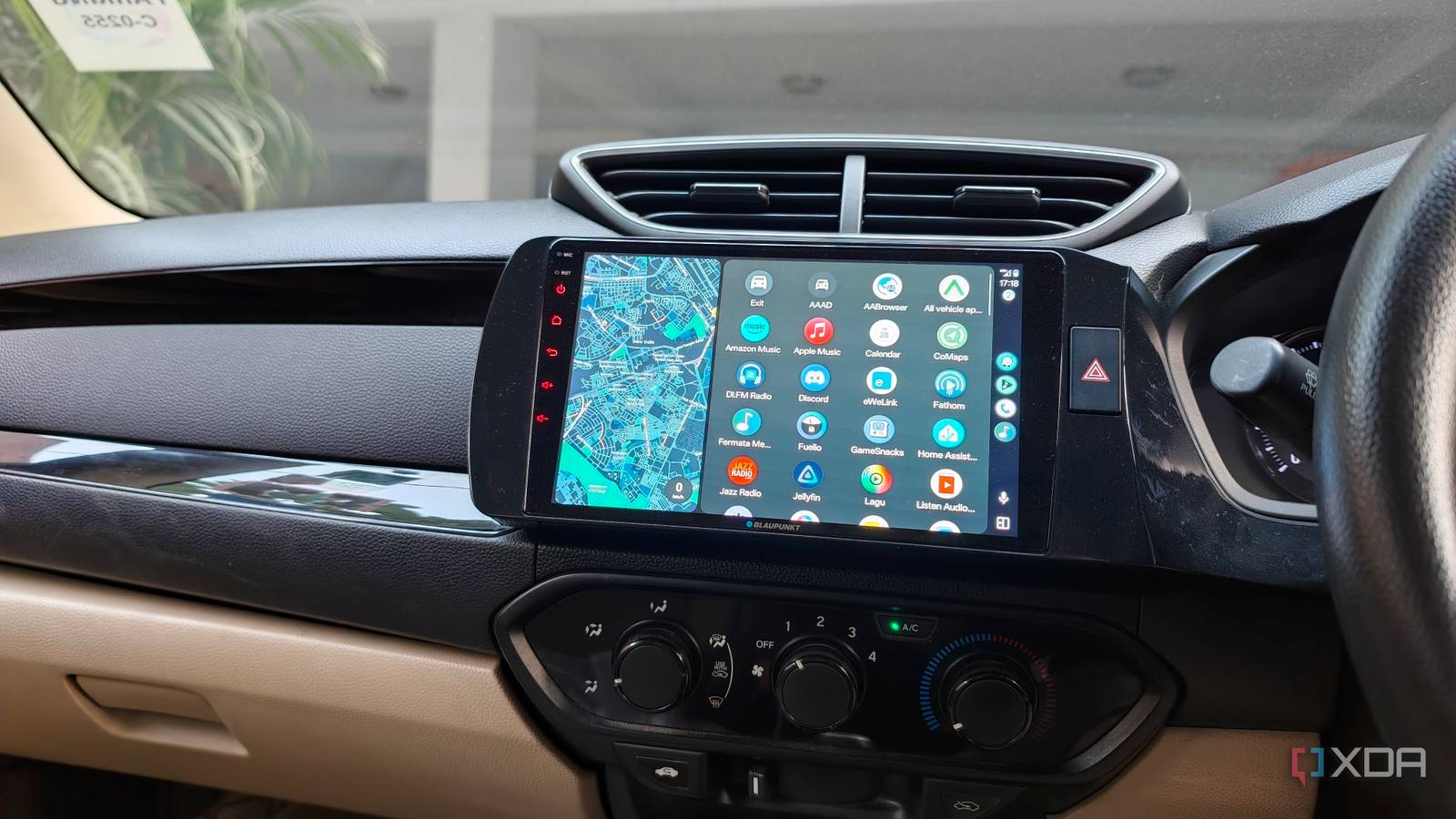
Published Oct 28, 2026, 3:00 PM EDT Dhruv Bhutani has been writing about consumer technology since 2008, offering deep insights into the personal technology landscape through features and opinion pieces. He writes for XDA-Developers, where he focuses on topics like productivity, networking, self-hosting, and more. Over the years, his work has also appeared in leading publications such as Android Police, Android Authority, CNET, PCMag, and more. Outside of his professional work, Dhruv is an avid fan of horror media spanning films and literature, enjoys fitness activities, collects vinyl records, and plays the guitar. Android Auto is essential for everyday navigation, streaming music in the car, and taking calls. It improves not just convenience, but in-car safety as well. But some default settings can still be a bit more distracting than they should be. Whether it's messages interrupting navigation or the interface getting a bit more cluttered than I'd like, there's always room for improvement. Turns out, Android Auto gives you the tools to make those changes. I've found that turning off a few of these features makes Android Auto much better suited to how I drive. I'm not losing any features here and still have access to navigation, calls, and all my favorite apps. But the fewer interruptions and more control go a long way towards improving my driving experience. Here are four Android Auto settings that I'd recommend changing the next time you're in your car. Turn off messaging notifications I prefer fewer message notifications while driving My phone is the center of my digital life, which means that it also receives notifications all day long that can be pretty disruptive while driving. Most of these messages don't need an immediate response, but they still pull my attention off the road while I'm driving. Android Auto can, obviously, display incoming message notifications on the car's screen. While this can be useful in many situations, in my city's stop-and-go traffic, it is more distracting than helpful. I've found it easier to stay focused on the road by turning off the Show Message Notifications setting. Go to Settings on your phone, search for Android Auto, scroll down, and turn off Show Message Notifications. The obvious trade-off is that I no longer get a message when a notification arrives. But when on the road, that's not a big miss, and I can always open the messaging app and check for incoming texts there when I'm parked. Turn off the conversation chime Why message alerts interrupt my driving experience Visual interruptions are one thing, but Android Auto also plays an audible alert anytime a message comes in. To me, this is just as distracting, because it makes me think something needs my attention. Not only that, but these conversation chimes also interrupt when I'm listening to music, a podcast, or an audiobook. When I say I don't want communication-related interruptions, I mean all kinds. That's why I've also disabled the conversation chime. To change it, just open Android Auto's Settings on your phone and look for the Conversation Chime option under Messaging Settings. Disable it to turn off the alert. The available options may vary depending on your software version. Turn off automatic music playback I prefer curating my driving playlist Music is a huge part of my driving ritual. It involves pulling up the right playlist for the right mood. With autumn coming in, my current rotation includes a selection of Black Metal classics. Android Auto, on the other hand, starts playing whatever was last playing. This could be a random song on YouTube or Spotify. It's disruptive, but more than that, just plain annoying. I get why some people like the feature. If you just want something to play with when you start your car, it works well enough, but it's not for me. Disabling automatic playback gives me that choice. Android Auto obviously still lets me open my streaming app of choice, or even a local-music app like Symfonium. I can then select whatever I want to queue up and have it in my car's infotainment system. It's as easy as that. As it turns out, changing the setting is pretty simple. Open Android Auto's Settings on your phone and scroll to the Start Music Automatically option. Next, toggle it Off. In most cases, that switches off the behavior. If your car still resumes music playback, your infotainment system might have its own music-resume setting you can toggle off. Why I prefer a less cluttered Android Auto screen Credit: Android Auto can display quick controls in the taskbar that let you access media and navigation functions without leaving the app you're in. It's useful, but personally, I prefer a less cluttered interface. More importantly, my car's infotainment system is relatively small compared to the 14-inch or larger displays some cars come with these days. For me, the taskbar is already enough. It gives you access to apps and other controls, and I rarely need extra widgets. If you don't mind dipping into the app drawer to switch between apps, turning off the Show Taskbar Widgets option can be a good trade-off for a simpler interface. It's a matter of personal preference, of course. The setting isn't hard to find. Just tap the Show Taskbar Widgets option under Android Auto Settings, and you're good to go. If you miss the widgets, it's easy to get them back. Customize Android Auto to suit your driving habits Android Auto's beauty is its flexibility. It's not that I don't appreciate all these features. It's just that they don't fit in with how I use my phone. Being able to turn off the features I don't like is a big part of why I enjoy using Android Auto. None of these changes will be essential to every driver. But for me, the best setup stays focused on driving, and turning off these options lets me build a setup geared specifically toward that.
I turned off these 4 Android Auto settings, and my daily drives got a whole lot better
Full Article
Original Source
Read the full article at Xda-developers →KhanList aggregates and links to publicly available news content. We do not host full articles from third-party sources. Always verify important information with original sources.