
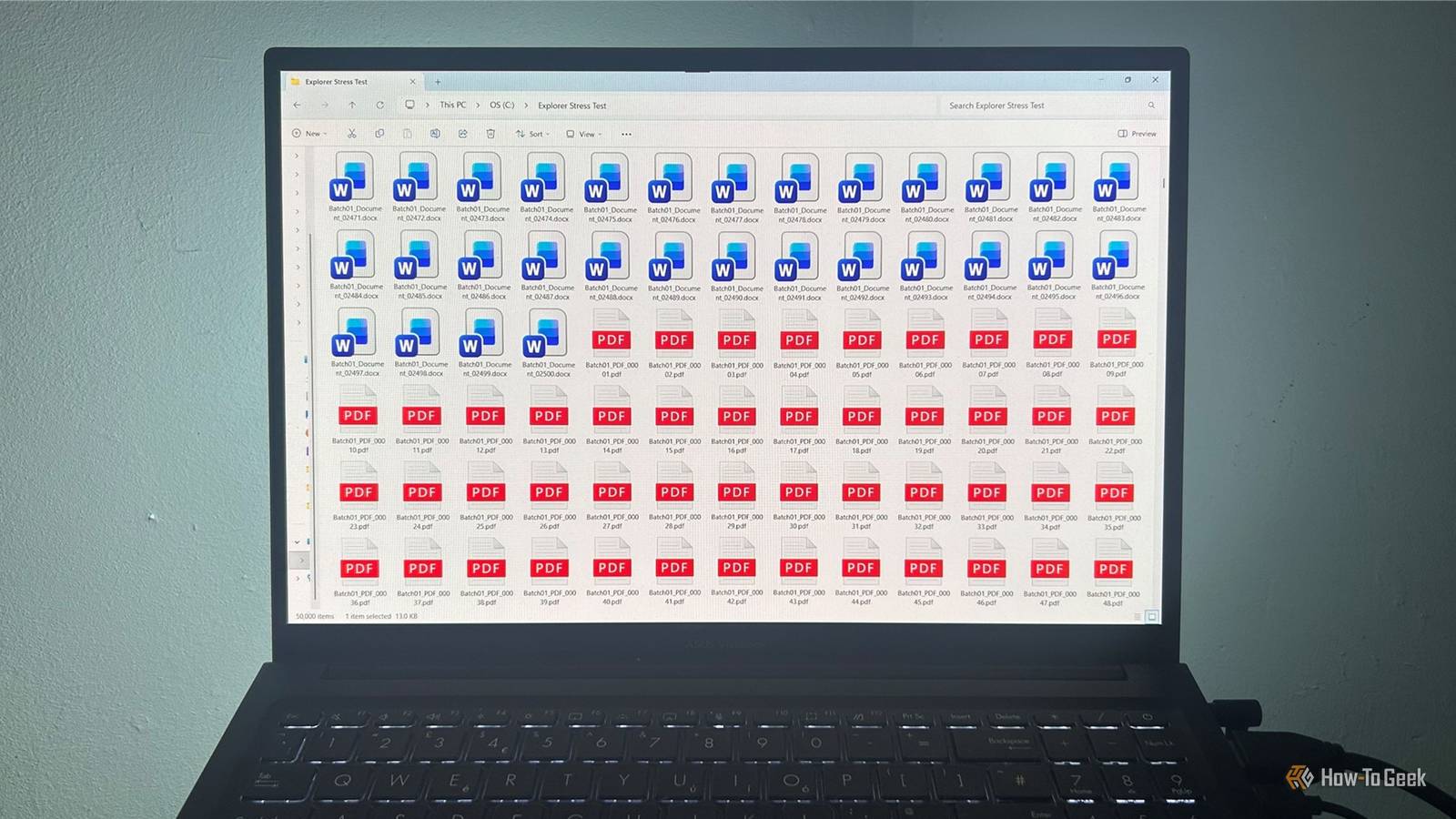
Published Nov 2, 2026, 4:00 PM EST Tony Phillips is a senior author at How-To Geek with over a decade of experience working with documents, data, and digital productivity tools. Holding a dual-honors degree in Linguistics and Hispanic Studies, he combines technical expertise with a passion for making complex topics easy to understand. Before joining How-To Geek in 2024, Tony worked as a document producer, data manager, legal document specialist, and content creator. He has also proofread and edited more than 3 million words of academic and professional writing. While Tony specializes in Microsoft 365, particularly Excel, his interests extend far beyond Office. He enjoys testing software, exploring open-source projects, discovering useful companion apps, and finding ways to customize and optimize Windows. Whether he's building spreadsheets, evaluating new tools, or uncovering hidden features, Tony enjoys helping readers get more from their technology. Outside of tech, he enjoys spending time with his dog, watching football, astrophotography, gardening, and golf. Search online for ways to speed up Windows 11's File Explorer, and you'll find plenty of familiar advice: disable thumbnails, clear File Explorer history, switch to This PC, and turn off the Preview Pane. The same handful of recommendations kept appearing in troubleshooting guides, support articles, and forum discussions, so I decided to test them. What surprised me wasn't which tweak worked best. It was how little difference most of them made. The usual File Explorer fixes made surprisingly little difference I started with the housekeeping tweaks I started with the easier recommendations. Switching File Explorer's default opening location from Home to This PC didn't make it feel any faster. Both opened without a noticeable delay, and my measurements showed virtually identical results when opening the same test folder. I also cleared File Explorer history and disabled the option to show frequently used folders. Neither change produced an improvement I could detect. Even when I measured how quickly Explorer listed the contents of my test folder, the results were practically identical. Disabling useful File Explorer features didn't make it faster Thumbnails and the Preview Pane weren't slowing things down I tested thumbnails and the Preview Pane using a folder containing 53 realistic files, including 50 genuine photographs, two videos, and a PDF. With the default settings, the photographs appeared immediately, and selecting one displayed it in the Preview Pane. I then enabled "Always show icons, never thumbnails" in File Explorer's Folder Options. The photographs were replaced by generic file icons, and selecting a JPEG no longer displayed its image in the Preview Pane. But I couldn't detect any improvement in how quickly the folder opened or displayed its contents. I restored thumbnails and disabled the Preview Pane instead. The thumbnails continued appearing immediately, and the folder felt no more responsive. Both were easy to turn off, and neither bought me any speed in my test. I turned them back on. I couldn't find a slowdown, so I gave File Explorer 50,000 files Surely this would make it work harder By this point, I was starting to wonder whether I was asking the wrong question. Nothing I changed seemed to matter, so I stopped tweaking settings and raised the stakes by putting 50,000 files in a single folder: 12,500 Word documents, 12,500 Excel workbooks, 12,500 JPEG images, and 12,500 PDFs. I expected at least some hesitation when opening or navigating a folder that size. Instead, it opened immediately. Sorting, scrolling, switching to "Large" icons, and displaying thumbnails all stayed responsive. This wasn't a formal performance benchmark, and I tested it on a relatively powerful laptop with an SSD. The files also had unique names but reused the same underlying source documents and images. Still, I found it surprisingly hard to make Explorer struggle, even with 50,000 items in one folder. OneDrive wasn't noticeably slower than local storage The same files behaved much the same way Another piece of advice I kept running into was to move files out of OneDrive to make File Explorer more responsive. So I created matching folders on my PC and in OneDrive. Each contained 1,653 files, including documents, spreadsheets, photographs, and PDFs. I confirmed that the OneDrive files were fully synced and available locally, then compared the two folders. I couldn't detect a meaningful difference when opening them or displaying their contents, and my measurements backed that up. That doesn't mean OneDrive can never affect File Explorer performance. I didn't test online-only files or folders actively syncing. But with everything fully synced and stored locally, OneDrive wasn't a noticeable bottleneck on my PC. Windows Search complicated the investigation Indexing got in the way Searching the test folder was less straightforward than browsing it. At first, some searches failed to find files I knew were there. I discovered Windows was still indexing the folder, so I waited for it to finish before trying again. After that, exact filename searches consistently returned the correct file, and broader searches found the expected 10,000 matching filenames. File Explorer's visible search results still took a couple of seconds to appear, though. I couldn't conclude that Search was universally slow or that indexing caused a general Explorer performance problem. But it showed me that searching is a different challenge from simply opening and browsing folders. File Explorer advice needs to start with an actual problem Don't sacrifice useful features just because a guide tells you to I expected at least one tweak to emerge as a clear winner. None did. Most made no noticeable difference on my PC, while disabling thumbnails and the Preview Pane took away features I wanted to keep. Even my 50,000-file test couldn't reveal the slowdown I was expecting. That doesn't mean these recommendations are useless for everyone. A PC with different hardware, a different workload, or a particular problem might benefit from some of them. The real lesson wasn't finding a winning tweak If your File Explorer genuinely feels slow, I'd start by figuring out where the slowdown happens. Is it opening folders? Searching for files? Loading thumbnails? Syncing OneDrive content? The fixes I tested are often presented as universal solutions, but my results suggest they're better thought of as tools for specific problems. Ultimately, the most useful thing I learned wasn't which tweak worked best. I went looking for the best File Explorer fix and ended up questioning whether I needed one at all.
I tested the File Explorer fixes everyone recommends. Most weren't worth the trade-off
Full Article
Original Source
Read the full article at Howtogeek →KhanList aggregates and links to publicly available news content. We do not host full articles from third-party sources. Always verify important information with original sources.